
Your video call is breaking up, the game is rubber-banding, and a streaming app is staring back at you with a buffering wheel. You open a bandwidth speed test, wait for the gauge to finish, and see a big download number that looks respectable. Then the call glitches again five minutes later.
That result isn't useless, but it isn't a verdict on your internet plan either. It captures performance between one device and one test server under particular conditions. A useful diagnosis needs more than peak throughput. You need download, upload, latency, jitter, and packet loss, compared across wired and wireless paths and repeated at different times.
Why Most Speed Test Results Mislead You
A customer can run a bandwidth speed test beside the router, see an excellent download result, then move to the back bedroom and watch a video call fail. The test answered a narrow question: how quickly one device moved data to or from one server during a short window. The Federal Communications Commission defines a speed test as a single download or upload measurement lasting 10 to 15 seconds between a consumer premise and a designated remote server, as described in its fixed-broadband measurement methodology.
That measurement is useful, but the path matters. Wi-Fi interference, room distance, router load, cloud synchronization, VPN overhead, server distance, and evening congestion can change the outcome. A phone on Wi-Fi may perform very differently from a laptop connected by Ethernet, even with the same broadband plan.
The number doesn't describe the whole experience
Download speed measures how much data arrived during the transfer. Upload speed measures traffic leaving your home. Neither result, by itself, shows whether voice packets arrived evenly, whether an upload filled the router's queue, whether latency rose under load, or whether packets were lost. A line can produce a strong download number and still deliver choppy calls, delayed game responses, or stalled uploads.
The FCC's monitoring approach reflects that broader test battery. Its fixed-broadband program uses repeated measurements from equipment in representative homes, recording packet counts, average round-trip time, and packet loss alongside throughput. It also reports an 80/80 metric, which measures the minimum share of advertised speed achieved by at least 80% of subscribers for at least 80% of peak-period time.
Field rule: One poor result shows that something happened. Repeated results under matching conditions show whether the problem is persistent.
A stable result that matches the task matters more than the highest number the gauge can display. Remote work depends on clean upload traffic and predictable latency. Gaming exposes jitter and packet loss quickly. A busy household needs a connection that remains usable while several people share it.
Compare wired and wireless results, then repeat the battery at different times. If Ethernet results remain poor, or loaded latency and loss stay high, contact the ISP. If Ethernet is healthy but Wi-Fi fails in one room, fix the home network first.
Setting Up a Test That Actually Measures Your Connection
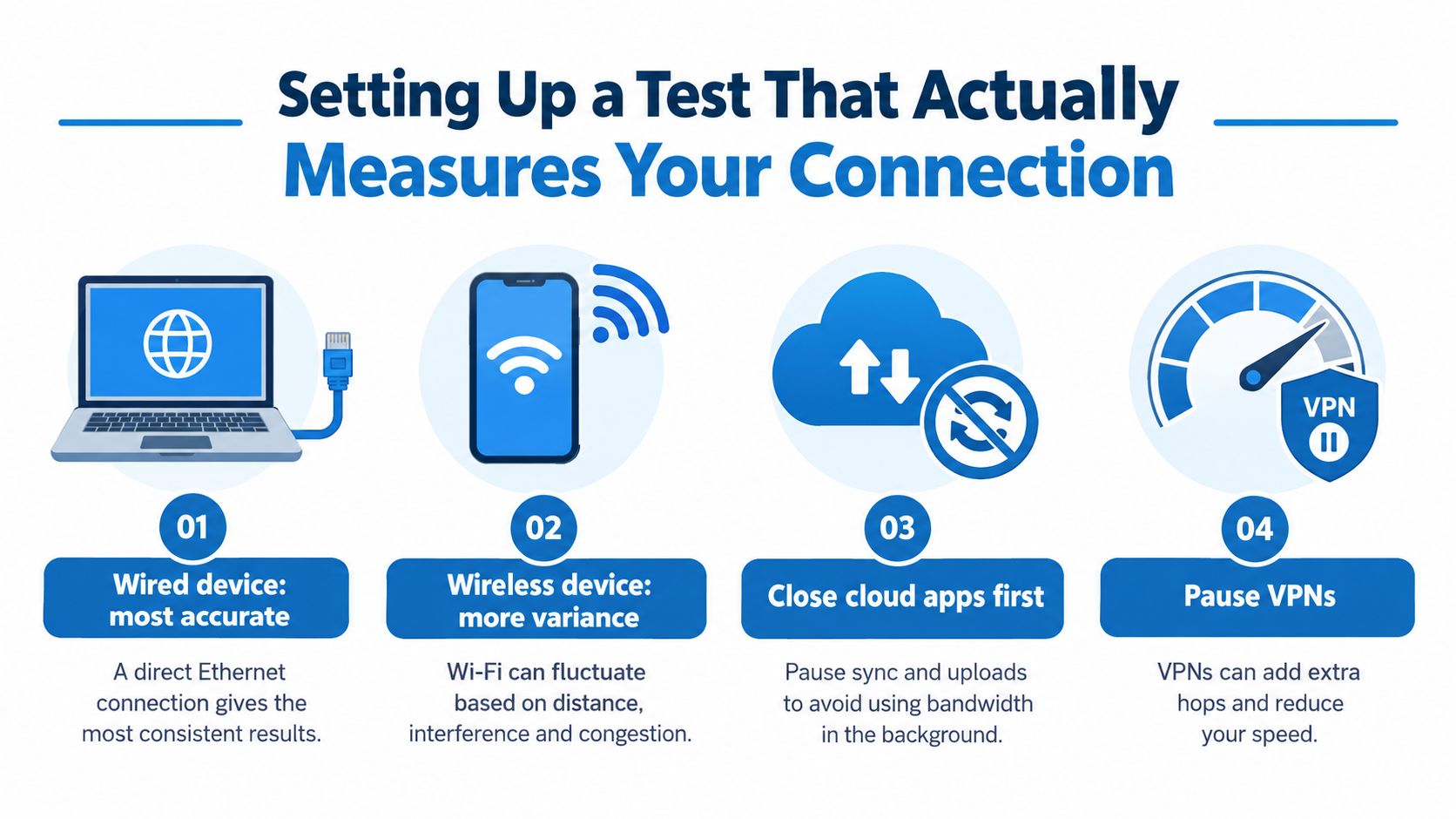
Start by removing the variables you can control. Use a laptop or desktop connected to the router with Ethernet when you want to assess the access connection. A phone over Wi-Fi is useful for checking the room where you use the service, but it isn't the cleanest way to judge the fiber or cable link itself.
Pause cloud drives, operating-system downloads, game updates, streaming video, large file transfers, and other active sessions. Disconnect or pause a VPN for the baseline run, unless the VPN is the specific service you're troubleshooting. The USAC performance-measurement guidance likewise recommends isolating the test device, preferably with wired Ethernet, and stopping background traffic, VPNs, cloud synchronization, and streaming before measuring download and upload performance.
Choose the path before you choose the button
Pick a test server that is geographically appropriate and use the same server when comparing runs where possible. A distant or busy server can become the limiting factor, making your access line look worse than it is. If you're testing a mesh system, first connect to the main router or gateway. A satellite hop adds another wireless path and can hide the performance of the incoming service.
Run separate download and upload measurements for roughly 10 to 15 seconds, then repeat rather than trusting the first result. Keep the conditions visible in your notes:
Record for every run: device, Ethernet or Wi-Fi, Wi-Fi band if applicable, test server, time of day, and whether other traffic was active.
That log turns “the internet feels slow” into something support staff can investigate. It also lets you compare a clean wired baseline with the experience in the kitchen, office, bedroom, or workshop where the problem occurs.
Test the home network as well as the service
A wired run answers, “How is the connection reaching my router and device?” A wireless run answers, “How does this room and device experience the network?” You need both. A large gap between them points toward Wi-Fi coverage, interference, placement, device capability, or mesh behavior rather than automatically proving an ISP fault.
Don't move the router, switch bands, or reboot equipment between every comparison run. Change one variable at a time. Otherwise, you'll collect different numbers without learning which change caused them.
What Download, Upload, Latency, and Packet Loss Really Mean
Download speed is the rate at which data reaches you. It affects large downloads, software updates, web assets, and the amount of streaming capacity available to the household. Upload speed is the rate at which data leaves your premises, and that direction supports video calls, cloud backups, livestreams, security cameras, large-file transfers, and VoIP, as explained in the German regulator's broadband measurement report.
Latency measures responsiveness, the round-trip time between your device and the test server. Jitter describes variation in that response time. A low but unstable result can feel worse than a slightly higher result that stays predictable. Packet loss means some packets don't arrive successfully, which can cause broken audio, frozen video, retransmissions, or a game session that drops.
| Metric | What it measures | What it breaks first |
|---|---|---|
| Download | Data arriving at your device | Streaming, downloads, page loading |
| Upload | Data leaving your premises | Calls, backups, cameras, livestreams |
| Latency | Round-trip responsiveness | Gaming, VPN interaction, call delay |
| Jitter | Variation in responsiveness | Voice breakup, unstable video |
| Packet loss | Packets that fail to arrive | Frozen frames, missing audio, dropped sessions |
Throughput isn't responsiveness
A high download result won't rescue a call if the router builds a long queue whenever someone uploads a file. That distinction is why you should compare idle latency with latency during download and upload activity. Test tools that report only the large Mbps figure can miss the condition that users feel.
The same fiber service can feel excellent on a wired desktop and frustrating on a distant wireless device. The service tier hasn't changed. The path, radio conditions, device, and traffic mix have.
People working across restrictive networks or traveling may also need to evaluate how tunneling affects responsiveness. If that applies to you, a practical guide to top VPNs that work in China can help you assess VPN choices separately from your baseline connection. Test with and without the VPN so you don't mistake encryption or routing overhead for an access-line fault.
Why a Single Connection Can Underreport a Fast Fiber Line
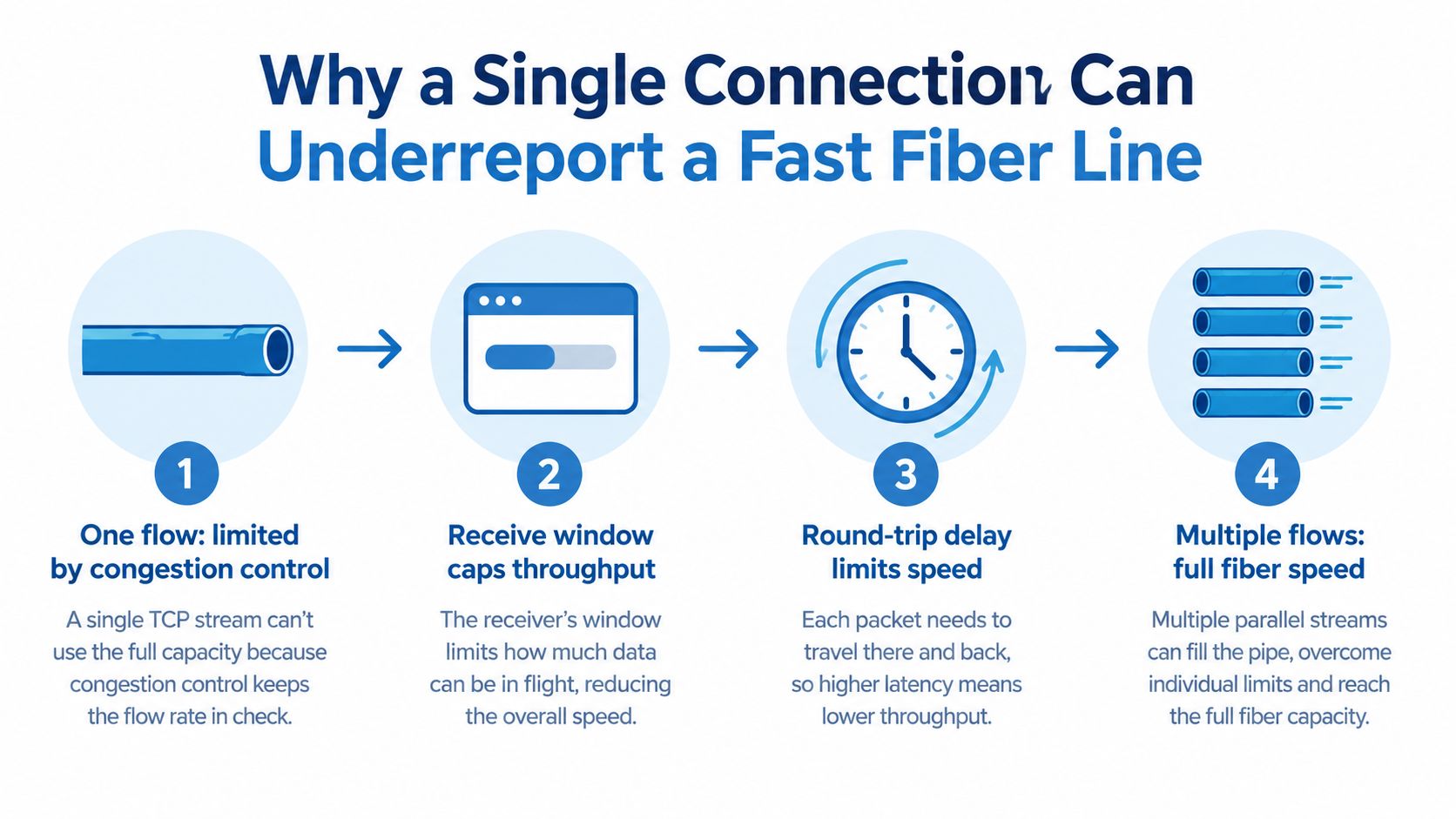
A single test flow isn't always strong enough to fill a fast fiber link. One TCP connection can be limited by congestion control, receive-window behavior, or the round-trip delay between your device and the server. The result may show the performance of that one flow rather than the capacity available to the connection as a whole.
One flow versus many
Modern test engines address this by warming the connection, increasing parallel connections, and sometimes using multiple servers. According to Ookla's speed-test methodology, a capable engine may use parallel connections and multiple servers to saturate links up to 10 Gbps. That approach measures available capacity more reliably than relying on one TCP flow.
The distinction is especially important on symmetrical fiber, where upload and download capacity can both be high. A browser test that opens only one stream may under-report both directions, while a multi-connection test can expose what the line can deliver when the engine is designed to use it.
The opposite mistake is assuming that the highest displayed rate is automatically the truth. Excessive parallelism can overflow buffers, increase packet drops, and trigger congestion-control reductions. A good test records the method, not just the headline.
Useful details include:
- Connection type: Wired Ethernet or wireless, including the Wi-Fi band.
- Test design: Single-connection and multi-connection results where available.
- Server path: The selected server and its location.
- Load condition: Idle network versus simultaneous download or upload.
- Consistency: Whether repeated runs produce a similar range.
A fast peak with rising packet loss isn't a clean win. For work and play, sustained performance with controlled loaded latency is more valuable than a brief gauge maximum.
Watch the connection under load
Run one test with the network idle, then another while a controlled upload or download is active. Compare latency before and during the transfer. If responsiveness deteriorates sharply while throughput remains high, the queue inside the router or access path may be the underlying problem.
That loaded comparison explains why a connection can pass a capacity check yet still feel poor during a call. The goal isn't to punish the network with unlimited traffic. It's to learn whether ordinary household activity causes a disproportionate responsiveness penalty.
How Often to Test and What Counts as Consistent
A single bandwidth speed test can catch a problem, but it cannot show whether the problem is repeatable. Build a record from the same device, server, and method, then run a separate wireless test when you want to measure the room rather than the access line.
Use a schedule that exposes different conditions:
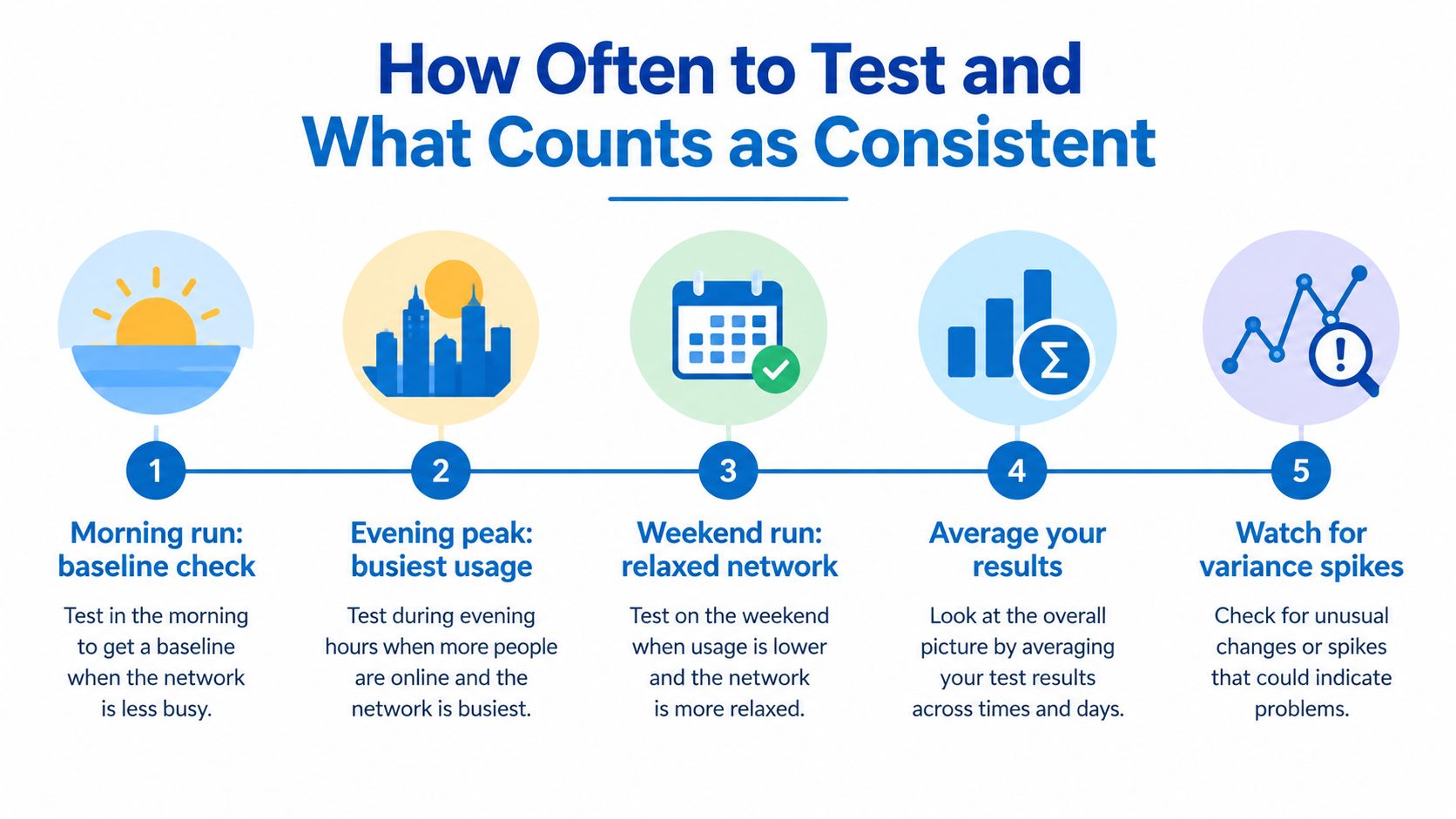
- Morning: Establish a relatively quiet baseline.
- Evening peak: Test during the FCC's stated peak window, 7 p.m. to 11 p.m., when household and access-network congestion is more likely.
- Weekend: Capture a different usage pattern, especially when family activity changes.
- Repeat: Run several tests under each condition. One reading is not a representative sample.
Keep the comparison honest
Save every individual result before calculating an average. The average can hide a poor evening, a latency spike, or intermittent packet loss. Review the range, the worst loaded latency, packet loss, and the relationship between upload and download results.
The FCC monitoring framework compares repeated peak and off-peak measurements, including throughput, packet counts, round-trip time, and loss. Its 80/80 framing can help when discussing performance with an ISP because it considers sustained results across subscribers and time rather than one unusually favorable run.
One weak run is noise. Three weak runs under the same conditions are a pattern worth investigating.
That is a troubleshooting rule, not a contract threshold. It prevents two common mistakes: calling support after a test affected by a background backup, or dismissing a recurring evening issue because one midday result looked fine.
Separate congestion from Wi-Fi variance
Run the same schedule over Ethernet whenever possible. If wired throughput drops at the same time that latency or packet loss worsens, the fault may sit upstream of the home wireless network. If Ethernet remains consistent but a phone or laptop changes by room, check coverage, interference, channel conditions, and equipment placement first.
A useful escalation rule is simple. Reproduce the issue on wired Ethernet across multiple comparable runs, including the busy period, before calling the ISP. If only wireless devices fail, fix the home network first.
Reading Upload Results Like a Power User
Download gets the marketing attention because most popular activities consume data. Upload determines how cleanly your household sends its own data back out, and modern homes send plenty: video calls, cloud files, livestreams, camera footage, hosted voice, and large project folders.
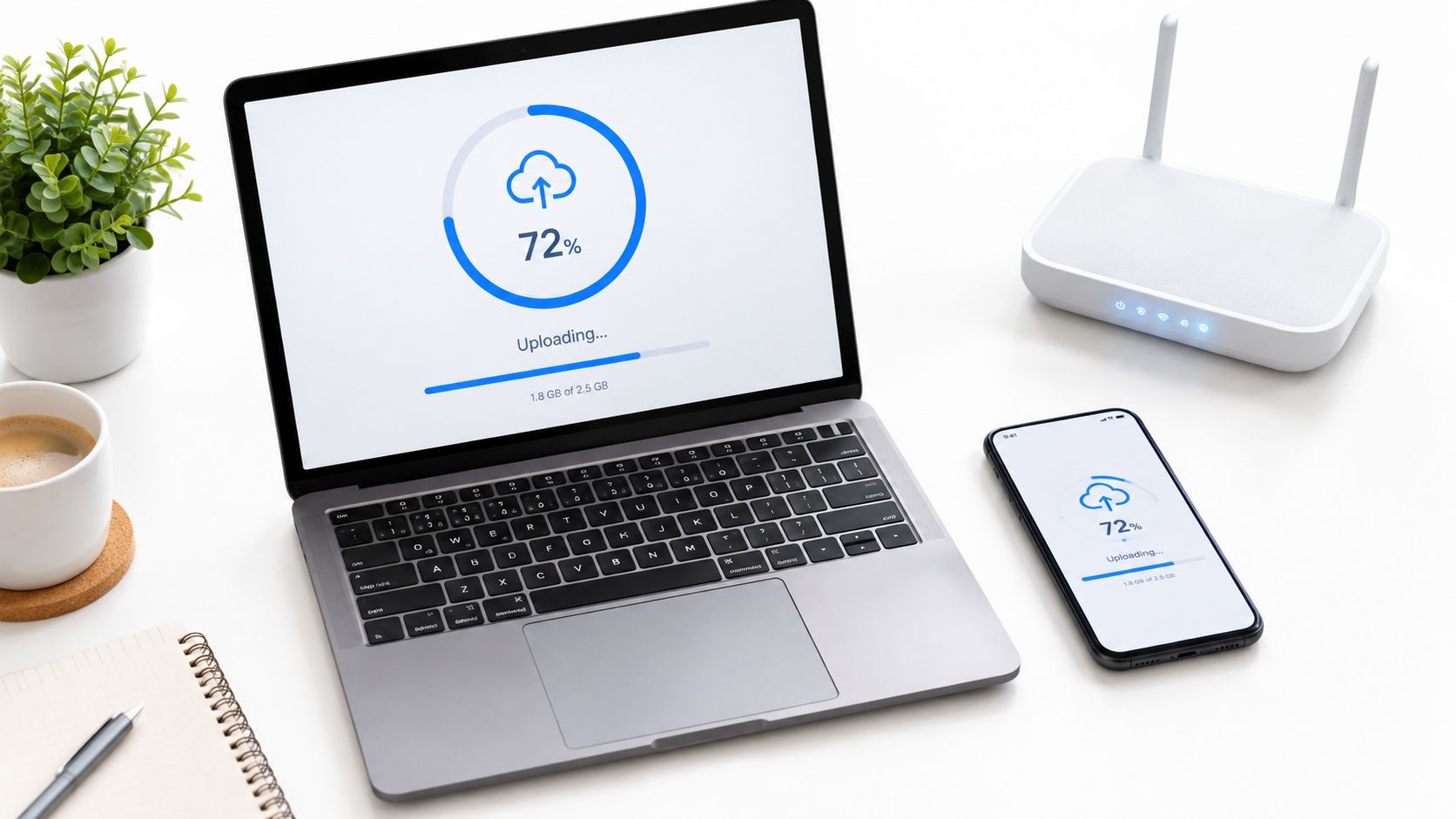
A strong upstream result gives you capacity, but it doesn't guarantee a clean experience while that capacity is busy. When an upload fills a queue, latency can rise for every device sharing the router. That behavior is commonly called bufferbloat, and it can make a call sound broken even while the upload gauge looks excellent.
Match upstream behavior to real work
One video call may work while several calls, a camera upload, cloud synchronization, and game traffic compete for the same upstream channel. The exact Mbps requirement depends on the applications and their quality settings, so don't reduce the question to a universal speed figure. Ask whether the connection remains responsive while the household is sending data.
Run an upload test with the network idle, then repeat while a controlled upload is active. Compare:
- Upload throughput: Does the result remain reasonably stable?
- Idle latency: How responsive is the connection before the transfer?
- Loaded latency: Does the queue create a noticeable delay?
- Jitter: Does response time fluctuate during the upload?
- Packet loss: Do packets disappear when upstream activity rises?
A burst that finishes quickly can still expose poor queue management. For a gamer, that may mean delayed actions. For a remote worker, it can mean clipped words and frozen frames. For a small business, the impact reaches hosted VoIP, cloud applications, and AI camera systems that continuously send traffic.
Symmetrical service helps because the upstream path isn't treated as an afterthought, but you still need to measure the local network. A wireless device, overloaded access point, or poorly configured router can limit upload performance before the fiber line becomes relevant.
When to Fix It Yourself and When to Call Premier Broadband
Start with a controlled home-network check. Reboot the optical network terminal and router if your equipment setup permits it, then test again over Ethernet. Compare that result with the wireless device and location where the problem occurs.
Fix the local path first
Use a short checklist, changing one item at a time:
- Compare bands: Test 2.4 GHz and 5 GHz separately when your equipment allows it. The bands trade coverage and capacity differently.
- Change position: Move closer to the access point and remove obvious physical obstructions.
- Bypass wireless: Plug the affected computer directly into the router with Ethernet.
- Inspect the path: Check power supplies, extensions, splitters, and connectors for damage or an unreliable connection.
- Retest under load: Run download and upload checks while watching latency, jitter, and packet loss.
If wired performance is steady but the wireless result changes sharply by room, the evidence points toward the in-home network. If both wired and wireless results show the same recurring decline at the same time, prepare an ISP support request.
Give support usable evidence
Share the service plan, address, test device, wired or wireless status, selected server, time of each run, and the observed download, upload, latency, jitter, and packet-loss results. Include whether the issue appears during evening use, while uploading, or only on one device. That information is far more useful than saying, “The speed test was bad.”
For a household, the escalation may focus on browsing, streaming, gaming, or calls. For a business, mention hosted VoIP, camera uploads, cloud applications, and any Managed Network Edge service. Voice problems deserve a test that examines jitter, latency, packet loss, and simulated call traffic, not download speed alone.
Premier Broadband provides fiber connectivity for homes and businesses, along with managed Wi-Fi, VoIP services, AI-driven camera systems, and Managed Network Edge options. Its support team can use the comparison between wired and wireless results to separate an access-network concern from an in-home or business-network issue.
Use the next problem as a measurement opportunity: run a clean Ethernet baseline, repeat it during the time the issue appears, then compare upload and loaded latency instead of saving only the largest number. If you need symmetrical fiber, VoIP, managed Wi-Fi, or business networking support, visit Premier Broadband and discuss the results with its team.