
For competitive gaming, aim for under 50 ms idle ping and under 100 ms loaded ping, but don't chase an unrealistic single-digit benchmark. Stable ping matters more than briefly hitting a very low number, especially when jitter and packet loss make every action inconsistent.
You've probably seen the familiar situation: the speed test looks excellent, the game reports a reasonable ping, and then someone starts uploading photos or streaming video. Your character begins rubber-banding during a firefight, voice chat breaks up, and the connection feels worse than the number suggested.
The reason is simple. Ping measures the round trip between your device and the game server, while download speed measures how much data the connection can move. A game can use relatively little bandwidth yet remain highly sensitive to delay, variation in delay, and lost packets. Research found that players noticed impairment at approximately 60 milliseconds in some first-person-shooter scenarios, while enjoyment generally declined above 100 milliseconds. In a Halo study, performance fell by about 50% when round-trip latency exceeded 150 milliseconds, and delays above 500 milliseconds combined with 4% packet loss were judged effectively unplayable. The academic gaming latency study shows why there isn't one perfect threshold for every genre.
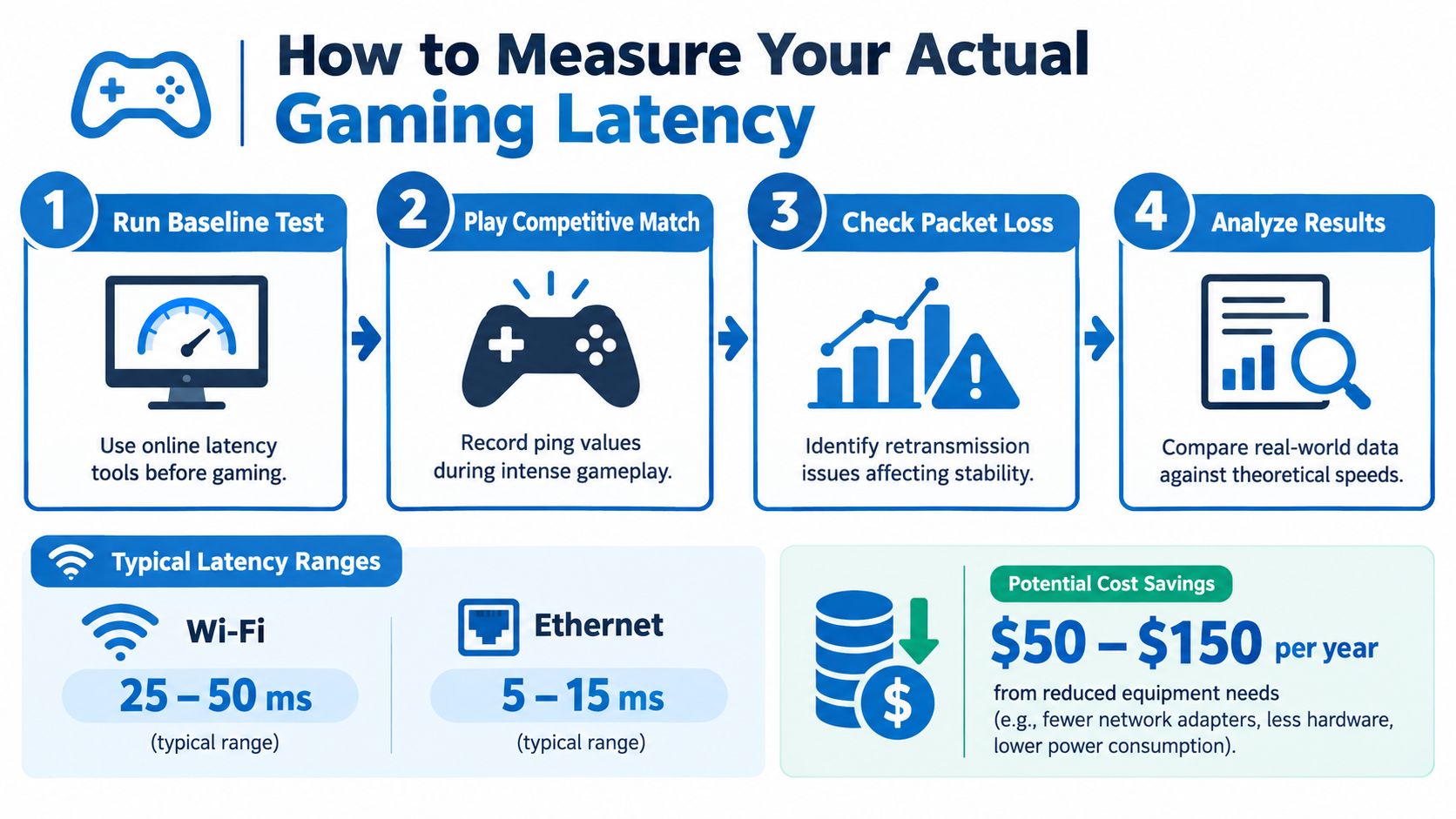
How to Measure Your Actual Gaming Latency
You see it all the time. A quick speed test looks fine, the match starts, then someone in the house begins a download or uploads a batch of photos and your aim suddenly feels late. That gap is what matters. Baseline ping tells you how the line behaves when it is quiet. Loaded ping shows what happens when the connection is busy, which is often the difference between a playable match and rubber-banding.
Start with a clean test. Pause launchers, cloud sync, streams, downloads, and anything else that can create background traffic. Then run a command-line ping or latency monitor for five seconds to two places: your home gateway and a sensible public target in the right region. The gateway result checks your local network segment. The public result adds your ISP path and Internet routing, so comparing the two helps you see whether the problem starts inside your home or farther out.
Record the median, the worst spike, jitter, and packet loss. One reply is noise, and one speed-test score is not a diagnosis. Ping is the round-trip time required for data to travel between your device and the game server and return, but your test target is still only a proxy for the actual match server. For competitive games, repeatable results matter more than a flashy speed number, the same idea behind when speed matters less than accuracy.
Test the connection under pressure
Keep those pings running while another device does a sustained download for roughly 10 seconds. Repeat with an upload, then test both directions at once. Wait about two seconds between runs so the queue can clear. Do the same sequence once when the house is quiet and again during the busy evening window, because many home networks only fall apart under real household load.
Read the pattern, not just the raw number:
- Gateway rises with load: your Wi-Fi link or router is probably queueing traffic locally.
- Public target rises while the gateway stays steady: the bottleneck is more likely your access link or the route beyond it.
- Spikes without sustained load: check for interference, packet loss, flaky hardware, or route instability.
- Low idle ping with high loaded ping: that usually points to bufferbloat, where full queues delay game packets.
An idle-to-loaded jump below about 5 ms is a good operational result. A jump of 50 ms or more points to a queueing problem that extra download speed alone may not solve. This bufferbloat testing walkthrough shows how easy it is to miss that issue if you only test the line at idle.
Run the same comparison on Ethernet and Wi-Fi, then keep the results in a simple note so you can spot patterns over time. If you manage multiple lines or want a central place to track connection details, a network analytics dashboard for broader connectivity tracking can help, but your own idle-versus-loaded ping results are still the measurement that matters most for gaming.
Why Wired Connections Beat Wireless Every Time
Run one cable from your router to your gaming device and you remove the noisiest hop in most home setups. That single change cuts out channel contention, interference from nearby devices, roaming behavior, and the retransmissions that show up as jitter during a match. It does not change how far away the game server is, but it usually makes your baseline ping steadier and gives you a cleaner reference when you compare idle versus loaded results.
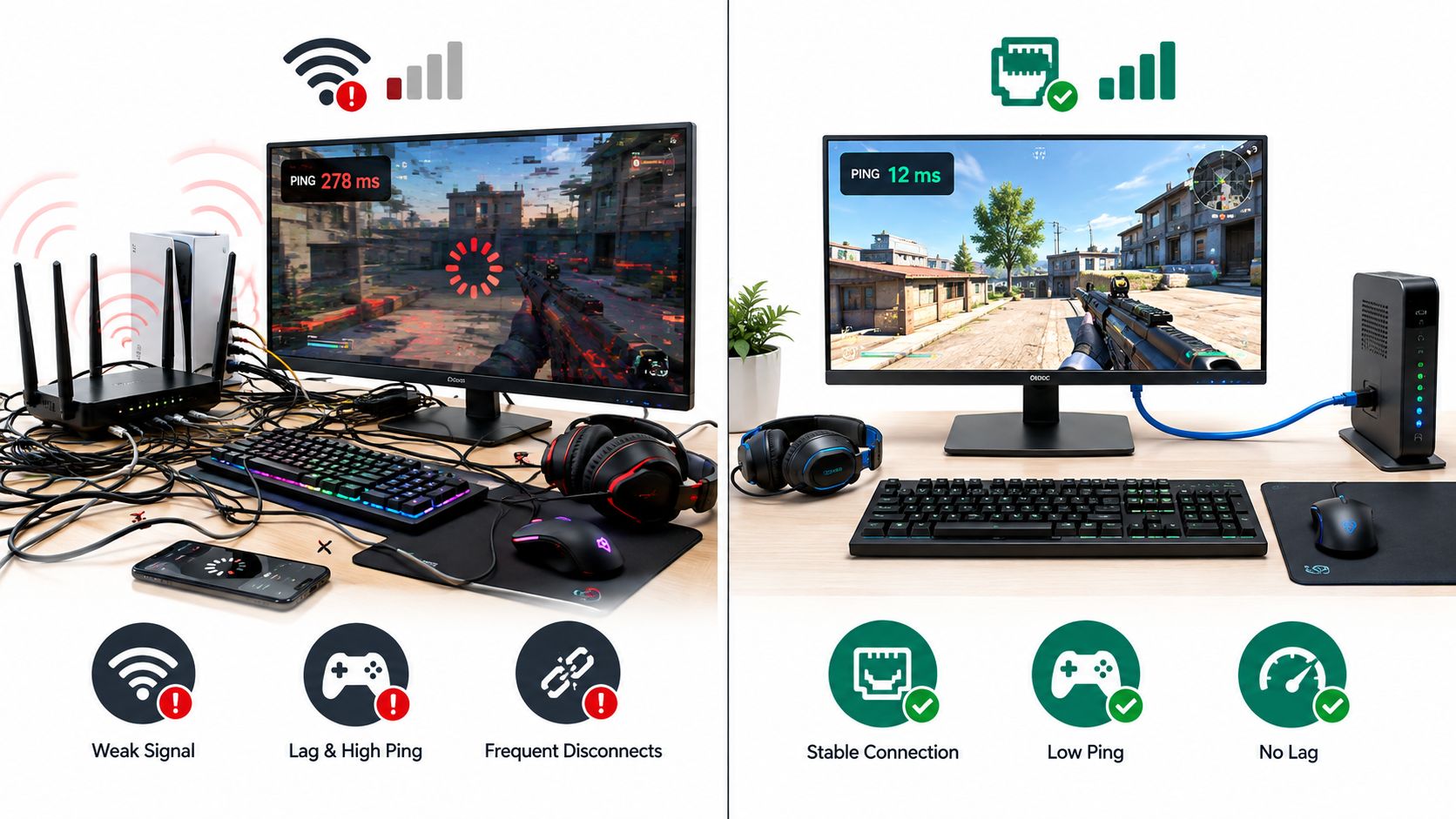
Use Ethernet for the device that matters most, whether that is a desktop, console, or gaming laptop with the right adapter. A short, undamaged CAT6 cable is a sensible pick. Fancy cable marketing does not lower ping on its own. The actual gain comes from replacing a variable wireless hop with a predictable wired one, so when loaded ping jumps, you know to look at queueing or the access link instead of guessing about Wi-Fi.
Remove local sources of jitter
Start with the physical path. Keep the router in an open, higher spot, not on the floor, in a cabinet, or buried behind electronics. If the gaming device is too far away for a clean run, add a nearby wired access point or switch instead of relying on a weak wireless bridge across the house. Secure the cable along the wall or under a floor cover so the setup stays practical.
If Ethernet is not possible, test Wi-Fi from the exact place you play. Compare 5 GHz and 6 GHz if your hardware supports both, and test with normal household activity happening, not only when the network is quiet. That is where the difference between baseline ping and loaded ping becomes obvious. Wi-Fi can look fine at idle, then fall apart when someone starts a stream, a backup, or a big download in the next room.
That behavior is well documented. Background traffic has been shown to affect game traffic latency and loss, and experimental IEEE 802.11g research found that packet loss at 3% or higher became noticeably damaging to game performance. The IEEE research paper is a good reminder to track packet loss alongside ping, especially on wireless.
Practical rule: Test Ethernet first, then compare wireless from the same room. Keep the wired result as your reference point.
Wired testing also makes troubleshooting faster. If Ethernet stays stable while Wi-Fi spikes, the problem is local and an ISP upgrade will not fix it. If both wired and wireless latency climb during the same upload or download load, check queue management, device activity, or the access network.
This video provides a visual grounding in the difference between wireless and wired home setups:
Changing DNS servers usually will not fix in-match lag. DNS handles name lookups before the session starts. Once the match is live, the path, the queues, and packet loss are what matter.
Setting Up QoS to Prioritize Game Traffic
QoS helps when the problem is local queueing under load. It does not lower the physical distance to the server, fix a bad route outside your ISP, or make an overloaded game server respond faster. What it can do is keep your own connection from sabotaging matches the moment someone starts a download, cloud sync, or upload in the background.
The target is loaded ping, not the pretty idle number.
Start with the results you already measured earlier. Use your real upload and download rates under household load, then set Smart Queue Management slightly below that actual bottleneck. Router menus vary, but the feature may appear as SQM, FQ-CoDel, CAKE, traffic shaping, adaptive QoS, or gaming priority. The label matters less than the outcome, which is shorter queues when the line gets busy.
Configure the setting without guessing
- Update the router first. Install stable firmware and save the current config before changing anything.
- Set the bottleneck rates. Enter measured real-world throughput, not the advertised plan speed, especially on upload.
- Enable Smart Queue Management. Pick the queue discipline your router supports and apply both upload and download limits.
- Prioritize the gaming device. A rule tied to your PC or console is easier to maintain than a fragile list of ports.
- Add application rules only if the game needs them. Use the publisher's support documentation, not random forum guesses.
- Retest under load. Repeat the same download, upload, and mixed-load tests and compare the results against your baseline.
Verification matters more than the toggle itself. After shaping is enabled, rerun the loaded test and watch what happens to latency at the gateway and at the public target. If the gateway figure stays flat while the public target carries the extra delay, the shaper is usually doing its job. If the gateway still climbs hard under load, the shaping rate is probably set above the bottleneck, or the router is running out of processing headroom.
| Setting | Recommended Value | Impact |
|---|---|---|
| Smart Queue Management | Enabled below the measured bottleneck rate | Keeps queues shorter and reduces loaded-ping spikes |
| Upload shaping | Based on the tested real-world upload rate | Protects gaming from photo backups and video uploads |
| Download shaping | Based on the tested real-world download rate | Limits queue growth during updates and streams |
| Device priority | Gaming PC or console | Makes the rule easier to verify and maintain |
| Automatic game detection | Optional, then validate | Convenient, but less reliable than testing the actual device |
Do not stack multiple QoS systems just because your router offers them. Running several classifiers at once can add overhead, reduce throughput, or make results harder to interpret. Change one setting at a time, recreate the same household load, and keep only the rules that reduce loaded ping and jitter in repeat tests.
In practice, upload shaping is often the first setting that cleans up gameplay. A single phone backup or a short burst of cloud upload can fill the upstream queue fast, and games feel that immediately. Download shaping still matters, especially during updates and streams, but upstream congestion is where many home setups fall apart first.
For broader workflow and activity management, Premier Broadband's Smart Lister AI is separate from router queue control, so it should not be treated as a substitute for SQM. The gaming fix still has to happen at the point where packets wait.
Choosing the Right ISP and Game Server Region
Your home network controls only part of the trip. Distance, interconnection, routing decisions, congestion, and the selected game server can dominate the final result. A faster plan can't erase propagation delay, and a gaming router can't force an overseas server to behave like a nearby one.
Compare server regions inside the game whenever the option exists. Record median ping, high spikes, jitter, and packet loss for each region at different times. The closest region usually deserves the first test, but the shortest geographic distance doesn't guarantee the cleanest route. A slightly farther region with a stable path can feel better than a nearby region that experiences congestion or packet loss.
Separate bandwidth from responsiveness
Historical network research places typical local-area-network latency, including wireless LAN latency, usually below 10 ms, while cable and asymmetric DSL access networks generally produce latency in the tens of milliseconds. Dial-up could add hundreds of milliseconds before traffic even crossed the wider Internet. Once traffic enters the Internet, typical latency within a continent is about 50 ms, with higher values across continents. The ACM study of gaming network latency illustrates why geography and routing matter alongside the access technology.
Fiber is attractive for gaming because it can provide consistent access performance and symmetrical upload and download capacity. Symmetry matters when someone is uploading a backup, broadcasting gameplay, or sending large files while you play. It doesn't guarantee a low ping to every server, but it can reduce the chance that your upstream queue becomes the household bottleneck.
A high-speed connection can download updates quickly and still deliver disappointing game responsiveness if the route to the server is distant or congested.
Evaluate an ISP with loaded tests, not just advertised throughput. Ask whether the service uses fiber to the premises, how managed Wi-Fi is handled, and whether the provider can investigate recurring evening congestion. Premier Broadband offers 100% fiber networks, symmetrical upload and download speeds, managed Wi-Fi, and residential plans that include a Gamer option. Those features address home capacity and consistency, but server distance and external routing remain separate factors.
For game-specific troubleshooting, an article such as Gamerplug's Apex lag guide can help you distinguish packet loss symptoms from ordinary high ping. That distinction matters because changing plans won't repair a local wireless retransmission problem, just as a new router won't change a distant server route.
Building a Real-World Testing Routine and Pre-Game Checklist
You queue for a ranked match, warm up for a few minutes, then the game suddenly feels heavy. Shots register late, movement gets sticky, and the scoreboard says your ping is only a little higher than usual. That is why a repeatable routine matters. It helps you separate normal baseline latency from loaded ping that falls apart when the house gets busy.
Keep the routine small enough to use
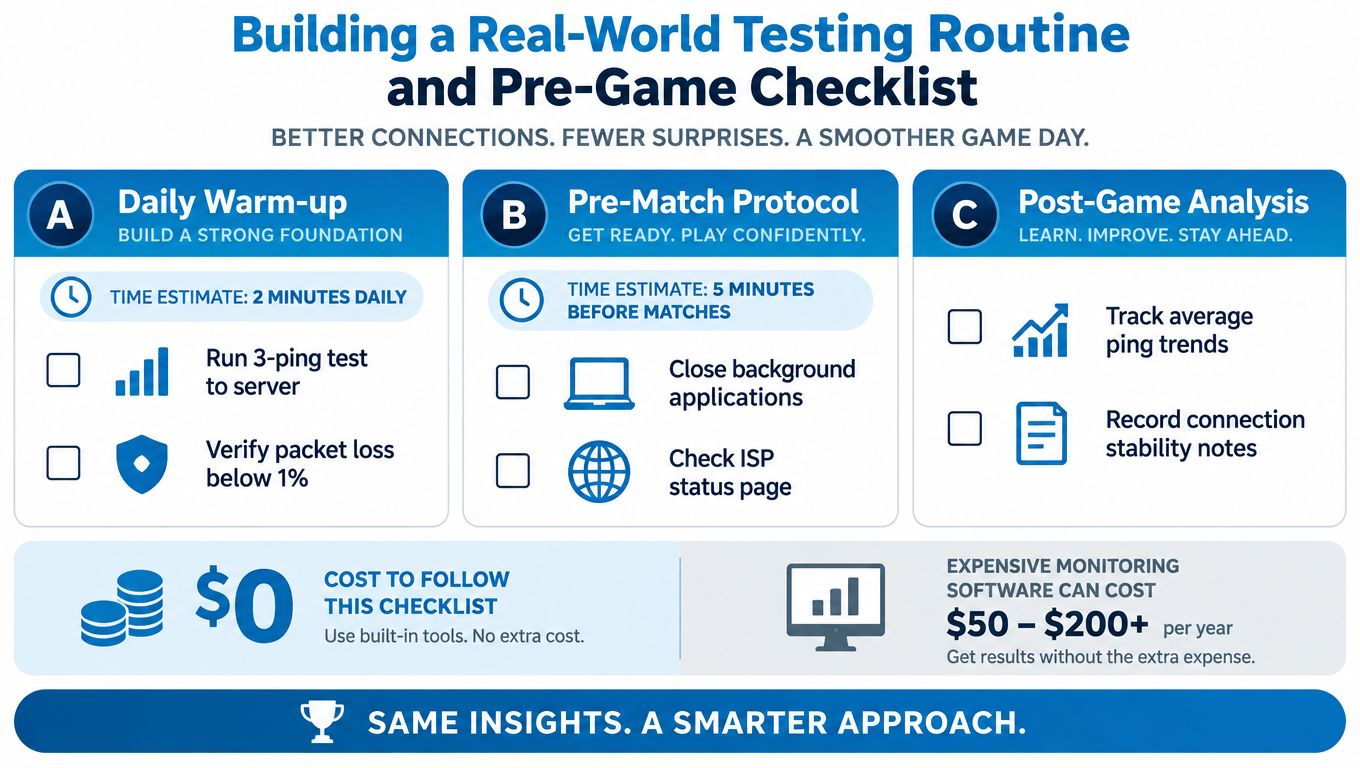
Keep the checklist short enough that you will run it before a serious session. Check that the gaming device is on Ethernet if you have it. Close launchers, cloud sync tools, update clients, and anything else that can create background traffic. Then run a quick test to a relevant game server or a stable public target, and watch for spikes, jitter, packet loss, and the gap between idle and loaded results instead of chasing one perfect number.
During play, log what the connection feels like and what the game reports. Note whether the problem showed up during a household upload, on Wi-Fi, in one server region, or at a specific time of day. A plain spreadsheet or notes app works fine.
- Daily baseline: Record idle latency, loaded latency, jitter, and packet loss.
- Before competitive play: Confirm the wired link, pause backups, and check the ISP status page.
- After a bad match: Save the server region and approximate time, then compare it with your normal record.
- After a network change: Repeat the same tests instead of trusting the first match.
When you test a fix, use the same routine every time. Run repeated 60-second sessions, keep the target and room consistent, and discard the warm-up passes so you are comparing steady-state behavior. I would rather trust ten boring runs than one lucky result, especially when bufferbloat or Wi-Fi interference only shows up under load.
Keep the log boring. Boring records reveal whether the fault follows the device, the room, the server region, the household load, or the time of day.
Your notes should lead to an action. If the log shows spikes only on the Wi-Fi side of the house, a coverage change or wired extension is the fix, not a new internet plan. If that points to local equipment, Premier Broadband's AC adapter information is a practical starting point for that hardware decision.
For a break between tests, gaming coverage on NeoTeo is fine reading. Keep that separate from your diagnostics. Entertainment is entertainment. Troubleshooting works best when each result is logged the same way, under the same conditions, until the pattern is obvious.
Common Low-Ping Myths That Waste Your Money
The most expensive mistake is buying equipment before identifying where the delay occurs. A gaming label on a router, cable, or broadband plan doesn't prove that the device will reduce your loaded ping.
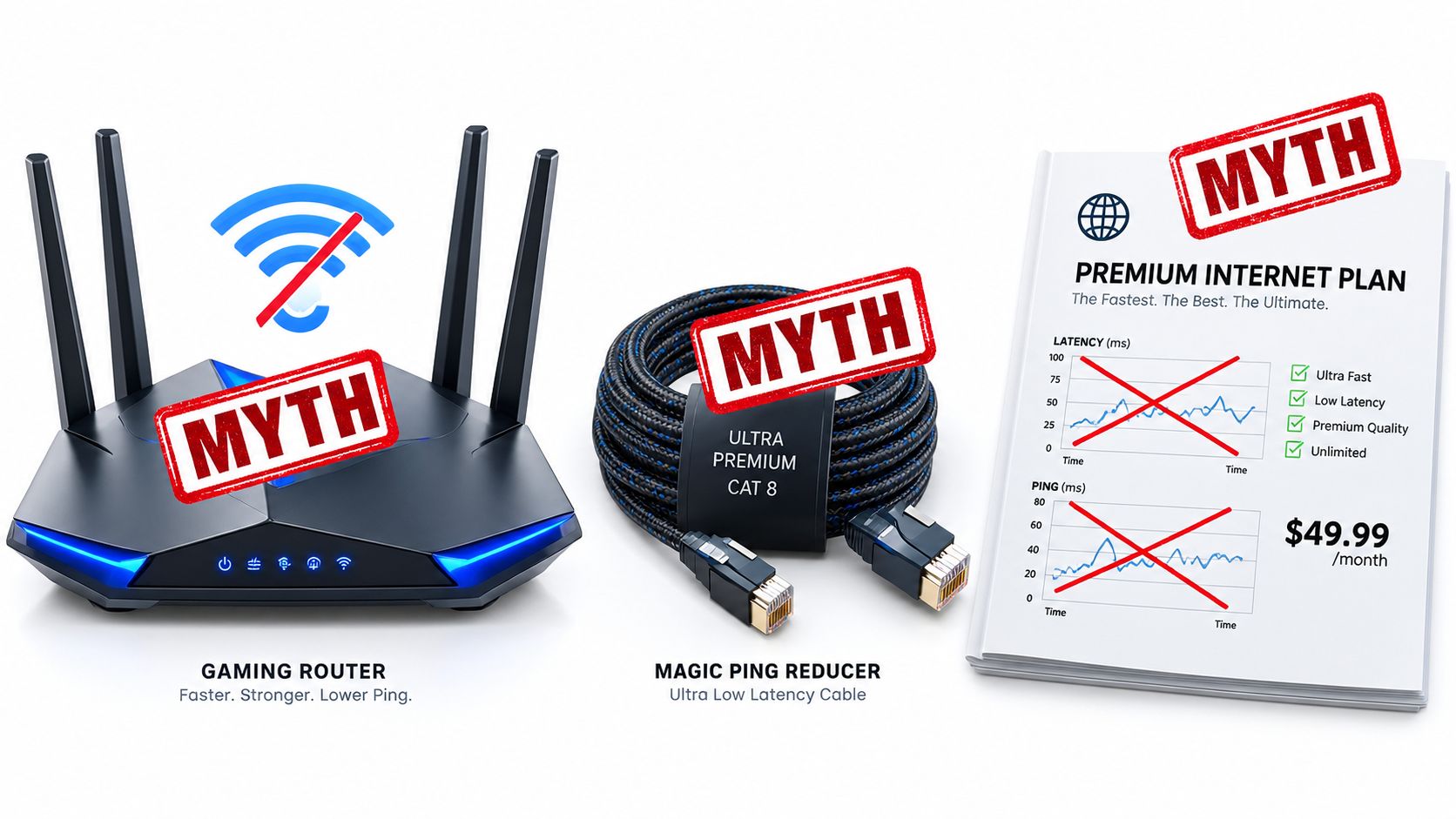
Myth one, a gaming router fixes every lag problem
A capable router can improve local queue management, prioritize devices, and provide better Wi-Fi coverage. It can't shorten the path to a distant server, repair ISP routing, or remove congestion outside your home. Buy one for a documented local limitation, not for the label.
Myth two, more download speed automatically means lower ping
Bandwidth and latency are different properties. More capacity can help when downloads or uploads fill the connection, but it won't necessarily change an idle route or a server's geographic distance. Research on Wi-Fi and online FPS gaming identified background traffic as a primary factor degrading latency and packet loss, which is why queue management can matter more than headline Mbps. The network congestion research supports testing under load before upgrading for gaming.
Myth three, DNS changes solve in-match lag
DNS can influence the lookup that happens before a session starts. It generally can't reduce the path latency of an established game connection, so a new resolver won't cure mid-match spikes caused by Wi-Fi contention, bufferbloat, packet loss, or server distance.
Premium Ethernet cables fall into the same category when the existing cable is already functioning correctly. Spend first on the changes your measurements support: Ethernet, better access-point placement, SQM, device management, or an ISP and server route that behave consistently under household load.
Putting It All Together for Consistent Low Ping for Gaming
A steady setup comes from an order of operations. Start by testing baseline ping with the network quiet, then test again while the house is doing the things that usually trigger complaints, cloud backups, uploads, streams, and downloads. That split between idle and loaded latency is what tells you whether the problem is server distance or congestion you can fix at home.
Then work the chain from closest to farthest. Put the main gaming device on Ethernet and rerun the same test. If baseline ping stays fine but loaded ping jumps, queue management is the likely bottleneck, so tune SQM or QoS and retest under the same load. If both wired and wireless devices struggle in the same match, stop shopping for local gear and compare server regions, routing behavior, and time-of-day performance instead.
Treat under 50 ms idle and under 100 ms loaded as pass marks, not a reason to chase smaller and smaller numbers forever. Once your loaded result is under control, the gains that still matter usually come from better server selection, cleaner session timing, and keeping other devices from hammering the line during ranked play. Genre matters too. A fighting game or tactical shooter exposes delay faster than a slower-paced match, while a MOBA can feel acceptable at figures that still feel wrong in a duel.
One pattern shows up constantly in real homes. The game feels fine alone, then turns unstable the second a phone starts uploading video. In that case, test Ethernet first. If the spike remains, shape the upload queue. If your local tests stay clean and only the game server jumps, switch region or play at a different time before blaming the router.
Keep a log after every change. A tracking tool such as Premier Broadband's ShopShot Profit Analytics can help organize observations, but it does not replace game-specific testing. Repeat the same load, record the same metrics, and keep the fix that makes matches feel predictably stable.