

You're halfway through a client presentation when your video freezes, your audio turns robotic, and the speed test you ran earlier still shows an impressive download result. Restarting Zoom doesn't fix it because the problem usually isn't Zoom itself. Upload capacity, latency, packet loss, and local Wi-Fi conditions determine whether your camera and voice reach everyone smoothly.
That's the practical meaning of Zoom internet. A connection needs enough two-way capacity and a stable path, not just a large download number. The guidance below focuses on the bottlenecks that affect remote workers most, especially in homes where several people and devices share one connection.
Understanding Zoom Bandwidth and Speed Requirements
Typically, users start by asking how many Mbps are needed to download. For a video call, that is only half of the picture. Your computer is continuously sending camera video, microphone audio, and possibly screen-share data while it receives other participants' streams.
Zoom's recommendations vary by resolution and meeting layout. For a one-to-one call, 720p HD requires approximately 1.2 Mbps upstream and downstream, while 1080p requires about 3.8 Mbps upstream and 3.0 Mbps downstream, according to Zoom's bandwidth guidance.
| Call format | Resolution | Required upload | Required download |
|---|---|---|---|
| One-to-one video | 720p HD | Approximately 1.2 Mbps | Approximately 1.2 Mbps |
| One-to-one video | 1080p | Approximately 3.8 Mbps | Approximately 3.0 Mbps |
| Group video | 720p HD | Approximately 2.6 Mbps | Approximately 1.8 Mbps |
| Group video | 1080p | Approximately 3.8 Mbps | Approximately 3.0 Mbps |
The receiving side becomes more demanding when you use gallery view. Zoom indicates roughly 2 Mbps for 25 views and 4 Mbps for 49 views. Screen sharing itself can be relatively light, with Zoom reporting approximately 50 to 150 kbps when a video thumbnail accompanies the shared screen. In practice, the camera feed usually creates the larger sustained demand.
Why speed tests can mislead you
A speed test measures a short burst under test conditions. It doesn't necessarily reveal what happens when a cloud backup fills the upstream queue, a family member joins another meeting, or your laptop uses a weak wireless signal. You might see a strong download result while your upload becomes congested or packets arrive unevenly.
For a more detailed practical discussion of call requirements and connection behavior, SwiftNet Wifi's guide to internet speed for Zoom is a useful companion resource. The key takeaway is simple: measure the direction your camera uses, then allow room for every other active device.
Why Symmetrical Fiber Upload Speeds Prevent Frozen Video
A video call fails from your colleagues' perspective when your outgoing stream breaks down. That makes upload capacity the most important consideration for anyone who presents, teaches, interviews, or shares a desktop from home.
Cable and other asymmetrical services can provide substantial download capacity while offering a much smaller upload path. That arrangement works well for consuming video, but it becomes fragile when your household sends several streams at once. A cloud photo backup, security camera feed, large file transfer, and Zoom camera can all compete for the same limited upstream queue.

What upload saturation looks like
When the upstream queue fills, the symptoms often appear in a recognizable order:
- Your video freezes for others: Your computer can still display incoming participants because download remains available, but the outgoing camera frames cannot leave reliably.
- Audio becomes robotic: Voice packets arrive late, are lost, or are reconstructed imperfectly, producing clipped and distorted speech.
- Screen sharing stutters: The meeting continues, but changes on the shared desktop appear late or stop updating.
- The router feels slow everywhere: Upload saturation can increase queueing delay for other applications, making ordinary browsing feel unresponsive.
Symmetrical fiber addresses the structural weakness by providing comparable upload and download capacity. That doesn't eliminate poor Wi-Fi, overloaded routers, or problems beyond your provider's network, but it gives the outgoing camera and screen-share traffic a much stronger foundation.
Practical rule: If your work depends on being seen and heard, choose a plan based on upload headroom rather than download speed alone.
Fiber is especially valuable in a multi-user home because several people can transmit data without one user consuming the entire upstream path. It's the reason a symmetrical connection solves more chronic presentation problems than just buying a faster download tier on an asymmetrical service.
Managing Latency and Packet Loss for Smooth Conversations
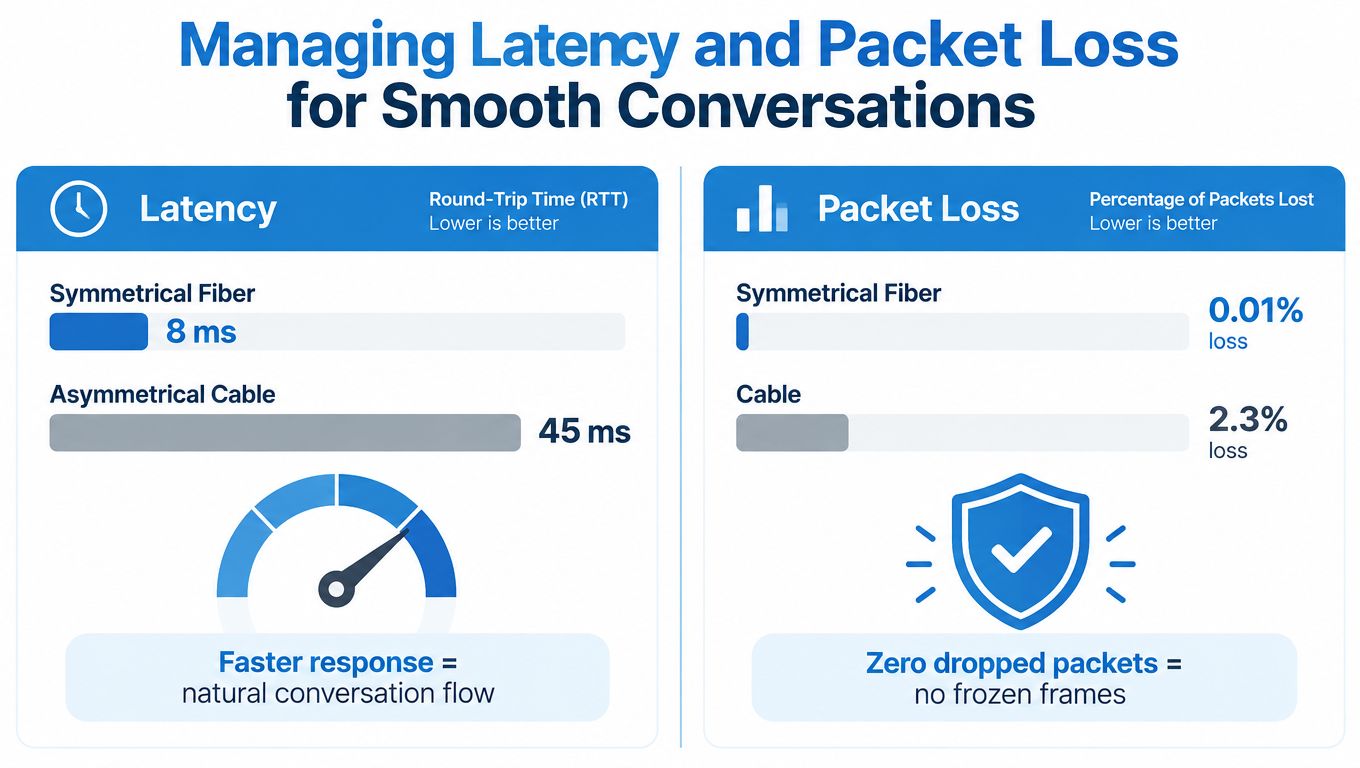
A connection can have plenty of bandwidth and still produce awkward interruptions. Latency measures the round-trip delay for packets, while packet loss describes data that never reaches its destination or arrives unusable. Both affect the natural rhythm of a conversation.
Zoom's meeting diagnostics guidance generally recommends no more than 150 ms of latency and identifies an average maximum packet loss target of 2% or less for interactive performance, as described in Zoom's meeting diagnostics guidance.
How to isolate the source
Start with Zoom's in-meeting statistics rather than guessing from the video alone. Look for latency and packet-loss readings while the problem is happening, then compare results across connection types.
- Test on wired Ethernet. Connect the computer directly to the router. If the call improves, local Wi-Fi interference, signal weakness, or access-point placement is the likely cause.
- Compare locations. A strong 5 GHz or 6 GHz signal near the access point should behave differently from a weak signal through several walls. A wired test gives you a cleaner baseline.
- Check during congestion. Run the comparison while another device uploads files or sends camera footage. If loss and delay rise only then, queueing or insufficient upstream capacity may be involved.
- Escalate with evidence. If a wired endpoint still shows increased latency or loss, give your provider the time, symptoms, and diagnostic readings. That helps separate an in-home fault from an upstream routing issue.
Wi-Fi can also introduce jitter, which is variation in packet arrival time. Real-time audio needs packets to arrive consistently, so a stable path at moderate throughput is more useful than a faster path that repeatedly stalls.
Optimizing Your Home Office Network for Video Conferencing
A fiber connection can't compensate for a router hidden behind furniture or a laptop competing with a crowded wireless channel. Treat the home office as part of the network, not as an endpoint that automatically receives the full quality of the service.
Improve the physical connection first
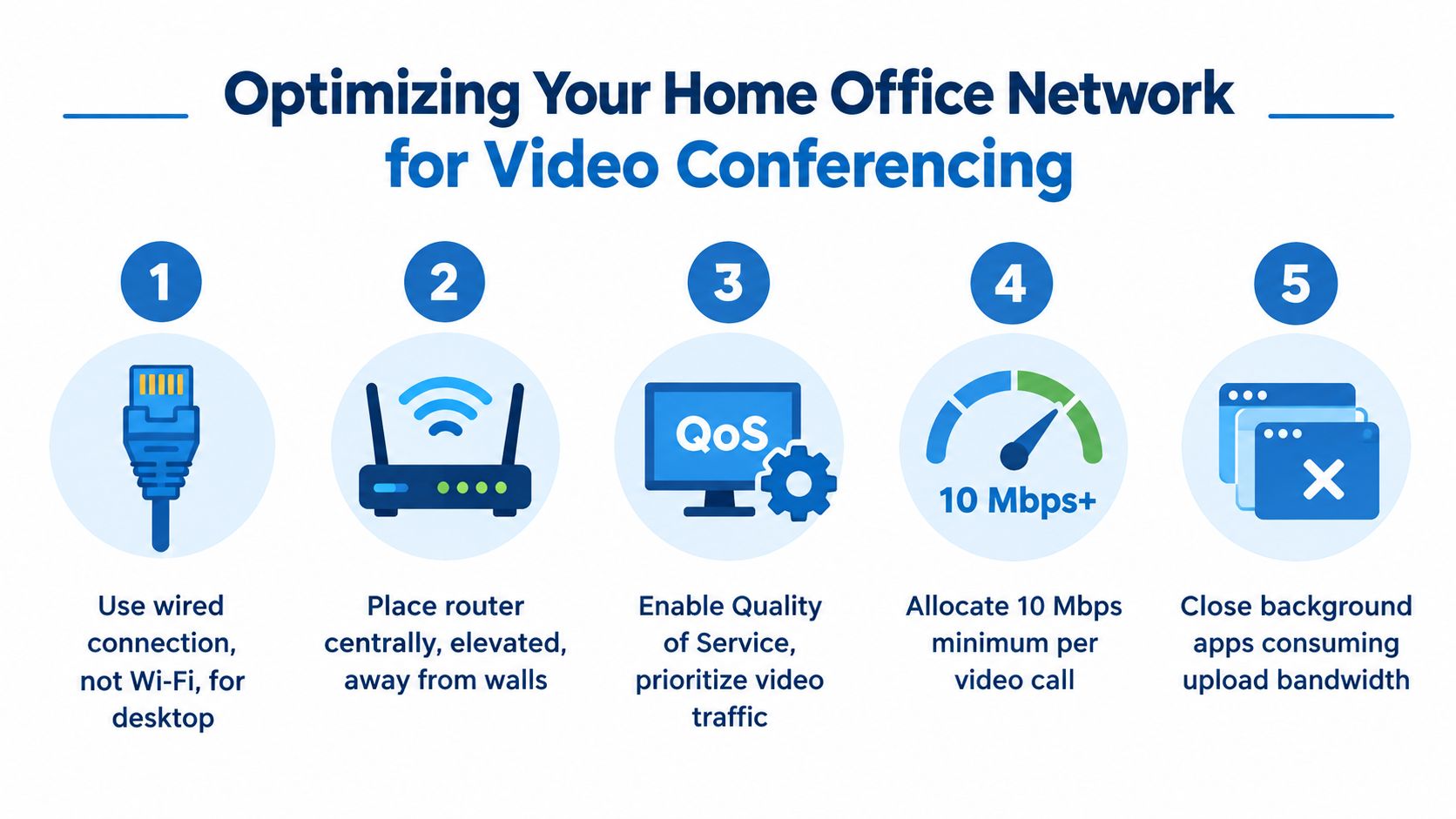
Use Ethernet whenever a desktop or docked laptop stays in one place. A cable removes the radio link between the computer and router, which makes troubleshooting much easier and avoids many interference and signal-strength problems.
If wiring isn't practical, place the router centrally, high up, and away from thick walls, metal objects, and enclosed cabinets. A mesh system can extend coverage, but each access point still needs a strong connection to the rest of the network. A poorly positioned mesh node can spread a weak signal rather than solve the underlying problem.
Configure the traffic flow
Use a dedicated 5 GHz or 6 GHz band for work equipment when your router supports it. Older or distant devices can remain on a lower-frequency band, reducing competition for the radio used by your office computer.
Quality of Service, or QoS, can prioritize real-time voice and video over less urgent transfers. Configure it carefully, because an incorrect rule can restrict rather than improve performance. Also stop applications that upload data during meetings, including backup clients, synchronization tools, large file transfers, and camera-management software.
For hardware selection and home-network equipment considerations, you can review Premier Broadband's Vessel Compass Hub case, then confirm that any device you choose supports your provider's service and your home's layout.
A clean Ethernet baseline is the fastest way to tell whether your provider or your living room is causing the call problem.
Troubleshooting Common Zoom Connection and Audio Issues
When Zoom breaks up, start with the symptom and work outward. Randomly restarting every device may occasionally help, but it doesn't tell you what failed or prevent the issue from returning.
Match the symptom to the likely bottleneck
Pixelated or frozen video usually points to a damaged outgoing stream, local Wi-Fi loss, or upload saturation. Turn off your camera briefly and observe whether incoming video stabilizes. If the rest of the meeting improves, reduce competing uploads, move closer to the access point, or test Ethernet.
Robotic audio and interruptions often indicate packet loss, jitter, or queueing delay. Audio generally needs less throughput than video, so a call with clear bandwidth but broken speech should push you toward connection stability rather than a higher download tier.
Echo is commonly local to the room. Check whether two nearby devices have microphones and speakers active in the same meeting, use a headset, and mute devices that aren't participating. Echo doesn't automatically indicate an ISP fault.
Sudden disconnections can come from a weak wireless signal, router restart, device sleep behavior, or a mobile backup connection changing state. Record whether every household device loses service or only the meeting computer does.
Use a repeatable test
First, join a test meeting on Ethernet. Next, repeat it over Wi-Fi from the normal desk. Then pause cloud backups and other uploads before testing again. This sequence tells you whether the fault follows the provider connection, the wireless environment, or a competing application.
If a laptop has recently suffered liquid exposure, hardware damage can also affect wireless reliability. A practical diagnostic resource such as MackTechs' water-damage troubleshooting for MacBook Pro Wi-Fi can help distinguish a device problem from an internet problem.
Keep Zoom's diagnostics visible during the test and note latency and packet loss when the failure occurs. For portable power and charging equipment that may support your mobile workspace, see this off-stamp smart charging battery, but don't treat a battery accessory as a substitute for a stable network path.
Choosing the Right Fiber Internet Plan for Remote Work
The right plan depends on concurrency, upload behavior, and coverage across the home. A single worker using one camera may have different needs from a household where two adults attend meetings, children stream media, and connected cameras send footage to the cloud.
Zoom's demand became visible during the pandemic, when daily meeting participants grew from 10 million in December 2019 to 300 million by April 2020, according to reported Zoom usage statistics. The figures count meeting participation rather than unique people, but they illustrate why dependable two-way connectivity became important for homes and organizations running simultaneous calls.
Compare plans by workload
A lower tier may be adequate for occasional one-to-one meetings if the home has few competing devices and the office computer uses a strong connection. It becomes less suitable when several people transmit video, upload files, or use cloud-connected equipment at the same time.
A higher symmetrical fiber tier provides more headroom, but speed alone still won't fix a dead zone or overloaded wireless channel. Ask whether the plan includes managed Wi-Fi, whole-home coverage, equipment support, and a clear process for diagnosing faults. Those services can matter as much as the advertised throughput in a large or difficult-to-wire home.
Business users should also consider whether the provider supports hosted voice, managed networking, and additional office devices. Keeping video, voice, security, and connectivity with a provider that can manage the whole environment may reduce troubleshooting handoffs, though a separate specialist can be the right choice for complex organizations.
The most useful buying test is practical: list every device that uploads during a normal workday, identify how many people may be on camera at once, and check the office location rather than only the entry point of the service. Choose symmetrical capacity first, then validate the Wi-Fi design that delivers it to your desk.
Premier Broadband offers 100% fiber internet with symmetrical upload and download speeds, plus managed Wi-Fi and residential and business options that support remote work and video conferencing. Visit Premier Broadband to review available connectivity and home-office solutions, then choose a plan based on your household's simultaneous calls, uploads, and coverage needs.