
Securing your home network doesn't have to be complicated. It really boils down to a few critical, non-negotiable steps: changing the default router password, using the strongest Wi-Fi encryption you can (WPA3 is the current standard), and keeping your router's software (its firmware) up to date.
These actions are the digital equivalent of locking your front door and windows. They shut down the most common ways attackers try to get in, forming the essential first layer of your digital defense.
Your First Steps to a Secure Home Network
Jumping into network security doesn't require a computer science degree. In fact, the most powerful changes you can make are often the simplest ones that patch up the most common weak spots. Think of it like this: you lock your front door before you install a fancy alarm system. Most attackers aren't master hackers; they're opportunists who rely on people overlooking the basic setup of their gear.
That’s why tackling these first few steps gives you the biggest bang for your buck in terms of security. Most home network breaches happen because of these simple oversights, not because of some sophisticated, targeted attack.
Core Security Principles
The main goal here is to stop your network from looking like it just came out of the box. Manufacturers ship millions of routers with the exact same login details (think "admin" and "password"), and those defaults are all over the internet for anyone to find. A single smart home can face thousands of automated attack attempts every week, and an unsecured router is a wide-open invitation.
This visual guide breaks the process down into three key actions: managing your passwords, keeping things updated, and controlling who can get on your network.
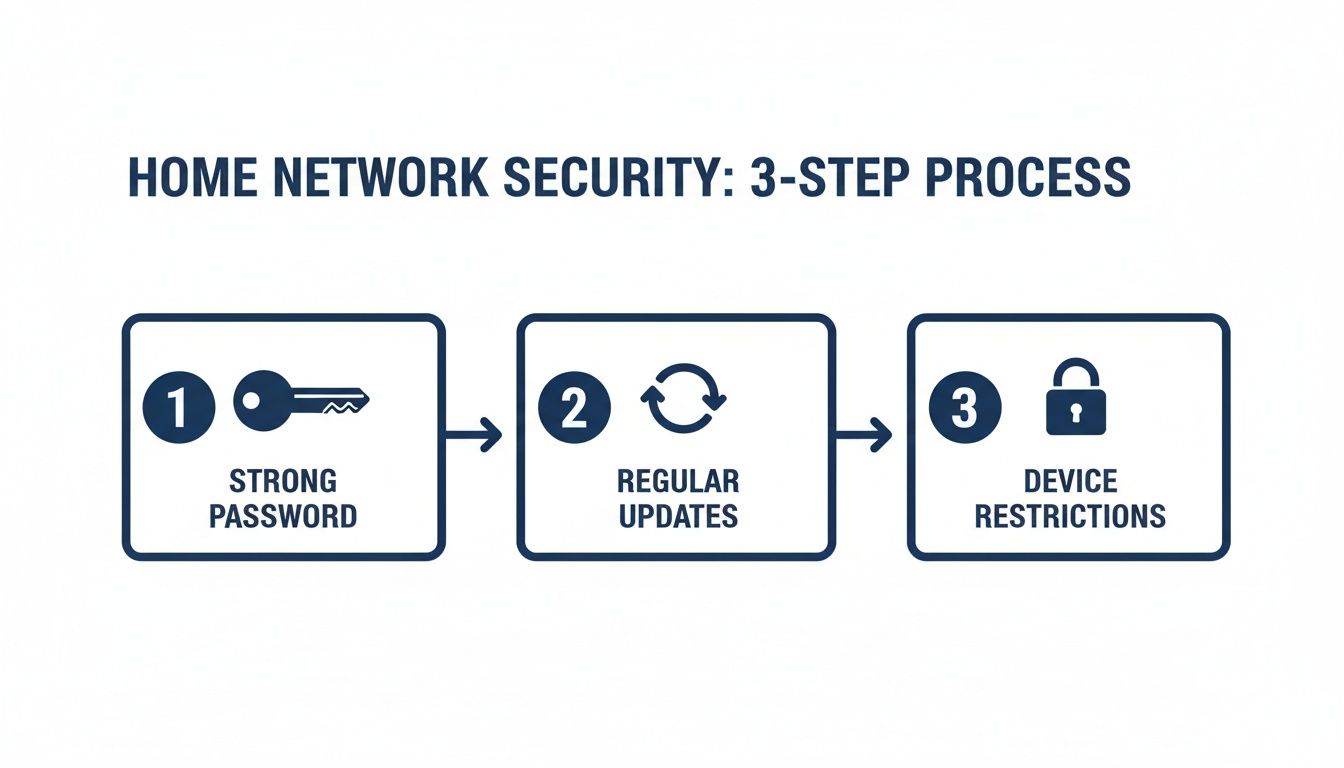
As you can see, good security is a continuous process, not just a one-and-done fix. Each step reinforces the others to create a much tougher network to crack.
Quick-Start Home Network Security Checklist
To build a strong foundation for your home's digital perimeter, it's worth reviewing the government's recommendations. These NSA best practices for securing your home network are a great starting point.
To make it even easier, I've put together a table summarizing the most critical first actions every homeowner should take. These are the absolute must-dos.
| Security Action | Why It's Critical | Estimated Time |
|---|---|---|
| Change Router Admin Password | Prevents anyone from locking you out and taking over your network. | 5 minutes |
| Update Router Firmware | Patches security holes that hackers actively look for. | 10-15 minutes |
| Enable WPA3/WPA2 Encryption | Scrambles your Wi-Fi signal so neighbors and passersby can't snoop on you. | 2 minutes |
| Set Up a Guest Network | Keeps visitors' devices separate from your personal computers and smart home tech. | 5 minutes |
Completing these four tasks is the bedrock of good digital hygiene and puts you miles ahead of the average household. For a deeper dive into ongoing security measures, you can check out our guide on the best practices for network security.
Key Takeaway: Your router is the gatekeeper to your entire digital life. Spending just 30 minutes securing its core settings can eliminate over 90% of common threats that target home networks. This isn't just a technical task; it's a fundamental part of protecting your family and your private information.
Mastering Your Router: The Heart of Network Security
Your Wi-Fi router is the digital front door to your home. Every bit of internet traffic for your laptops, phones, smart TVs, and cameras flows through it. If that door is left unlocked, it doesn’t matter how secure your individual devices are.
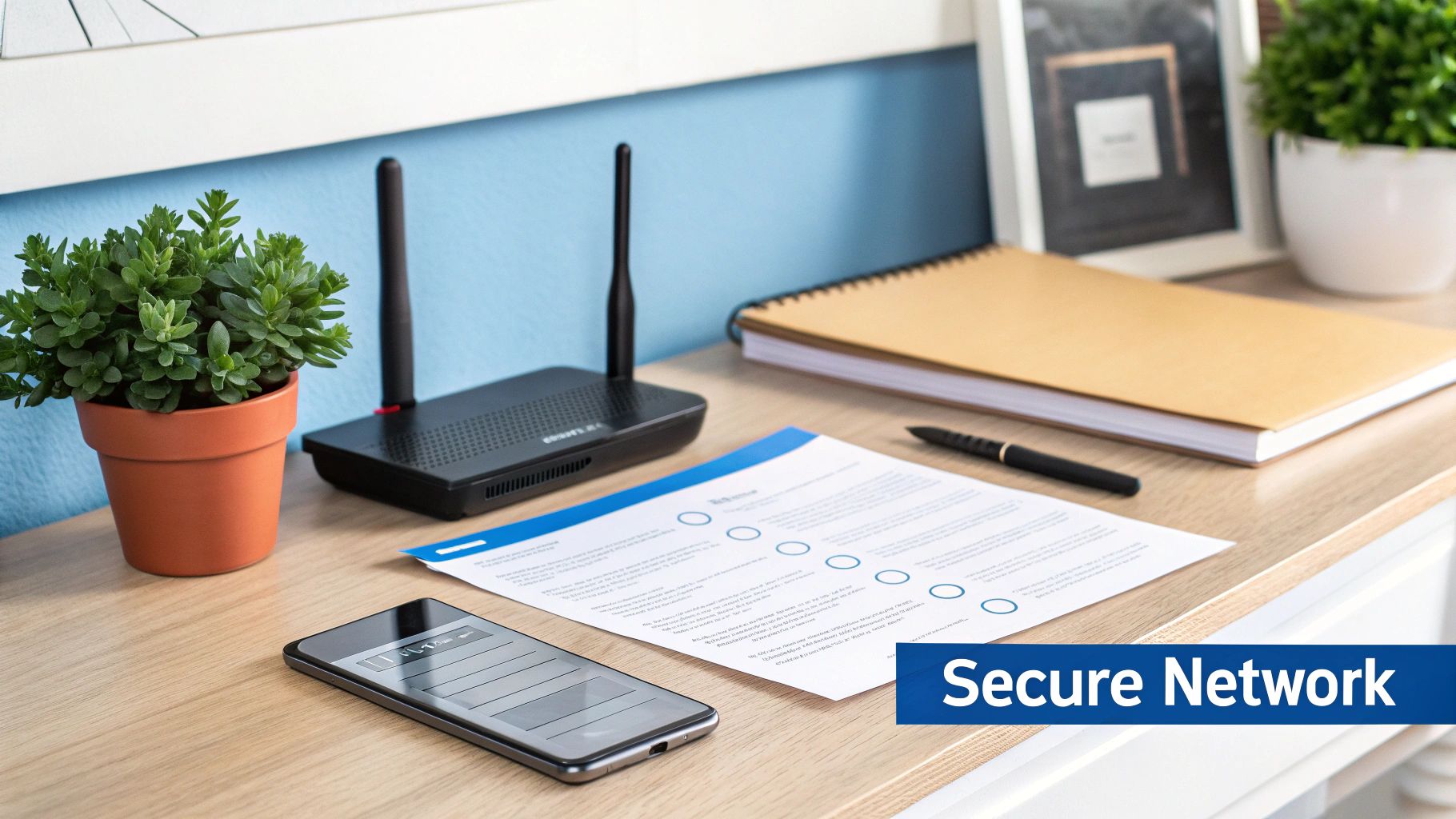
Taking control of your router's settings is the single most important step in securing your entire home network. Most people plug it in and forget it, but that hands-off approach leaves you wide open. Let's walk through the essential settings to turn your router from a weak link into your network's strongest defender.
Keep Your Firmware Up to Date
Firmware is the operating software that makes your router work. Just like your phone or computer, this software needs updates. Manufacturers are constantly finding and patching security holes, and a firmware update is how they send those fixes to you.
Running on outdated firmware is like leaving a known backdoor open for criminals. Automated hacking tools constantly scan the internet for routers with old, vulnerable firmware, making them easy targets.
How to get it done:
- Check for Automatic Updates: Many modern routers handle this for you. Log in to your router’s settings and look for an “Automatic Update” or “Auto-Firmware Update” option. Turn it on.
- Do it Manually: If your router doesn't update itself, you'll have to. Head to the manufacturer’s website (like NETGEAR, Linksys, or ASUS), find the support page for your specific model, and download the latest firmware. Then, log in to your router and use the "Firmware Update" tool to upload the file.
- ISP-Provided Routers: If your internet provider gave you the router, they might manage updates for you. A quick call to their support line or a check on their website will confirm this.
If you’re managing updates yourself, checking once a month is a great habit to get into. For larger homes that need better coverage than a single router can provide, you might want to learn how to set up mesh Wi-Fi, as these systems often make updates incredibly simple through a mobile app.
Change the Default Administrator Password
Every router ships with a default username and password to access its settings—usually something obvious like "admin" and "password." These are common knowledge and listed all over the internet. Leaving them as-is is the digital equivalent of hiding your house key under the doormat.
If an attacker gets into your admin account, they own your network. They can spy on your traffic, change your Wi-Fi password, redirect you to fake banking sites, and lock you out completely. This isn't your Wi-Fi password; it's the master password for the router itself.
Crucial Takeaway: A compromised router admin account gives an attacker the keys to your entire digital kingdom. Changing the default credentials should be the very first thing you do when setting up a new router.
Choose the Strongest Wi-Fi Encryption
Wi-Fi encryption scrambles the data flying through the air between your devices and the router, making it unreadable to anyone snooping nearby. In your router’s settings, you'll see a few options, but they are not all equal.
- WPA3: This is the current gold standard. It provides the strongest protection and is the best choice if your router and devices support it.
- WPA2: Still very secure and the most common standard today. If WPA3 isn't available, WPA2 with AES encryption is the next best thing and a must-have minimum.
- WPA & WEP: These are old and completely broken. Never use them. If these are your only choices, your router is dangerously outdated and needs to be replaced immediately.
Selecting WPA3 (or WPA2-AES) ensures that everything you do online, from banking to sending private messages, stays private.
Isolate Visitors with a Guest Network
A guest network is a simple, brilliant security feature. It creates a second, separate Wi-Fi network that only provides internet access—no connection to your main network where your personal computers, files, and smart home devices live.
Think of it as a digital quarantine zone for visitors. If a guest’s phone has malware on it, that malware can't spread to your important devices because it's walled off on a different network. Setting one up usually takes just a few clicks in your router’s menu and is one of the easiest ways to boost your home network's security.
Securing Your Connected Home and Smart Devices
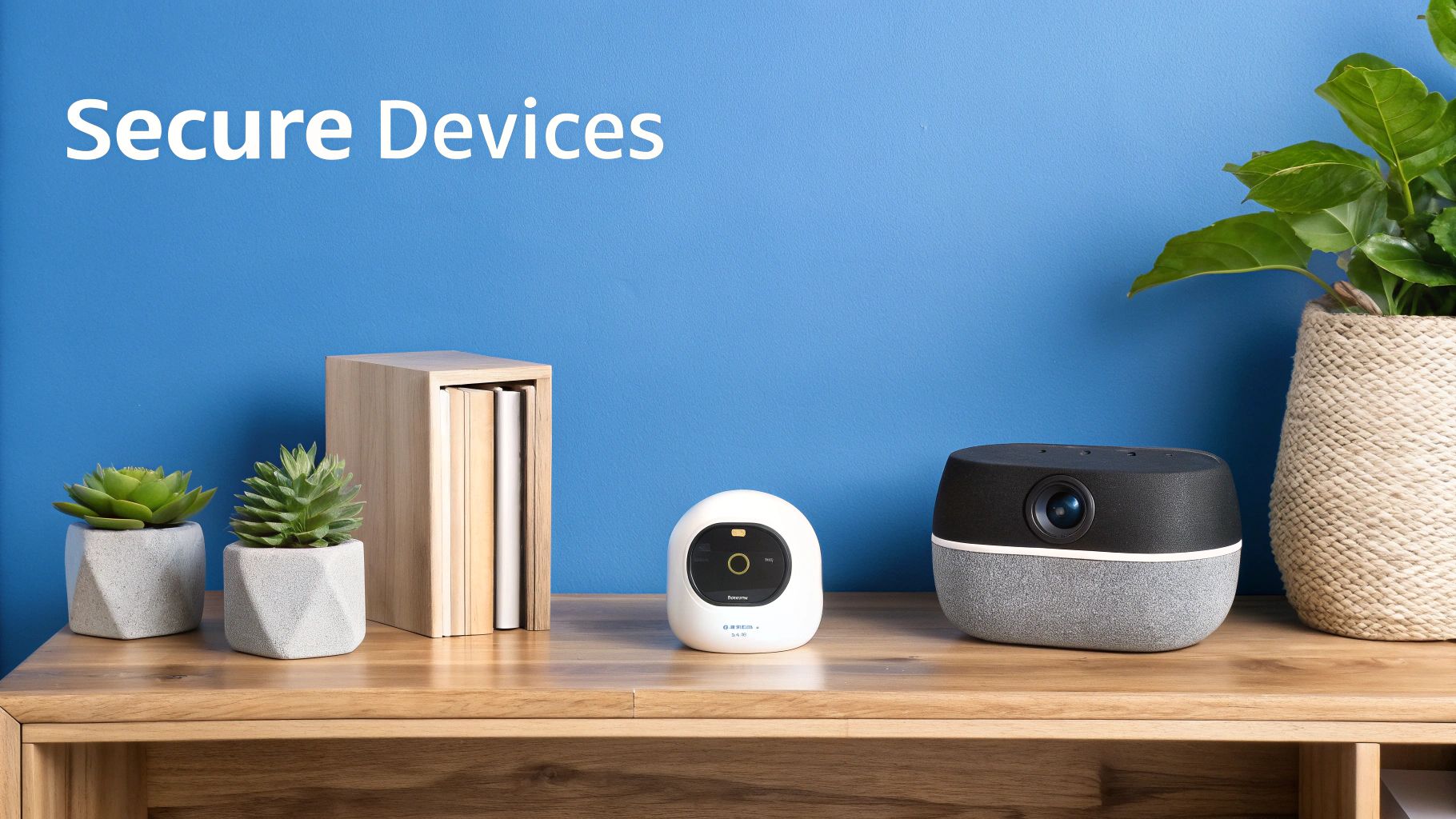
From smart TVs and thermostats to security cameras and voice assistants, our homes are filled with helpful internet-connected gadgets. While this technology adds convenience, each new device is also a potential doorway into your network. Securing these Internet of Things (IoT) devices is just as crucial as securing your router—it’s about creating a complete defense for your digital life.
The first step is simply knowing what you're protecting. It’s surprisingly easy to forget about that smart plug behind the couch or an old streaming stick in the guest room. Take a few minutes to walk through your home and make a simple inventory of every single device that connects to your Wi-Fi. This list will be your roadmap.
Hardening Each Smart Device
Once you have your list, it's time to lock down each item. Many IoT devices are designed for easy setup, which is great for convenience but often terrible for security. Your job is to go back and tighten those wide-open default settings.
Right out of the box, most devices have a default username and password printed on a sticker or in the manual. Sound familiar? Just like with your router, these have to be changed immediately. Leaving them as-is gives attackers an easy, well-known password to try.
Next, dig into the device's settings and disable any features you don’t actually use. A common culprit to turn off is Universal Plug and Play (UPnP). While it helps devices discover each other on your network, it can also be exploited by malware to poke holes in your defenses.
Expert Insight: The biggest mistake people make is treating their smart devices as "set it and forget it" technology. Regular check-ins for firmware updates are non-negotiable. Manufacturers release these updates to patch security holes as they're discovered, and failing to install them leaves your device—and your entire network—exposed.
The Power of Network Segmentation
One of the most effective strategies you can use is network segmentation. It sounds technical, but the concept is simple: you create a separate, isolated Wi-Fi network just for your IoT devices. The "Guest Network" feature found on most modern routers works perfectly for this.
By moving your smart TV, security cameras, and smart plugs to this separate network, you build a digital wall between them and your primary devices like laptops and smartphones. So, if a vulnerability is ever found in your smart fridge, an attacker who exploits it won't be able to "see" or access the personal computer holding all your sensitive financial data.
This one move dramatically limits the potential damage from a single compromised device. Security experts agree that segmenting your network brings measurable benefits. Industry data even shows that smart home vulnerabilities are often concentrated in specific devices, with smart TVs accounting for a whopping 34% of them. By isolating these higher-risk gadgets, you prevent an attacker from moving sideways across your network to more valuable targets.
To help you get started, here is a quick checklist for securing some of the most common smart devices in your home.
IoT Device Hardening Checklist
| Device Category | Common Security Risk | Recommended Action |
|---|---|---|
| Smart TVs & Streaming Devices | Outdated software, insecure default apps | Change default passwords, disable unused services (like UPnP), and regularly check for firmware updates. |
| Security Cameras & Doorbells | Weak credentials, public video streams | Create a strong, unique password. Disable remote access if not needed and place it on a guest network. |
| Smart Speakers & Voice Assistants | Eavesdropping, unauthorized purchases | Review and limit data collection settings. Set a PIN for voice purchases and mute the microphone when not in use. |
| Smart Plugs, Lights & Switches | Lack of encryption, botnet vulnerabilities | Buy from reputable brands, keep firmware updated via the app, and isolate them on your guest Wi-Fi network. |
| Smart Thermostats & Appliances | Data privacy leaks, network intrusion | Use a strong password for the associated account and connect the device exclusively to your segmented guest network. |
This table is a starting point, but the principles apply to any connected device.
For a more comprehensive look at protecting your smart home, reviewing some essential IoT security best practices provides a solid framework. This strategy also ties directly into keeping your family safe online; we cover related tools in our guide on how to set up parental controls.
This combination of device hardening and network isolation transforms your IoT ecosystem from a collection of potential risks into a well-managed and secure part of your home.
Building a Layered Defense with Firewalls, VPNs, and DNS
When it comes to network security, there's no single silver bullet. The best approach is to create layers of defense that work together. If one tool misses something or gets bypassed, another one is right there to pick up the slack. This is how you build a truly resilient home network.
Let's walk through three of the most powerful tools for the job: firewalls, Virtual Private Networks (VPNs), and secure Domain Name System (DNS) services. Think of it like securing a castle: you have a strong outer wall (the firewall), secret passages for sending messages (the VPN), and a trusted gatekeeper who knows who to let in (secure DNS). Each one plays a critical role.
Your Router's Built-In Firewall
Your Wi-Fi router already has a secret weapon built right in: its firewall. This is your network's front-line security guard. It inspects all the data flowing in and out of your home, deciding what's safe to allow and what needs to be blocked based on a set of security rules. Its main job is stopping malicious, uninvited connections from ever reaching your computers and smart devices.
For most folks, the default firewall settings are pretty good right out of the box. Still, it's always a good idea to log into your router's admin dashboard and just double-check that it's turned on. You can usually find the setting under a "Security" or "Firewall" tab.
Key Insight: A properly configured firewall is your first and best line of defense. It silently deflects countless automated scans and hacking attempts every day without you even knowing it, making it one of the most critical pieces of your security puzzle.
Encrypting Your Connection with a VPN
While a firewall protects your network from outside attacks, a Virtual Private Network (VPN) protects your privacy while you're online. Every time you visit a website, your traffic travels through your Internet Service Provider's (ISP) servers, and they can see exactly where you're going.
A VPN solves this by creating a secure, encrypted tunnel between your device and a remote server. This hides all your online activity from your ISP or anyone else trying to snoop on your connection. This is an absolute must-have when you're on public Wi-Fi, but it adds a fantastic layer of privacy at home, too.
When you're shopping for a VPN, look for providers that have:
- A strict no-logs policy: This ensures they aren’t keeping records of your browsing activity.
- Strong encryption standards: Look for AES-256, which is the industry gold standard.
- Plenty of server locations: This helps with performance and gives you more options.
Using a VPN is like sending your mail in a locked metal box instead of on a postcard. Nobody along the route can peek inside. For those who want constant protection without having to manage individual apps on every device, managed network security solutions can offer network-wide security with a more hands-off approach.
Filtering Threats with Secure DNS
The final piece of our layered defense is secure DNS. The Domain Name System (DNS) is basically the internet's address book. When you type "premierbroadband.com" into your browser, DNS is what translates that easy-to-remember name into a computer-friendly IP address.
Your ISP assigns you their own DNS servers by default, which offer zero protection. The good news is you can easily switch to a third-party secure DNS service—like Cloudflare, Google, or Quad9—that automatically blocks you from connecting to known malicious websites.
Making this one small change in your router's settings protects every single device on your network. If someone in your house accidentally clicks a phishing link or tries to visit a website that hosts malware, the secure DNS service will simply refuse to connect. The threat is stopped before it even has a chance to load.
By combining a strong firewall, a trustworthy VPN, and a secure DNS service, you create a powerful, multi-angled defense that makes your home network a much, much harder target for criminals.
Maintaining Your Network Security Over Time
Think of your network security like regular home maintenance. You wouldn't just build a house and then walk away, right? The same logic applies here. Getting everything set up is a great first step, but new digital threats pop up all the time and our devices don't last forever.
The best way to keep your digital front door locked tight is to create a simple, repeatable routine. This isn't about becoming a full-time IT expert. It's about building a quick checklist that gives you lasting peace of mind.
Your Monthly Security Check-In
Set aside just 30 minutes once a month for a quick security audit. Put it on your calendar like any other appointment to make sure it becomes a habit. A little routine maintenance can catch small problems before they spiral into big headaches.
Here’s what you should run through on your monthly check:
- Router Firmware Updates: Log into your router's admin panel and check for new firmware. Even with automatic updates turned on, it's always smart to double-check that they're actually working. This is probably the most important thing you can do.
- Review Connected Devices: Take a look at the list of every device connected to your network. Do you recognize them all? An unfamiliar name could just be a neighbor who got lucky with your password, or it could be something much worse.
- Check Critical Passwords: You don’t need to change your main Wi-Fi password every month, but this is a good time to make sure it's still strong. More importantly, confirm your router's admin password is a tough one and not the default.
This simple habit keeps you ahead of the game. For example, if you spot that old tablet you haven't used in a year on your device list, it's a great reminder to disconnect it from the Wi-Fi and shrink the number of potential targets on your network.
Spotting Unusual Activity
Part of staying secure is knowing what your network looks like on a normal day. Once you have a baseline, it's much easier to notice when something is off. You don't need fancy software for this; your router already keeps basic logs.
If you're feeling adventurous, you can peek at your router's system logs for red flags. You might see repeated failed login attempts or connection requests from weird places. On a simpler level, has your internet suddenly slowed to a crawl for no reason? That could be a sign an unauthorized device or malware is hogging all your bandwidth.
Pro Tip: Don't want to dig through technical logs? No problem. Simple observation is powerful. Are your smart lights acting funny? Is your laptop suddenly sluggish only on your home Wi-Fi? These are often the first clues that something is wrong and worth looking into.
The Importance of Backups
No security strategy is complete without a backup plan. Even with the best defenses in the world, hardware can fail and ransomware can strike. Having regular backups of your most important data is your ultimate safety net.
Just pick a method that works for you and make it a habit:
- Cloud Storage: Services like Google Drive, Dropbox, or OneDrive can automatically sync your files.
- External Hard Drive: Grab an external drive and use the tools already on your computer, like Windows Backup or Apple’s Time Machine, to create a physical copy.
By making backups part of your routine, you ensure your family photos and important documents are safe no matter what happens. This mix of regular check-ups, keeping an eye out for odd behavior, and consistent backups is how you truly master securing your home network for the long haul.
Common Questions About Home Network Security
As you start putting these security tips into practice, a few questions are bound to pop up. Home network security can feel a bit technical, but most of the common worries have pretty simple answers. Here, we'll tackle the questions we hear the most, giving you clear advice to help you feel confident about protecting your network.
Let's cut through the jargon and get straight to the "what-ifs" behind these best practices. Think of this as your quick reference guide for clearing up any confusion.
Is Just Changing My Wi-Fi Password Enough?
Changing your Wi-Fi password is a great first step, but it’s just one piece of the security puzzle. It’s like locking your front door—it keeps casual intruders out but doesn’t secure the rest of the house.
A strong password stops neighbors from hopping on your internet, but it does nothing to protect the router itself. The single most important password to change is the router’s administrator password, which is what you use to log into its settings.
Leaving the default admin credentials (like 'admin' and 'password') is a huge risk. Anyone on your network could log in, spy on your traffic, change settings, or even lock you out completely.
Real security is about layers. It’s the combination of a strong Wi-Fi password, a unique admin password, updated firmware, and a guest network that truly keeps you safe.
How Often Should I Update My Router Firmware?
Honestly, the best way to handle this is to turn on automatic updates. If your router has that feature, use it! This set-it-and-forget-it approach ensures you get critical security patches as soon as they’re released, closing holes before hackers can find them.
If your router needs you to do it manually, get into the habit of checking for new firmware at least once a month. Manufacturers are always patching security flaws that cybercriminals are actively looking for.
Running old firmware is like leaving a window unlocked. It makes your network an easy target for automated attacks that scan for these known weaknesses. A quick monthly check is a small task that pays off big in security.
Why Do I Need a Guest Wi-Fi Network?
A guest network is your digital velvet rope. It creates a separate, isolated internet connection for your visitors, keeping them completely separate from your main network where your personal computers, files, and smart devices live.
Think of it this way: if a friend’s phone has malware on it and connects to your main network, that infection could spread to your devices. The guest network acts as a quarantine zone.
Let’s look at a real-world example:
- Your Main Network: Connects your work laptop, the home server with family photos, and your security cameras. All these devices can see each other.
- Your Guest Network: Gives internet to your friend’s tablet. That tablet can’t see or interact with anything on your main network.
It’s a simple but incredibly effective way to reduce your risk without being a bad host.
Do I Still Need a VPN at Home?
Yes, a VPN provides a different, but equally important, type of protection. It's a common misunderstanding that a secure Wi-Fi connection makes a VPN unnecessary. They actually do two totally different jobs.
Your Wi-Fi security (like WPA3) encrypts traffic between your device and the router. But once that data leaves your house, your Internet Service Provider (ISP) can see every website you visit.
A VPN creates an encrypted tunnel from your device to a remote server, hiding all your online activity from your ISP. This is all about personal privacy. It stops tracking, prevents your ISP from selling your browsing data, and can even help you get around geographic content blocks. While it won't stop a hacker from breaking into your router, it protects the data that flows through it.
Ready to upgrade to an internet service that prioritizes your security? Premier Broadband offers blazing-fast 100% fiber internet with built-in protections like Premier Protects, giving you managed Wi-Fi and family content controls right out of the box. Secure your digital life today by visiting https://premierbroadband.com.