
Ever wondered what that "bridge mode" setting on your router actually does? You're not alone! Most people see this option buried in their router settings and have no clue what it's for. But here's the thing – understanding bridge mode could seriously improve your home network setup, especially if you're dealing with spotty WiFi or planning to upgrade your internet experience.
Bridge mode basically turns your router into a "pass-through" device instead of the main traffic controller for your network. Think of it like this: instead of your router making all the decisions about where internet traffic goes, it just becomes a bridge that lets another router take charge. Pretty simple, right?
What Is Bridge Mode, Really?
Let's break this down without all the tech jargon. When your router operates normally (called "router mode"), it's doing a bunch of jobs at once. It's assigning IP addresses to your devices, managing your WiFi network, handling security, and basically acting like the boss of your internet connection.
But when you flip that router into bridge mode, it takes a step back. Instead of being the boss, it becomes more like a helpful assistant that just passes information along to the real boss – your main router. This eliminates what techies call "double NAT" issues, which is basically when two routers are trying to do the same job and getting in each other's way.
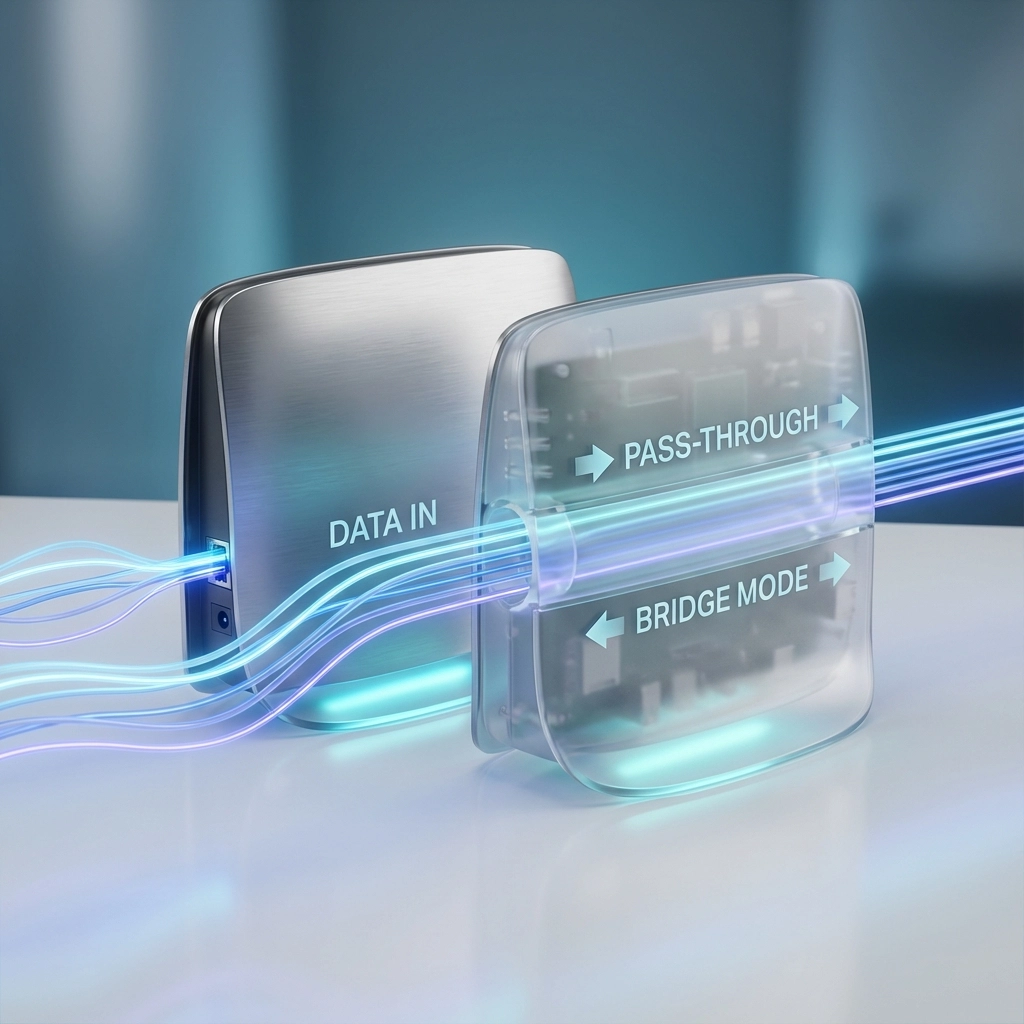
The cool thing about bridge mode is that it operates at what's called the "data link layer." Don't worry about what that means exactly – just know that it's a simpler, more direct way of handling network traffic that can actually speed things up in the right situation.
When Should You Use Bridge Mode?
Bridge mode is only used when you have an external firewall or router device. This setup is common in businesses, especially where an IT department manages advanced network functions. For residential customers, bridge mode is very rarely needed.
Premier Broadband also offers WiFi mesh units to boost coverage for homes and businesses, making it easy to get reliable WiFi in every corner without the need for bridge mode for most customers.
Benefits for Your Home Network
So what's in it for you? Quite a bit, actually:
Smoother Performance: With only one router managing traffic, your data flows more efficiently. This means faster speeds for streaming, gaming, and video calls.
Easier Troubleshooting: When something goes wrong with your internet, you only have one main router to check instead of trying to figure out which device is causing the problem.
Better Gaming Experience: Gamers especially love bridge mode because it reduces latency (lag) and eliminates connection issues that can ruin online gaming sessions.
Unified Network Management: All your devices stay on the same network, making it easier to share files, print wirelessly, and use smart home devices.
How to Set Up Bridge Mode (The Basics)
Don't worry – you don't need to be a tech wizard to enable bridge mode. The exact steps vary depending on your router brand, but here's the general process:
-
Access Your Router Settings: Open a web browser and type in your router's IP address (usually something like 192.168.1.1 or 192.168.0.1). You'll need your admin username and password.
-
Find the Bridge Mode Option: Look for settings labeled "Bridge Mode," "Router Mode," "IP Pass-Through," or something similar. It's usually in the "Internet," "Network," or "Advanced" sections.
-
Enable Bridge Mode: Simply toggle the setting on and save your changes.
-
Restart Your Router: Give it a few minutes to reboot and apply the new settings.
-
Connect Everything: If you're using a secondary router, connect it to your main router using an Ethernet cable.
Pro tip: Before making changes, write down your current settings or take screenshots. That way, you can easily switch back if something doesn't work right.
Common Bridge Mode Scenarios
Let's look at some real-world situations where bridge mode makes sense:
The Multi-Story House: You live in a three-story house and your main router is in the basement. WiFi barely reaches the top floor, so you add a second router up there in bridge mode to extend coverage.
The Home Office Setup: You work from home and Premier Broadband provides excellent business internet, but you want to use your own enterprise-grade router for better security and performance. Bridge mode on the provided equipment lets your router take over.
The Gaming Family: Multiple family members are gaming online, streaming 4K videos, and working from home simultaneously. Bridge mode helps eliminate network conflicts that could cause lag or disconnections.
The Smart Home Enthusiast: You have dozens of smart devices, security cameras, and IoT gadgets. Bridge mode helps create a more stable network foundation for all these connected devices.
Troubleshooting Tips and Things to Watch Out For
Bridge mode is generally pretty straightforward, but here are some things to keep in mind:
Configuration Access: Once you enable bridge mode, you might not be able to access that router's settings anymore. Make sure you're okay with this before making the switch.
Security Considerations: Your main router will handle all security functions, so make sure it's properly configured with strong passwords and up-to-date firmware.
IP Address Management: Devices connected to the bridged router will get IP addresses from your main router, not the bridged one. This is normal and actually what you want.
WiFi Network Names: You might need to set up your WiFi network names (SSIDs) to match between routers if you want seamless roaming throughout your house.
Getting the Most Out of Your Premier Broadband Connection
If you're a Premier Broadband customer, bridge mode can help you maximize your high-speed fiber internet experience. Our reliable network infrastructure works great with bridge mode setups, whether you're extending WiFi coverage throughout your home or optimizing your network for business use.
The key is understanding that bridge mode is a tool for very specific situations—not a general fix for most WiFi or coverage problems. If you have a single router that covers your home or office well, you likely don't need bridge mode. Businesses using additional security appliances or advanced networking gear may benefit from it, but for most homes, it’s not necessary.
Remember, Premier Broadband's technical support team is always here to help with any questions about optimizing your network at home or at work. Sometimes a quick conversation will save you hours of troubleshooting and help you get the most out of your internet connection.
Bridge mode sounds complex, but it’s really just another network tool for unique scenarios—like integrating business firewalls or custom routers. If you’re looking to expand coverage, reduce lag, or create a pro-level home office, talk to us first—most customers just need a mesh system or upgraded router, not bridge mode, to get top performance throughout the space.