

Dealing with a sluggish internet connection? The fastest fix for a weak WiFi signal is often the most straightforward: move your router to a central, elevated spot, clear of walls and other electronics. You'd be surprised how much a simple adjustment like this can improve your connection, and it won't cost you a thing.
Your Quick Guide to a Stronger WiFi Signal
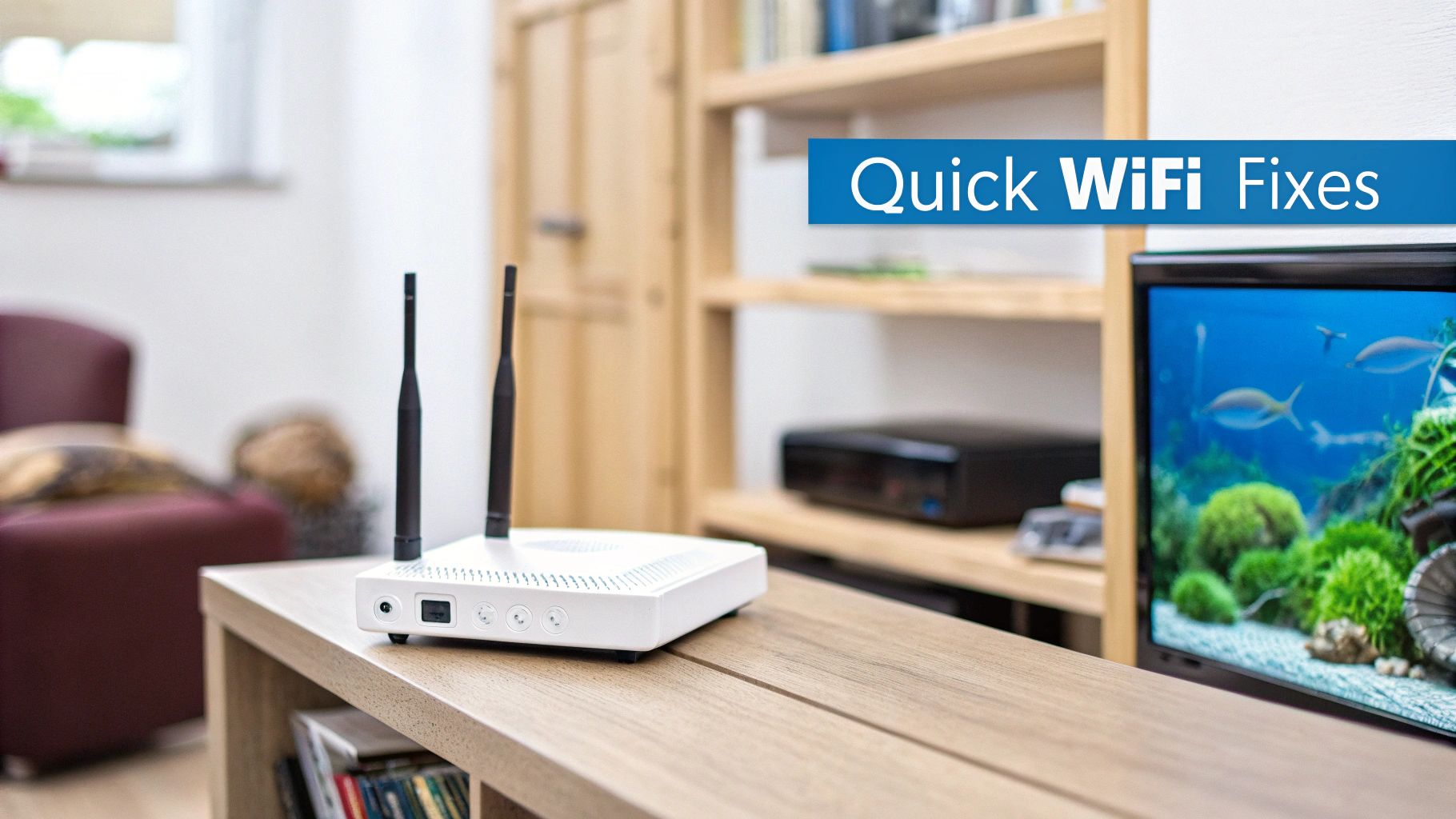
Before you start messing with complex settings or shopping for new gear, it’s always best to check off the easy stuff first. So many WiFi headaches come down to physical roadblocks and interference—problems you can often solve in just a few minutes.
Think of your WiFi signal like the light from a lamp. The closer you are and the fewer obstacles in its path, the brighter and stronger it will be.
It’s easy to forget, but our homes and offices are filled with things that can block or weaken that signal, creating those annoying dead zones where your connection just vanishes.
Common WiFi Signal Blockers
So, what are the usual suspects? I've seen them all over the years.
- Dense Materials: Concrete, brick, and plaster walls (especially older ones with metal lath) are notorious signal killers. They’re just too dense for WiFi waves to push through effectively.
- Metal Surfaces: That stainless steel fridge, big filing cabinet, or even a large mirror with a metallic back can act like a shield, reflecting and scattering your signal all over the place.
- Water: This one surprises people, but water absorbs radio frequency energy. A big fish tank sitting between your desk and the router can quietly sabotage your connection.
- Other Electronics: Microwaves are the worst offenders, but cordless phones and even some Bluetooth devices can cause chaos. Many operate on the same 2.4 GHz frequency as your WiFi, leading to signal traffic jams.
The goal is simple: create the clearest possible line of sight from your router to your devices. Of course, sometimes slow speeds are a symptom of a bigger issue. If you've tried these quick fixes and are still stuck, it's worth checking out a practical guide to troubleshooting your internet connection.
Just moving your router to a central spot and getting it five to eight feet off the ground can boost your signal by 20-30%. This simple step helps the signal travel over and around many of the common household obstructions.
These quick, foundational adjustments can have a significant impact on your daily internet experience. Here’s a quick breakdown of what you can expect.
Quick Fixes and Their Real-World Impact
| Actionable Fix | What It Achieves | Potential Signal Boost |
|---|---|---|
| Centralize Router | Ensures more even signal distribution throughout your space. | 15-25% improvement in fringe areas. |
| Elevate Router | Helps the signal bypass dense furniture and floor-level clutter. | 10-20% stronger signal on other floors. |
| Avoid Electronics | Reduces signal interference from devices like microwaves. | Fewer random disconnects and lag spikes. |
| Steer Clear of Metal | Prevents the signal from being reflected and scattered. | 10-15% more consistent connection. |
Making sure your setup is optimized is the first step toward getting the speeds you pay for. The technology has come a long way—global average WiFi speeds shot up from 30.3 Mbps in 2018 to 92 Mbps by 2023, thanks to things like WiFi 6. But you can't tap into that power if your signal is getting blocked from the start.
For more tips, check out our guide on how to improve your home WiFi. Getting these basics right makes every other tweak and upgrade that much more effective down the line.
Finding the Perfect Spot for Your Router
If there's one secret to a better connection that costs nothing, this is it: your router's physical location is everything. Before you even think about buying new hardware, you can dramatically boost your Wi‑Fi signal just by moving the box you already have.
It's the highest-impact, lowest-effort fix you can make.
Think of your router like a speaker. If you hide it in a closet, the sound gets muffled and weak by the time it reaches the other side of the house. Wi‑Fi signals are just radio waves, and they behave the same way, losing power as they pass through physical objects. The most common mistake we see is leaving the router where the technician first installed it—usually tucked away near whatever wall the internet line comes through.
While that's convenient for setup, it’s almost never the best spot for coverage.
Mapping Your Space for Better Signal Flow
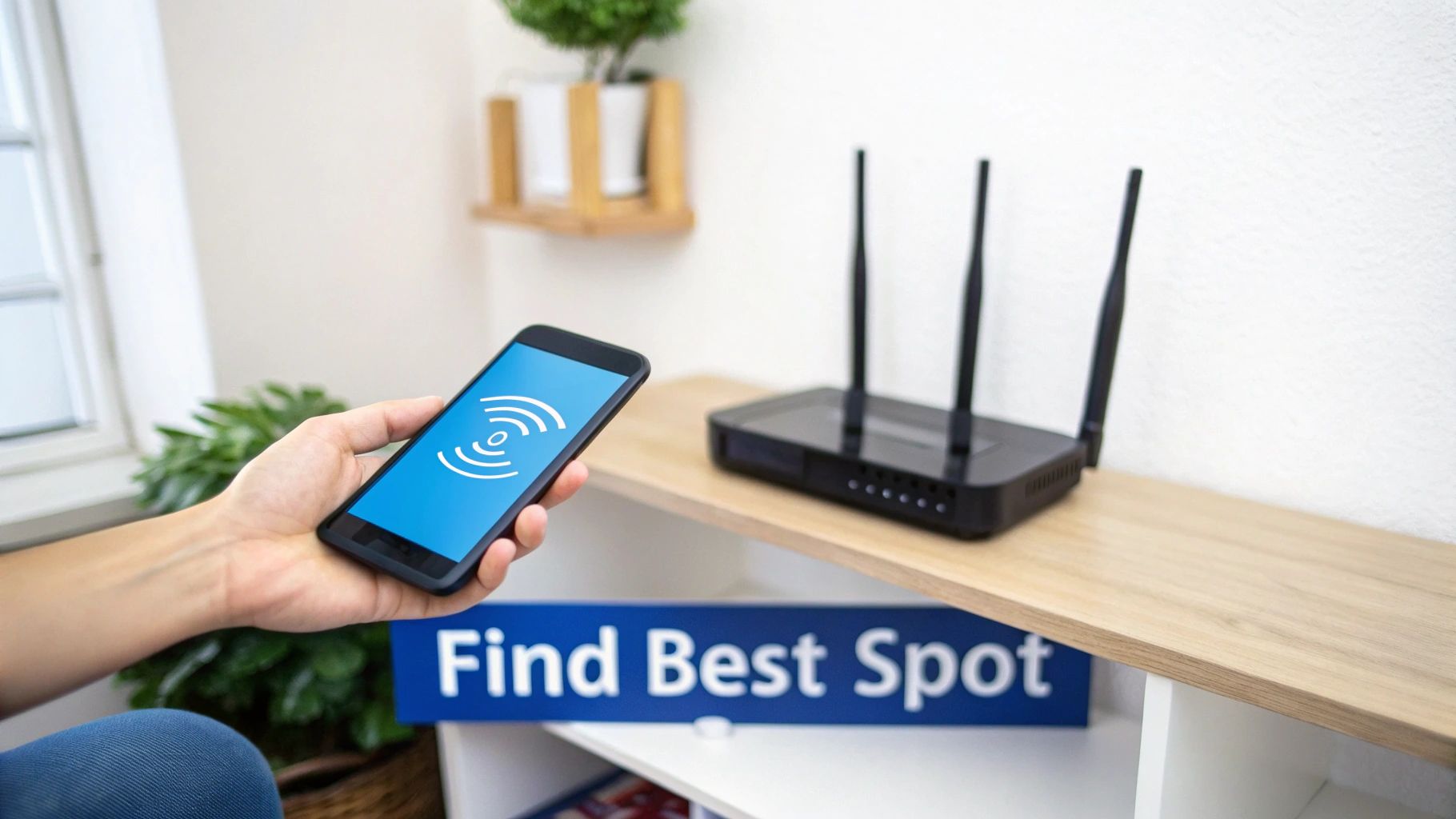
To get this right, you need to think strategically about your layout and where you actually use the internet most. Don't just guess. Grab your smartphone and use a Wi‑Fi analyzer app to perform a quick "signal audit."
Walk through your home or office and watch the signal strength in real-time. You’ll quickly pinpoint dead zones (areas with weak or no signal) and high-demand areas like your office or living room. The goal is to place the router where it provides the strongest, most balanced signal to those critical spots.
For a deeper look into the technical side, our article on decoding the importance of signal strength in wireless networks explains what those numbers actually mean for your connection.
Your Wi‑Fi signal strength is measured in decibel-milliwatts (dBm). Numbers closer to -30 dBm represent a perfect signal. A signal around -60 dBm is solid for streaming and browsing, but once you drop to -80 dBm or lower, your connection gets unreliable.
By mapping these measurements, you're no longer guessing—you're using data to find the optimal hub for your network.
Key Router Placement Strategies
Once you have a sense of your space's signal landscape, apply these proven rules to give your Wi‑Fi a serious boost.
- Go Central: The ideal spot is as close to the center of your home as possible. This gives the signal the best chance to radiate outward evenly in all directions.
- Get It Up High: Don't leave your router on the floor! Elevating it on a shelf or mounting it on a wall helps the signal travel over furniture and other obstructions. Aim for at least five feet off the ground.
- Maintain an Open Air Policy: Your router needs room to breathe. Keep it out of cabinets, away from crowded bookshelves, and clear of clutter. The more open space around it, the better.
Avoiding Common Wi‑Fi Signal Killers
Just as important as finding a good spot is avoiding the bad ones. Your home is filled with materials and devices that actively block or interfere with Wi‑Fi signals. Some might surprise you.
Large metal objects, for instance, are your signal's worst enemy. A stainless steel refrigerator or a large mirror can reflect and scatter Wi‑Fi waves, creating unpredictable dead zones.
Common Signal Blockers to Avoid:
- Concrete and Brick: These dense materials absorb Wi‑Fi signals, making them a huge problem for basements or homes with thick interior walls.
- Metal Surfaces: Think filing cabinets, metal studs inside walls, and even some types of insulation with foil backing. They all reflect signals.
- Water: This is a big one people miss. A large aquarium or even significant plumbing in a wall can absorb radio frequency energy, weakening your signal.
- Kitchen Appliances: Microwaves are notorious for creating interference on the 2.4 GHz band, which can disrupt your connection whenever they're running.
By strategically placing your router in a central, elevated, and open location while steering clear of these signal killers, you give your existing hardware the best possible chance to perform. This single step can solve a surprising number of connection problems.
Optimizing Router Settings for Peak Performance
Moving your router is a great start, but the real magic happens inside its software settings. Think of your router's admin panel as the mission control for your home network—a place where a few smart tweaks can cut through interference, prioritize what's important, and really open up the throttle on your connection.
Most people never even log in, but that’s where you unlock the next level of performance. It’s usually as simple as typing an address (often printed on the router itself) into your browser and entering the default login details.
Once you’re in, you can make some serious improvements that go way beyond just physical placement.
Choosing the Right Wi-Fi Channel
Your Wi-Fi network operates on specific channels, kind of like old-school radio stations. If you live in an apartment complex, your neighbors' networks are all broadcasting at the same time, creating a digital traffic jam. When your router uses the same crowded channel as everyone else, the signals interfere and everything slows down. This is a huge problem on the congested 2.4 GHz band.
Routers are typically set to "Auto," but that's not always the smartest choice. Manually picking a less crowded channel can make a world of difference in stability. A Wi-Fi analyzer app on your phone can quickly show you which channels are swamped. Your goal is to find the quietest one.
- For the 2.4 GHz band: Stick to channels 1, 6, or 11. These are the only ones that don’t overlap, so pick whichever has the fewest competing networks.
- For the 5 GHz band: This band is a wide-open highway with more channels and less traffic. It's the clear winner for anything that needs serious speed.
Simply switching from a crowded channel to an open one is often the single most effective free fix you can make.
Leveraging Dual-Band Capabilities
Any modern router worth its salt broadcasts on two frequencies: 2.4 GHz and 5 GHz. Each has its own strengths, and knowing how to use them properly is a game-changer.
- The 2.4 GHz Band: This is your long-range specialist. It travels further and punches through walls more effectively, but the speeds are lower. It's perfect for smart home devices or phones at the far end of the house.
- The 5 GHz Band: Think of this as the express lane. It's much faster but doesn't have the same reach. Keep your high-demand devices on this band—your work laptop, streaming TV, and gaming console will thank you for it.
Many routers let you give each band a different network name (SSID). This allows you to manually connect your most important devices to the faster 5 GHz network, guaranteeing they get the performance they need.
Prioritizing Traffic with Quality of Service (QoS)
Ever been on a critical video call only to have it freeze the moment someone else starts streaming a 4K movie? That's where Quality of Service (QoS) comes in. It’s a feature that lets you tell your router which devices or apps get to cut to the front of the line for bandwidth.
With QoS, you can prioritize traffic for things like:
- Video Conferencing: Keep your Zoom and Teams calls crystal clear.
- Online Gaming: Slash lag and latency for a competitive edge.
- Streaming: Say goodbye to that dreaded buffering wheel.
By setting these rules, you make sure your most important connections stay stable, even when the rest of the household is online.
Performance and security go hand-in-hand. Weak Wi-Fi coverage below -80 dBm doesn't just mean spotty connections; it also leads to a 30% higher risk of security breaches. Modern Wi-Fi 6 helps close this gap with stronger WPA3 security and OFDMA technology that boosts capacity by four times—crucial for securely running multiple devices like VoIP phones and AI cameras. You can find more Wi-Fi security and performance statistics at The Network Installers.
Keeping Your Firmware Updated
Last but not least, don't forget about firmware. This is the router's internal operating system, and manufacturers release updates all the time to patch security flaws, squash bugs, and boost performance. Running on old firmware is like driving with a flat tire—it’s slow and unsafe.
Most new routers will update themselves automatically, but it never hurts to log in and manually check every couple of months. A quick update can instantly fix those mystery connection drops and give your network a noticeable speed bump.
And remember, your Wi-Fi is only as fast as the devices using it. A slow, dust-choked computer will make even the best internet feel sluggish. It’s a good idea to learn how to clean your computer from dust for peak performance to make sure your hardware isn't the bottleneck. These simple setting changes can transform your router from just a box in the corner into a powerful tool for a faster, more reliable connection.
Choosing the Right Hardware to Eliminate Dead Zones
So you’ve moved your router, tweaked the settings, and you still have dead zones that swallow your Wi-Fi signal whole. Don't worry, this is a common wall to hit. It happens all the time in larger homes, multi-story buildings, or spaces with thick, signal-blocking walls.
When the usual tricks aren't enough, it’s time to look at hardware. This isn't about buying the most expensive gadget on the shelf; it's about picking the right tool for your specific problem. The fix for a single dead spot in the back office is totally different from what a sprawling two-story house needs. Let's break down your main options—extenders, mesh systems, and powerline adapters—so you can find the perfect fit.
Before you spend any money, this flowchart can help you double-check that you've covered the basics first.
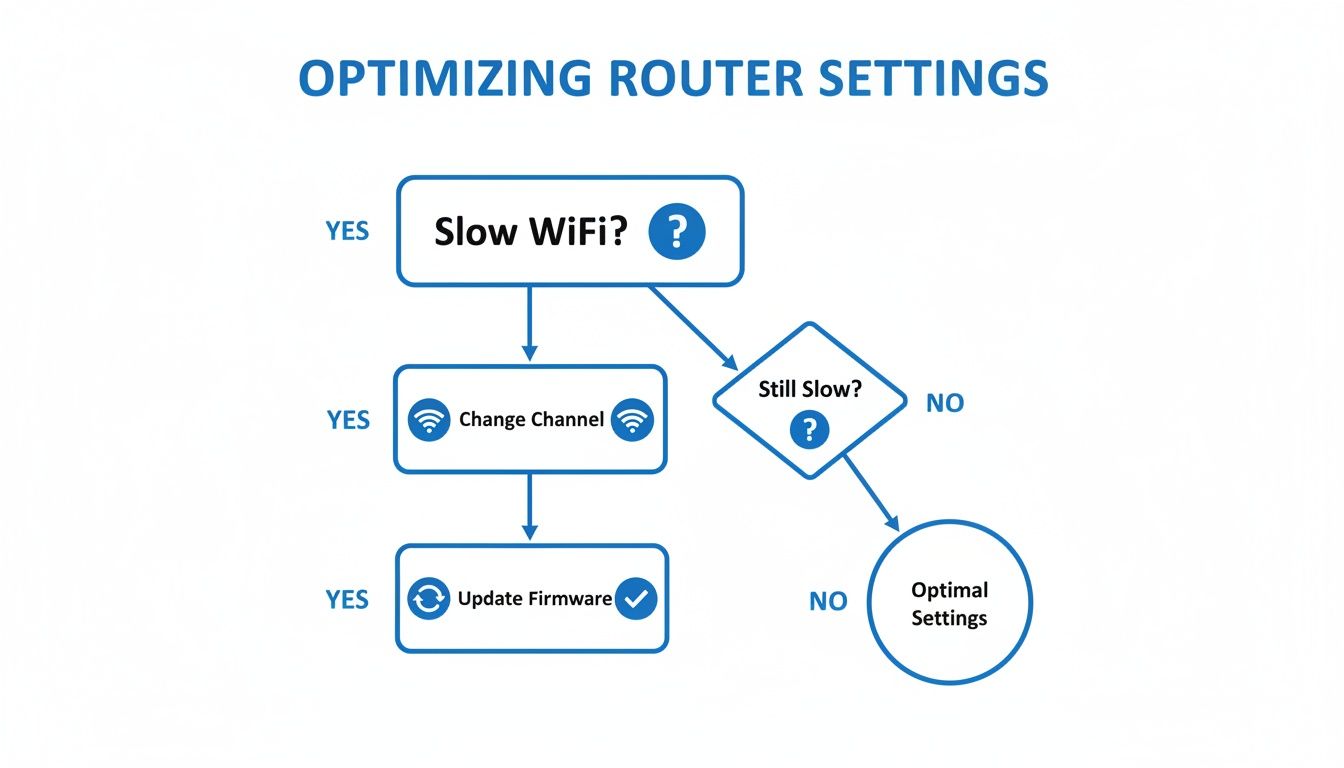
As you can see, simple adjustments like updating firmware are the foundational steps you should always take before investing in new gear.
The Quick Fix: WiFi Extenders
A Wi-Fi extender (sometimes called a repeater) is the simplest and most affordable way to boost your signal. It's a single device you plug into an outlet somewhere between your router and the dead zone. It just grabs your existing Wi-Fi signal, amps it up, and rebroadcasts it.
Think of it like a relay runner—it takes the signal and carries it further down the track.
When an Extender Makes Sense:
- You only have one or two specific dead spots, like a basement office or back patio.
- Your home is on the smaller side, and you just need to nudge the signal a little further.
- You're on a tight budget and just want a quick, easy fix.
But there’s a big trade-off. Extenders work by receiving and retransmitting on the same frequency, which effectively cuts the available bandwidth in half for any device connected to it. You’ll get a stronger signal, but your internet speed might take a noticeable hit.
The Whole-Home Solution: Mesh WiFi Systems
If you're fighting dead zones all over a larger house, a mesh Wi-Fi system is the way to go. Instead of one box trying to cover the entire property, a mesh system uses several "nodes" that you place in different rooms. These nodes work together as a team to create a single, seamless Wi-Fi network that blankets your whole home.
As you walk around, your phone or laptop automatically connects to the strongest node without ever dropping the signal. It's one network name, one password, and consistent speeds everywhere.
The global demand for these solutions is booming. The WiFi signal booster market is projected to hit $8.213 billion by 2025, largely because mesh systems finally solve the dead zone issue affecting an estimated 60% of multi-story homes. You can discover more insights about the WiFi booster market on Data Insights Market.
Mesh systems are the perfect partner for a high-speed fiber connection from Premier Broadband. Fiber delivers incredible speed to your home, and a mesh network makes sure that speed gets distributed evenly to every corner. For a detailed guide, check out our guide on how to set up mesh WiFi.
The Wired Alternative: Powerline Adapters
Powerline adapters are a clever solution for homes where thick walls make wireless signals unreliable. Instead of sending a signal through the air, this system uses your home’s existing electrical wiring to carry the internet connection from your router to another room.
You get a pair of adapters. Plug the first one in near your router and connect it with an Ethernet cable. Then, plug the second adapter into an outlet in the dead zone. That second unit can then provide a wired Ethernet port or broadcast its own Wi-Fi signal.
When Powerline Adapters Are a Good Idea:
- You have thick concrete or plaster walls that completely block Wi-Fi.
- You need a super-stable, wired-like connection for a gaming console or desktop PC.
- Your neighbors' Wi-Fi networks are causing major interference.
The only catch is that performance really depends on the quality of your home's electrical wiring. In older houses, the connection can be inconsistent.
Comparing Your Hardware Options
Picking the right hardware is all about matching the tech to your problem. Here’s a quick rundown to help you decide.
| Feature | WiFi Extender | Mesh WiFi System | Powerline Adapter |
|---|---|---|---|
| Best For | Small, specific dead zones | Whole-home coverage | Homes with thick walls |
| Performance | Can cut speed by up to 50% | Consistent high speed | Varies with wiring quality |
| Ease of Use | Simple plug-and-play | Easy app-based setup | Simple plug-and-play |
| Cost | Low | High | Moderate |
| Network | Creates a separate network | Creates one seamless network | Can be wired or wireless |
Ultimately, investing in the right hardware is the final step to conquering stubborn dead zones. For one troublesome room, an extender might do the trick. But for total, high-performance coverage that unlocks the full power of a fiber connection, a mesh system is the definitive solution for modern homes.
When to Consider a Managed Wi-Fi Service
You’ve tried it all. You’ve shifted the router to every corner of the house, spent hours switching Wi-Fi channels, and even bought brand-new hardware. Yet, the connection still sputters and dies right in the middle of that critical client call.
There’s a tipping point where the endless cycle of troubleshooting just isn't worth the time and frustration anymore. This is the moment to start thinking about a managed Wi-Fi service.
It’s about moving on from being a part-time IT technician for your own home or office. Instead of guessing which setting to try next, you hand the responsibility to a team of experts. Their entire job is to make sure your network performs flawlessly, 24/7.
What Is a Managed Wi-Fi Service?
A managed Wi-Fi service, like the kind included in Premier Broadband’s Premier Protects plan, is a complete, hands-off solution for your internet connection. It’s more than just a signal; it’s a professionally designed, installed, and monitored network built specifically for your space.
This service is designed to eliminate the guesswork and constant maintenance that trips up so many people.
You get a level of oversight that you simply can't achieve with standard, off-the-shelf equipment. Here’s what that looks like:
- Professional Installation: Our technicians come to your home or office and map out the best placement for all equipment. They ensure you get the strongest coverage possible and minimize dead zones from day one.
- Proactive Monitoring: We watch over your network’s health in the background. Our systems can often spot and fix a problem before you even realize anything is wrong.
- Dedicated Support: When you do have an issue, you call experts who already know your exact network setup. No more starting from scratch with a random support agent.
- Better Equipment Included: You get top-tier, commercial-grade routers and access points that are far more powerful and reliable than typical consumer gear.
Think of it this way: a managed service treats your home or business network with the same level of importance as a large corporate system. It ensures rock-solid reliability is a constant, not something you have to figure out yourself.
Your internet transforms from a utility you have to constantly manage into a service that just works.
When Is a Managed Service the Best Choice?
While tweaking your own settings can solve small hiccups, some situations really call for a more serious, reliable solution. If any of these sound familiar, it’s a good sign that a managed service is the right move.
For Remote Workers and Small Businesses
Your connection is your lifeline. Dropped video calls and failed file uploads aren't just inconvenient—they can damage your professional reputation and cost you money. A managed service delivers the business-grade reliability you need to run your operations without a hitch.
For an even deeper dive, our guide on boosting your business internet performance with a managed network edge has more insights for commercial-grade needs.
For the Smart Home Full of Devices
Is your home packed with smart speakers, security cameras, thermostats, and lights? Every one of those devices is fighting for a slice of your bandwidth, which can create a slow, congested network. A managed service can organize all that traffic so your smart doorbell doesn't make your Netflix stream buffer endlessly.
For Large or Uniquely Built Homes
If you live in a multi-story house, a long ranch-style home, or a building with signal-blocking walls made of brick or concrete, getting good coverage is a constant struggle. Our pros can design a system with multiple access points and a wired backhaul to deliver seamless, fast Wi-Fi everywhere.
Ultimately, choosing a managed service is an investment in your own peace of mind. It’s the final answer to the question of how to boost your Wi-Fi signal when you’ve run out of options and your time has become too valuable to waste.
Common Questions About Boosting Your WiFi
Trying to figure out Wi-Fi hardware can feel like you're wading through alphabet soup. With all the different terms and gadgets out there, it’s completely normal to have questions when you’re trying to get a better signal.
To help you out, we’ve put together some simple, no-nonsense answers to the questions we hear all the time.
Will a WiFi Booster Slow Down My Internet?
That's a great question, and the honest answer is: it depends. A classic Wi-Fi extender can sometimes cut your speeds in half. Think of it like a relay race—it has to catch the signal and then re-throw it, all on the same channel, which creates a bottleneck.
But modern mesh Wi-Fi systems are much smarter. They're built to avoid this very problem by using a dedicated, hidden channel for the nodes to talk to each other. This is called a wireless backhaul. It keeps the main highways clear for your devices, so you get fast speeds everywhere.
How Do I Know If I Need a Booster or a New Router?
First, take a look at your router. If it’s been chugging along for more than four or five years, it's probably time for an upgrade. Older hardware just can't keep up with modern standards like Wi-Fi 6, and it's likely the biggest thing holding your network back.
If your router is fairly new but you still have frustrating dead zones, then a booster or mesh system is what you need. Here's a quick way to tell: run a speed test right next to your router. If the speed is great there but drops off in another room, the signal isn't reaching. That's a job for a booster or mesh. But if it’s slow everywhere—even next to the router—then the problem is your router or maybe even your internet plan itself.
Pro Tip: A signal strength of -60 dBm is fantastic for smooth streaming. Once it drops below -70 dBm, you’ll start noticing lag and buffering. Grab a Wi-Fi analyzer app on your phone and check the signal in your dead zones to see exactly what you’re up against.
What Is the Difference Between an Extender and a Mesh Network?
It's all about seamless coverage.
An extender is a single device designed to patch a specific dead zone, like a home office in the back of the house. It basically shouts your main router's signal a little further. The downside? It usually creates a separate network (you might see "MyWiFi_EXT"), and your phone won't automatically switch between the two as you move around.
A mesh network, however, is a team of "nodes" that work together. They blanket your entire home in a single, unified Wi-Fi network. As you walk from room to room, your devices automatically hop to the strongest node without you even noticing. No more dropped video calls when you go to the kitchen for a coffee.
Can My Neighbors' WiFi Interfere with Mine?
Absolutely. This happens all the time, especially if you live in an apartment, condo, or a tightly packed neighborhood. Dozens of Wi-Fi networks are all fighting for the same limited airwaves.
Most routers automatically pick from just a few channels on the 2.4 GHz band, which gets incredibly congested. It’s like everyone trying to merge onto a single-lane highway at once. You can often fix this by logging into your router and manually picking a less crowded channel—stick to channels 1, 6, or 11. An even better move is to switch your important devices (like your TV or work laptop) over to the 5 GHz band. It has way more channels and much less interference from your neighbors.
If you're done with the guesswork and just want a rock-solid connection that works everywhere, Premier Broadband is here to help. Our 100% fiber network and Managed Wi-Fi services take care of everything, ensuring you get a perfect signal in every corner. Visit us at Premier Broadband to see how we can deliver flawless connectivity for your home or business.