

Forwarding a voicemail is pretty straightforward on most modern phones and business systems. You'll usually see a "Share" or "Forward" button right in your voicemail app. Just a quick tap, and you can send the audio file over email, text, or another messaging app, turning that voice message into something you can easily share and save.
Why Forwarding Voicemails Is a Professional Superpower
Knowing how to forward a voicemail is more than just a handy trick—it's a massive boost for clear communication and keeping good records. In a business setting, this simple move can speed up how your team responds and works together.
Picture this: a sales manager gets a detailed message from a huge potential client. Instead of trying to summarize the call (and maybe getting a few details wrong), they can just forward the actual voicemail to the whole sales team. Everyone hears the client's tone and their exact needs, with zero misinterpretation.
Or think about a contractor who gets a verbal "go-ahead" on a project change. By forwarding that voicemail to their email, they create a permanent, time-stamped record. That fleeting conversation just became solid documentation. Even in our personal lives, it’s a great way to save and share heartfelt messages from family and friends that might otherwise get deleted.
Boosting Productivity and Efficiency
Today's VoIP services have made this whole process a breeze. What used to be a clunky, multi-step task is now a one-click action that really helps productivity, especially for remote workers and teams spread across different locations. This is a key part of many Unified Communications as a Service (UCaaS) platforms. You can dive deeper in our guide to UCaaS solutions.
Being able to instantly share information, without worrying about transcription errors or delays, helps teams act faster and more accurately. It closes communication gaps and keeps everyone important in the loop.
Features like voicemail-to-email are a huge part of this. In fact, studies show that tools like these can increase workplace productivity by around 18%. It's no surprise that the global voicemail service market was valued at about $2.5 billion in 2025 and is expected to keep growing. You can see more details on the VoIP industry and its impact and why it's becoming so central to business.
Getting the hang of forwarding voicemails is a simple but powerful tool for better documentation, collaboration, and just being more efficient at work.
Forwarding Voicemails Directly From Your Smartphone
Let's be honest, your smartphone is your command center. It's where everything happens, including managing voicemails. Being able to quickly forward a message—whether it's a client's urgent request to a team member or a sweet message from a family member you want to save—is a skill you'll use more often than you think.
The steps are a bit different depending on whether you're using an iPhone or an Android, but both make it pretty simple to get a message where it needs to go.
This chart can help you think through whether you need to forward, save, or just delete a message based on what your goal is.
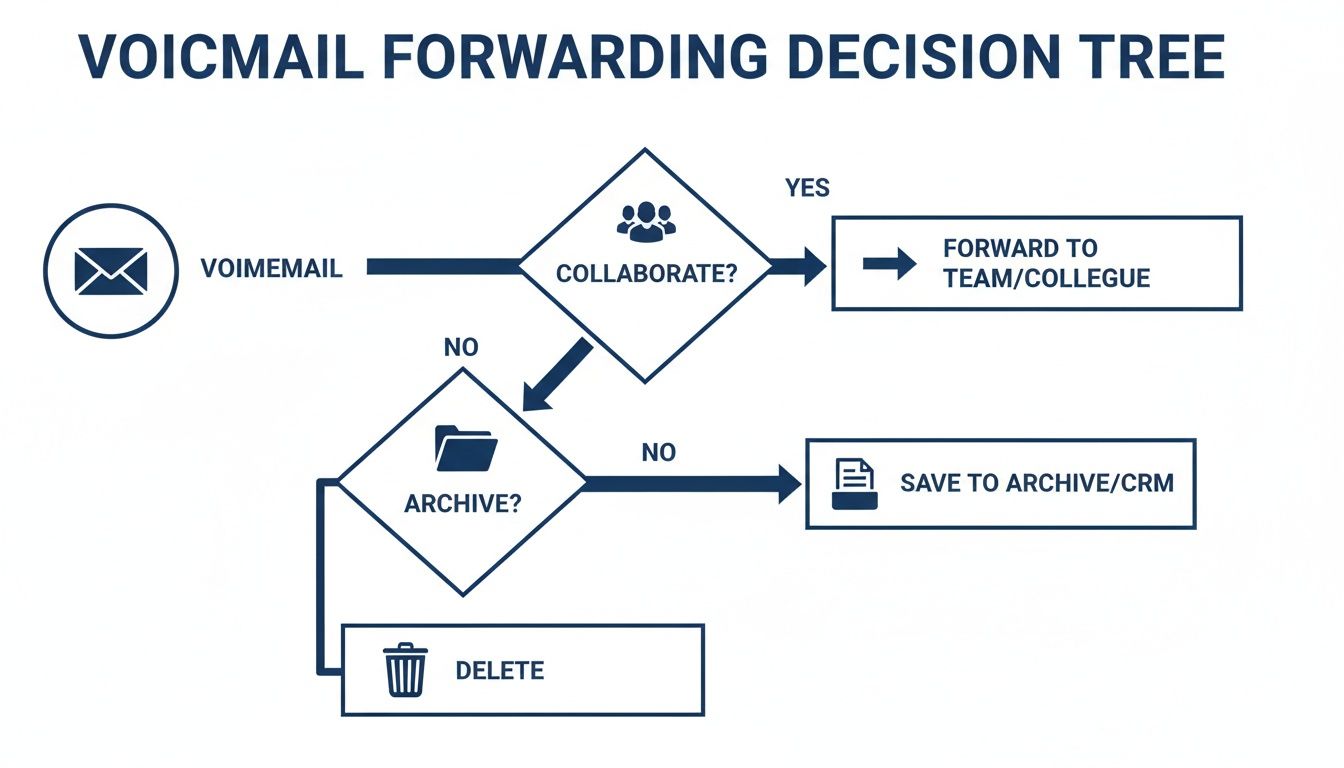
As you can see, the first question is always why you're forwarding it. A quick share for collaboration is different from archiving a message for your permanent records.
Forwarding a Voicemail on an iPhone
Apple has made sharing voicemails incredibly easy with its built-in Visual Voicemail. You get a neat list of all your messages, so you can just pick the one you want without having to listen to them all in order.
Here’s how you do it:
- First, open the Phone app on your iPhone.
- Tap on the Voicemail tab in the bottom right corner.
- Find and select the specific message you want to send.
- Then, just tap the Share icon—it's the little square with an arrow pointing up.
A menu will pop right up, giving you all your sharing options. You can send the audio file through Messages, Mail, or AirDrop it to a nearby device. You can also save it directly to an app like Voice Memos or your Files.
Here's a pro-tip I use all the time: If you have a long voicemail, share it to the Voice Memos app first. This lets you trim the audio down to only the important part before you send it. It's perfect for cutting out the small talk before forwarding a critical piece of client feedback.
How to Forward Voicemail Messages on Android
Things can be a little different in the Android world. Because there are so many different phone manufacturers and carriers, the exact steps for forwarding a voicemail can vary. It’s not quite the one-size-fits-all approach you see with iPhones.
If you have a Google Pixel phone, for instance, the native Phone app usually has a visual voicemail tab that works much like an iPhone's. You just select the message and look for a share or forward button.
Don't have a built-in visual voicemail feature? Your best bet is to check for your carrier's own app, like My Verizon or T-Mobile Visual Voicemail. These apps are designed to give you that same handy list-based view, letting you manage and forward voicemails as simple audio files.
For business communications, however, a dedicated VoIP mobile app is a much more reliable and professional solution. Premier Broadband customers, for example, can use the SnapMobile app for iOS and Android. It keeps all your business communications, including voicemail, in one place on your personal device. This way, you get a consistent, streamlined experience for handling important business messages no matter what kind of phone you carry.
Managing Voicemail Forwarding on a Business Phone System
When you're running a business, every message counts. A missed client update or a delayed note to a team member isn't just an inconvenience—it can impact your bottom line. That’s why knowing how to quickly and reliably forward voicemail messages on a professional VoIP system is essential. It keeps your team in sync and your business moving forward.
For most business phone systems, especially hosted VoIP solutions like ours, you have two main ways to handle voicemails. You can do it the old-fashioned way right from your desk phone, but the real power lies in using the web-based user portal.

Using a Physical VoIP Desk Phone
Many modern VoIP desk phones let you manage your voicemail directly through a series of simple menu prompts. This is perfect for when you need to take quick action without logging into a computer.
The exact key presses might vary a bit depending on your phone model, but the process is generally the same.
- First, you'll press the voicemail button or dial into your voicemail box.
- Listen to the message you want to pass along.
- Once the message ends, pay attention to the menu options. You'll hear something like, "To forward this message, press 7."
- From there, just follow the prompts to punch in your colleague's extension or phone number to send it on its way.
This method is great for shooting a message over to someone else in the office. For a complete list of commands, it's always a good idea to check your provider's guide. Premier Broadband customers can find a detailed breakdown of the full voicemail menu options and commands right here.
Leveraging a Hosted VoIP Web Portal
This is where things get really powerful. Using your provider's online portal completely changes how you handle voicemails. Instead of just listening to audio prompts, you get a clean, visual interface that works a lot like your email inbox.
When you log in, you'll see a neat list of all your messages. Right away, you can see who called, the date and time, and how long the message is. No more guessing.
The real game-changer is forwarding voicemails as high-quality audio files directly to any email address. This isn't just about sending a message; it’s about sharing important information with the right people, instantly.
Think about it. A client leaves a detailed message with new project specs. Instead of just forwarding it to one person's phone, you can email the audio file to your entire project team's distribution list. Everyone hears the update straight from the source, so nothing gets lost in translation.
This also gives you an easy way to keep records. You can forward crucial messages—like a verbal agreement or key customer feedback—to a folder in your email for a permanent, searchable archive. For any business that relies on clear communication, using the web portal to forward voicemail messages is a must-have tool.
The Ultimate Hands-Off Approach: Voicemail-to-Email Automation
Let's be real—for busy professionals and fast-moving teams, manually forwarding voicemails one by one just doesn't make sense. It’s a repetitive chore that eats away at time you could be spending on more important things.
The best way to handle incoming messages is to automate the whole process right from the start. That’s where voicemail-to-email comes in.
This is a standard feature in most modern VoIP systems, and it completely changes how you manage your communications. Once it's turned on, every new voicemail is automatically converted into an audio file—usually an MP3 or WAV—and sent straight to your email inbox.
It’s a true "set it and forget it" strategy. You no longer have to log into a separate portal or check your phone's voicemail app. Messages arrive right alongside your emails, making them a breeze to access, prioritize, and manage from anywhere.
Setting Up Your Automated Voicemail Workflow
Getting this feature configured is usually pretty simple and is done through your VoIP provider's online portal. You can typically find the option under your user settings or call handling rules.
Most systems let you specify one or more email addresses to get the notifications. This flexibility is a huge plus for team environments.
- For individual users: Send all voicemails directly to your personal work email. This keeps everything in one central, searchable place.
- For shared lines (like sales or support): Direct voicemails to a group email address. This makes sure the first available person on your team can jump on the customer's needs without any delay.
For larger teams, you might want to set up a smart forwarding service using an email distribution list. This ensures voicemails get to all the right people, keeping everyone in the loop and accountable.
By automating how you forward voicemail messages, you create an effortless archive. Every message is time-stamped and saved in your email, providing a searchable record of client requests, confirmations, and important updates. You'll never worry about a full voicemail box or an accidentally deleted message again.
The Strategic Advantages of Automation
Beyond just being convenient, automating your voicemail forwarding offers some serious business benefits. It makes sure no critical message ever slips through the cracks, which is vital for customer satisfaction.
When a client leaves an urgent message, it doesn’t just sit in a voicemail box waiting for someone to check it. Instead, it lands in an active inbox where it can be seen and handled right away.
This system also makes sharing information incredibly easy. Need to bring a manager or a specialist up to speed on a client issue? Just forward the email with the audio file attached. There’s no need to download, save, and re-upload anything, which really streamlines your internal workflow and helps your team stay responsive.
Best Practices for Privacy and Security
When you forward a voicemail, you're doing more than just sending an audio clip. You're sharing someone's voice, their phone number, and maybe even personal information they didn't expect to go any further. It's really important to handle these messages responsibly to protect everyone's privacy.
Think about it: once you hit send, you’ve lost control of that message. The person you send it to can save it, share it again, or keep it on a device that isn't secure. That's why it's smart to treat every voicemail with a bit of caution before you forward it.

Key Security Considerations
Before you share a message, it pays to run through a quick mental checklist. The simplest step is often the most important: make sure you're sending the right message to the right person.
A simple typo in an email address could accidentally send a confidential client message to a total stranger. Always double-check the recipient's email address or phone number before you confirm. This one small action can prevent a major headache.
Here are a few other essential habits to get into:
- Get Permission First: If a voicemail has sensitive details, just ask the original caller for their permission before you forward it. It’s a simple sign of respect that goes a long way.
- Skip the Public Wi-Fi: Forwarding files over an unsecured public network, like at a coffee shop, can leave them open to being intercepted. It's best to wait until you're on a trusted, secure network.
- Give a Heads-Up: Let the recipient know a voicemail is coming their way. If it contains confidential info, ask them to handle it carefully.
Choosing a Secure Forwarding Method
The tool you use to forward the message really matters. Standard messaging apps are convenient, but they might not have the security your business communications need. Professional VoIP services, on the other hand, are built for this.
Many business VoIP systems use encryption to transmit data, including your voicemails. This adds a critical layer of protection you often don't get with standard cellular services. For businesses that need total peace of mind, exploring options for managed network security solutions is a great step toward safeguarding all communications.
Adopting these simple but effective habits lets you use voicemail forwarding as a powerful tool without putting anyone's privacy at risk. It's all about being both efficient and responsible.
Your Voicemail Forwarding Questions Answered
Even with the best tools, you might have a few questions when you start forwarding voicemails. We’ve been there. Let's walk through some of the most common issues we see and get you clear, practical answers so you can share messages without a headache.
Can I Forward a Voicemail Without Visual Voicemail?
Yes, but it's a bit clunky. If you don't have a visual voicemail feature, you can't just send the audio file from your phone's built-in app. The old workaround is to play the message on speaker and record it with another phone, but the quality is terrible and it just doesn't look professional.
A much better option is a third-party app like Google Voice or YouMail, which adds that visual interface you need. For any business, though, the real solution is upgrading to a VoIP system. This gives you a portal where every voicemail is a high-quality, downloadable audio file, ready to go.
Does the Forwarded Message Include Caller Details?
That all depends on how you send it. When you share a voicemail directly from your smartphone, you're usually just sending the audio file itself. The person you send it to won't see who called or when unless you type that information in yourself.
Voicemail-to-email is the clear winner here. A professional VoIP system almost always packs the caller's ID, date, and exact time of the call right into the email. You get the full picture, automatically.
This is a game-changer for business. It ensures the person receiving the message knows exactly who called and when, which is crucial for good communication and keeping accurate records.
Is It Possible to Forward Only Part of a Voicemail?
Most standard voicemail systems don't come with editing tools, so you can't just trim a message before you send it. If you need to share just a key part of a long voicemail, you'll have to save the audio file first and do a quick edit.
Here's how we've seen it work best:
- On an iPhone: It's pretty simple. Share the voicemail to the built-in 'Voice Memos' app. From there, you can easily trim the recording down to just the clip you need before sending it on.
- On a Computer: If you're using our VoIP portal, just download the audio file to your desktop. You can use free software like Audacity to quickly clip the message down to the important part and then attach it to an email.
Taking that extra step means you're only sharing what's relevant and respecting everyone's time.
What Happens If I Delete a Voicemail After Forwarding It?
Once that voicemail is sent as an audio file, the recipient has their own copy. If you delete the original message from your phone or VoIP system, it will not affect the file you already sent.
This is actually a great way to archive important messages. You can forward a client's verbal approval or a critical project update to your email for permanent, searchable storage. After that, feel free to delete the original from your voicemail box to keep things tidy, knowing your record is safe and sound.
Ready to make your business communications easier with powerful features like voicemail-to-email? Premier Broadband offers enterprise-grade VoIP solutions that keep your team connected and running smoothly. Learn more about our advanced voice services.