
Knowing how to forward a voicemail is one of those surprisingly useful skills. It lets you quickly share important audio messages with colleagues, family members, or even just send them to yourself for your own records. It’s usually as simple as finding the message in your phone’s app, hitting the share button, and sending it off via text or email.
Why Forwarding Voicemails Is Still a Vital Skill
In a world full of instant messages and video calls, you might think the classic voicemail is a bit outdated. But nothing else quite captures the tone, emotion, and subtle details of a person's voice. Forwarding these messages is more than just a tech trick; it's about making sure the right person gets the full story, exactly as it was told.
Real-World Scenarios
Think about how often this comes in handy:
- For Small Businesses: A happy client leaves a glowing message about your service. Forwarding that audio clip to your team's group chat is a huge morale booster and gives everyone direct insight into what you're doing right.
- For Remote Teams: A project stakeholder calls with an urgent change of plans. Emailing the voicemail directly to the project manager ensures they hear the urgency in the stakeholder's voice, which prevents a lot of "lost in translation" mistakes.
- For Personal Matters: A family member leaves a heartfelt message you want to keep forever. Saving and sharing it means that memory is preserved and can be enjoyed by others who would appreciate it.
The Sheer Volume of Voicemails
The need for smart voicemail management really hits home when you see the numbers. Out of 13.5 billion phone calls made worldwide every day, a massive 80%—that's 10.8 billion calls—go straight to voicemail. That breaks down to about 125,000 voicemails being left every single second. You can dig into more of these voicemail statistics from recent research.
With that kind of volume, being able to quickly forward a message with critical information can make all the difference, especially when things are moving fast.
This is where modern VoIP services, like ours at Premier Broadband, completely change the game. They turn the old-school chore of dialing into a voicemail box into a simple, seamless part of your workflow. Features like voicemail-to-email automatically pop audio files and transcriptions right into your inbox. Forwarding them becomes as easy as forwarding any other email, helping you and your team stay on top of everything.
The Best Method: Forward Voicemails Directly to Email
Let’s be honest, nobody likes dialing into a voicemail box, listening to messages one by one, and then fumbling to forward them. If you live in your email inbox like most professionals, the most efficient way to handle voicemails is to have them sent there automatically.
This is exactly what voicemail-to-email does. It’s a game-changing feature built into modern VoIP phone systems that converts voicemails into audio files and sends them right to your inbox.
Imagine a client leaves a detailed message with critical project feedback. Instead of the old, clunky process, an email with the audio file—and often a text transcription—just appears. You can immediately forward it to your team, save it to a project folder, or archive it for your records. It turns a temporary message into a searchable, organized piece of communication.
This infographic breaks down just how valuable this simple automation can be for different professionals.
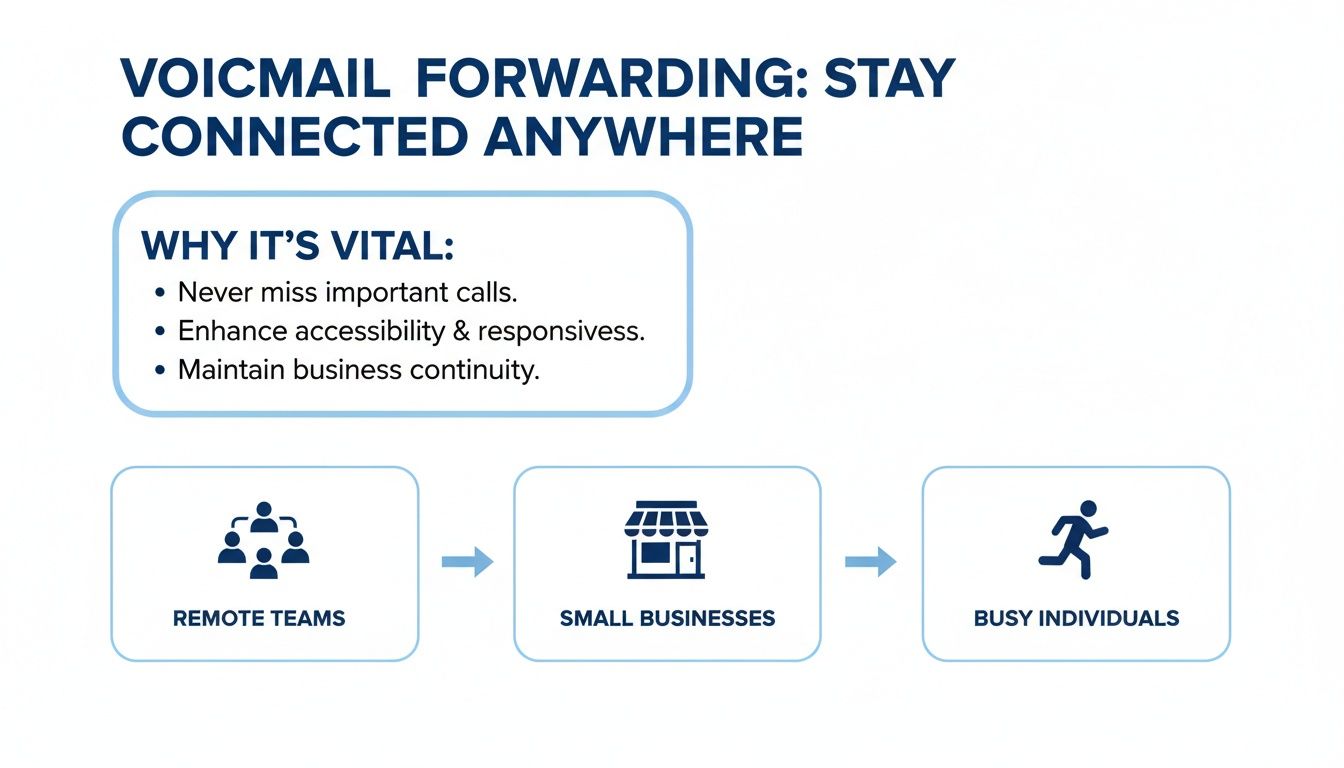
As you can see, it’s a huge asset whether you're a remote team trying to share client info, a small business documenting every interaction, or just a busy professional trying to stay on top of your messages.
Why Is This a Better Way?
This isn’t just about convenience; it’s about making communication smarter. The virtual voicemail market is exploding, projected to hit USD 11.04 billion by 2033, all thanks to cloud-based systems and the power of AI-driven transcription.
And consider this: most people would rather read a quick message than listen to a long audio file. Forwarding voicemails as text transcripts can actually boost engagement by up to 40%. It’s faster for everyone.
When you turn voicemails into emailable data, you’re not just forwarding a message. You’re making critical information more accessible, actionable, and easier for your entire team to manage.
How to Set Up Voicemail-to-Email
Getting this feature up and running is typically a one-time setup in your provider's online portal. If you're using a system like Premier Broadband, it's incredibly straightforward.
- Log into your account and head to your phone settings or extension management area.
- Find your voicemail settings. This is usually labeled "Voicemail," "Notifications," or something similar.
- Enable the email feature. Look for a checkbox or toggle for "Voicemail to Email" or "Email Notification" and switch it on.
- Add your email address. Type in the email where you want voicemails sent. Many systems let you add multiple addresses, which is perfect for teams that share an inbox.
- Pick your format. You can usually choose to get just the audio file, just the transcription, or both. I always recommend getting both for the best of both worlds—clarity and convenience.
Once that's done, you're all set. It's a simple change that creates a powerful, automated workflow, saving you time and ensuring no important message gets stuck in a forgotten voicemail box again.
If you’re looking to upgrade your company’s communication tools, our guide on VoIP solutions for small business is a great place to start.
How to Forward a Voicemail on an iPhone
If you have an iPhone, forwarding a voicemail is incredibly easy, mainly because of a fantastic feature called Visual Voicemail. If you’ve been an iPhone user for a while, you probably take it for granted, but it really changed the game. No more dialing into a clunky system and listening to messages in order just to find the one you need.
Instead, all your voicemails are laid out in a clean list, just like your email inbox. You can scroll, tap, and share with just a few taps.
Before we jump in, though, it's a good idea to make sure your phone is actually receiving calls correctly. If you've noticed you're missing calls that should be going to voicemail, you're not alone. This guide on iPhone Not Ringing? Quick Fixes & Expert Tips has some solid advice to get that sorted out first.
Finding and Sharing Your Voicemail
First things first, pop open the Phone app right from your home screen. Down in the bottom right corner, you’ll see the "Voicemail" icon—give that a tap.
This brings up your list of messages, showing who called, when, and how long the message is. Just tap on the specific voicemail you want to send along.
When you tap the message, it expands to show the playback controls. What you're looking for is the Share icon, which is the little square with an arrow pointing up out of it. This is your magic button for sending that audio clip pretty much anywhere.
Picking Where to Send It
Once you hit that Share icon, you’ll see the standard iOS share menu pop up. This is where the iPhone’s flexibility really shines.
You've got a bunch of options for where to send the audio file:
- Messages: This is the most common one. It lets you send the voicemail as an audio file directly to one of your contacts through iMessage or a standard text.
- Mail: Perfect for professional settings or for creating your own records. This attaches the voicemail to a new email.
- Notes or Voice Memos: A great way to save the audio file for your own reference right on your phone.
- Cloud Storage: You can send the file straight to iCloud Drive, Google Drive, or Dropbox. This is ideal for keeping a secure backup.
- Other Apps: Share it directly to your favorite communication apps like Slack, WhatsApp, or Microsoft Teams.
Real-World Example: Let's say a contractor leaves a detailed voicemail with a project quote and you need to run it by your partner. Instead of trying to summarize it, you can just tap the message, hit Share, and send it over via iMessage. In seconds, your partner hears the full context, straight from the source.
This simple process turns what used to be a trapped voice message into a useful piece of data you can save, manage, and share. If your business runs on iPhones, it's worth seeing how a dedicated iOS mobile app for VoIP can integrate these communications even more seamlessly into your daily operations.
A Guide to Forwarding a Voicemail on Android
The Android world is famous for its variety. Unlike the one-size-fits-all approach of iPhones, the exact steps to forward a voicemail can change a bit depending on who made your phone (like Samsung or Google) and which mobile carrier you use.
Some folks will use the standard Google Phone app, others might have a manufacturer-specific version, and some carriers even provide their own visual voicemail app.
But don't worry—the basic idea is the same on most modern Android devices. It all comes down to Visual Voicemail, which is just a fancy way of saying your messages are laid out in a list instead of making you dial in to hear them. From that list, you can pick a message and share it just like any other file.

Using the Google Phone or Samsung App
Let's walk through how this works on the most common setups.
- First, open your main phone app—the one you use to make calls.
- Next, find the voicemail tab. On the Google Phone app, it's usually the icon on the far right. If you're on a Samsung, you might need to tap the three-dot menu first and then select "Voicemail."
- You should now see all your voicemails in a list. Tap the one you want to forward to see more options.
- Look for a share button. It often looks like three connected dots or might just say "Share." Tapping it opens up the standard Android sharing menu.
From there, you can send the voicemail (which is now just an audio file) to almost any app on your phone. Email it, send it through a messaging app, or upload it to Google Drive to keep a permanent record.
Here's a real-world example: Say you're out of the office and get a voicemail from the IT department giving you some urgent instructions for a software update. Instead of trying to scribble down all the technical details, you can just forward the audio file directly to your manager in your team's chat to keep them in the loop. Easy.
When Native Sharing Is Not an Option
Unfortunately, not every Android phone has this feature built-in. Some carriers or older devices might not support visual voicemail, which means you're stuck dialing into the old-school voicemail system. When that's the case, you usually can't forward a message directly.
This is exactly where having a modern business phone system makes a huge difference. A VoIP service with a dedicated Android mobile app from Premier Broadband gives you a consistent, professional experience no matter what phone or carrier you have.
All your voicemails show up in a clean, simple list inside the app, ready to be forwarded, transcribed, or saved with a single tap. It completely bypasses your carrier's limitations and gives you a much more reliable way to manage your business communications.
Advanced Voicemail Management for Your Business
Knowing how to forward a voicemail from your iPhone or Android is one thing, but businesses need more muscle to make sure important client messages don’t get lost in the shuffle. This is where a hosted VoIP phone system really shines, turning a simple voicemail into a powerful tool for your entire team.
Instead of having to manually send messages one by one, you can set up smart rules that do all the heavy lifting for you. The secret sauce is modern VoIP Technology, which unlocks a whole new world of control over your communications.
Streamline Workflows with Automated Rules
Picture this: a key client leaves a voicemail with urgent details for a project. With a good system in place, you can have a rule that automatically forwards any message from that client's number straight to the project manager's email. It arrives as an audio file with a transcription, so the right person gets the message instantly. No one has to lift a finger.
This kind of automation is a game-changer, especially for customer service and sales teams. You can set up your system to handle new leads and client calls way more efficiently:
- Group Forwarding: Voicemails left on a general sales line can be sent to a shared team inbox or a group extension. This guarantees the first person available can jump on it, which drastically cuts down on how long customers have to wait.
- CRM Integration: Some systems can even push voicemail audio files right into your CRM. The message gets logged under the client’s contact record automatically, building a complete history of every interaction.
By automating how you forward a voicemail, you build a reliable system that keeps your team on the same page and ensures critical client info gets handled right away.
Boost Professionalism and Productivity
Taking a proactive approach to voicemail management makes a huge difference in how your business runs. For small businesses, using an enterprise-grade VoIP can slash client response times by up to 30%, giving you a serious edge over the competition.
Think about a sales team that gets new lead voicemails delivered to a shared inbox. They can guarantee a quick follow-up, which massively improves the odds of turning that lead into a customer. It completely removes the risk of a message sitting unheard in one person's private voicemail while they're in a meeting or out of the office.
A big part of this is presenting a polished image from the very first ring. You can learn more about how to manage your business voicemail greetings to create that professional first impression for every caller.
Common Questions About Forwarding Voicemails
Even when you think you've got the process down, certain situations can throw a wrench in the works. Let's walk through some of the most common questions people have when trying to share voicemails across different devices and platforms.
Can I Forward a Voicemail if I Don't Have Visual Voicemail?
Technically, yes, but it’s not pretty. Without visual voicemail, you lose that simple "tap and share" convenience of sending an audio file.
Some old-school carrier systems might let you forward a message to another phone number on their network. This usually involved hitting a key, like '7', after listening. Honestly, though, this feature is pretty rare these days.
The most common workaround? Put your phone on speaker and record the playback with another device. It works in a pinch, but the audio quality takes a nosedive. If you need to do this often, it's a strong signal that upgrading to a service with visual voicemail or a modern VoIP system is the way to go.
What Format Will the Forwarded Voicemail Be In?
The file type you get really depends on your phone and service provider. Knowing what to expect can save you a headache if someone can't open what you sent.
- iPhone: Apple typically wraps these up as .m4a files. They're widely compatible with just about any modern device.
- Android: You'll often see universal formats like .mp3, but sometimes you'll get an .amr file, which is specifically optimized for voice recordings.
- Voicemail-to-Email: When a VoIP system emails you a voicemail, it's almost always a .wav or .mp3 file. These are the gold standard for compatibility—they'll play on any computer or smartphone, no special software needed.
If you’re using one of those older carrier forwarding methods, the recipient just gets it as a regular voicemail in their inbox. No actual file changes hands.
Remember, the whole point of forwarding a voicemail is to share information easily. Sticking with a method that creates a common file type like .mp3 ensures your recipient can actually listen to it without any technical drama.
Is It Possible to Forward Only Part of a Voicemail?
Unfortunately, no phone system has a built-in "trim" feature for voicemails. When you forward a message, you're sending the whole thing, start to finish.
If you only need to share a specific snippet, you'll have to add an extra step. First, save the entire audio file to your device or computer. From there, you can use a simple audio editing app to chop it down.
On an iPhone, the free GarageBand app works great. For a PC, Audacity is a popular choice. Just import the voicemail file, cut out the parts you don't need, and export the new, shorter clip. Then you can share that trimmed file like you would any other.
Are There Security Concerns When Forwarding Voicemails?
Absolutely. A voicemail is a piece of your personal data, and it deserves the same level of care as any other private message. Before you hit that forward button, take a second to think about what's in the message.
If a voicemail contains sensitive personal details, financial data, or confidential business info, be very careful about who you send it to and how you send it. Standard email isn't always secure unless it's encrypted. For truly sensitive stuff, it might be safer to summarize the key points in a secure chat or just not forward it at all.
While professional business phone solutions are built with security in mind, your own discretion is the most critical safeguard. Always treat a forwarded voicemail like a private digital document.
Ready to stop worrying about device limitations and carrier restrictions? With Premier Broadband, you can manage all your business communications, including voicemails, from a single, secure platform. Our enterprise-grade VoIP services with features like voicemail-to-email and automated forwarding rules give you the power to streamline your workflow and keep your team connected. Learn more about our powerful business phone solutions.