
It’s the moment we all dread. One minute you’re deep in a work project or streaming your favorite show, and the next—nothing. Your internet is down.
Before spending time on the phone with support, a few quick checks can often solve the problem in minutes. We'll walk you through the first things to look at to rule out the most common and easily fixable culprits.
Your First Moves When the Internet Is Down
When your connection drops, the first impulse might be to panic, but the solution is often surprisingly simple. The goal here is to start with the basics, confirming your equipment is set up correctly before assuming there's a bigger issue at play.
Start with Physical Checks
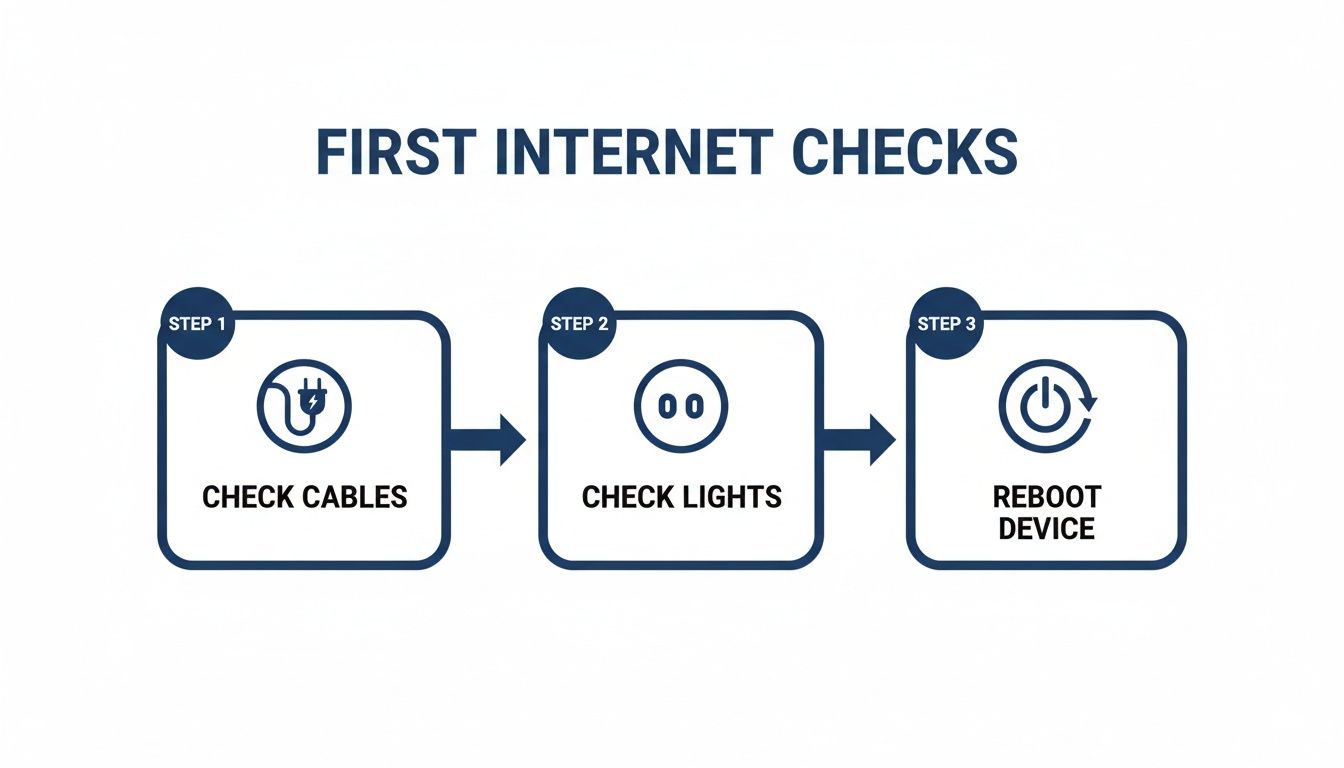
Your first stop should always be your networking hardware—the modem and router. It sounds obvious, but you’d be surprised how often a loose plug or a tripped power strip is the real villain.
Look for the indicator lights on the front of your equipment. If they're completely dark, you've found a power problem. Trace the cables to make sure everything is connected securely. Check the power cord, the coaxial or fiber cable from the wall, and the Ethernet cable linking your modem and router.
Pro Tip: Don't just wiggle the cables. A solid connection is critical for stable data transfer, so unplug each one and plug it back in until you hear that satisfying "click."
This quick checklist will help you systematically rule out the most common physical issues.
Initial Troubleshooting Checklist
| Check | Action | Why It Matters |
|---|---|---|
| Power | Look for indicator lights on your modem and router. | If there are no lights, the device isn't receiving power. Check the power strip and outlet. |
| Cables | Unplug and securely reconnect all cables (power, Ethernet, coax/fiber). | A loose cable is a frequent and easily fixed cause of connection drops. |
| Device Lights | Observe the lights after confirming power. Are they blinking or a solid color? | The light pattern can tell you if the device is trying to connect, has a signal, or is showing an error. |
Following these simple steps confirms your hardware is physically ready to connect to our network.
The Power of a Proper Reboot
If all the lights are on and cables are snug, it’s time for the classic—and highly effective—reboot. We call this a power cycle, and it’s more than just a quick on-and-off flick. A proper reboot gives your hardware a moment to clear its memory and reset its internal components.
Here’s how to do it right:
- Unplug the power cords from both your modem and your router.
- Wait for at least 60 seconds. This is crucial, as it lets the internal components fully discharge and clear any glitches.
- Plug the modem back in first. Give it a minute or two for its lights to stabilize.
- Once the modem is fully back online, plug your router in and let it boot up completely.
This one procedure can resolve a huge number of common connection problems.
Check for Service Outages
What if you've done all that and you're still offline? The issue might not be in your home or office at all. Sometimes, the problem is on our end, like a regional service disruption.
Network-wide issues are more common than you might think. Between November and December 2025 alone, global network outages surged by 178%. The United States saw an even bigger spike of 284% during that same time. Checking for an outage first can save you a lot of troubleshooting effort.
Most providers, including Premier Broadband, have a status page or automated phone line to report outages. A quick check can confirm if we're already aware of the problem and working on a fix.
If there's no reported outage, your next move is to gather more data. A great way to do this is by running a speed test. You can learn more in our guide on how to test your internet speed accurately.
Is It Your Device or the Network?
Alright, you’ve done the classic reboot and checked for local outages. Now it’s time to figure out exactly where the problem is coming from. Is it a single, stubborn device, or is your entire network actually down?
Answering this question first will save you a ton of headaches.
The quickest way to check is to simply grab another internet-capable device. If your laptop won’t connect, try your phone. If the smart TV is endlessly buffering, see if your tablet can get online. Just make sure you’re trying to connect to the same network.
If the internet is blazing fast on your phone but dead on your computer, you’ve just found your culprit. The problem isn’t with your internet service—it’s something on that specific computer.
When Every Device Is Offline
If absolutely nothing in your home or office can connect, you’ve confirmed the issue is with the network itself. This shifts the focus from your individual gadgets to the core hardware: your router, modem, or the internet line from Premier Broadband.
I’ve been there—I once lost an hour trying to "fix my internet," only to discover a stuck VPN on my work laptop was blocking everything. Meanwhile, my phone was working perfectly fine on the same Wi-Fi the entire time.
A simple rule of thumb: If one device works and another doesn't, the problem is almost always with the device, not the network.
This is the most important first step in understanding how to troubleshoot internet connection problems because it tells you exactly where to focus your energy.
The Wi-Fi vs. Wired Test
If you’ve narrowed the problem down to your wireless devices, the next step is to rule out Wi-Fi as the source of the trouble. The best way to do this is to plug in directly.
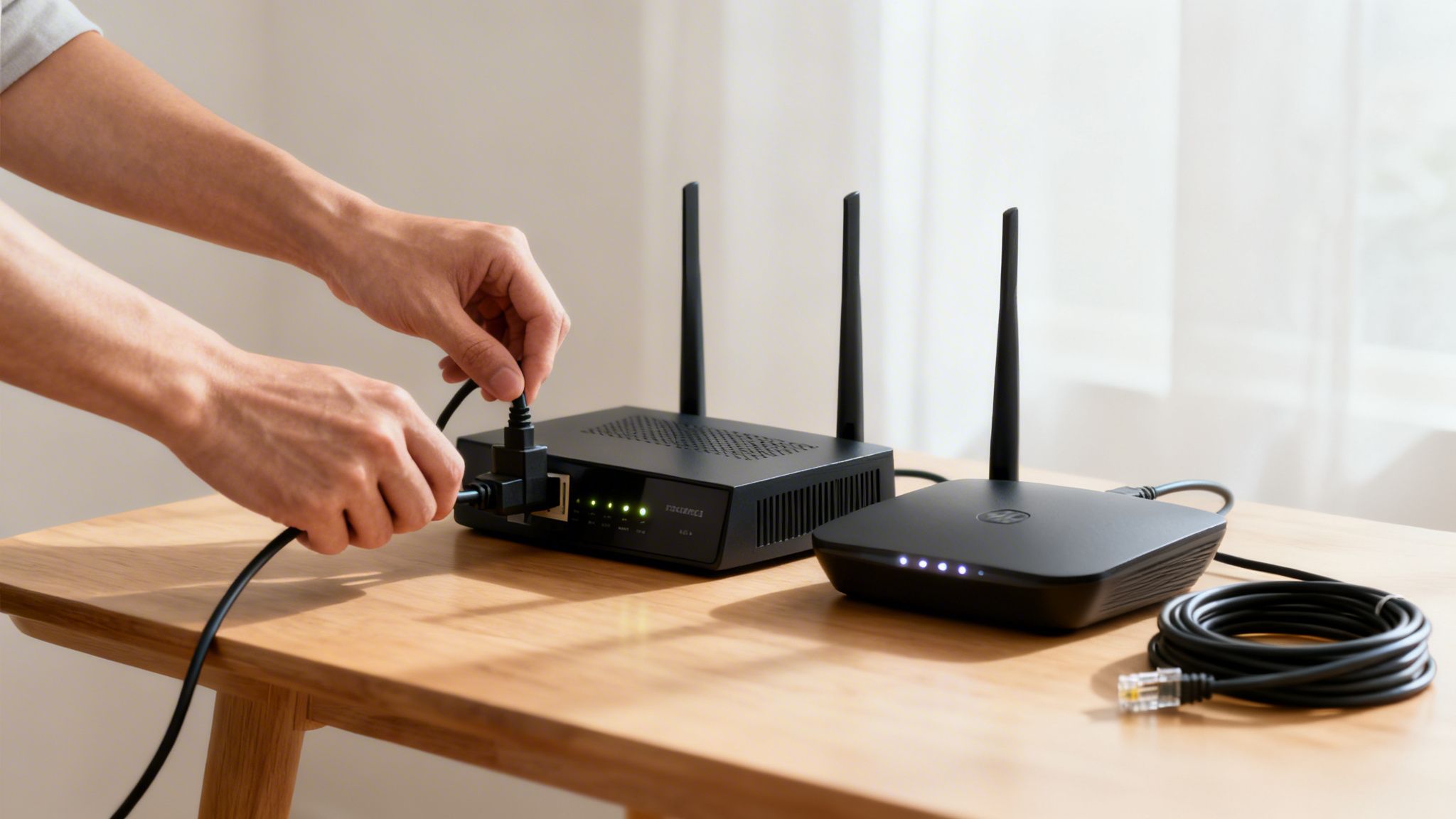
Find an Ethernet cable and connect a computer straight to one of the LAN ports on your router. This bypasses Wi-Fi completely, eliminating signal issues as a possible cause.
If you get a solid, speedy connection over the wire, good news! Your internet service is working just fine. The problem lies somewhere in your Wi-Fi setup. This could be caused by a few common things:
- Signal Interference: Other electronics like microwaves, cordless phones, or even a neighbor’s powerful network can disrupt your signal.
- Bad Router Placement: Walls, large furniture, and even fish tanks can create Wi-Fi dead zones.
- Congested Wi-Fi Channels: Sometimes your router is trying to use the same channel as too many other nearby networks.
But if you still have no internet even with a direct wired connection, the issue isn't your device or your Wi-Fi. This strongly points to a problem with your router, your modem, or the connection to your property. If you're comfortable with more advanced tools, you can learn more about the different network diagnostic utilities that can offer more insight.
Diagnosing and Optimizing Your Wi-Fi Signal
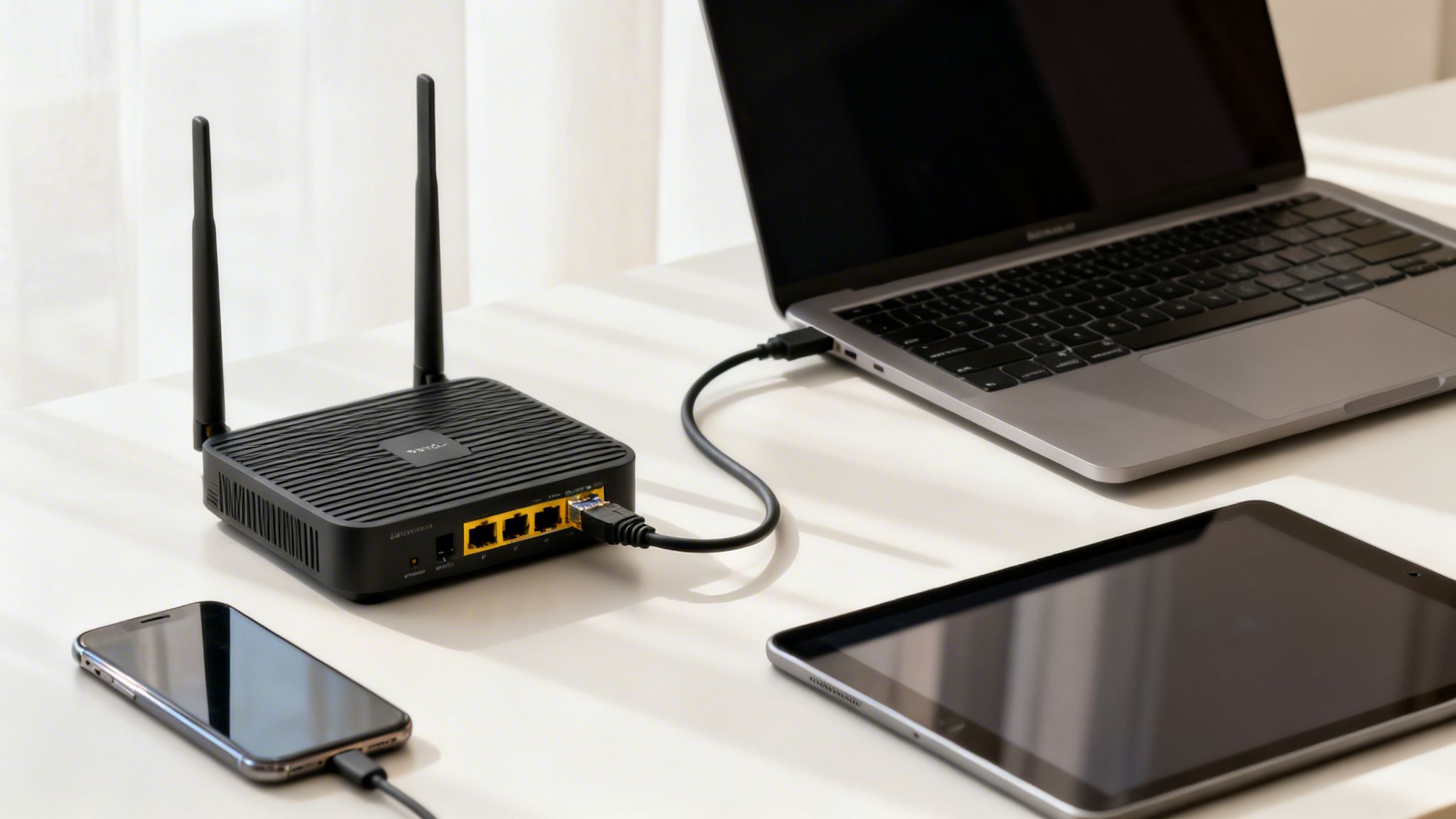
So, you've plugged a laptop directly into your modem and confirmed the internet is flowing. But your wireless devices are still crawling. This is a classic scenario, and it almost always points to one thing: your Wi-Fi signal.
If you’re seeing that dreaded buffering icon mid-movie or your video calls keep dropping, it's time to play detective. Knowing how to troubleshoot internet connection problems means knowing how to hunt down what’s sabotaging your wireless connection.
Unmasking Common Wi-Fi Saboteurs
Think of your Wi-Fi signal as a radio wave—because that’s what it is. And just like your car radio, it can get blocked or distorted. The biggest culprits are often hiding in plain sight.
Physical obstacles are a huge factor. Some materials are notorious for killing Wi-Fi:
- Dense Construction Materials: Concrete, brick, and even old-school plaster walls can soak up a wireless signal.
- Metal Objects and Surfaces: Big appliances like refrigerators and ovens are signal killers. Even the metal studs inside your walls can reflect and scatter your signal, creating dead spots.
- Water: It might sound strange, but that large aquarium in the living room can absorb Wi-Fi waves and weaken your connection.
Beyond walls and appliances, other electronics can create signal interference. This is when another device broadcasts on a similar frequency, creating "noise" that confuses your gadgets. The usual suspects are microwave ovens, older cordless phones, and some baby monitors.
Here's a pro tip: A single concrete wall can slash your Wi-Fi signal strength by more than half. That's often enough to turn a great connection into a frustratingly slow one.
Once you know what’s getting in the way, you can start moving things around for a much better experience.
Smart Router Placement for Better Coverage
I can't stress this enough: where you put your router is the single most important factor for good wireless coverage. Hiding it in a cabinet or sticking it in the basement is a guaranteed way to get a poor signal.
For the best possible performance, think central and open. Place your router in a central spot in your home or office, preferably up high on a shelf. This lets the signal radiate out and down, covering the most area. Whatever you do, don't put it on the floor.
Choosing Between 2.4 GHz and 5 GHz Bands
Most modern routers are "dual-band," meaning they broadcast two separate networks: a 2.4 GHz band and a 5 GHz band. Picking the right one for the right device can be a game-changer.
| Wi-Fi Band | Best For | Why It Works |
|---|---|---|
| 2.4 GHz | Browsing on devices far from the router | This signal travels further and gets through walls better. The trade-off is that it's slower and more crowded. |
| 5 GHz | Streaming 4K video, online gaming, large downloads | This band is much faster and less congested. Its weakness is a shorter range, and it doesn't handle obstacles as well. |
As a rule of thumb, connect stationary, high-demand devices like your smart TV, gaming console, or work computer to the 5 GHz network if you can. Use the 2.4 GHz network for your phone or other devices that move around the house or are far from the router. This simple tweak can solve a lot of slowdowns.
For a deeper dive into getting the strongest signal possible, check out our guide on how to boost your Wi-Fi signal.
Advanced Troubleshooting for Network Hardware
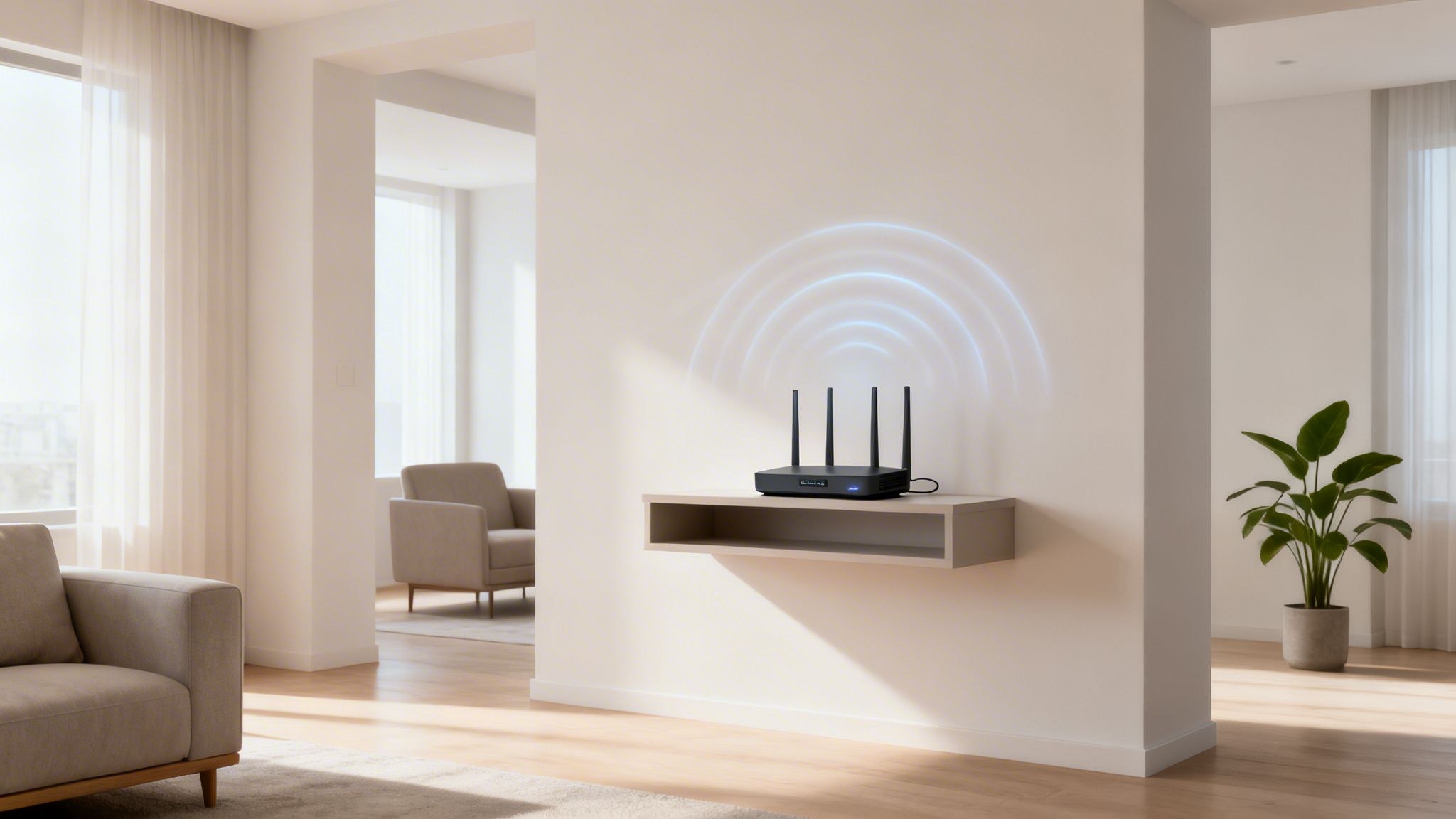
When a simple reboot doesn’t bring your internet back to life, it’s time to roll up your sleeves and look closer at your network hardware. Persistent issues with your modem, router, or VoIP adapter often leave clues—if you know where to look.
The blinking lights on the front of your gear aren't just for decoration. They're a built-in diagnostic panel telling you exactly what's going on.
Understanding Your Router's Status Lights
Learning to read the status lights on your modem or router is the first real step in diagnosing a tricky connection. Each light represents a key function, and its color or behavior (solid, blinking, or off) gives you a live report. While symbols can differ between brands, the main indicators are pretty consistent across the board.
For instance, a solid green "Internet" or globe icon usually means you have a solid connection to our network. If that light is blinking orange or is off entirely, it points to a communication breakdown between your modem and Premier Broadband—something a simple restart couldn't solve.
Here's a quick reference to help you decode what your equipment is trying to tell you.
Understanding Your Router's Status Lights
A guide to interpreting the common status lights on a modem or router, helping you diagnose the state of your power, internet connection, and Wi-Fi signal.
| Light Icon | Color / State | What It Means |
|---|---|---|
| Power | Solid Green | The device is on and receiving power. |
| DS/US or Upstream/Downstream | Blinking Green/Blue | The modem is negotiating a connection with the network. This is normal during startup. |
| Internet / Globe | Solid Green/Blue | You have a successful internet connection. |
| Internet / Globe | Blinking or Solid Orange/Red | There's a problem connecting to the ISP. No IP address was received, or there's an authentication issue. |
| Wi-Fi / WLAN | Blinking Green | The Wi-Fi radio is on and actively sending/receiving data. |
Being able to interpret these lights can save you a ton of time. You'll know right away if the problem is local (your Wi-Fi) or something further upstream (the connection to your home).
When to Consider a Factory Reset
If the lights point to a problem but nothing else works, a factory reset is your last-resort option. Think of it as a clean slate for your router. It will erase all your custom settings—like your Wi-Fi name (SSID), password, and any special configurations—and return the device to its original, out-of-the-box state.
This isn't a step to take lightly, since you'll have to set up your network again from scratch. However, it's incredibly effective at fixing stubborn issues caused by corrupted firmware or a bad setting you can't pinpoint. You can usually perform a reset by pressing a small, recessed button on the back of the router with a paperclip for 10-15 seconds.
VoIP-Specific Connection Issues
For our customers using Premier Broadband’s VoIP phone service, internet trouble often shows up in strange ways. You might experience one-way audio, dropped calls, or choppy sound, even when your internet seems fine for browsing.
These symptoms often point to an issue with Quality of Service (QoS) settings. QoS is a feature that tells your router to prioritize voice traffic over everything else, like a big file download or a streaming video. When QoS isn't working correctly, your call quality can suffer.
Of course, even the best-configured network can't fix a provider-wide outage. In fact, one recent report showed a 36% increase in ISP outages across the United States in a single week, proving the problem isn't always inside your walls. For those managing more complex network hardware, guides like Mastering Winbox for Network Management and Troubleshooting can be an excellent resource for digging deeper into device-specific settings.
Knowing When to Call Premier Broadband Support
You’ve worked through every step. You’ve restarted the modem, wiggled every cable, and confirmed the internet is down on every single device. You even tried to figure out what those blinking lights *really* mean.At this point, you're hitting a wall. Continuing to tinker with settings or endlessly resetting your gear can sometimes do more harm than good. If you've covered the basics and are still stuck, it’s probably time to let us help.
Clear Signs It’s Time to Make the Call
There are a few dead giveaways that the problem isn’t inside your four walls, but somewhere further up the line. Spotting these will save you a ton of time and frustration.
It's time to reach out if you notice any of these signs:
- Your modem lights are telling you there's no signal. After a full reboot, if the “Internet,” “Online,” or globe icon is off, solid red, or blinking amber, it’s a strong hint that your modem can't shake hands with our network.
- A known outage is over, but you’re still offline. Once we give the all-clear on a service outage, your connection should pop right back on. If it doesn’t, your modem might need a nudge from our end.
- Your connection is incredibly unstable. If your internet drops every few minutes, it often points to a problem with the physical line coming into your building. That’s something only a technician can properly diagnose and fix.
- You're seeing a specific error message. Sometimes, a weird security warning or a "no authority" message can pop up. For instance, some Android users have run into issues after a Certificate Authority expired, which is something a provider has to fix—not the user.
When you're running a small business, downtime isn't just an inconvenience; it's a real problem. For those situations, knowing the top IT support providers for small businesses can be a lifesaver.
Preparing for a More Effective Support Call
When you do call in, a little prep work can make the entire process go much smoother. Our support agents have a checklist, and their first step is often to walk through the things you've already tried. Giving them a quick summary right away lets you skip the basics and get right to the solution.
Before you dial, take a minute to jot down a few key details. A prepared customer is a support agent's best friend and gets their problem solved much quicker. I’ve seen a five-minute call solve an issue that could have taken thirty minutes of back-and-forth.
Have this information ready when you get in touch:
- A quick summary of what you’ve already tried. (e.g., "I've already power-cycled my modem and router twice and tested a direct Ethernet connection.")
- The status of the lights on your modem. Be specific. ("The power light is solid green, but the internet light is blinking red.")
- Whether the issue affects all devices or just one. ("My laptop has no internet via Ethernet, and my phone can't connect to the Wi-Fi.")
With these details in hand, our team can pinpoint the problem far more quickly. You can find all the ways to contact our support team on our website.
When to Escalate to Managed Services
For businesses, persistent or tricky connection problems can be a major headache. If you find yourself constantly battling network issues, it might be time to think about a more hands-off solution.
Premier Broadband offers advanced services like our Premier Protection Plan, which covers equipment, and our Managed Network Edge services. These plans provide proactive monitoring and expert management of your network, so our team handles the complexity while you focus on running your business.
Frequently Asked Questions About Internet Troubleshooting
Even after running through all the steps, you might still have questions about what’s causing your internet woes. We get it. Here are the answers to some of the most common questions we hear from customers who are trying to get their connection back on track.
Why Is My Internet So Slow All of a Sudden?
It’s the question we hear all the time: "My internet was fine an hour ago, and now I can barely load a webpage. What happened?" Sudden slowdowns are incredibly common, and thankfully, the cause is usually simple.
Often, it’s just temporary network congestion in your area. If it’s evening and your neighbors are all streaming movies, the shared network can feel the strain. The issue could also be right inside your own home—if someone is downloading a huge game file or uploading a 4K video, they can eat up all the available bandwidth, slowing things down for everyone else.
A quick router reboot is the best first move. If that doesn't fix it, run a speed test while plugged directly into your router with an Ethernet cable. This tells you if the problem is with the main internet connection or your Wi-Fi signal.
Does Rebooting My Router Really Do Anything?
Trust us on this one: rebooting your router isn't just a cliche, it really works. It’s the number one fix for a reason. Think of your router as a small computer that’s always on. Over time, its memory can get bogged down with minor errors and tasks, just like a laptop left running for weeks.
A reboot (or power cycle) is like a fresh start. It clears out that cluttered memory, dumps any software glitches, and forces the router to make a brand-new, clean connection to our network. It’s the quickest fix for all sorts of mysterious connection drops and slowdowns.
I’ve seen it countless times—a customer calls in frustrated after an hour of trying complex fixes, and a simple 60-second power cycle gets them back online instantly. It’s the most effective tool in your troubleshooting toolkit.
How Can I Tell If the Problem Is My Wi-Fi or My Internet Service?
This is the most important question to answer when troubleshooting, and there's a simple, foolproof test. The goal is to completely bypass your Wi-Fi to see if the core internet service is working.
All you need is a laptop and an Ethernet cable. Plug one end of the cable into your laptop and the other into a LAN port on the back of your router. Then, make sure to turn off Wi-Fi on your computer so it’s forced to use the wired connection.
If you can browse the web without any issues, your internet service from us is working just fine. The culprit is your Wi-Fi network—it could be anything from signal interference to poor router placement. But if you still can't get online with a direct cable connection, the problem is likely with your internet service, the modem, or the line coming into your building.
Should I Use the 2.4 GHz or 5 GHz Wi-Fi Band?
The best answer depends entirely on what you’re doing and where your device is. Modern routers offer both bands because they serve very different purposes.
- The 2.4 GHz band is your long-range option. Its signal travels farther and does a better job of getting through walls and floors. The trade-off is that it's slower and more crowded, picking up interference from things like microwaves and baby monitors. It's best for basic browsing on devices far from the router.
- The 5 GHz band is the speed demon. It delivers much faster performance over a cleaner, less congested signal. The catch is its shorter range; the signal doesn't travel as far and struggles with solid obstacles. Use this band for anything that needs speed, like 4K streaming or competitive gaming, on devices that are close to the router.
For the best experience, connect stationary, high-demand devices (like a Smart TV or gaming console) to the 5 GHz band. Let your mobile devices use the 2.4 GHz band as you move around the house.
Why Do I See a Security Warning on My Phone?
Sometimes, what looks like a network problem is actually a device-specific issue you can’t control. You might see a pop-up on your phone about "security issues" or an "untrusted" certificate for a network that has always worked perfectly.
This happened recently to some Android users when an operating system update stopped trusting a specific Certificate Authority (CA). The network was perfectly secure, but the phone no longer knew how to verify it. This isn't something you can fix yourself; it requires an update from the device maker or service provider. If a reboot doesn’t clear the warning, it's a good time to call for support.
If you’re tired of wrestling with connection drops and troubleshooting on your own, let Premier Broadband handle it. Our Managed Network Edge services and Premier Protection Plan deliver a professionally managed, headache-free connection so you can focus on what matters. Explore our services at Premier Broadband today.