- Log in to the Manager Portal
- Navigate to Users. Basic Users can navigate to Answering Rules and skip to step 5

- Select the user to update
- To allow or block calls to a TOD Routing, Auto Attendant, or a Call Queue
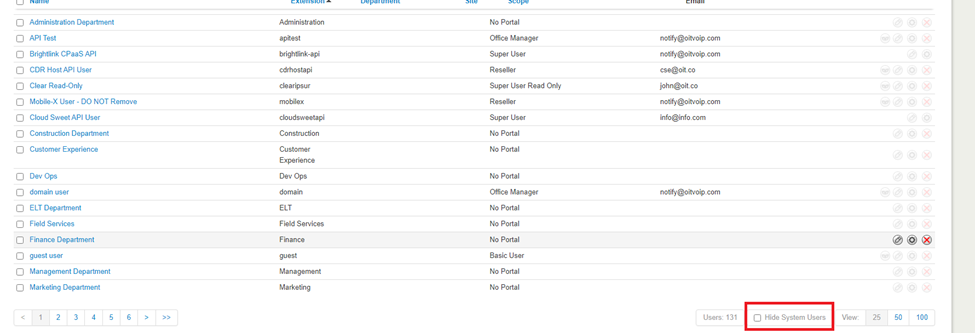
- Scroll to the bottom of the User’s Tab and uncheck the Hide System Users

- Select the system user you wish to edit (TOD Routing, AA, CQ)
- This will block all calls to the DID, AA or CQ, respectively.
- Scroll to the bottom of the User’s Tab and uncheck the Hide System Users
- To allow or block calls to a TOD Routing, Auto Attendant, or a Call Queue
- Go to the Answering Rules tab

- Click Allow/Block

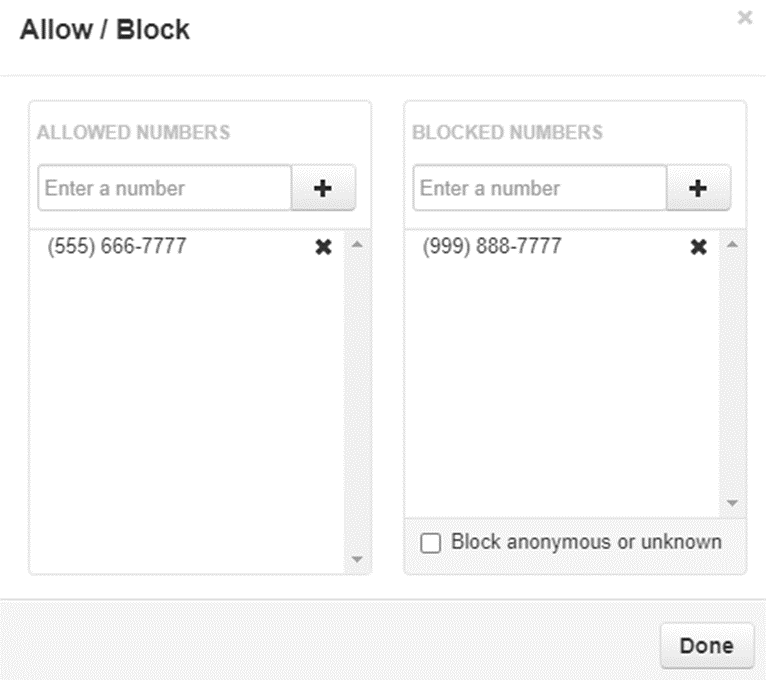
- On the left, enter allowed numbers and click the + icon to add it to the list
NOTE: This allows callers to bypass Do Not Disturb and Call Screning. It does not specify numbers allowed to dial an extension - On the right, enter any blocked numbers and click the + icon to add it to the list
NOTE: Calls from blocked numbers will be dropped immediately. - Once done adding numbers click Done

You will use this if Time Of Day routing is enabled and the client does not wish to receive any calls from a specific number. This will stop the indicated number from being able to call in to the TOD-routed number.
- Log into the Manager Portal
- Navigate to the Users tab
- Uncheck HIDE SYSTEM USERS
- Navigate to the TOD number Answering Rules
- Click Allow/Block
- On the left, enter allowed numbers and click the + icon to add it to the list
NOTE: This allows callers to bypass Do Not Disturb and Call Screning. It does not specify numbers allowed to dial an extension - On the right, enter any blocked numbers and click the + icon to add it to the list
NOTE: Calls from blocked numbers will be dropped immediately. - Once done adding numbers click Done