
Your internet can look fast on paper and still feel terrible in the moments that matter. A Zoom call freezes while the audio keeps going. A game shows a sudden lag spike right as you take a shot. Voices on a VoIP call turn robotic for a few seconds, then recover as if nothing happened.
That pattern usually isn't about raw download speed. It's often packet loss. And the fastest way to fix it isn't trying random tweaks. It's figuring out where the packets are getting lost so you can apply the right fix once.
Why Your Connection Stutters with Fast Internet
A lot of people run a speed test, see a healthy number, and assume the network is fine. Then the next video meeting breaks up, or a multiplayer match feels slippery and delayed. That's the giveaway. Fast internet and stable internet are not the same thing.
A packet is just a small piece of data moving across your network. Your call audio, game inputs, and video stream are all split into packets. If some of those packets never arrive, the app has to either wait, retry, or guess what was missed. That's when you hear clipped words, see frozen faces, or feel sudden in-game stutter.
What packet loss feels like in real life
It's comparable to mailing a stack of numbered envelopes. If a few go missing, the person on the other end can't reconstruct the full message cleanly. Sometimes they can ask for missing pieces again. Sometimes they can't, especially in real-time apps where timing matters more than perfection.
That's why packet loss hits gaming, calls, streaming, and remote desktop harder than ordinary web browsing. A webpage can retry unobtrusively in the background. A live conversation can't rewind itself without you noticing.
Practical rule: If your downloads seem fine but live apps feel inconsistent, look for packet loss, latency swings, and jitter before assuming you need a faster plan.
Packet loss also tends to create side effects that people mislabel as "lag." What they're really feeling is unstable delivery. One burst of missing packets can trigger delay, uneven timing, and the kind of choppy behavior often discussed alongside network jitter and how to fix it.
Why speed tests can miss the real problem
Most quick tests measure throughput well enough. They don't always reveal what happens during congestion, weak Wi-Fi, or brief drops on the path between you and the service you're using. That matters because your connection can be excellent for bulk downloads and still unreliable for traffic that needs steady delivery second by second.
The fix starts with a better question. Not "How fast is my internet?" Ask "Where is the loss happening?"
Pinpointing the Source of Packet Loss
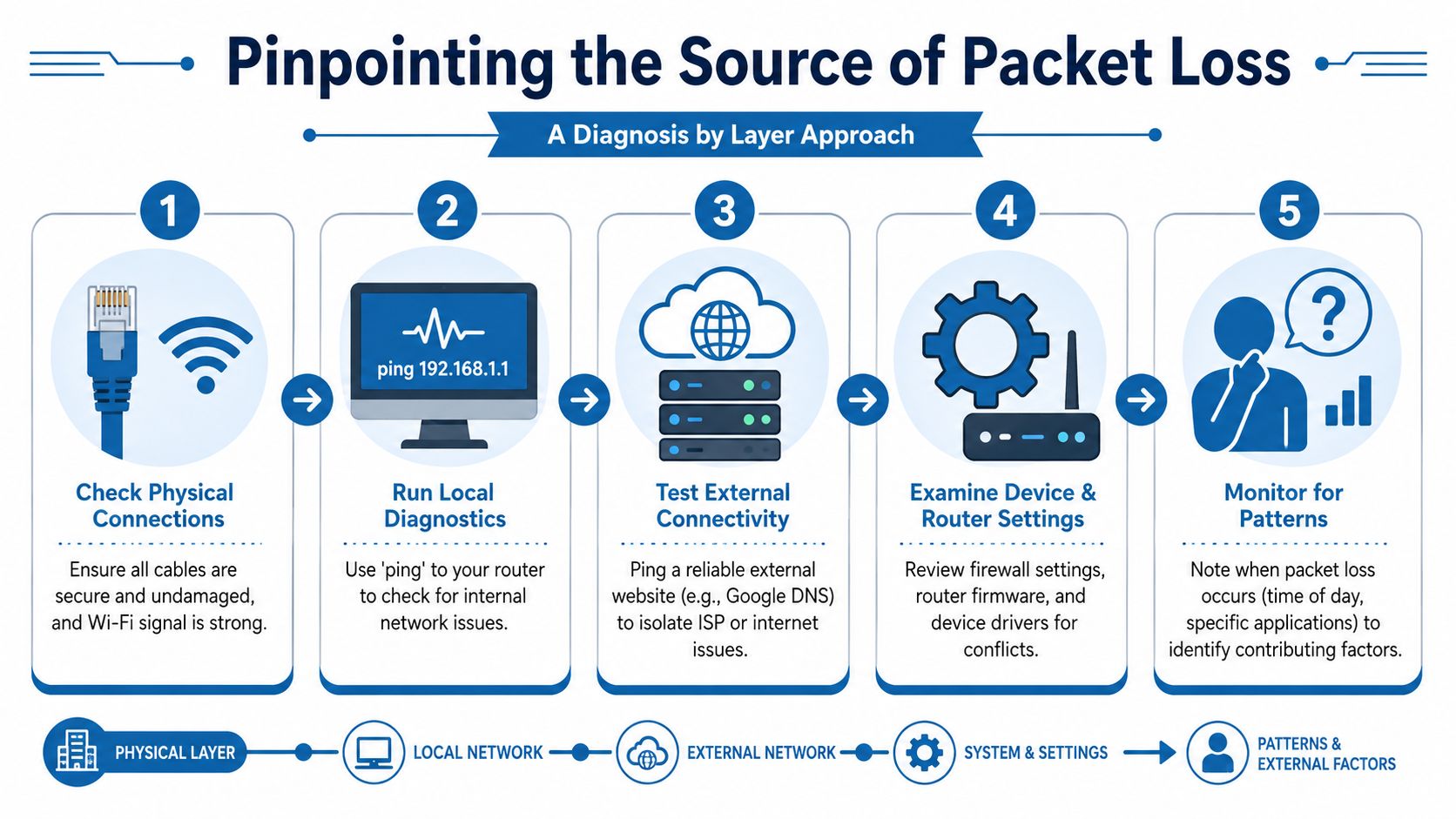
Most advice about how to reduce packet loss jumps straight to rebooting the router, replacing cables, or buying new hardware. Sometimes that works. Often it wastes time. A more useful approach is diagnosis by layer: check the device, then the local link, then the router, then the outside path.
Guidance for households and small businesses is strongest when it starts with ping, traceroute, or pathping-style testing to separate client-side loss from upstream issues, as noted in DNSstuff's explanation of diagnosis by layer.
Start with the shortest path
Test the closest thing first. If your laptop can't talk cleanly to the router, testing a game server across the internet won't tell you much.
Use built-in tools:
- On Windows:
ping,tracert, andpathping - On macOS or Linux:
pingandtraceroute
If you want a plain-language primer on what those tools do, Premier has a useful overview of network diagnostic utilities.
A practical sequence looks like this:
Ping your router
- This checks your local connection first.
- If you see drops here, focus on Wi-Fi, Ethernet, drivers, ports, or the router itself.
Ping a reliable external destination
- If the router test is clean but the external test isn't, the problem is likely beyond your device.
Run traceroute or pathping
- This helps identify where loss begins along the route.
How to read the results
The key isn't memorizing every command. It's learning what the pattern means.
| Test result | What it usually points to | Best next move |
|---|---|---|
| Loss starts when pinging your router | Local Wi-Fi issue, bad cable, NIC problem, overloaded router | Switch to Ethernet, try another cable/port, reboot hardware |
| Router ping is clean, external ping shows loss | ISP path, modem issue, upstream congestion | Test at another time, run traceroute, collect evidence |
| Problems only in one app or one game | App server route, software conflict, background traffic on your device | Close sync apps, retest, try another server region if available |
| Loss appears only on Wi-Fi | Signal weakness or interference | Move closer, reposition router, split critical devices onto Ethernet |
If the first hop looks bad, stay inside your home network. If the early hops are clean and trouble starts later, stop replacing cables and start documenting the upstream issue.
A simple decision tree that works
Here's the version I'd use at a kitchen table or small office desk:
Bad on Wi-Fi, good on Ethernet
- Your internet service may be fine.
- Fix the wireless link first.
Bad on both Wi-Fi and Ethernet
- Check the router, modem, or upstream connection.
Bad only at certain times
- Look for congestion, scheduled backups, streaming, or neighborhood peak-time strain.
Bad only on one device
- Suspect the device before the network.
One more point matters. The same symptom can come from very different causes. Choppy audio could be weak Wi-Fi, a failing Ethernet cable, a busy upload link, or a problem farther out on the ISP path. That's why random fixes feel inconsistent. The method matters more than the tool.
Foundational Fixes for Your Local Network
Once testing points to your side of the connection, the highest-value fixes are usually boring. That's good news. You don't need enterprise gear to solve many packet loss problems at home or in a small office.
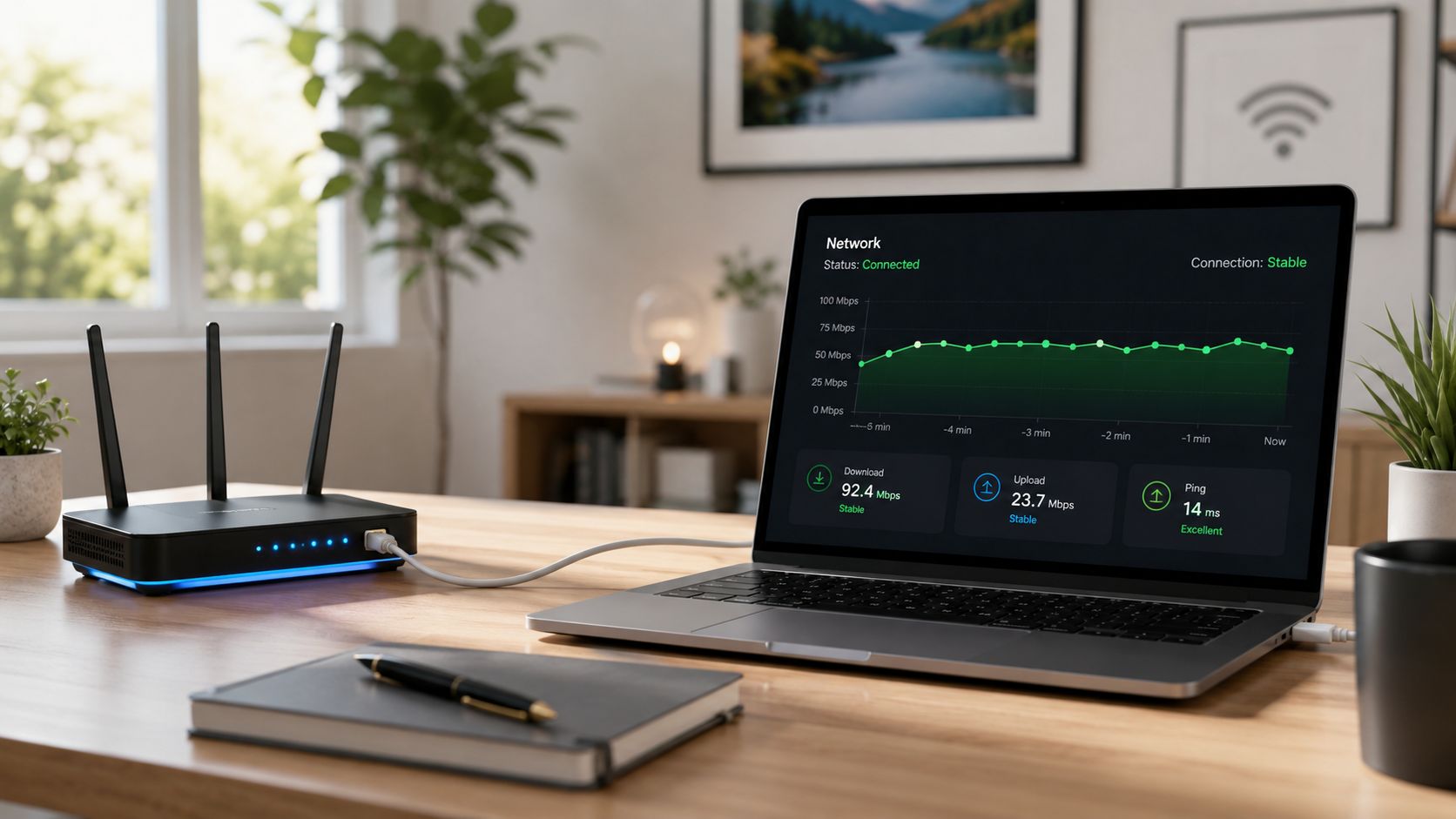
Modern troubleshooting guidance emphasizes end-to-end measurement and endpoint testing. In practice, that means switching from Wi-Fi to Ethernet, testing router ports and cables, closing background apps, updating firmware, and enabling QoS when congestion is involved, as summarized in Check Point's packet loss troubleshooting steps.
Use Ethernet for the devices that matter most
If you're trying to stabilize a work laptop, gaming PC, console, desk phone, or streaming machine, wired Ethernet is the first test and often the permanent fix. It removes wireless interference, weak signal issues, and roaming behavior from the equation.
You don't need to wire every device in the house. Prioritize the ones that carry real-time traffic. If your layout makes that difficult, it helps to understand cabling basics first. This guide to data cabling for London businesses is business-focused, but the practical points about cable runs, testing, and installation quality apply at home too.
Check the physical layer before touching settings
Most local packet loss comes from a short list of physical issues:
- Damaged patch cables: Bent connectors and tired clips cause intermittent problems.
- Bad router or switch port: Move the cable to another port and test again.
- Loose connections: Reseat both ends firmly.
- Overheating equipment: Warm is normal. Hot and unstable is not.
If your packet loss appears suddenly after moving furniture, cleaning around a desk, or rearranging hardware, inspect the cable path first. That's especially true if a pet, chair wheel, or vacuum has had access to it.
A flaky cable can imitate bigger network failures. Replace it before you blame the ISP.
Reboot in the right order
A full power cycle still has value when local hardware is acting strangely. The order matters:
- Turn off the modem and router.
- Wait briefly so stale sessions clear.
- Power on the modem and let it settle.
- Power on the router after that.
- Reconnect the test device and run the same ping checks again.
If Wi-Fi is the weak point, spend some time on placement and coverage. Router location, mesh node placement, and channel crowding all affect reliability more than many people expect. Premier has a straightforward guide on how to improve home Wi-Fi.
For a quick visual walkthrough, this video covers several practical checks worth doing on a home network:
Advanced Router and Network Tweaks
If the wiring is solid and packet loss shows up mainly when the network is busy, the next place to look is the router's traffic management. Here, people often get real improvement without changing internet plans.
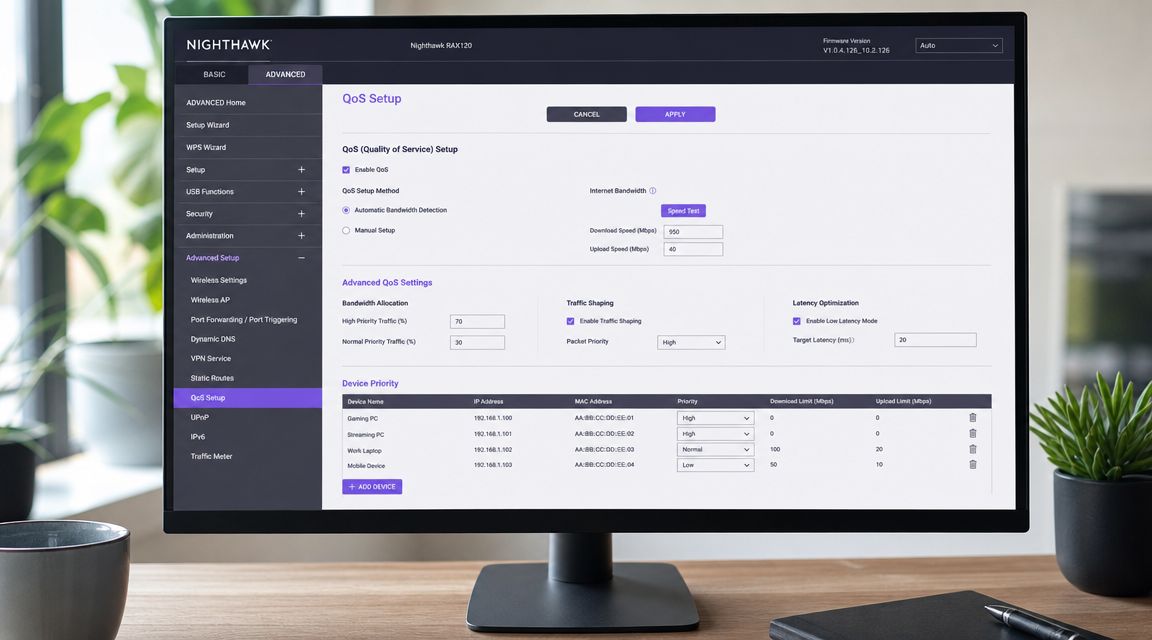
Packet loss is often reduced most effectively by prioritizing critical traffic. Industry guidance recommends QoS and traffic shaping so voice and video are not delayed by bulk traffic, which helps keep Zoom calls, VoIP, and gaming traffic from competing with downloads on the same link, as explained in LiveAction's packet loss guide.
Think of QoS as a fast lane
QoS stands for Quality of Service. On a home router, that usually means telling the router which traffic should go first when the line gets busy.
Without QoS, a big upload, cloud sync, game update, or camera backup can crowd the link. Your router then treats time-sensitive traffic too much like everything else. That's when voice breaks up and games feel unstable even though the internet isn't technically "down."
What to prioritize
You don't need an elaborate policy set. Start with the traffic that suffers most from delay:
- Voice and video calls: Softphones, VoIP adapters, conferencing apps
- Gaming devices: Consoles and gaming PCs
- Work machines: Especially those using remote desktop or cloud apps
- Streaming encoders: If someone in the house goes live or uploads video regularly
Many routers let you prioritize by device. Others use application categories. Either method is fine for a home network if it's simple enough to maintain.
Router settings that are worth your time
A short checklist usually gets better results than deep tinkering:
- Enable QoS or traffic shaping: Look for device priority, bandwidth control, or application priority.
- Update router firmware: Stability fixes matter as much as security fixes.
- Review queue behavior: Some routers expose advanced queue controls, others hide them behind "gaming" or "media prioritization" presets.
- Save one change at a time: If you alter several settings at once, you won't know which one helped.
Field note: Good QoS doesn't create more bandwidth. It protects the traffic that suffers most when bandwidth gets crowded.
If you want deeper routing and switching context behind these features, a comprehensive CCNA guide for IT professionals gives useful background on queues, prioritization, and path behavior, even if you're only managing a small network.
Leave MTU alone unless testing points there
People often find MTU settings in router menus and start experimenting. That can create new problems fast. Unless you have a clear reason and repeatable test results showing fragmentation or a path-specific issue, leave MTU at the default.
For most home users, packet loss responds better to three things than to obscure tuning:
| Change | Likely value | Risk |
|---|---|---|
| Enabling QoS | High | Low |
| Firmware update | High | Low to moderate |
| Random MTU changes | Low unless specifically needed | Moderate |
If you want a managed option instead of doing all the router tuning yourself, services such as managed Wi-Fi or managed network edge can help. Premier Broadband, for example, offers managed Wi-Fi and related network support as one option for households and businesses that want someone else handling the router side.
Optimizing for VoIP and Online Gaming
Gaming and voice calls expose weak networks faster than almost anything else. Web browsing can hide trouble. A match or a meeting can't.
One of the most overlooked causes is upload pressure. Packet loss on real-time apps can show up even when download speed looks fine. Guidance for live streaming and other upload-heavy use cases stresses checking upload capacity, keeping bitrate at 50 to 75% of available upload, and reducing frame rate to 30 fps when needed, as discussed in Resi's live streaming packet loss guidance.
Why upload matters more than most people think
A video call isn't just receiving data. You're also sending your voice, camera feed, screen share, and acknowledgments continuously. The same goes for gaming. The game isn't sending huge files, but it does need a clean, steady upstream path for inputs and state updates.
That's why a stable symmetrical fiber connection can matter more than a flashy download number for remote work, VoIP, and competitive play. If someone starts a cloud backup while you're on a call, the upload side can clog first.
A better setup for gamers and remote workers
Use this as a practical tune-up list:
- Close background upload apps: Cloud sync, photo backup, update launchers, and security cameras can consume upstream bandwidth.
- Prefer Ethernet for your main device: Especially for work calls and online shooters.
- Lower streaming settings if needed: If you're live streaming, reduce bitrate pressure before you assume the ISP is failing.
- Choose the nearest region in games when possible: A shorter path usually means fewer opportunities for trouble.
- Check your router's SIP handling for VoIP: Some home routers interfere with voice traffic in ways that are harder to spot than normal Wi-Fi problems. If you use internet calling, it's worth understanding what SIP ALG does.
For calls and games, consistency beats headline speed. A steady path feels better than a fast one that keeps dropping pieces.
When and How to Contact Your ISP
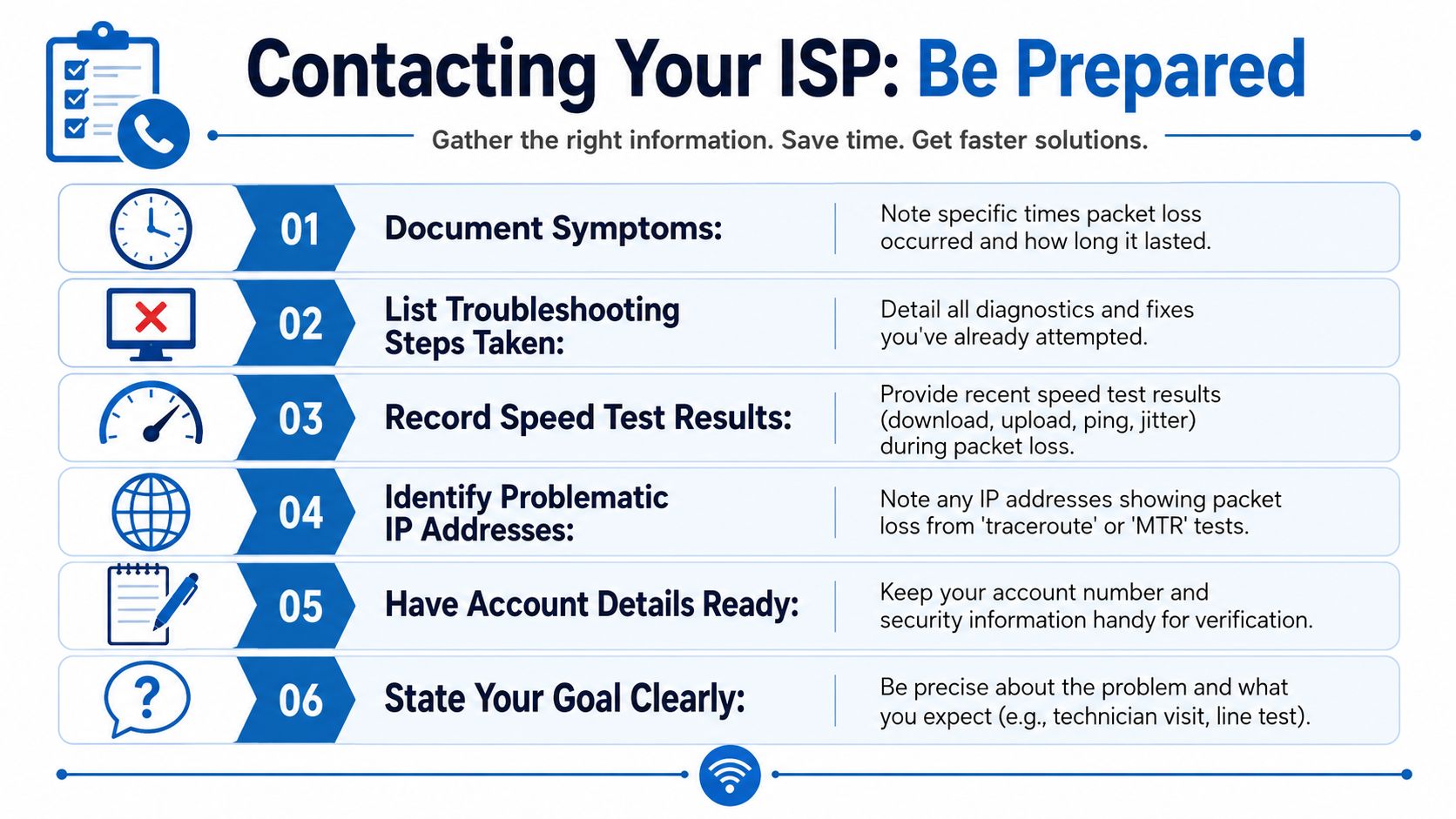
Once your local tests are clean and the problem shows up farther down the path, it's time to call your ISP. The difference between a useful support call and a frustrating one usually comes down to evidence.
Saying "my internet is laggy" gives support very little to work with. Saying "my router tests clean, external tests don't, and the issue appears mostly in the evening" is much more actionable.
What to gather before the call
AVIXA recommends setting an explicit alert threshold at 0.5% packet loss so issues are reported with objective data instead of vague complaints, as covered in AVIXA's packet loss monitoring guidance.
That doesn't mean you need fancy software. It means you should bring specifics:
- Your test notes: When the issue happens and whether it's constant or intermittent
- Results from router and external pings: Enough to show whether the problem is local or upstream
- Traceroute or pathping output: Especially if loss starts beyond your router
- A list of fixes already tried: Ethernet test, cable swap, reboot, firmware update, app cleanup
How to frame the problem
Keep it short and technical enough to be useful.
You can say something like:
My connection feels normal for browsing, but real-time apps are unstable. I tested locally first. The link to my router looks clean, but packet loss appears farther out. I've also checked cables, rebooted the modem and router, and tested on Ethernet.
That tells the support agent three important things. You isolated the issue. You ruled out the obvious home-network causes. You need a line test or escalation, not a generic reboot script.
When to push for escalation
Ask for escalation when the pattern is repeatable and your evidence points outside the home. That's especially true if:
- The issue happens at similar times
- Multiple devices show the same behavior
- Ethernet doesn't fix it
- Your local hop stays clean while farther tests fail
Be polite, but be specific. Support teams work better with a timeline and test results than with general frustration.
If packet loss is disrupting work calls, gaming, or VoIP, a reliable connection and good local network setup make a real difference. Premier Broadband provides fiber internet, VoIP, and managed Wi-Fi options for homes and businesses that need steadier real-time performance, especially in upload-heavy situations.