

You're staring at an overflowing Outlook inbox, a calendar packed with meetings, and at least three tasks that started as emails and never left your head. Add ins for Outlook turn that daily scramble into something more manageable by putting scheduling, CRM updates, task capture, e-signatures, and file control directly inside the inbox. Microsoft's own documentation shows Outlook add-ins are built for contextual use while you're reading or composing mail, which is why the right tools can save clicks without asking you to change how you work. For real-world use cases across home offices, remote teams, and small businesses, for Outlook use cases is a useful starting point, but the bigger win is choosing add-ins that fit your role instead of just chasing the longest feature list.
1. Zoom for Outlook
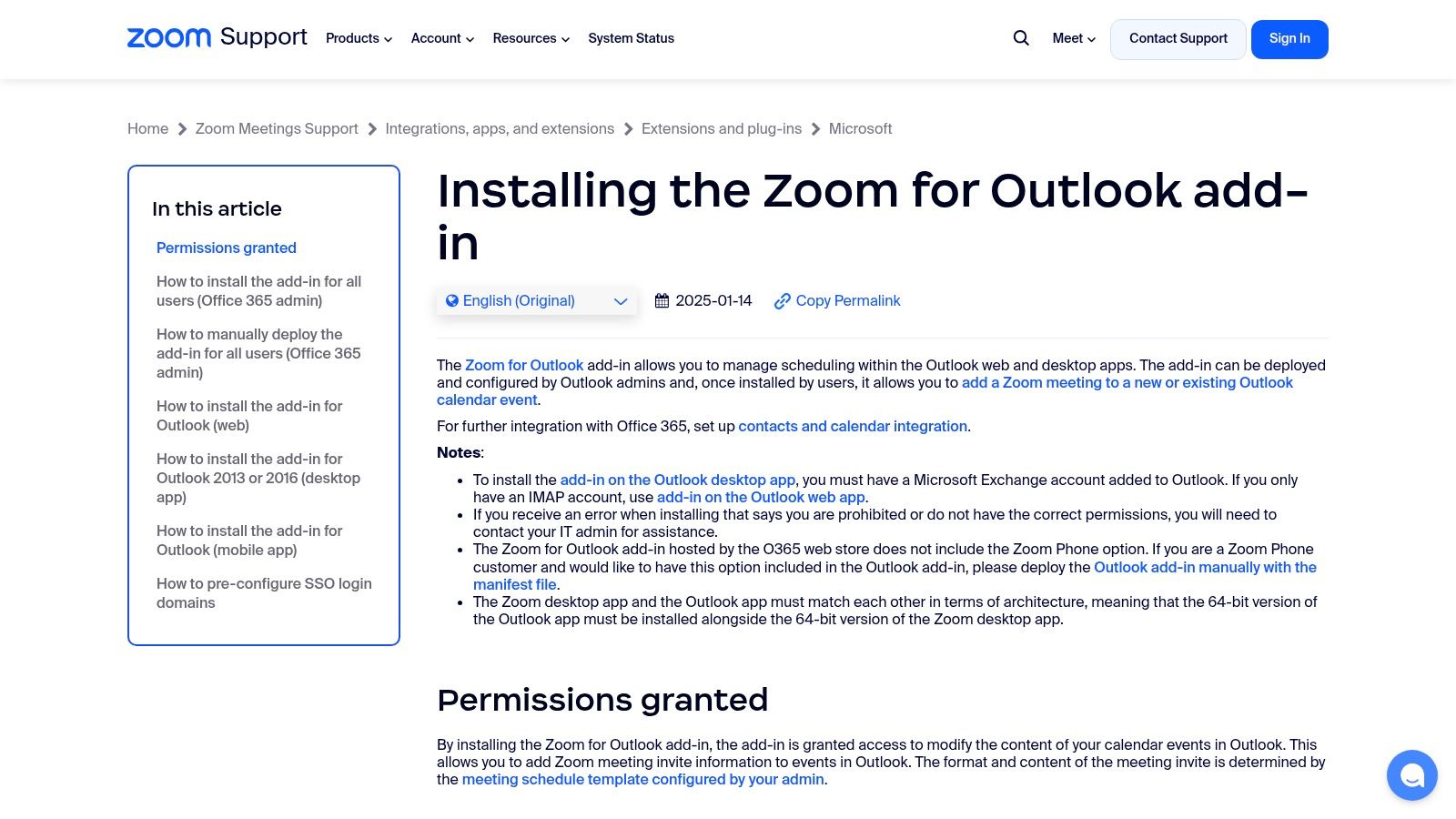
Zoom for Outlook makes the strongest case for itself the moment you need to schedule one meeting without opening another tab. From Outlook, you can insert Zoom meeting details into calendar invites and use one-click join or start controls, which cuts down on the app-switching that slows down busy teams. Zoom also supports organization-wide deployment through Microsoft 365, which makes it a cleaner fit for IT-managed environments than a one-off consumer plugin. The official setup guidance is here, Zoom for Outlook support, and it lines up well with Microsoft's broader add-in model for Outlook.
Best fit for remote workers
If you live in Outlook all day, Zoom's real value is speed. You don't want to copy meeting links between tools every time a client reschedules, and you especially don't want your calendar invite to become a formatting mess.
Practical rule: Use Zoom for Outlook when your team already standardizes on Zoom and Outlook, because the friction savings are biggest when both systems are already part of the workflow.
The trade-off is deployment control. Desktop installation depends on an Exchange or Microsoft 365 account, and centralized rollout usually depends on IT policy rather than individual preference. For remote workers on a stable connection, the tool is easy to justify. For teams that are still deciding between conferencing platforms, it's better to standardize first and install later. If you're planning meetings at home or in a small office, this guide to setting up a conference call pairs well with the add-in workflow.
2. Calendly for Outlook
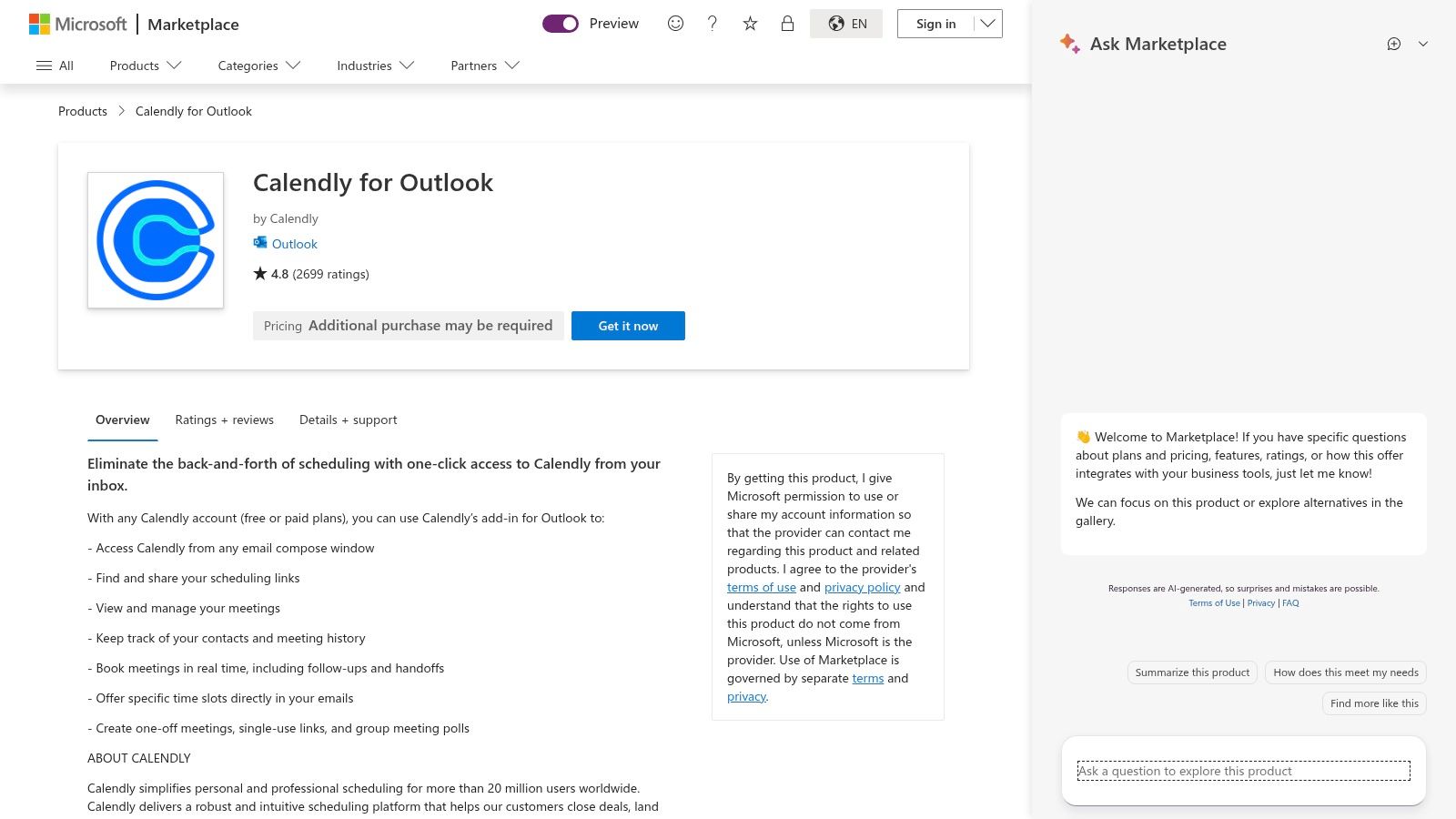
Calendly for Outlook is the fastest way to turn your inbox into a scheduling front door. It lets you insert availability into email, check calendar conflicts, and send booking links without leaving Outlook, which is exactly what sales reps, support teams, and consultants need when every back-and-forth adds friction. The listing is available in Microsoft AppSource, and that matters because AppSource deployment is usually much simpler than side-loading a niche tool into a managed tenant. You can review the product listing through Calendly for Outlook on AppSource.
Where it works best
Calendly shines when you need to publish availability quickly from the same place where requests arrive. That makes it especially useful for busy people who handle inbound scheduling all day, not just for outbound sales.
- Fast link sharing: Insert booking links into an email reply without copy-pasting from another browser tab.
- Conflict avoidance: Sync with Outlook calendars to reduce double-booking mistakes.
- Simple on-ramp: The basic experience is easy to understand, even for nontechnical users.
The downside is that admin policy can block installs in locked-down tenants, and more advanced routing features sit behind paid plans. That makes it a strong fit for small teams that need basic scheduling, but a less attractive choice if you're expecting complex assignment logic out of the box. For teams concerned about call quality during scheduling-heavy days, these video conferencing bandwidth requirements are worth checking before you promise frictionless meetings.
3. DocuSign for Outlook
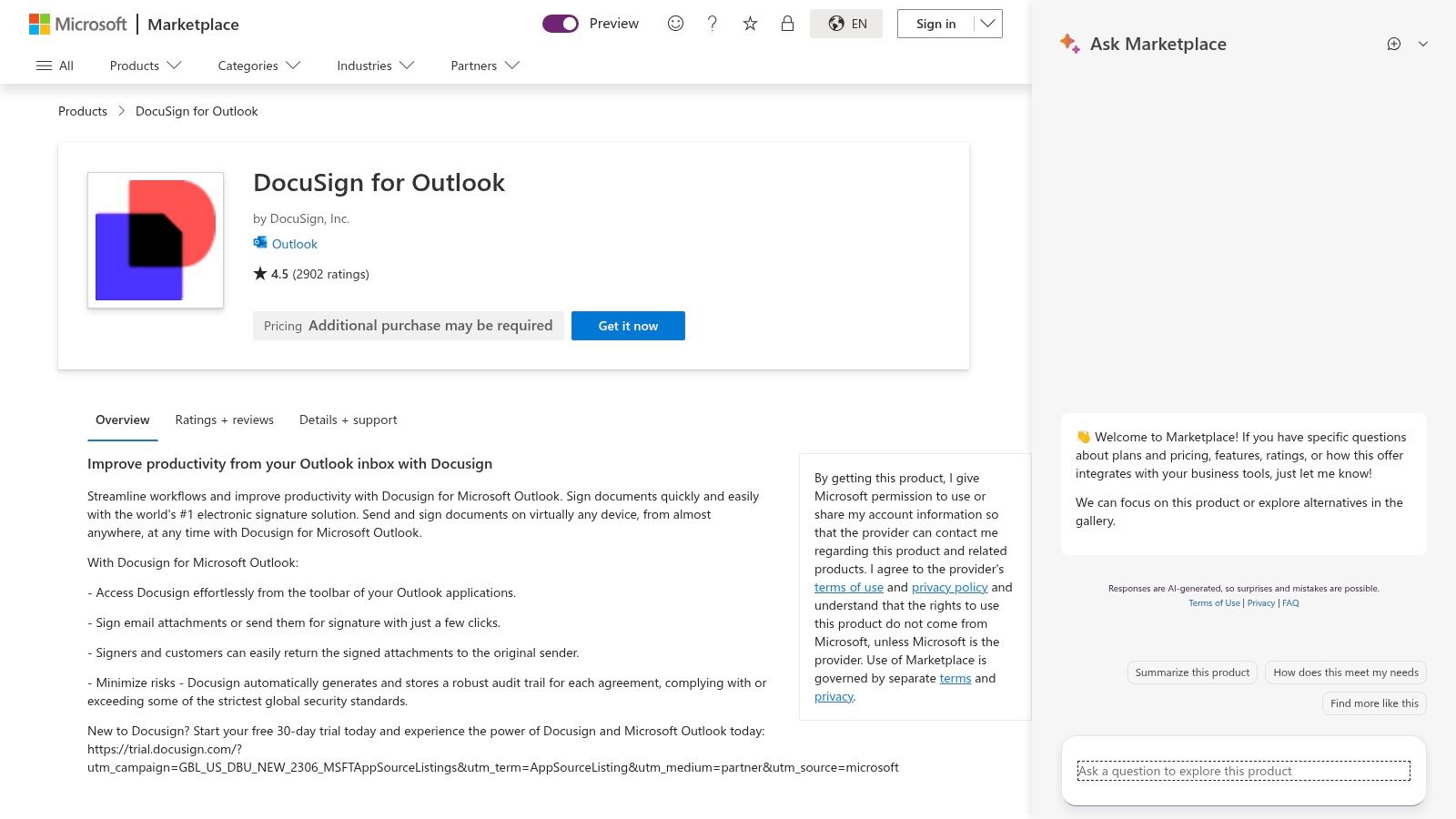
DocuSign for Outlook is one of the few add-ins that can cut actual deal cycle drag instead of just organizing it better. You can send documents for signature straight from Outlook emails and attachments, insert signature fields, and track status without bouncing between inbox, browser, and PDF viewer. That matters because the fastest way to lose momentum on a contract is to make the signer and sender chase the same file across three systems. The product is listed on AppSource, DocuSign for Outlook, and that's the right place to start if your organization wants a Microsoft-aligned workflow.
Good choice for small business admin teams
Small business owners often need signatures from clients, vendors, and internal approvers, sometimes all in the same afternoon. DocuSign works well here because the inbox becomes the intake point for the whole process.
If signature requests start in email, the signature workflow should stay in email until the document is done.
There are real limits to keep in mind. Advanced routing and bulk-send capabilities sit in higher tiers, and envelope limits vary by plan. That means it's best for teams that need reliable, repeatable e-signature work, not for people who expect every enterprise automation feature in the first license. For shared environments, the security conversation matters too, so pair it with network security guidance for small business before you hand signing access to multiple staff members.
4. Salesforce Outlook Integration
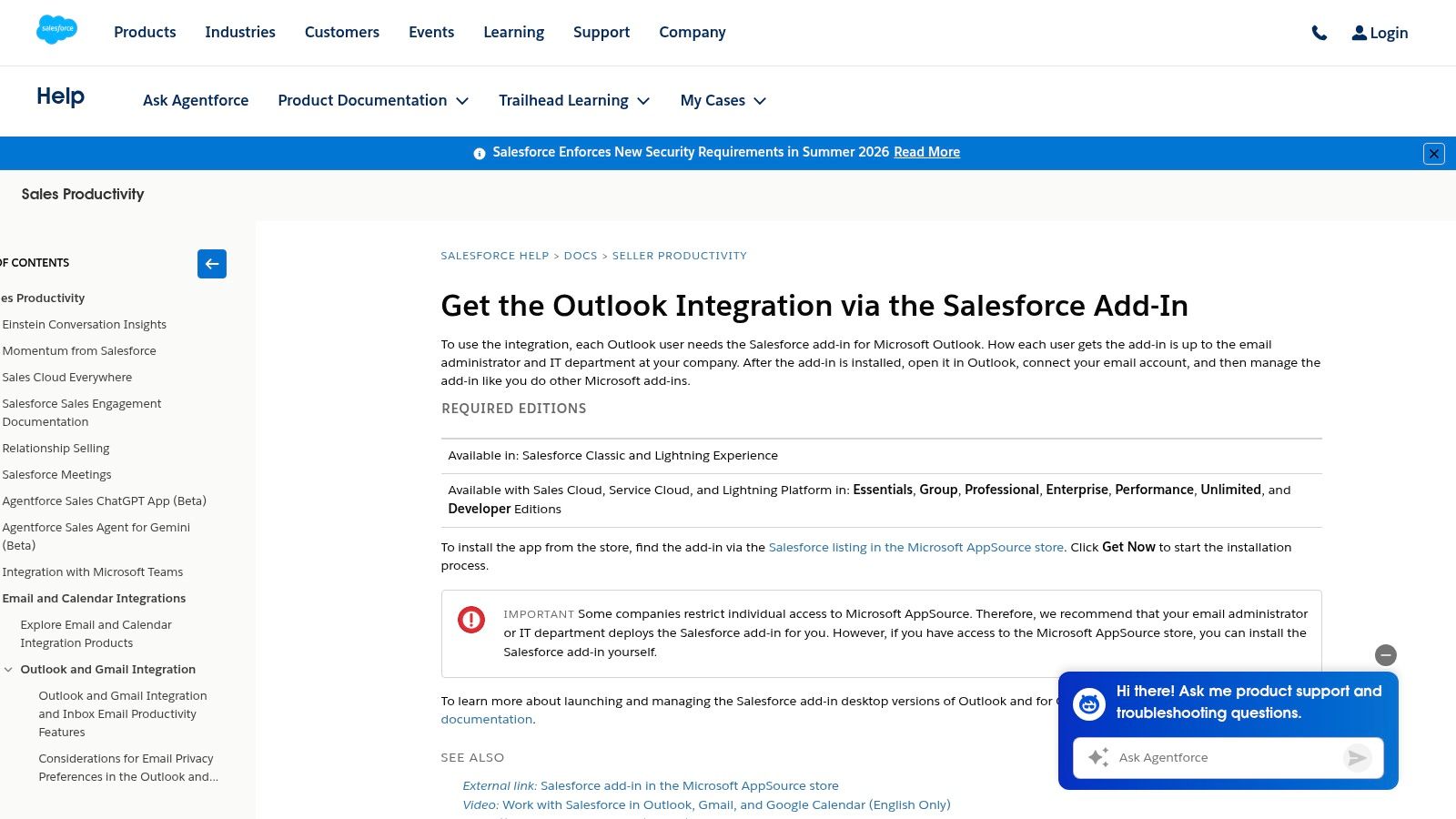
A sales rep can spend all day in Outlook and still end up with an incomplete CRM record. Salesforce Outlook Integration closes that gap by putting Salesforce data in a side panel, so you can review accounts, update records, create Leads or Contacts, and log emails without leaving the inbox. For account teams that work fast, the value is practical rather than flashy. The fewer times someone has to switch tools, the more likely the CRM stays current. The official setup guidance is available from Salesforce at Salesforce Outlook Integration documentation.
Best for teams that hate duplicate entry
The core strength of this add-in is workflow discipline. If a message is part of the sales process, it should be attached to the right record while it is still open. That cuts down on end-of-day cleanup for reps and gives managers a cleaner record to work from.
For teams that handle a steady stream of customer email, the side panel is the feature that changes daily habits. It keeps the lead, contact, or opportunity visible while the conversation is still in progress, which makes it easier to check context before replying or assigning follow-up. Admins also have deployment choices, since the add-in can be installed through AppSource or configured through Salesforce Setup, depending on how the org is managed.
- Email logging from the inbox: Attach conversations to Salesforce records while the message is still in front of you.
- Context in a side panel: Review a lead or opportunity without leaving Outlook.
- Admin deployment options: Install through AppSource or configure through Salesforce Setup, depending on your org.
There are trade-offs. Salesforce permissions and licensing shape what users can do, so the experience is strongest in a well-managed Sales Cloud setup rather than a loose self-service tenant. That matters for small business teams too, because an add-in like this only stays useful when the admin rules are clear and the record structure is clean. For businesses that pair CRM with voice, CRM with VoIP integration is the natural next layer because it connects call activity to the same customer record as your email trail.
5. HubSpot Sales for Outlook
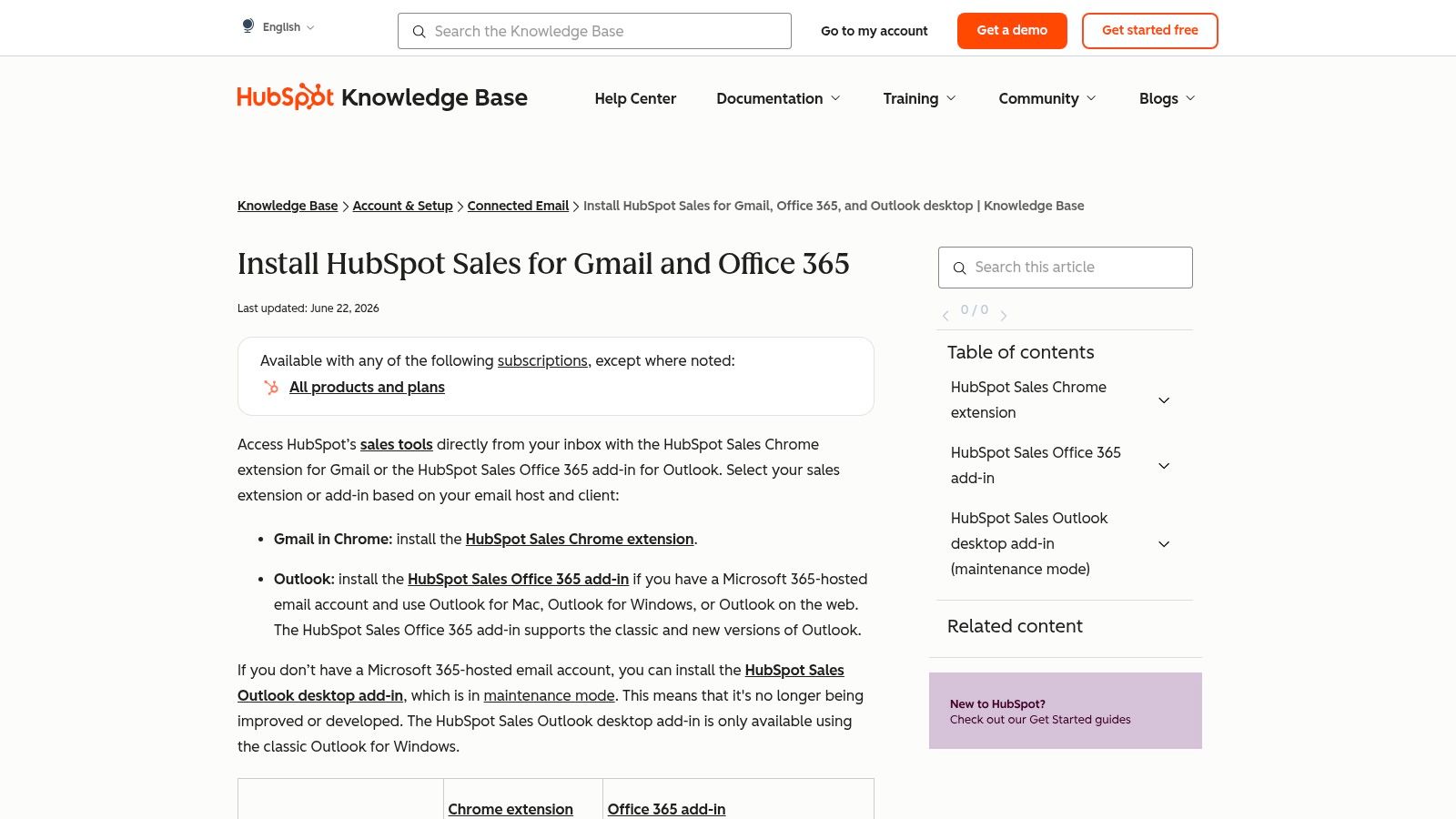
HubSpot Sales for Outlook is a strong fit for small business teams that want CRM functionality without heavy setup overhead. You can log emails to HubSpot, use templates, track activity, and pull meeting links into your replies from Outlook on the web or desktop. That mix makes it useful for sales reps, service desks, and solo operators who need a lighter operational stack. HubSpot's installation guidance is here, HubSpot Sales for Outlook, and it's one of the cleaner starting points for teams moving out of spreadsheets.
Why small teams like it
HubSpot usually wins on speed of adoption. Users can start with a basic workflow, then layer more of the platform later if the team grows.
The main limitation is that advanced sales features live in higher tiers, so the free starting point isn't the whole story. Another practical point is platform transition. Microsoft's own guidance distinguishes install and use paths by client, and Outlook users in newer environments often discover that add-ins behave differently across classic Outlook, new Outlook, Outlook on the web, and mobile. That's why this is a good add-in to test during rollout, not after your team has already standardized on a legacy desktop habit. In newer Outlook environments, compatibility planning matters as much as the feature list.
6. Asana for Outlook
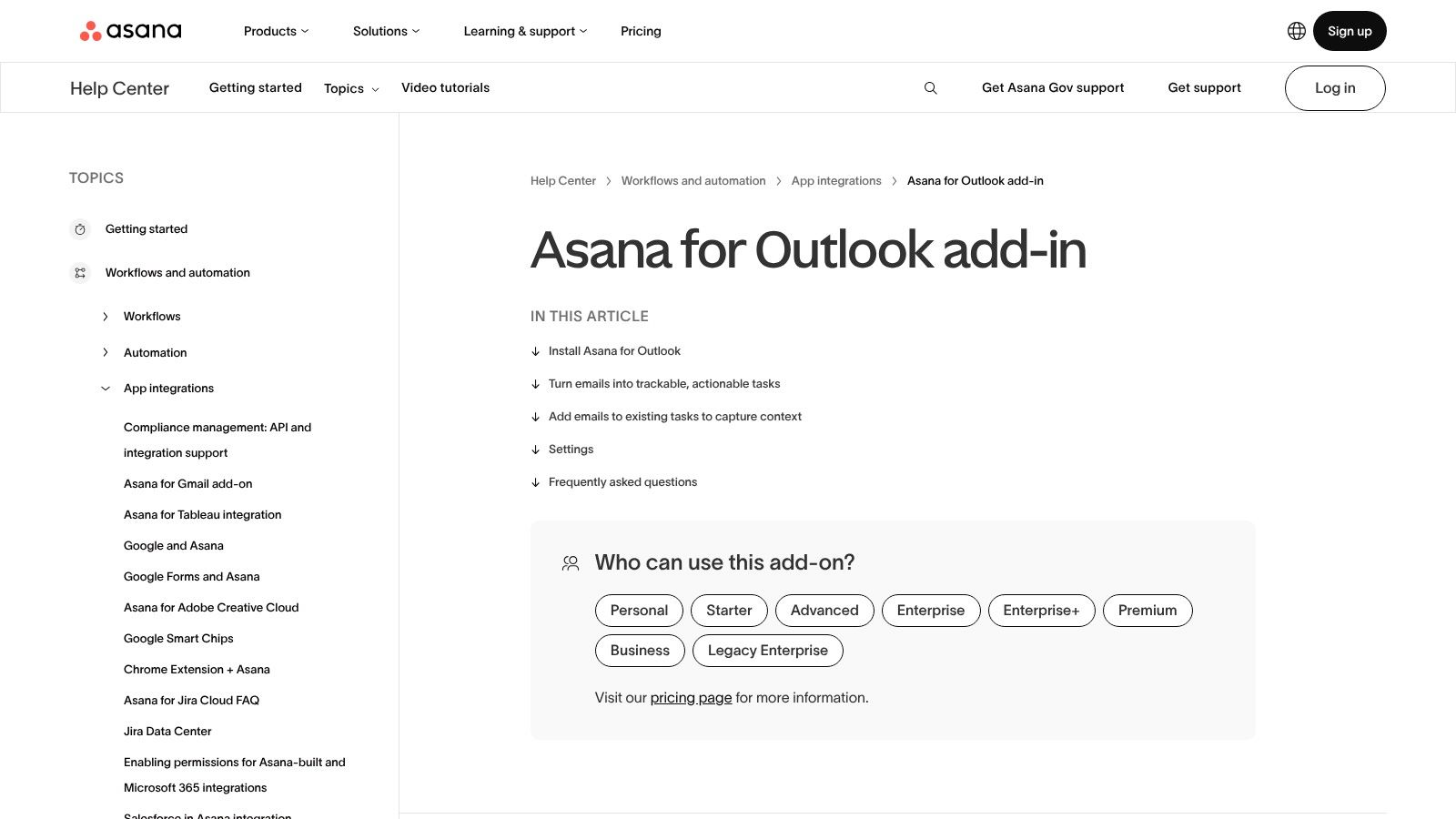
Asana for Outlook works well when email is the starting point and execution has to happen somewhere else. A client reply, an internal request, or a field update can become an Asana task from inside Outlook, with the message attached so the context stays with the work. For operations teams, installers, marketing coordinators, and field managers, that means fewer loose threads and less time spent rebuilding a request after the fact. The product help page is Asana for Outlook add-in.
Where task capture matters
Use it when a message needs ownership, not just attention. A customer complaint, a site issue, or a handoff from a remote teammate can turn into assigned work while the details are still in front of you, which is better than leaving the email to get buried in a crowded inbox.
- Task creation from email: Turn a message into a task instead of forwarding it to yourself and hoping it gets handled later.
- Project context: Keep the email body in the task description or comment so the next person sees the original request.
- Cross-functional fit: Helpful when one team reads the email, another team does the work, and a third team needs visibility.
The trade-off is discipline. If your Asana projects are already disorganized, the add-in moves clutter into a different place faster. Paid Asana features also matter once teams want deeper workflow control, so this fits best where the organization has a clear structure for ownership and follow-up. In practice, it is a strong fit for distributed teams and small businesses that want Outlook to feed task execution without turning Asana into another inbox.
7. Slack for Outlook
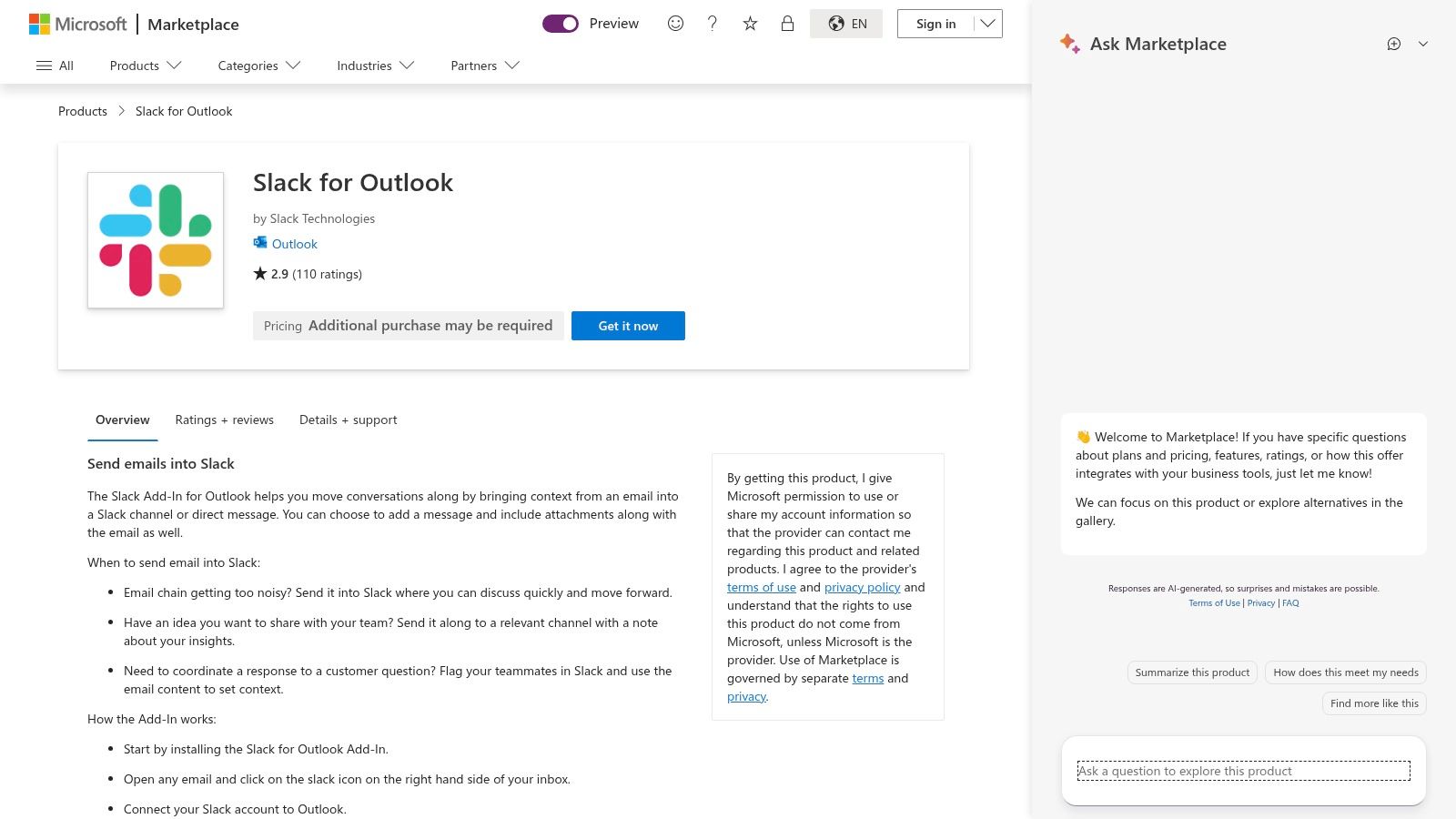
Slack for Outlook is a good choice when the goal is to move external email into an internal conversation quickly. It lets you send emails and attachments into Slack channels or DMs, which is handy when a customer issue needs faster eyes than email usually provides. The official listing lives on Microsoft Marketplace, Slack for Outlook, and it's best treated as a handoff tool, not a synchronization layer.
Good for escalation, not full conversation sync
That distinction matters. Slack for Outlook is mainly one-way, which means it works well for escalating or sharing context, but not for mirroring everything between systems. If you expect bi-directional email and Slack parity, this won't do that job.
Practical rule: Use Slack for Outlook when email is the intake point and Slack is the decision point.
It's also more sensitive to tenant policy than many users expect. In tightly secured environments, token changes or admin restrictions can affect reliability. That makes it useful for internal teams that already use Slack daily, but less attractive as a universal communication layer. For service organizations, the add-in makes the most sense when the internal team needs to react faster than a threaded inbox allows.
8. Todoist for Outlook
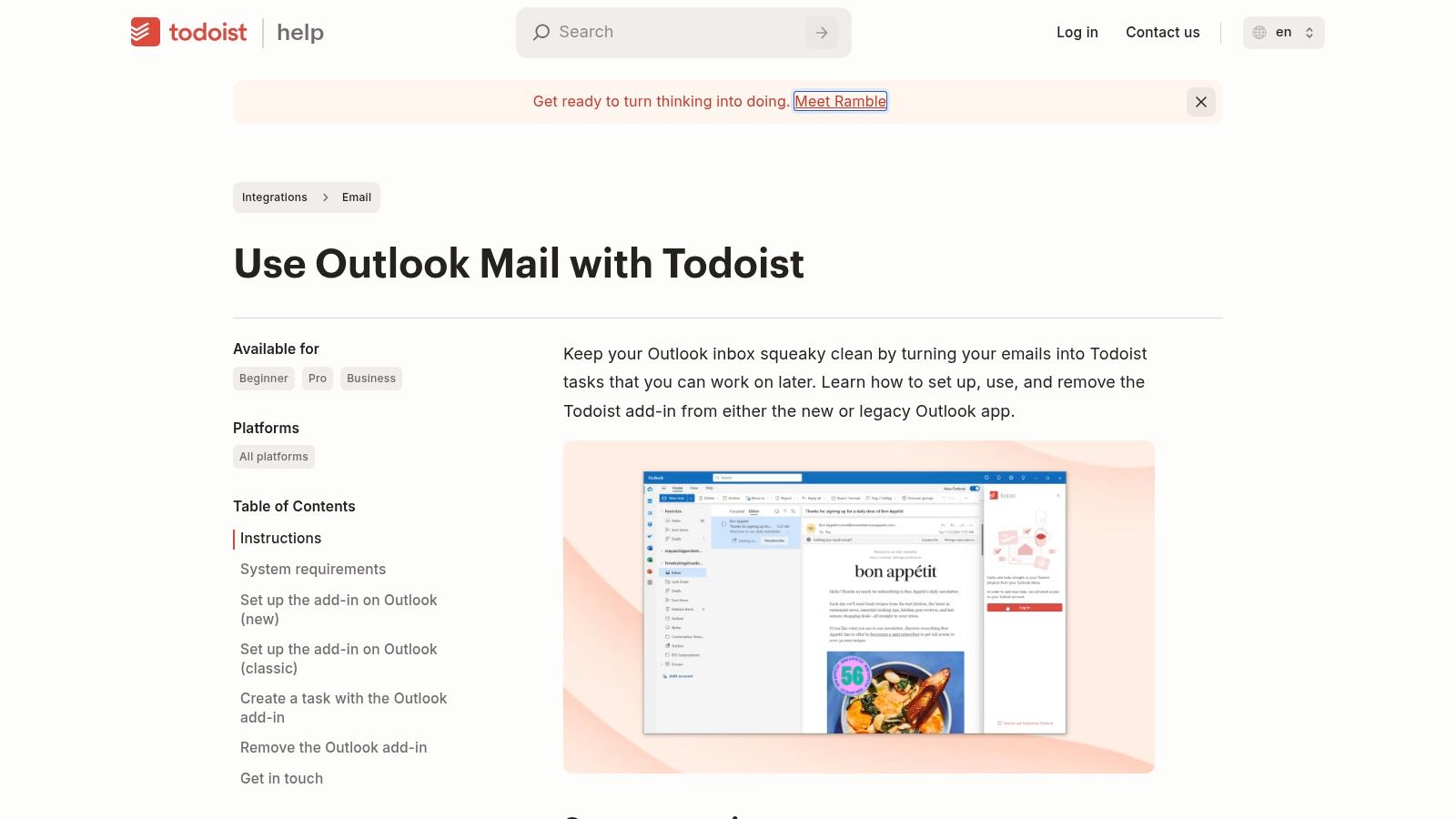
A support rep clears an email thread, then realizes the actual work still lives in the inbox. Todoist for Outlook is built for that moment. It turns a message into a task, lets you assign a due date and label, and keeps the same task list available across devices. The add-in works with Outlook on the web and both new and legacy desktop clients when connected experiences are enabled, so it fits more setups than many lightweight task tools. The setup notes are in Todoist Outlook integration help.
A practical fit for remote workers and small teams
Remote workers usually need a fast way to capture follow-ups before they disappear under newer mail. Small businesses need the same thing, but they also need a system that does not add much admin overhead. Todoist handles both cases well because it keeps task capture simple, then gets out of the way.
- Inbox to task conversion: Turn a message into a next action before it gets buried.
- Due dates and labels: Keep priorities visible without relying on flags alone.
- Calendar support: Outlook calendar sync helps connect tasks with available time.
There are trade-offs. Some companies block third-party task apps, so getting approval matters more than just installing it for one user. Calendar sync also depends on the way the account is set up, so test that behavior before rolling it out to a team. If your work depends on making follow-up visible without moving into a full project suite, Todoist for Outlook is a practical choice.
9. Microsoft Viva Insights for Outlook
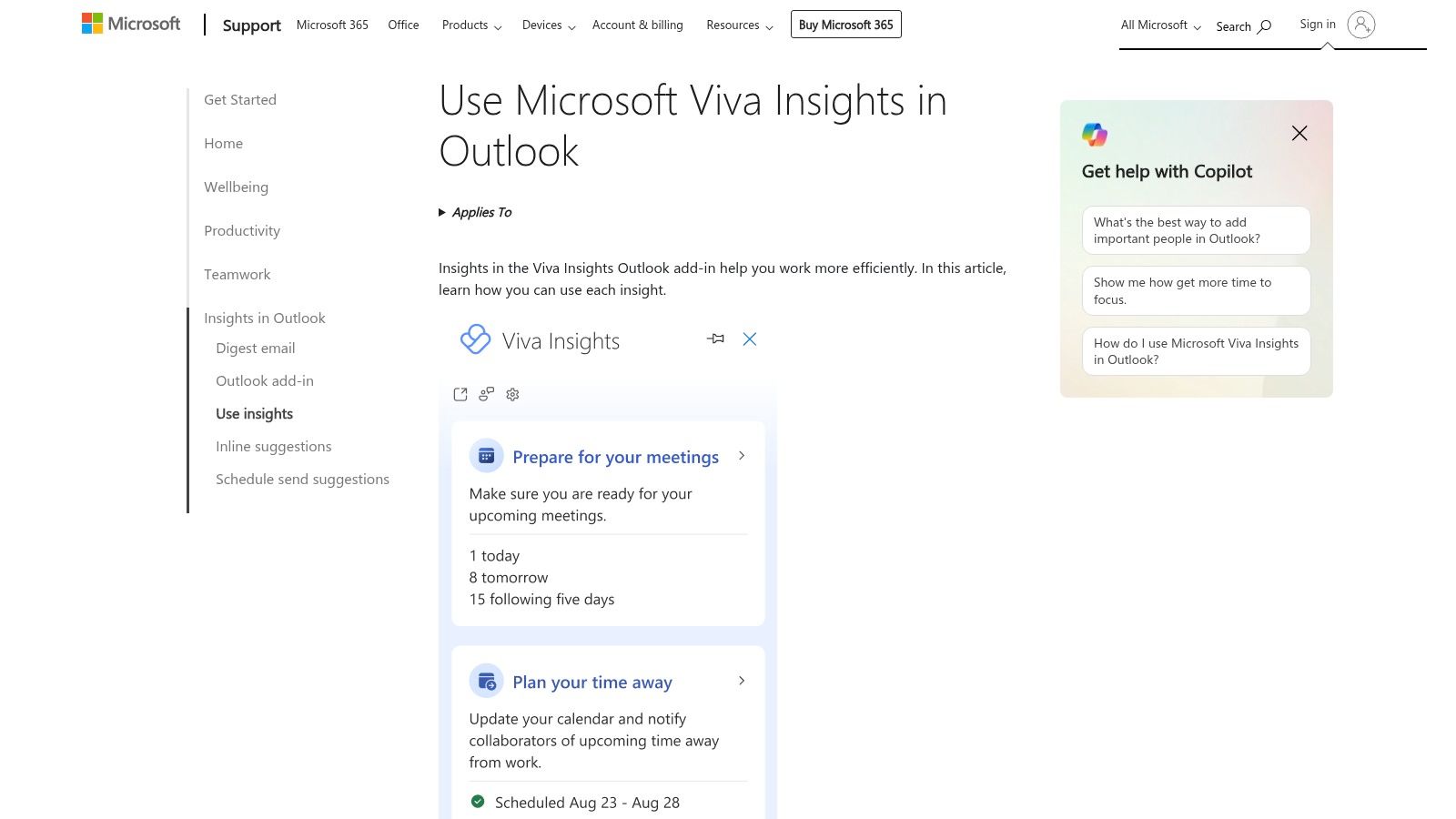
Microsoft Viva Insights for Outlook is different from the other tools on this list because it focuses on how you work, not just what you do. It surfaces personal productivity insights, focus-time reminders, and suggested actions right inside Outlook, which makes it especially useful for people whose days get crushed by meetings and constant email replies. Microsoft's support page is Use Microsoft Viva Insights in Outlook, and the native Microsoft 365 fit is a major reason some teams prefer it over third-party wellness or productivity tools.
Best when your calendar is the problem
If your day is already fragmented, this add-in helps you see it inside the tool that's causing the fragmentation. That's useful for remote workers, managers, and anyone who needs a nudge to protect focus time instead of accepting back-to-back meetings as normal.
Practical rule: Use Viva Insights when your issue is meeting overload, not when your issue is app switching.
The downside is licensing and configuration. Some capabilities require Viva Insights licensing, and manager-level insight features need additional setup. That makes it less of a casual individual install and more of a tenant-aware Microsoft 365 choice. For organizations already standardized on Microsoft tools, the privacy and admin controls can be a real advantage over consumer productivity add-ons.
10. Box for Outlook
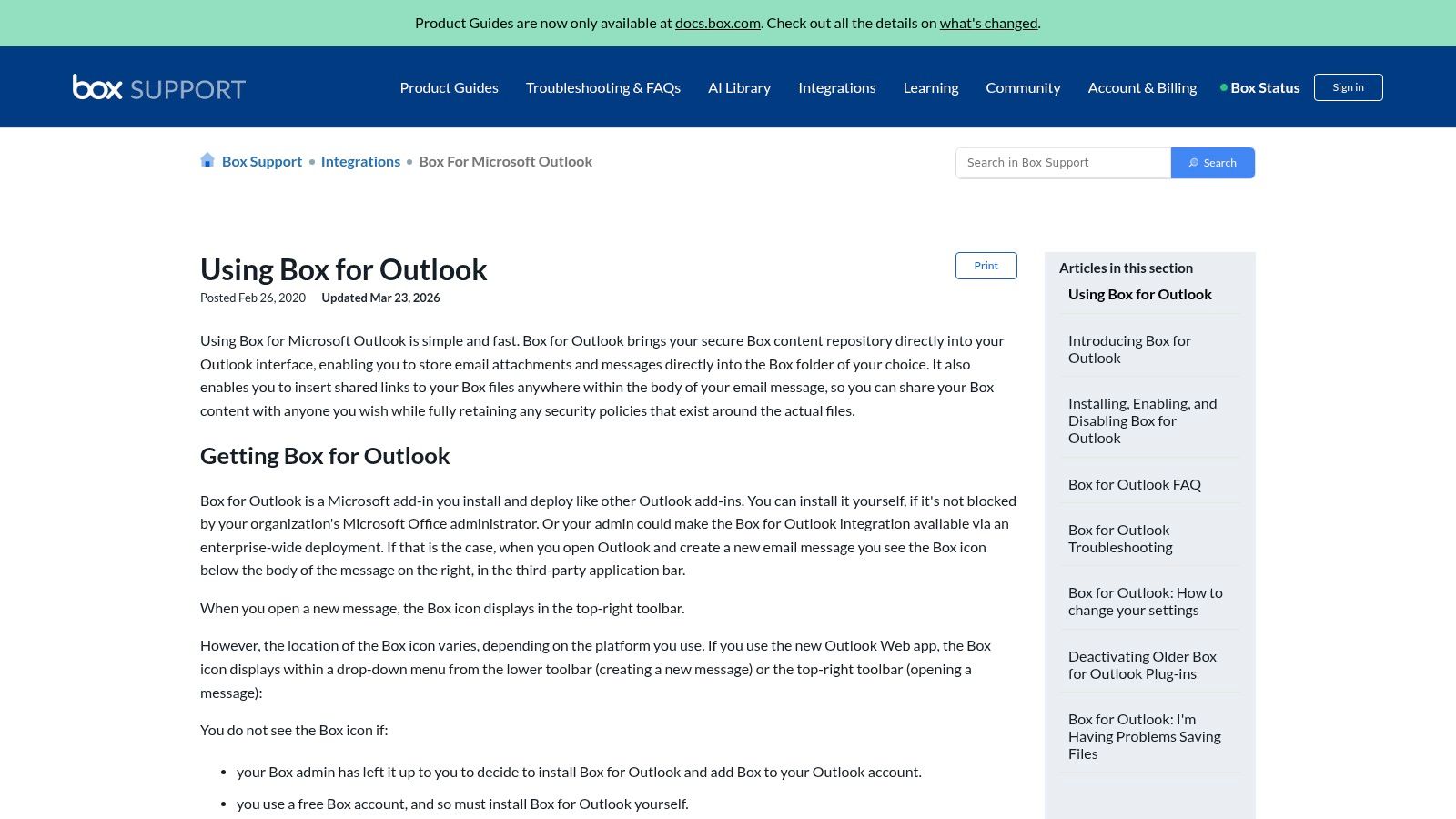
A shared project folder in Box can keep email from turning into a file graveyard. Box for Outlook fits that workflow well, because it lets you save inbound attachments to Box and insert secure Box links instead of sending large files back and forth through email. That reduces mailbox clutter, keeps a cleaner version history, and keeps shared content under Box governance. The support page is Box for Outlook help, and the add-in is a practical choice for teams that need access control without forcing everyone to leave Outlook.
Better than attachments for governed sharing
The day-to-day value shows up fast. You stop sending oversized attachments that clog inboxes. You cut down on old copies being forwarded around. You also get a clearer way to control who can open what, which matters once documents leave a small internal team and start moving between clients, vendors, or remote staff.
If your work revolves around proposals, contracts, review drafts, or internal files that need permissions, Box is a straightforward fit. It helps office teams and distributed groups keep one source of truth in Box while still working from the inbox they already use. For a small business, that can mean fewer version mistakes. For a remote team, it can mean less confusion about which file is current.
- Secure link sharing: Send Box links instead of attaching large files.
- Attachment capture: Save incoming files straight into Box.
- Cross-platform support: Works across Windows, Mac, and Outlook Web.
There are trade-offs. A Box account is required, and some features depend on specific tiers. Mobile behavior can also differ by Outlook client, so test the exact workflow your team uses, not only a desktop demo. For VoIP users on high-speed internet, the add-in keeps file handling out of the call stream, which helps when meetings, shared documents, and inbox work all happen at once. For small businesses and distributed teams, Box is strongest when file governance matters as much as convenience.
Top 10 Outlook Add-ins: Feature Comparison
| Add‑in | Core functionality | User experience / benefit | Unique selling point | Target audience | Price & quality |
|---|---|---|---|---|---|
| Zoom for Outlook | Schedule/join/manage Zoom meetings from Outlook | One‑click join & in‑invite details, reduces context switching 👌 | 🏆 Native Zoom meeting flow + org‑wide M365 deploy ✨ | 👥 Remote workers, meeting‑heavy teams | 💰 Free→Paid · ★★★★ |
| Calendly for Outlook | Insert booking links & show availability in mail | Quick publishing of availability; avoids double‑booking | ✨ Simple AppSource deployment; works with free tier | 👥 Sales, support, schedulers | 💰 Free→Paid · ★★★★ |
| DocuSign for Outlook | Send, sign & track eSign workflows from inbox | Start signatures from email; track envelope status | 🏆 Microsoft‑certified eSign security ✨ | 👥 Legal, procurement, contracts teams | 💰 Paid tiers · ★★★★ |
| Salesforce Add‑in | View/log Salesforce records from Outlook pane | Capture CRM data without switching apps; log emails | 🏆 Official Salesforce side‑panel; improves data capture | 👥 Sales & account teams | 💰 License‑dependent · ★★★★ |
| HubSpot Sales for Outlook | Log emails, track opens, use templates & meetings | Easy tracking + templates; strong free entry point | ✨ Generous free tier + built‑in tracking | 👥 SMB sales & service teams | 💰 Free→Paid · ★★★★ |
| Asana for Outlook | Convert emails into Asana tasks & attach to projects | Turn inbox items into actionable tasks quickly | ✨ Fast email→task workflow for ops/projects | 👥 Ops, field teams, project managers | 💰 Free→Paid · ★★★ |
| Slack for Outlook | Send emails/attachments into Slack channels/DMs | Rapid escalation from email to team chat | ✨ Simple handoff to collaboration (email→Slack) | 👥 Support, ops, internal teams | 💰 Free→Paid · ★★★ |
| Todoist for Outlook | Capture emails as Todoist tasks; calendar sync | Quick personal task capture & triage across devices | ✨ Strong cross‑platform personal productivity | 👥 Busy professionals & field managers | 💰 Free→Paid · ★★★★ |
| Viva Insights for Outlook | Personal productivity insights & focus time booking | Helps manage meeting load and focus time | 🏆 Native M365 insights with tenant controls ✨ | 👥 Knowledge workers & managers | 💰 License may apply · ★★★★ |
| Box for Outlook | Insert secure Box links & save attachments to Box | Reduces mailbox bloat; governed sharing | 🏆 Enterprise DLP & secure link sharing ✨ | 👥 Enterprises, compliance & content teams | 💰 Box account required · ★★★★ |
Integrate and Elevate Your Outlook Workflow
Choosing the right add ins for Outlook changes the inbox from a passive message feed into a working system. Zoom and Calendly reduce meeting friction, DocuSign and Box take pressure off document handling, Salesforce and HubSpot keep customer data from drifting away, and Asana, Slack, and Todoist move action items out of email before they get lost. Microsoft's Outlook add-in model supports both desktop and cloud use cases, so the decision isn't whether add-ins exist. It's which ones fit the way your team already operates.
Security and compatibility matter just as much as features. Microsoft documents that Outlook add-ins can live in different management paths depending on whether you're using COM add-ins or web add-ins, and that split matters for admins trying to control installation, visibility, and behavior across clients. Microsoft also distinguishes how Outlook add-ins appear in classic Outlook, new Outlook, Outlook on the web, and mobile, which means a tool that looks perfect in one environment can feel inconsistent in another. If you manage a business mailbox, shared mailbox, or regulated tenant, put governance ahead of convenience and verify what each add-in can access before rollout. Microsoft's add-in guidance also makes clear that add-ins activate while you're composing or reading mail, so the permissions question is not theoretical. It's part of how the tool works.
For remote workers and small business teams, internet quality and voice quality can make or break the experience. Outlook add-ins that schedule meetings, move files, or trigger calls work best on a stable connection, especially when those workflows depend on cloud services and video conferencing. Premier Broadband's 100% fiber network is built for symmetrical upload and download speeds, which is exactly what helps keep Outlook-heavy work smooth when you're sharing files, joining meetings, or handling VoIP alongside email. If your office relies on crystal-clear calling, the VoIP side matters too, because voicemail-to-email and app-based calling make Outlook part of a broader communications stack rather than a separate island.
If you want Outlook add-ins to run smoothly for your home office or business team, the network underneath them has to keep up. Premier Broadband delivers reliable 100% fiber internet and VoIP service built for video meetings, secure file sharing, and busy inbox workflows. Visit Premier Broadband to see how better connectivity can make every Outlook add-in work the way it should.