
The fax is sitting beside the router, powered on, with a document loaded and a deadline approaching. You press Send, hear a few tones, then get Communication Error, No Answer, or a page that arrives unreadable. The first instinct is usually to blame the fax machine.
That diagnosis is often wrong, especially in a home office or small business using fiber internet, broadband voice, an ATA, or a hosted phone system. Faxing was built around analog line quality, transmission-speed negotiation, and device standards established long before modern voice networks. Alexander Bain patented an early facsimile system in 1843, and the Group 3 standard reached a major operational milestone in 1983, helping make fax faster and more practical for business use. More than 100,000 fax machines were sold in 1983, sales doubled by 1986, and more than 4 million were in use in the United States by 1989, according to this history of fax machines.
Today, fax remains embedded in business and healthcare workflows. One industry source estimates that more than 43 million fax machine units operate globally, with over 17 billion documents sent each year. The same source reports fax use in 77% of German companies, while healthcare estimates place primary fax use among 82% of healthcare professionals and annual healthcare fax volume at roughly 15 billion. Those figures are documented in this overview of current fax usage.
The practical lesson is simple. Start with the layer that can produce the symptom, then move deeper only when the evidence points there.
Why Your Fax Fails and Where to Start First
A small office called after a fax stopped working immediately after its phone service moved to fiber. The machine still powered on. It still scanned documents. It even displayed a dialing message. Replacing the cable changed nothing because the fault was in the voice transport carrying the fax tones.
That pattern is common. Fax machine troubleshooting works faster when you separate the problem into three layers:
- Power and hardware, which includes the outlet, power adapter, display, scanner, rollers, sensors, and internal components.
- Paper and consumables, which covers jams, toner, ink, drum condition, paper loading, and document-feed problems.
- Signal, settings, and transport, which includes the modular phone cable, dialing mode, analog line quality, VoIP configuration, ATA behavior, fax speed, and ECM.
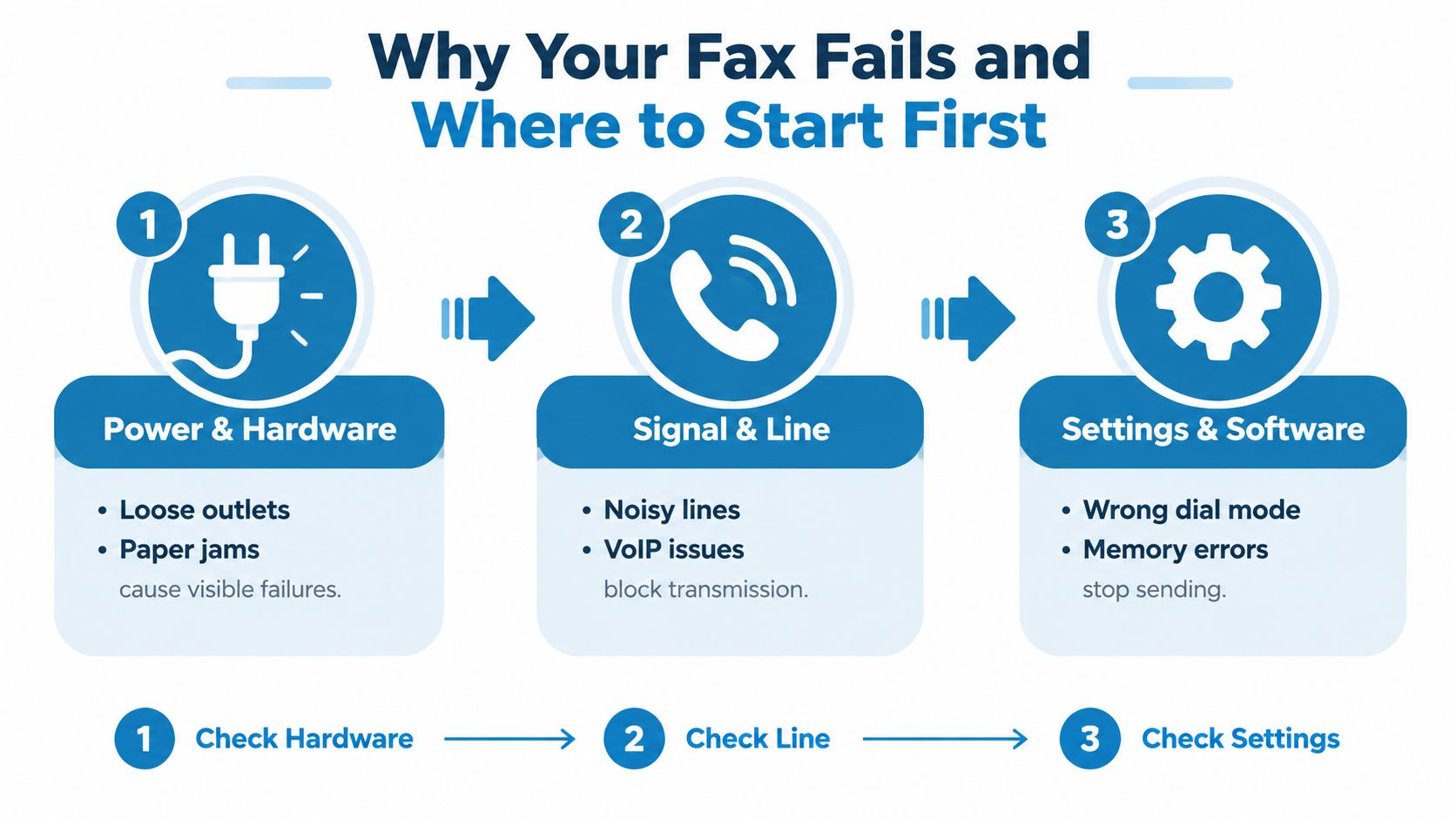
Visible symptoms usually identify the first layer to inspect. A blank display or completely dead unit points toward power. A grinding sound, skewed paper, or a document that won't feed points toward the paper path. A fax that scans correctly but fails during dialing or handshaking points toward the line or network. A fax that connects but produces faded, streaked, or partially missing pages may involve print components, document quality, or transmission conditions.
Why old fax mechanics still matter
Fax machines exchange tones, negotiate a transmission speed, and depend on both ends supporting compatible behavior. The Group 3 era established much of the operating logic that still shapes today's failures. A noisy analog line can interrupt negotiation, while packet delay, jitter, codec handling, or aggressive voice processing can distort fax tones on VoIP.
That's why a fiber connection can deliver excellent internet performance while faxing remains unreliable. Broadband carries data efficiently, but fax tones pass through a voice service and may encounter compression, echo cancellation, voice activity detection, or an ATA that has not been configured for fax traffic.
A separate phone line isn't automatically required for internet access. The difference is whether your fax is connected to a stable, compatible voice service. This explanation of phone lines and internet service helps separate the broadband connection from the voice path used by the fax.
Practical rule: If the machine powers up and scans, don't buy replacement hardware until you've tested the line and voice settings.
Quick Check Flowchart to Isolate the Problem Fast
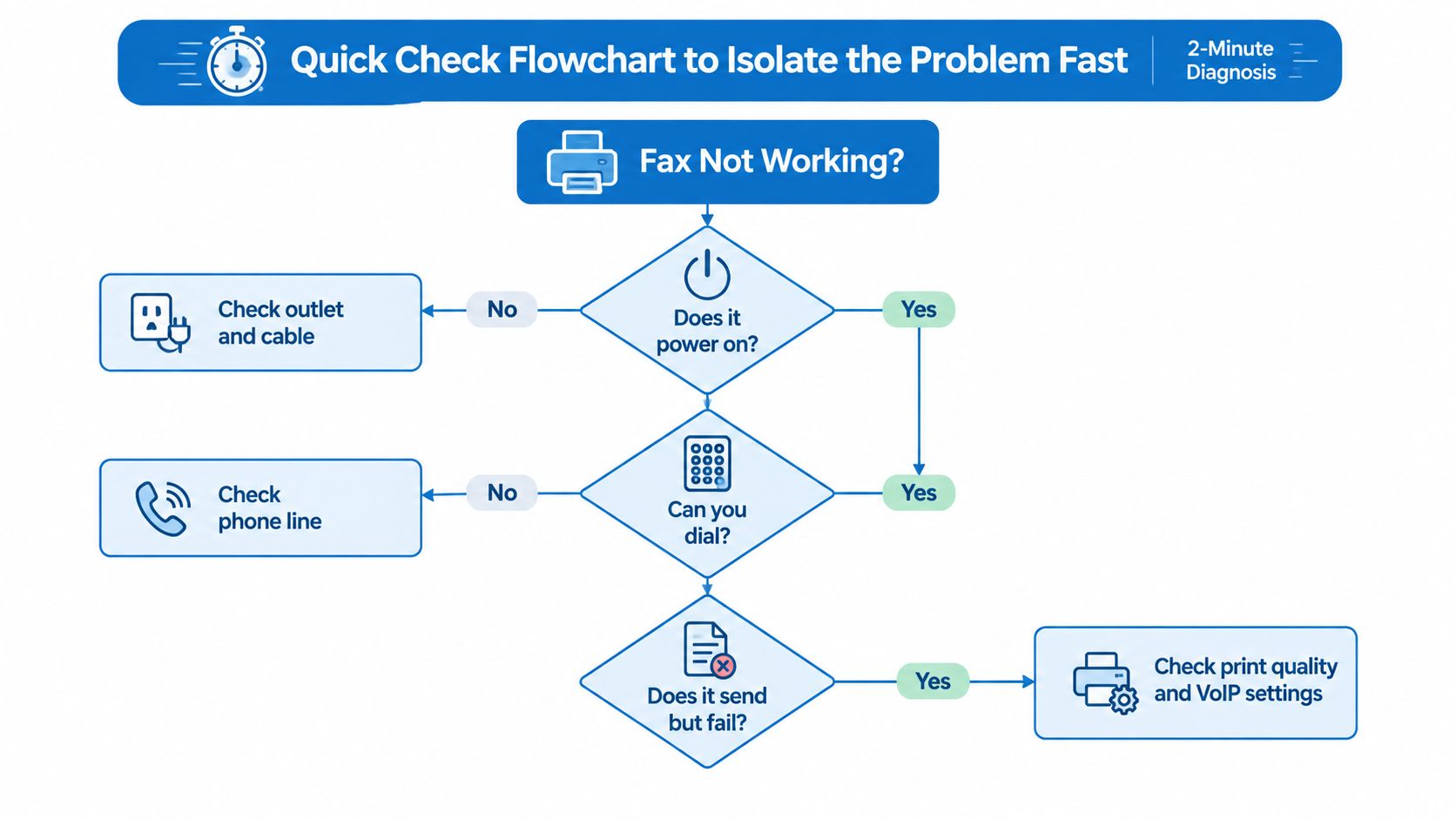
Use this triage sequence before changing multiple settings. The purpose is to identify the failing layer, not to perform every possible reset.
Start with the machine itself
Does the fax power on?
- No: Test the outlet with another device, reseat the power cable, inspect the power brick if the unit uses one, and look for any status light. If the outlet and cable work but the display remains dead, the fault is probably internal.
- Yes: Continue to the phone and document checks. Don't assume a lit display means the machine can communicate.
Does it accept paper or scan a document?
- No: Remove the document, inspect the feeder for scraps, and check whether the guides are pressing evenly against the page. A scanner or feeder fault can look like a transmission problem because the machine never creates a complete job.
- Yes: Continue to dialing.
Test the line before adjusting advanced settings
Can the connected line make a normal call?
- No: Check the modular cable, wall jack or ATA port, and the line service. Listen for audible noise, hum, crackling, or dropouts. Ricoh's troubleshooting guidance identifies loose cabling, line-quality problems, and incorrect dialing mode as recurring causes of failed send and receive attempts. It also recommends a full power cycle when the fax indicator keeps flashing and a job won't complete. Review the vendor fax troubleshooting steps.
- Yes: Confirm whether the fax is set for tone or pulse dialing, then try a one-page test.
Does the recipient answer?
- No: Recheck the number, call during the recipient's normal business hours, and ask whether the receiving machine is powered on, available, and in fax mode.
- Yes, but the job fails: Move to speed, ECM, and VoIP settings rather than repeatedly pressing Redial.
Record the exact symptom
Write down the displayed code or message, whether the failure occurs during dialing or after connection, and whether receiving fails as well as sending. A fax that fails before connection needs a different response from one that connects and then loses synchronization.
For broader connectivity checks, use the network diagnostic utilities available for identifying problems outside the fax machine.
Fixing Power Paper Jams and Poor Print Quality
Physical faults deserve a hands-on inspection, but they're easier to fix when you work safely and follow the paper path instead of pulling randomly.
Restore power without guessing
Start at the wall. Test the outlet with a lamp or another known-working device, then reseat the fax power cable at both ends. If the unit uses a separate adapter, inspect the adapter for damage and check whether its indicator behaves normally.
If the fax powers on and then shuts down, listen for a motor attempting to move or watch for a display message. A jammed mechanism, overheating, or a failing power supply can produce different behavior from a completely dead outlet. Disconnect the fax before opening covers around the fuser or other hot components, and allow recently used laser equipment to cool.
A power cycle can clear a temporary controller fault, but it won't repair a damaged cable, worn roller, or failing power board. If the machine repeatedly loses power after a clean restart, stop cycling it and arrange service.
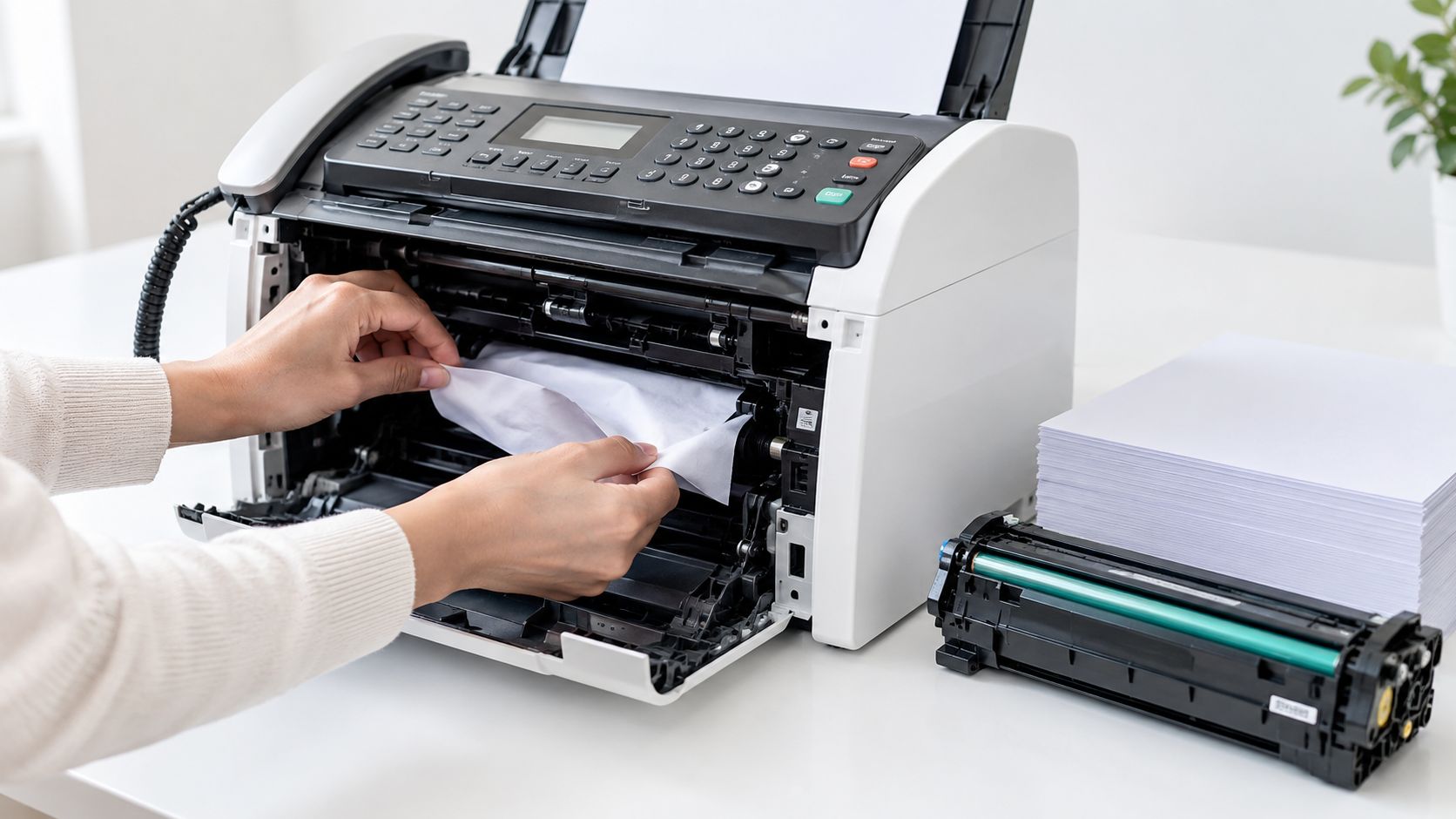
Clear jams along the complete path
Turn the machine off if the manufacturer instructs you to do so, then open each accessible cover. Remove paper in the direction it normally travels, using both hands where possible. Pulling a torn sheet backward can leave scraps near a sensor or damage a roller.
Check the tray first. Paper that's curled, damp, overfilled, or outside the machine's supported specifications can feed poorly. Adjust the guides so they touch the stack without squeezing it. Inspect the rollers for dust, glazing, or obvious wear, and clean them only with materials approved for that model.
Don't yank a jammed page. Slow removal protects the rollers and reduces the chance that a hidden strip of paper will trigger another jam.
After clearing the path, send a blank test page through the document feeder. If the feeder accepts the page but repeatedly skews it, the issue may involve worn feed rollers or guides rather than the transmission.
This short video demonstrates the type of physical inspection useful when clearing a jam:
Correct faded pages and streaks
Poor output usually requires separating the source document from the received print. If your machine sends a clear scan but prints incoming pages with streaks, inspect toner, ink, drum, print head, and scanner glass according to the manufacturer's procedure. Clean the scanner glass and document feed strip when outgoing pages contain lines that appear in the same position on every page.
Replace low or incorrectly installed consumables. Use the paper type specified for the machine, since unsuitable stock can affect feeding, fusing, and image quality. A page that is faint only when received from one sender may indicate a problem at the sender's scanner or transmission rather than your print system.
Solving Send Receive Failures and Error Codes
A communication error usually appears after the fax has already passed the basic hardware test. The machine scans, dials, and begins negotiating, then loses contact. That sequence points more often to line quality, handshaking, recipient availability, or transport settings than to a broken scanner.
The first useful distinction is timing. A Busy result means the destination answered as busy or was already handling another job. No Answer means the destination didn't complete the expected response. A generic communication error can involve noise, incompatible negotiation, VoIP instability, or congestion at the receiving end.
A published troubleshooting benchmark claims that approximately 1 in 20 analog fax transmissions can fail under ideal conditions, rising to roughly 1 in 12 over VoIP. Those figures come from this fax troubleshooting guide, and they illustrate why a single failed attempt doesn't prove the machine is defective.
| Symptom or Code Pattern | Likely Cause | First Fix to Try |
|---|---|---|
| Busy or line busy | Recipient is using the line or has destination-side congestion | Confirm the number, wait, and retry |
| No answer | Recipient machine is off, unavailable, or not in fax mode | Call the destination and send during business hours |
| Communication error | Noise, unstable VoIP, failed handshaking, or incompatible settings | Test the line, lower speed, and retry |
| Job remains pending or indicator flashes | Line problem, loose cable, or incomplete session | Reseat the cable and power-cycle the fax |
| Send works, receive fails | Receiving configuration, routing, or destination-side issue | Test inbound calling and verify receive mode |
| Receive works, send fails | Dialing, line, document, or outbound setting issue | Confirm dialing mode and send a one-page test |
Change one transmission setting at a time
Lower the fax speed first. Slower transmission gives an unstable connection more room to maintain synchronization. If the problem continues on a noisy or inconsistent line, disable ECM, or Error Correction Mode, and retry. ECM can improve integrity on a clean connection, but its repeated correction exchanges can make an unstable VoIP path fail to complete.
Confirm that the recipient machine is available before repeating a large job. Send a one-page test with clear text, then try the full document only after the test succeeds. This prevents a long document from obscuring whether the problem is connection stability or file and paper handling.
For businesses considering a voice transport specifically for fax, this guide to fax via VoIP covers the practical relationship between the fax device and the underlying phone service.
VoIP Fiber and ATA Settings That Make Fax Reliable
Fiber internet doesn't automatically make faxing reliable or unreliable. The decisive question is how the fax signal travels through the voice service. Traditional analog service carries the tones directly over a phone circuit. VoIP converts voice into packets, sends those packets through the network, and may apply processing designed for human speech rather than fax tones.
That difference changes the repair strategy. On an analog line, you start with cable condition, audible noise, and dialing mode. On VoIP, you still check the cable, but you also inspect the ATA or hosted voice configuration, codec support, packet handling, echo cancellation, voice activity detection, and fax protocol.
Adjust the ATA in a deliberate order
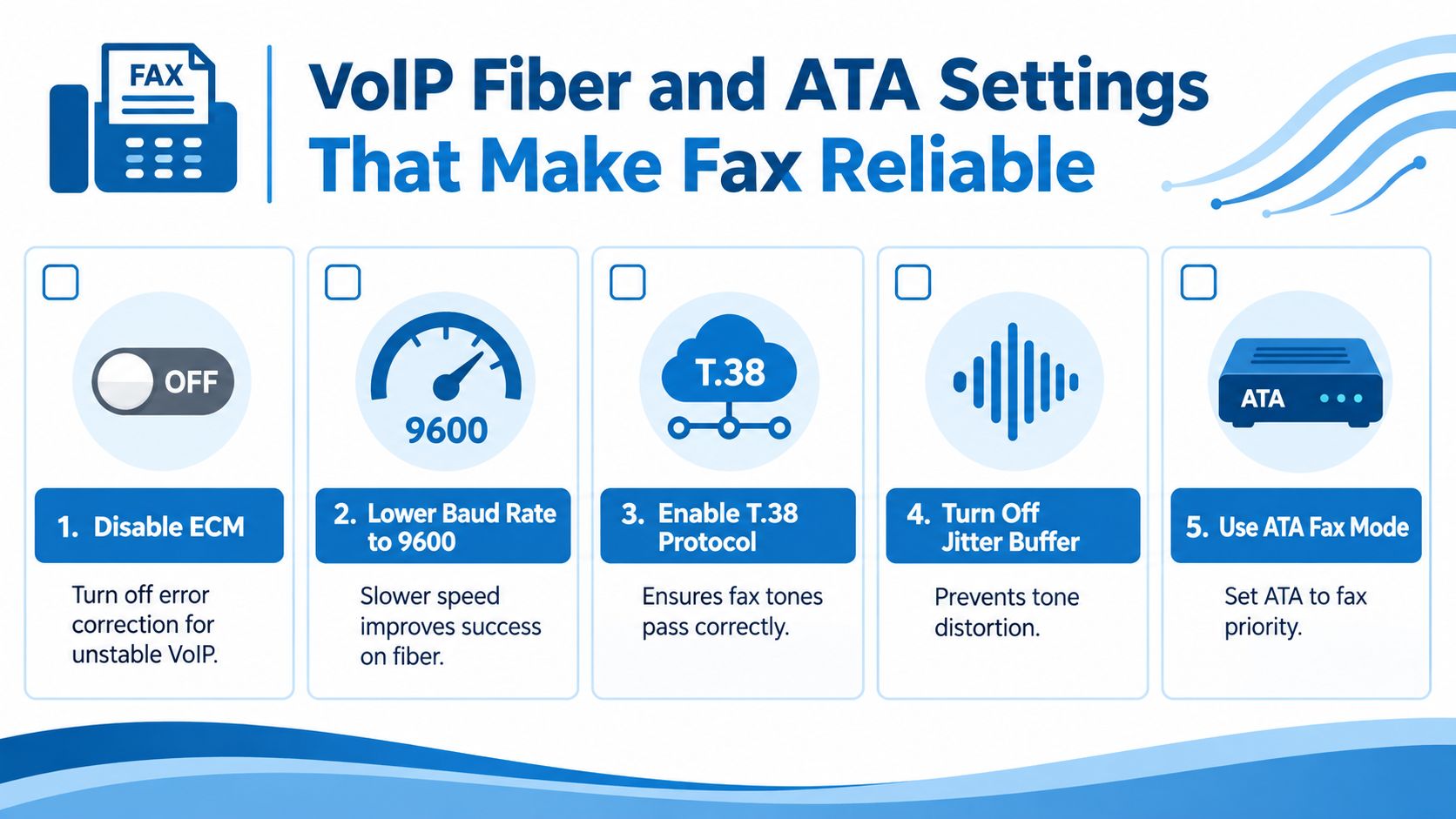
Ask the voice provider which settings are available before changing values blindly. The most useful sequence is:
- Connect directly to the ATA: Plug the fax into the ATA's fax-capable port rather than routing it through an unverified analog extension or complex in-office path.
- Prefer T.38 when supported: T.38 is designed to carry fax traffic across an IP network. It can be more appropriate than treating fax as ordinary voice, but both endpoints and the provider's network must support it.
- Use G.711 when T.38 isn't available: G.711 avoids the aggressive compression used by some voice codecs, although it still depends on a stable path and suitable provider configuration.
- Lower the fax speed to 9600 bps: This is a common stability adjustment for fax over IP and is specifically identified in independent support guidance for unstable connections.
- Disable ECM on unstable lines: ECM can create additional correction exchanges that expose packet loss or timing problems. Turn it off for testing, then restore it only if the connection proves stable and the provider recommends it.
- Review voice processing: VAD, echo cancellation, jitter buffering, and similar voice features can alter fax tones. A provider may need to disable or tune them for the ATA's fax mode.
The relevant 8×8 fax over IP support guidance discusses the importance of settings such as ECM, speed, T.38, and G.711. Use provider documentation for the exact interface because menus differ between ATA models.
Network diagnosis beats hardware replacement when the fax scans correctly but repeatedly fails after the call connects.
Compare analog and VoIP symptoms
An analog line with audible crackle usually needs a line or wiring investigation. A VoIP line can sound perfectly clear to a person and still fail fax negotiation because packet timing and voice processing affect tones differently from speech.
A fax that works when connected to a known-good analog service but fails through the ATA has already supplied useful evidence. It tells you to focus on the transport layer, not the scanner, toner, or document feeder.
The same principle applies to the wider home network. If you're reviewing router placement, wireless handoff, or fiber equipment while diagnosing a voice path, these RV internet setup tips provide useful background on organizing broadband equipment. They won't replace ATA fax settings, but they can help eliminate avoidable connectivity confusion.
For a closer look at the device that links an analog fax to a VoIP service, review this guide to an ATA adapter for VoIP. If the provider can't confirm T.38, G.711, fax mode, or compatible voice-processing settings, ask whether the service supports fax traffic before buying another machine.
Preventative Care and When to Switch to Cloud Fax
Reliable faxing depends on small habits that prevent physical faults from becoming urgent communication failures. Keep the machine in a dry, ventilated location, use the paper type specified by the manufacturer, and avoid storing paper where humidity can curl or soften the sheets.
Build a simple maintenance rhythm:
- Inspect the paper path: Remove scraps, dust, and visible debris before they reach a sensor or roller.
- Check consumables: Replace toner, ink, or drum components when output quality starts to change, rather than waiting for a critical document.
- Verify cables: Reseat the modular cable and power connection after moving the machine, router, or ATA.
- Run a test fax: Send and receive a short test when the device has been idle for a long period or after a phone-service change.
- Keep records: Save error messages and note whether failures happen during dialing, negotiation, sending, or receiving.
A small business should also decide whether the fax machine still earns its space and maintenance time. Continuing with hardware makes sense when staff need a physical workflow, the machine integrates with existing multifunction equipment, and the voice provider can support stable fax settings. Cloud fax can be more practical when users work remotely, need delivery records, send documents from computers, or spend too much time managing paper, toner, jams, and unreliable voice paths.
Compliance deserves separate attention. If documents contain regulated or sensitive information, choose a cloud fax provider whose security, retention, access controls, and contractual commitments match the organization's obligations. A cloud service can remove the local hardware problem, but it doesn't remove the need to verify recipient details and transmission handling.
When replacement becomes the sensible choice, dispose of the old equipment through a responsible channel. This guide on how to dispose of office laser printers securely includes fax machines and related office equipment.
The durable troubleshooting habit: Check power and paper first, prove the phone path second, then change fax and ATA settings one at a time.
If your fax works intermittently over fiber or broadband voice, collect the exact error, test with a one-page document, and ask the provider about T.38, G.711, ECM, speed, and voice-processing settings. That evidence will produce a faster resolution than replacing equipment at random.
Premier Broadband provides fiber internet and VoIP phone service for homes and businesses, including connectivity that can support offices troubleshooting fax over broadband voice. Review the available options and contact Premier Broadband to discuss your internet and voice setup before replacing a working fax machine.