

You usually remember your voicemail PIN right up until the moment you need it. Then an important message is waiting, the phone asks for a code you set months ago, and every number you try sounds wrong.
That's also when it becomes clear that there isn't one universal path for how to change my voicemail PIN. Some systems handle it inside the phone app. Others send you through a carrier app, a web portal, or an old-school dial-in menu. Business VoIP systems add another layer because the PIN might be rejected for policy reasons, not because anything is broken.
The good news is that voicemail PIN changes follow a few recognizable patterns. Once you know which type of service you have, the process gets much easier.
Securing Your Voicemail Starts with the PIN
You usually notice voicemail security at the worst time. A message is waiting, the system asks for a PIN you have not used in months, and the code you try either fails or gets rejected because it does not meet the service rules.
Your voicemail PIN controls access to saved messages, greeting changes, and mailbox settings. On many systems, it is a short numeric code. Simple on the surface, but it protects information people often forget is sitting in voicemail. That can include school calls, appointment reminders, account callbacks, client messages, and internal business details.
The key point is that voicemail security depends on the service type behind the phone. A Premier Broadband VoIP mailbox may enforce PIN rules through a portal or hosted voice system. A mobile carrier may handle changes through the phone app or carrier settings. A traditional landline may still rely on dial-in prompts and older mailbox menus. If a new PIN is rejected, the problem is often a policy rule, such as blocked repeating digits or a requirement to avoid part of your phone number.
This distinction is important for both personal and professional security. A weak or reused PIN gives someone a much easier path into private messages, especially if the mailbox is still using a default code from setup or reset.
Practical rule: Treat voicemail like any other account that stores private information. If you would not reuse the code for another sensitive login, do not reuse it for voicemail.
If you are reviewing account security more broadly, Premier's guide to network security best practices covers the same principles across voice services, home networks, and connected devices.
How to Change Your Premier Broadband VoIP PIN
With a VoIP line, the cleanest way to change your voicemail PIN is usually through your account settings or voicemail management tools. On hosted systems, the important part isn't just finding the menu. It's choosing a PIN the system will accept.
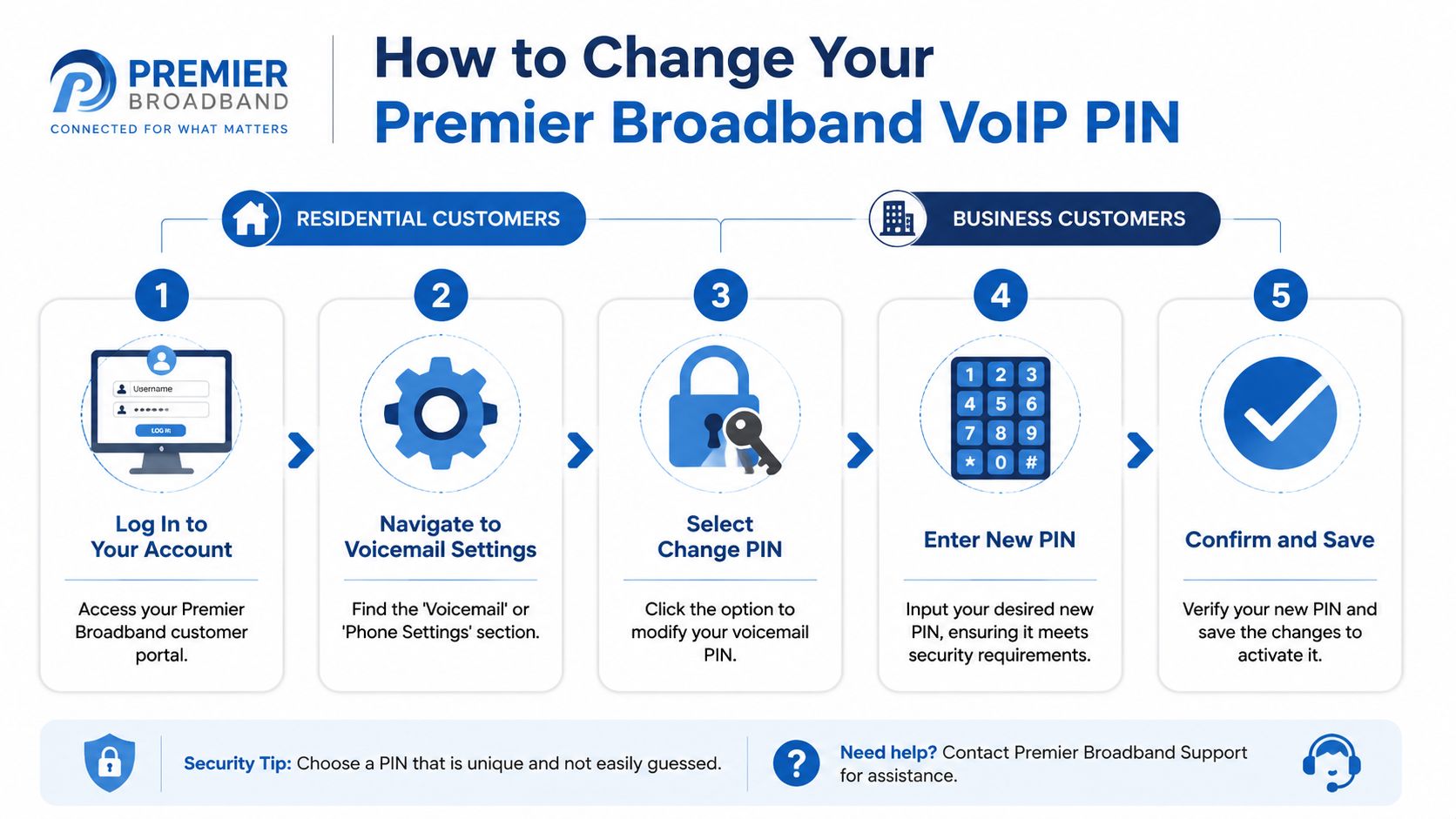
Residential VoIP lines
If your home phone service uses VoIP, start with the customer portal or voicemail access menu tied to your line.
- Sign in to your voice account if your service includes web-based settings.
- Open the voicemail or phone settings area.
- Look for Change PIN, Change Password, or a similar option.
- Enter your current PIN if the system asks for it.
- Enter the new PIN, confirm it, and save the change.
If your line uses phone-menu access instead of a portal, dial into voicemail and listen for setup, personal settings, or security prompts. If you also use calling features and star codes on your line, Premier's star codes and calling features guide can help you sort out which commands belong to voicemail access versus line features.
Business and hosted PBX lines
Business VoIP systems are stricter, and that's where users get tripped up. On enterprise and hosted-VoIP voicemail, PIN rules can be much tighter than on consumer services. Webex documents examples where PINs must be 6–30 digits, can't use repeated or ascending patterns, can't include parts of your phone number, and may not match any of your last 10 PINs, according to Webex voicemail PIN requirements.
That means a failed change doesn't always mean the system is malfunctioning. It often means the PIN was rejected by policy.
A good business reset workflow looks like this:
- Use the correct mailbox first. Shared lines, receptionist phones, and multi-extension setups can make people change the wrong voicemail box.
- Avoid obvious patterns. Repeated numbers and easy sequences are commonly blocked.
- Don't use your extension or phone number. Many hosted systems compare your new PIN against account data.
- Try a fresh number string. If the system tracks PIN history, an old favorite may be blocked even if you can't remember using it.
When a hosted voice system rejects a new PIN, the fastest fix is usually choosing a less predictable number, not repeating the same attempt.
Premier Broadband offers VoIP voice services for home and business customers, including voicemail management as part of the phone service. If you can't locate the PIN option in your portal or handset menu, support can help confirm whether your line uses portal-based voicemail settings or dial-in administration.
Updating Voicemail PINs on Android and iPhone
You open voicemail on your phone, tap around for a PIN setting, and find that the menu on your device does not match the instructions you saw elsewhere. That usually means the voicemail PIN is controlled by your mobile carrier, not by Android or iPhone alone.
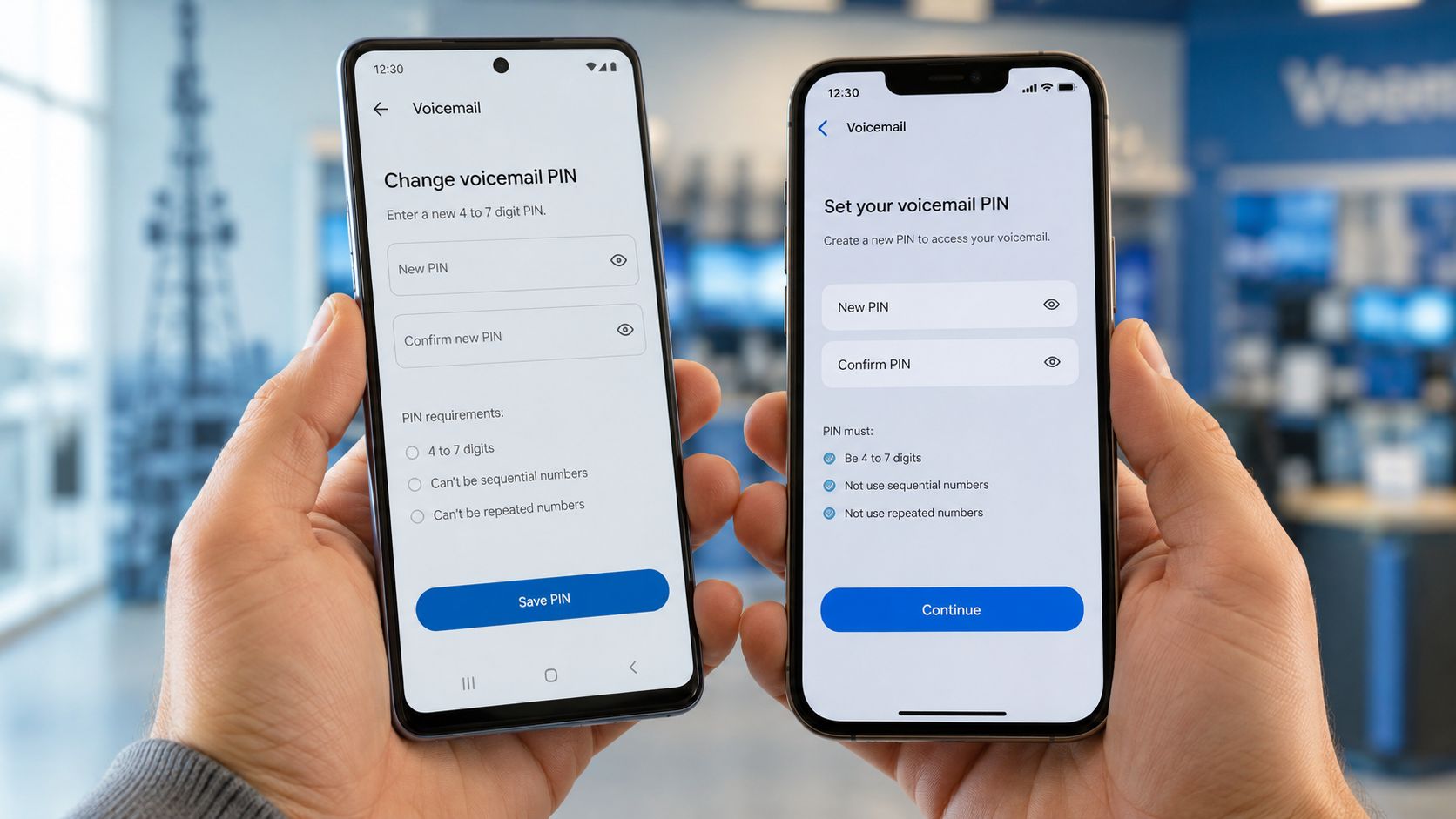
That distinction matters. The phone gives you the screen, but the carrier often enforces the PIN rules, stores the mailbox, and decides whether you can change the PIN on the handset or need to reset it through the account.
On Android
Start with the Phone app, because some Android devices do expose voicemail PIN controls there. Look for a path such as Phone app > More options > Settings > Voicemail > Change PIN. If that option appears, enter the current PIN, then enter the new PIN twice.
Use this order to avoid wasting time:
- Open the Phone app and check Voicemail settings.
- Select Change PIN or Change voicemail password if you see it.
- Enter your current PIN only if you know it.
- If you do not know the current PIN, stop there and switch to your carrier app or account portal.
- Confirm you are working on the right mobile number if your account has multiple lines.
The usual problem on Android is not the phone itself. It is account matching. I see this often with family plans and business mobile accounts. People reset the wrong line, use an old billing ZIP code, or try too many PIN guesses and trigger a temporary lock.
If you also use hosted calling features through Premier Broadband, our Android mobile app support page can help you tell the difference between app-managed calling features and carrier-managed voicemail.
On iPhone
iPhone handles this in a similar way. The voicemail tab may look like part of iOS, but the PIN is still often tied to the carrier mailbox behind it.
Check the Phone app for a setting such as Change Voicemail Password. If your carrier supports in-phone changes, you can update it there. If that option is missing, greyed out, or keeps rejecting a valid attempt, go straight to the carrier account tools.
That saves time. Repeating the same failed step on the handset rarely fixes a carrier-side restriction.
A practical iPhone workflow looks like this:
- Open Phone and check for Change Voicemail Password.
- Enter the current PIN if prompted and if you know it.
- If the change fails, sign in to your carrier app or website.
- Look for voicemail, security, or line settings for that specific number.
- Reset the PIN there, then return to voicemail and test it.
When you have forgotten the current PIN
Mobile providers have pushed more of this process into self-service. Some let you reset the PIN from the phone account page, some use a short code, and some require account verification before they will issue a reset.
The trade-off is convenience versus security. Self-service is faster, but only if the carrier can confirm you are the account holder. If your login is outdated or the line is managed by someone else on the account, the reset can stall until that verification is sorted out.
Here's a quick walkthrough if you want to see one reset flow in action:
If you do not know your current PIN, use the carrier reset path instead of guessing. Repeated failed attempts can lock voicemail access for a while, which turns a quick fix into a support case.
Resetting the PIN on a Traditional Landline
You pick up the home phone, call voicemail, and get a spoken menu instead of an app or settings screen. That is normal on a traditional landline. The process is slower, but it is usually reliable once you know which menu branch controls mailbox settings.
Start from the phone line tied to the voicemail box if possible. Many landline systems recognize the calling number and take you straight to the mailbox login. If you are calling from another number, you may need to enter the home number first, then the current PIN.
A typical dial-in path
Dial the voicemail access number for your landline service, or dial your own home number and interrupt the greeting if your provider supports that method. Enter the current PIN. Then listen for options such as Setup, Personal Options, Mailbox Options, or Security.
On many older voicemail platforms, the change-PIN option sits a level or two below the main menu. A common pattern is setup first, then personal settings, then password or PIN change. The exact key presses vary by provider, so follow the wording you hear instead of trying to match someone else's menu numbers.
Use this approach:
- Call into the mailbox.
- Enter the current PIN.
- Choose the menu for setup, personal settings, or mailbox options.
- Select the password or PIN change option.
- Enter the new PIN.
- Re-enter it if the system asks for confirmation.
- Wait for the confirmation message before hanging up.
Two things trip people up here. The first is entering a new PIN before deciding on one, which leads to rushed mistakes. The second is assuming the menu is wrong when the system is rejecting a weak or invalid code.
If the system rejects the new PIN
Landline voicemail platforms often enforce simple security rules even when the menus sound dated. A PIN may be rejected if it is too short, repeats the same digit, or follows an obvious pattern such as consecutive numbers. If that happens, choose a different number and try again instead of repeating the same entry.
It also helps to do this in a quiet room and off speakerphone. Spoken prompts on older systems can be easy to mishear, especially during the confirmation step.
If you need help getting into the mailbox before you can change the PIN, Premier's guide on checking voicemail from a home phone walks through the access steps clearly.
Voicemail Security Best Practices Everyone Should Follow
A common support call goes like this. The mailbox works fine for months, then someone tries to change the PIN after a reset or suspicious access attempt, and every new code gets rejected. In most cases, the system is blocking a weak choice, not malfunctioning.
What a weak PIN looks like
Voicemail platforms across VoIP, mobile, and landline services usually apply the same logic. They reject codes that are easy to guess, easy to brute-force, or too closely tied to the account holder.
Weak PINs usually fall into a few predictable groups:
- Straight patterns: 1234, 4321, 2468
- Repeated digits: 1111, 7777, 9999
- Personal data: birth years, street numbers, phone-number fragments
- Reused codes: the same number used for voicemail, alarms, gates, or building entry
The trade-off is simple. A PIN that is extremely easy to remember is often easy for someone else to guess if they know you, live with you, or have access to basic account details.
A good voicemail PIN is memorable to you without being obvious to anyone else.
Habits that improve voicemail security
Start with the PIN you were given. If your voicemail came with a default or temporary code, replace it before you save messages you care about.
Then look at how the mailbox is used. Shared office phones, household landlines, and reassigned business extensions create extra risk because old PINs tend to stay in circulation longer than people realize.
These habits help:
- Change default or temporary PINs right away.
- Pick a number that is not tied to public personal details.
- Keep the PIN in a secure password manager or protected note, not on paper near the phone.
- Review who still has access after staff changes, number transfers, or household changes.
- Change the PIN after support resets, account recovery, or suspicious activity.
Why security rules feel strict
Rejected PINs frustrate people because voicemail systems rarely explain the exact rule they enforce. You enter a code that feels reasonable, and the service says no.
That behavior exists for a reason. If systems accepted obvious patterns, repeated digits, or account-related numbers, voicemail would be much easier to access without permission. This matters on every service type, but especially on business VoIP lines and shared landlines where more than one person may know account details.
A practical approach works best. Before you start the change process, decide on two or three PIN options that are not sequential, not repetitive, and not based on your phone number or birthday. If the first choice is rejected, you can move to the next one without guessing under pressure.
Troubleshooting Common Voicemail PIN Issues
You sit down to change your voicemail PIN, enter a new code that looks fine, and the system rejects it. Or worse, it locks you out after a few tries. Those problems usually trace back to one of three causes. The mailbox is temporarily locked, the new PIN breaks a rule the system does not explain well, or the reset has to be done through a different service than the one you are checking.
If you're locked out
A short lockout after several failed attempts is normal. On many voicemail platforms, the fastest fix is to stop trying random combinations and wait for the timer to clear before making one careful attempt.
If you are a Premier Broadband customer, start with the service type tied to your line. For Premier Broadband VoIP, check the voice portal or the voicemail menu you normally use to manage greetings and mailbox settings. If the PIN still fails after the lockout period, contact support so we can confirm whether the mailbox is locked, reset at the platform level, or tied to a different extension profile.
For mobile voicemail, the carrier often controls lockouts and resets. For a traditional landline or office phone system, the phone company or system administrator may need to clear the mailbox state before you can try again.
If your new PIN keeps getting rejected
This is usually a rules problem, not a system failure.
Try these checks in order:
- Avoid obvious patterns. Many systems block repeated digits like 1111 and simple runs like 1234.
- Avoid personal or account-related numbers. Some services reject PINs based on your phone number, extension, or other easy-to-guess details.
- Use a distinct PIN. Some voicemail systems do not allow recent PIN reuse.
- Check the required length. A PIN that is too short or too long may be rejected without a clear explanation.
- Confirm who controls voicemail. On iPhone and Android, the carrier may enforce the PIN rules. On business VoIP, those rules may come from the admin portal.
I see this often with business VoIP users who are changing the PIN in the right place but choosing a code their company policy does not allow.
If you can't find the reset option
That usually means the reset lives in a different layer of the service.
| Situation | Best next move |
|---|---|
| You know the current PIN | Change it from the voicemail menu or account settings tied to that service |
| You forgot the current PIN on Premier Broadband VoIP | Check the voice portal first, then contact Premier Broadband if the mailbox tools are missing or disabled |
| You forgot the current PIN on mobile | Use the carrier app, carrier website, or the carrier's voicemail reset option |
| You forgot the current PIN on a business phone system | Check the user portal, then ask the phone system administrator to reset it |
| You keep getting errors after a reset | Wait for any lockout to clear, then try one new PIN that meets the system rules |
A lot of confusion comes from assuming the phone itself controls voicemail. In many setups, it does not. The carrier, VoIP provider, or office phone administrator controls the mailbox and the PIN policy, so the reset has to happen there.
If you've followed the correct reset path and the PIN still will not change, contact Premier Broadband for help with your voice service, account tools, or voicemail access path. A quick check of how your line is set up usually saves time.