
You swap in a new SIM, restart your phone, and expect it to work in a minute or two. Instead, you get No Service, a prompt for an access code, or a message that says the SIM isn't supported. If you're dealing with a hotspot or a cellular router, the signs look different but feel just as annoying. The device powers on, the signal bars might even appear, but the connection never comes up.
That usually points to one of three things: a carrier lock, a SIM PIN, or carrier-customized firmware. People mix these up all the time, and that confusion sends troubleshooting in the wrong direction fast. The fix depends on knowing which problem you have.
What Is a Network Lock and Why Does It Matter
A network lock (also called a carrier lock or SIM lock) is a software restriction that ties a device to one mobile provider. Historically, manufacturers and carriers used it to keep subsidized phones on the original network, and a locked device often shows messages like SIM Not Supported, Network Locked, or Enter Network Authorization Code when you insert a different carrier's SIM, as explained in BankMyCell's overview of unlocked and network-locked phones.

The practical impact is simple. If your device is locked, it won't register on another provider's network even if the SIM is active and the plan is valid. That matters when you're switching carriers, traveling, buying a used phone, or trying to repurpose a hotspot for backup internet.
Network lock versus SIM PIN
A lot of people see the word “locked” and assume they're dealing with the carrier. Often, they aren't.
A SIM PIN is security on the SIM card itself. It asks for a code when the device starts or when the SIM is inserted. A network lock is different. It blocks the device from using other carriers.
Samsung's support guidance highlights this distinction, and a Mobile World Foundation report cited there found that 43% of mobile support queries in 2025 involved misdiagnosing network lock versus SIM card lock in this area of troubleshooting, noted in Samsung's network lock issue guidance.
If your phone asks for a PIN right after boot, that points to SIM security. If it rejects a different carrier's SIM, that points to network lock status.
Why this matters beyond phones
This isn't only a smartphone issue. Mobile hotspots, LTE gateways, and some ISP-provided cellular backup devices can also be locked to a carrier. That's one reason people move a SIM from one device to another and get inconsistent results.
If you're also comparing mobile connectivity with fixed home service, it helps to understand the difference between carrier-dependent devices and dedicated broadband access like fixed wireless internet options, where lock status works very differently from a SIM-based device.
How to Check Network Lock Status on Your Smartphone
Start with the built-in checks on the device itself. They're more useful than random IMEI checker sites, and they tell you what the phone sees right now.
On iPhone
Apple makes this easier than most Android brands.
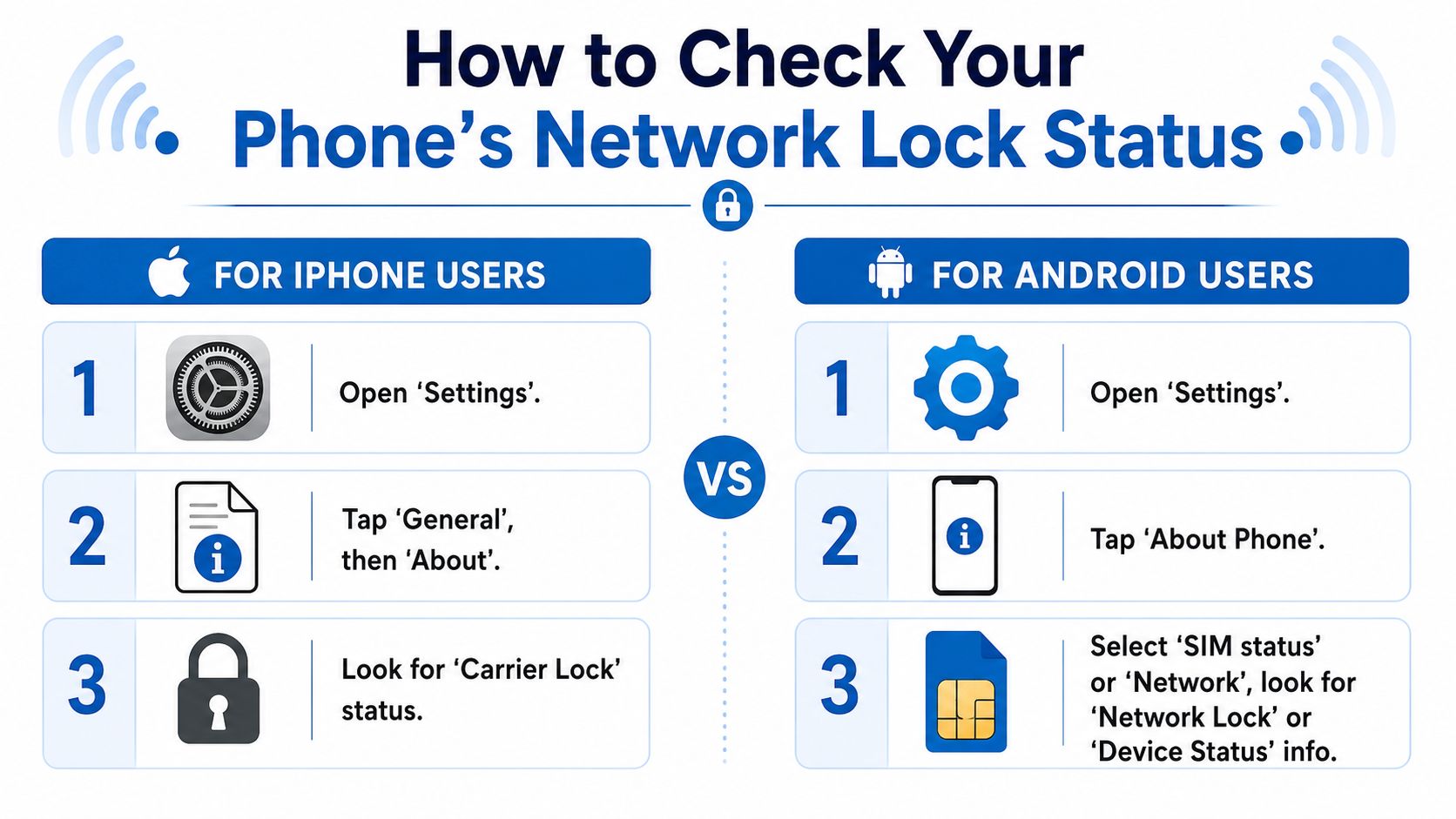
Go to:
Settings > General > About > Carrier Lock
Look for this exact text:
No SIM restrictions
If you see that, the iPhone has no network restrictions. If you see different wording that indicates a SIM or carrier restriction, the phone is locked.
This is the cleanest method because it doesn't depend on guessing, third-party tools, or what the seller told you.
On Android
Android takes a little more work because menus vary by manufacturer and carrier build. Two methods are the most practical.
Method one with a USSD code
Dial:
*#7465625#
On supported Android devices, that code displays the network lock status directly. If the phone reports no active network lock, that's your answer.
Method two with the network operator menu
Open:
Settings > Connections > Mobile Networks > Network Operators
Then turn off Automatically Select Network and let the phone search manually.
Use this rule:
- Multiple carriers appear: the phone is generally carrier-independent
- Only one carrier appears or the search fails with a lock-related error: the phone may still be locked
This method is especially useful when the USSD code doesn't work on your model.
The real-world confirmation test
Even when settings screens look promising, the most reliable practical test is still a SIM swap.
- Power off the phone.
- Insert an active SIM from a different carrier.
- Restart the device.
- Try to place a call, send a text, or use mobile data.
If the phone connects normally and doesn't prompt for a code to remove network restrictions, then it is free of such restrictions. If it rejects the SIM or never registers, the network lock status is still active.
The underlying guidance is consistent across platforms. On iPhone, check Carrier Lock and look for No SIM restrictions. On Android, use *#7465625# or search for available networks manually, as summarized in the verified device-check methods above.
Here's a quick walkthrough if you want a visual before digging through menus:
What doesn't work well
I'd be careful with online IMEI checker sites that claim they can tell you everything instantly. They can be outdated, and they often don't reflect the phone's current state after a carrier policy change, firmware update, or prior network release request.
Practical rule: Trust the phone's own settings and a physical SIM swap before you trust a web checker.
Verifying Lock Status on Hotspots and Routers
Hotspots and cellular routers create more confusion because they rarely present the same clear messages as a phone. Instead of saying “SIM locked,” they often just fail to attach to the network, loop during setup, or show signal without usable internet.
The easiest test for mobile hotspots
For a mobile hotspot, the best method is straightforward:
- Use a different carrier SIM: Power the hotspot down first, then insert a SIM from another provider.
- Boot and wait for registration: Give it a few minutes to detect the network.
- Check actual traffic: Don't stop at signal bars. Connect a laptop or phone to the hotspot's Wi-Fi and verify that web pages load.
- Review the admin page: Many hotspot dashboards show a carrier name, APN state, or registration error that helps confirm the issue.
If the hotspot accepts the SIM and passes traffic, it's likely not restricted to a specific carrier. If it rejects the SIM or never establishes a usable session, it may be carrier-locked or provisioned only for the original provider.
ISP routers and LTE backup gear
A standard fiber router usually isn't “network locked” in the same sense as a phone. But a router with cellular failover, an LTE gateway, or a business backup unit can absolutely be tied to one carrier or one provisioned service profile.
That's where users get tripped up. The hardware may be perfectly fine, but the service profile, firmware, or activation rules can stop another SIM from working.
A short comparison helps:
| Device type | Most useful lock check |
|---|---|
| Smartphone | Settings menu plus SIM swap |
| Mobile hotspot | SIM swap plus live traffic test |
| LTE router | SIM swap plus admin page review |
| Standard fiber router | Check provisioning and service compatibility, not carrier lock |
If you're also working through router behavior like passthrough or double-NAT while testing alternate equipment, this guide on bridge mode on a router can help separate routing issues from actual lock issues.
What to watch for
A hotspot or router can be network-independent and still fail for other reasons:
- the APN is wrong
- the firmware is customized for the original carrier
- the device supports different bands poorly on the new network
- the SIM plan doesn't allow hotspot or router use
That's why “does it recognize the SIM” isn't enough. You need to confirm that the device registers and moves traffic.
Prerequisites for Unlocking Your Device in 2026
You buy a used phone, pop in your SIM, and it still refuses to connect. Or you move a hotspot or LTE router to a new carrier and find out the problem is not the SIM at all. Before you ask a carrier to remove network restrictions, confirm what is blocking service and make sure the device qualifies.
Confirm the device identity first
Start with the IMEI for phones and many hotspots, or the relevant serial and modem details for a router. On most phones, dial *#06# or check Settings > About Phone. For hotspots and cellular routers, the label on the device, the admin page, or the original box usually has what the carrier needs.
Carriers use that identifier to check the exact model, original sales channel, and whether the hardware can be released from network restrictions.
Make sure you are solving the right problem
A carrier restriction is only one possible blocker. A SIM PIN is a security code on the SIM itself. Carrier-customized firmware is different again. The device may accept another SIM but still fail because the software expects the original carrier's settings or bands.
That distinction matters more now because users are applying the same assumptions to phones, hotspots, USB modems, and ISP backup gear. If you are weighing a phone hotspot against dedicated hardware, this guide to a dongle for internet helps clarify where each option fits.
Check the account and ownership details
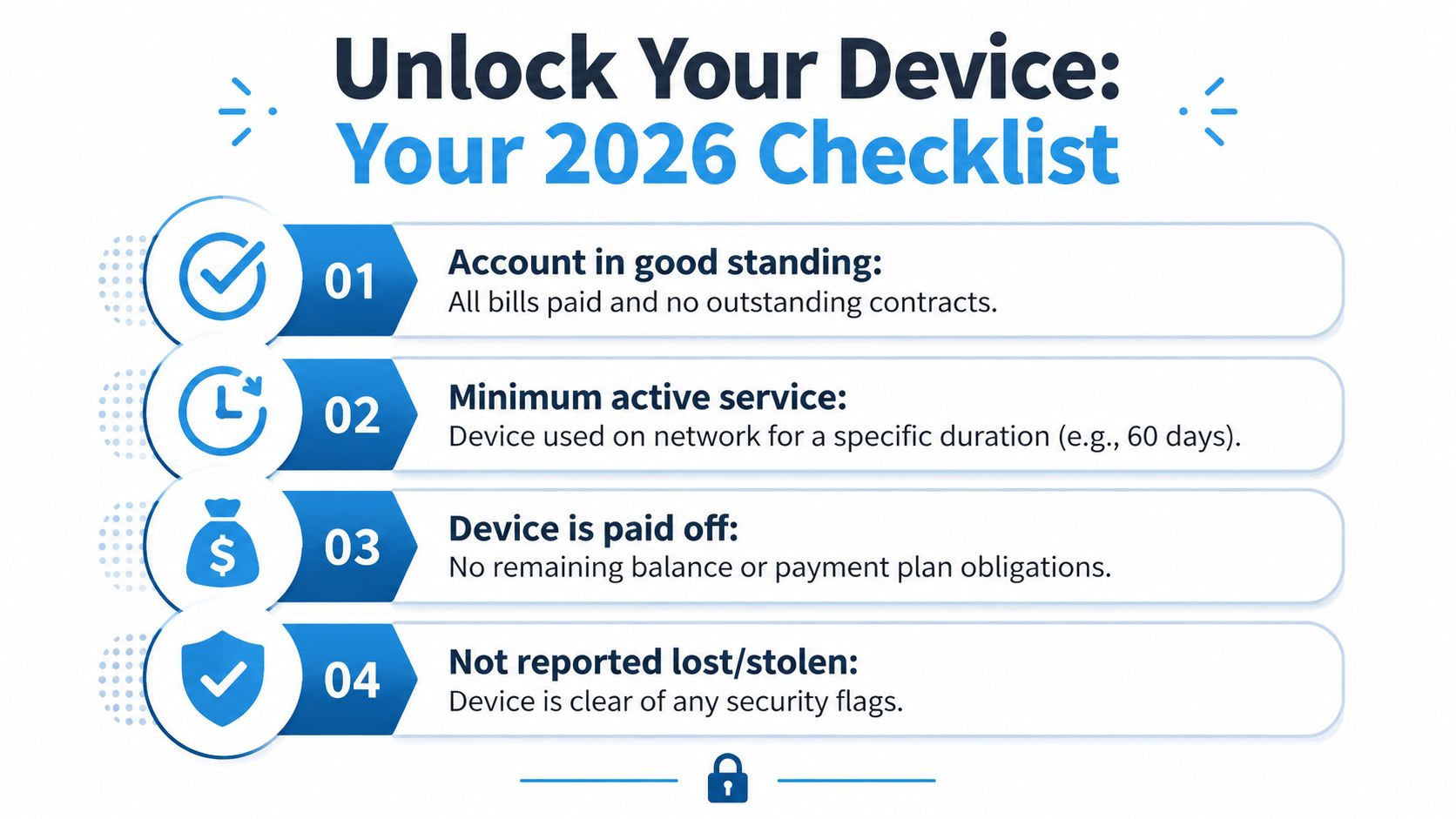
Most carriers still review a few account conditions before they approve a device release:
- Account standing: overdue balances can delay approval
- Ownership: secondhand devices may require proof of purchase or the original account details
- Loss or theft status: a blacklisted device is a separate issue from a carrier restriction
- Payment or term requirements: some carriers still tie eligibility to financing status, business terms, or device age
Frustration often arises in such situations. People often have the right hardware but not the paperwork, or they have paid off the device but the carrier records have not caught up yet.
Check whether the waiting period has already passed
For many newer carrier-sold phones, the restriction may lift automatically after the carrier's required holding period. That means the best first step is often simple. Check the purchase date, confirm how the device was sold, and review the current status before spending time on forms or support chats.
Phones get the most attention here, but the rule of thumb does not always carry over to hotspots and cellular routers. Those products may follow different terms, especially on business accounts or fixed wireless plans.
A quick reality check before you contact support
If the device is carrier-restricted, owned legitimately, clear of loss or theft flags, and past any required waiting period, you are usually in good shape for a carrier request.
If it still fails after that, the issue may be firmware, APN settings, or network compatibility rather than the carrier restriction itself.
Requesting a Network Unlock From Your Carrier
You swap in a new SIM, expect service in a minute, and nothing happens. At that point, the job is less about guessing and more about sending the right carrier request to the right company.
Start with the original provider that sold the device, not the one you want to use next. That rule applies to phones, mobile hotspots, and many cellular routers. ISP gateways and fixed wireless routers can be trickier because a carrier restriction, a SIM PIN, and carrier-branded firmware can look like the same problem from the outside.
What to have ready
Before you submit anything, gather:
- The IMEI
- Your wireless number or account information
- The original carrier name
- An email address for status updates
- Proof of ownership if the device was bought secondhand
Clean information speeds up the process and reduces avoidable denials.
The fastest path
The carrier's self-service portal is usually the quickest option. Enter the IMEI, confirm the account details, and submit a network release request. If the device qualifies, the provider may clear the restriction remotely or send final steps by email.
A few practical points save time:
- Contact the original carrier: If the device was first sold by AT&T, Verizon, or T-Mobile, send the request there.
- Avoid repeat submissions: Multiple tickets can slow review and create conflicting status notes.
- Restart the device after approval: Phones often need a reboot or a fresh SIM insertion. Hotspots and routers may need a full power cycle and a profile refresh.
Useful carrier portals
Carrier device release pages
Support by phone still helps in edge cases, especially with used devices, family-plan transfers, old business accounts, or data-only hardware. I also recommend calling if you are dealing with a hotspot or cellular router that was bundled with home internet service, because those products often sit under different billing systems than phones.
After you submit
Watch for two things:
- A status email or account update
- A successful SIM swap test
The second check matters more than many people expect. A carrier can mark the device as released in its system, but the hardware still has to register correctly on the new network.
Test calls, texts, and mobile data on a phone. On a hotspot or router, confirm that it detects the SIM, attaches to the network, and passes traffic. If the connection still fails, work through these internet connection troubleshooting steps before assuming the carrier request failed.
Troubleshooting Common Unlock Problems and Denials
A denial usually points to a mismatch between the request and the actual problem.
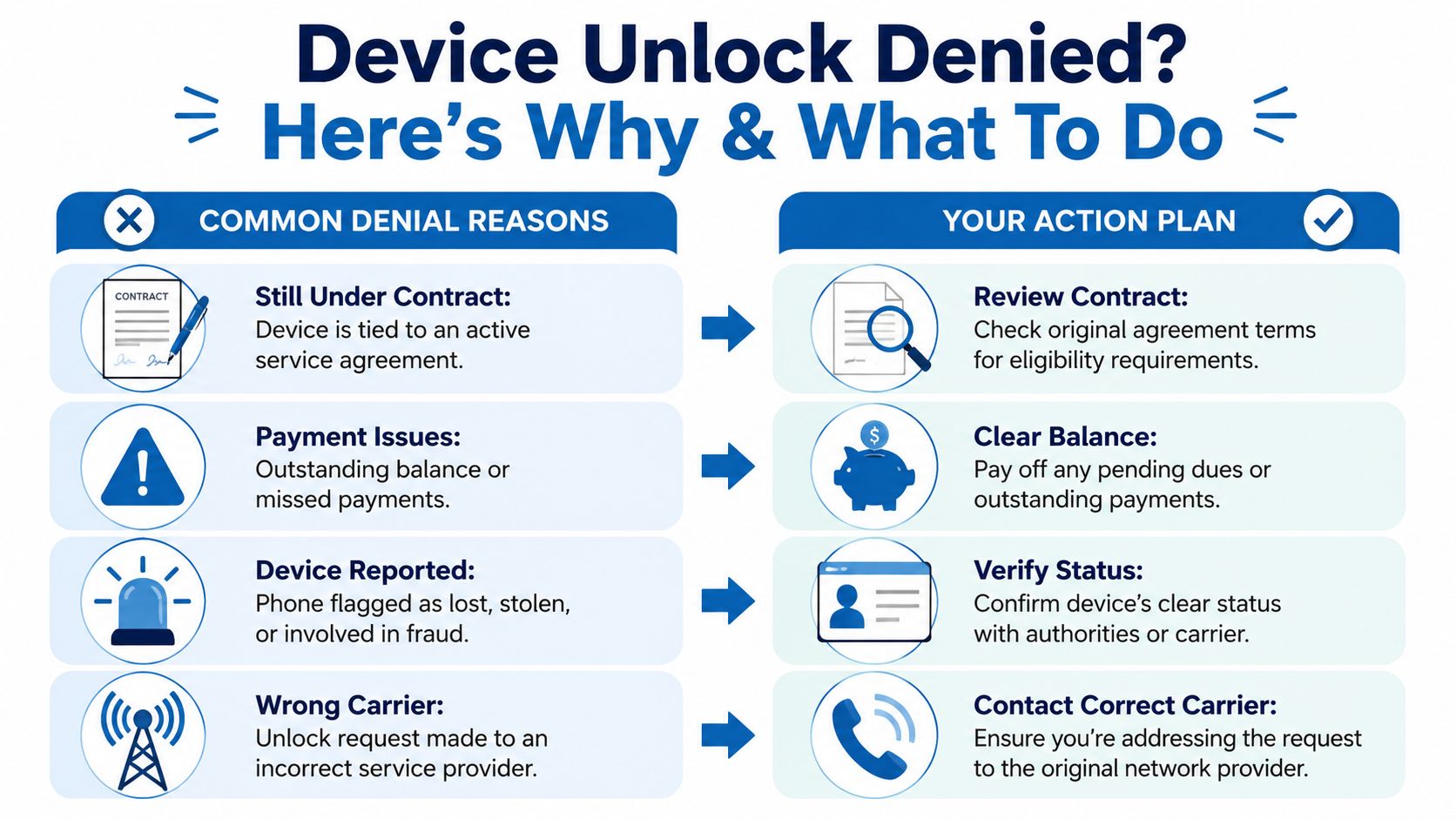
Someone swaps in a new SIM, sees no service, and assumes the carrier refused a network release. We see a different pattern all the time in support. The device may already be clear of carrier restrictions, but a SIM PIN, an unpaid balance hold, a blacklist flag, or carrier-branded firmware is still blocking normal use.
That distinction matters even more on hotspots and cellular routers. Phones usually give clearer error messages. Data-only hardware often just shows weak status lights, a stuck profile, or a connection that looks active but passes no traffic.
When the device is clear but still not working
Carrier-customized firmware is one of the most common trouble spots. A phone, hotspot, or router can be free of network restrictions and still keep software settings tied to the original provider's APN, bands, management portal, or provisioning rules.
That leads to problems such as:
- a phone that accepts the new SIM but will not configure mobile data
- missing calling or messaging features after a carrier change
- a hotspot that connects to the network but drops traffic
- a router that keeps pulling the old carrier profile after a reset
Gartner has also suggested that buyers often confuse carrier-branded software with true network freedom, especially in the used-device market. That lines up with what we hear from customers who bought hardware advertised as "works on any carrier" and then ran into setup issues.
Checks that solve many denials
Work through these in order:
- Original carrier mismatch: The request has to go to the carrier that first sold or financed the device.
- SIM PIN confusion: A SIM PIN is a security code on the SIM card itself. It is separate from carrier restrictions on the device.
- Ownership gaps on used hardware: Carriers may deny a device release if account history is incomplete or the prior owner still owes money.
- Blacklist status: Lost, stolen, or fraud flags are separate from network lock status and usually stop activation entirely.
- Firmware limits: The hardware may be open to other networks but still tuned for the old carrier's software environment.
- Router and hotspot provisioning: Home internet gateways and business LTE routers often sit in a different billing system than phones, so account teams may need to review them manually.
If the SIM is recognized and the device shows signal, but browsing or app traffic still fails, use this guide for troubleshooting internet connection problems before assuming the carrier request failed.
Buying used devices without regret
Used listings often blur three separate things: network lock status, SIM security, and carrier-customized firmware. Ask for proof of all three if you can.
On a phone, ask the seller for the status screen and a test with a different carrier's SIM. On a hotspot or router, ask for a live data test, not just a photo of the power light or admin page. Five extra minutes before you buy can save hours with support later.
A little skepticism helps. It usually saves money too.