
You've got fast internet, a capable router, and a growing list of devices that all want a piece of your network. A work laptop needs stable remote access. A gaming console wants open paths for matchmaking. A VoIP phone needs clean, predictable traffic. A smart TV and a pile of IoT gear are trying to reach outside services all day.
That's where router firewall configuration stops being a nerd-only topic and becomes basic network hygiene.
Individuals often encounter their router firewall when something breaks. A game won't connect, a phone system drops audio, or remote desktop refuses to load. The usual reaction is to turn protections off until things work again. That fixes the symptom and creates a bigger problem. A better approach is to understand why the firewall exists, what each rule is protecting, and how to allow only what your network needs.
Your Firewall Is a Gatekeeper Not a Brick Wall
A router firewall isn't there to block everything forever. It's there to make decisions.
That distinction matters. If you treat the firewall like a blunt obstacle, you'll either overblock and frustrate yourself, or you'll poke so many holes in it that it stops doing meaningful security work. A good router firewall configuration acts more like a gatekeeper at a controlled entrance. It checks what's trying to come in, what's trying to go out, and whether that traffic belongs.
Start from deny then allow with purpose
The most useful mindset is default deny. Carnegie Mellon CERT says a firewall's default position should be to deny traffic, and that rules should be as specific as possible, in its guidance on network border protection best practices.
That sounds strict, but in practice it simplifies everything.
Instead of asking, “What should I block?” you ask, “What must this device or service be allowed to do?” That flips your thinking from reactive to deliberate. A work PC may need web access, VPN access, and printer access. A VoIP phone may need to reach your provider and nothing else. A camera probably doesn't need to talk to your bookkeeping laptop at all.
Practical rule: If you can't explain why a device needs access, don't grant it yet.
A lot of home router guides focus almost entirely on port forwarding. That's only one slice of the job. The primary work is deciding what traffic belongs on your network in the first place. If you want a broader business-style perspective on policy design, this overview of understanding business firewalls is a useful complement to consumer router advice.
Your router mode affects your firewall role
One common source of confusion is router mode. If your ISP gateway is doing routing and your own router is also doing routing, you can end up with overlapping firewall behavior, duplicate NAT, and rules that don't behave the way you expect. If you're sorting out that setup, Premier's guide to bridge mode on your router helps clarify when one device should handle the firewall job.
A secure setup isn't the one with the most rules. It's the one where every rule has a reason.
Plan Your Firewall Rules Before You Click
The biggest firewall mistake happens before the first setting is changed. People log into the router, see a page full of checkboxes and dropdowns, and start editing live traffic with no map.
That usually leads to broad allow rules, duplicate entries, and mystery failures later.
Build a device and traffic list
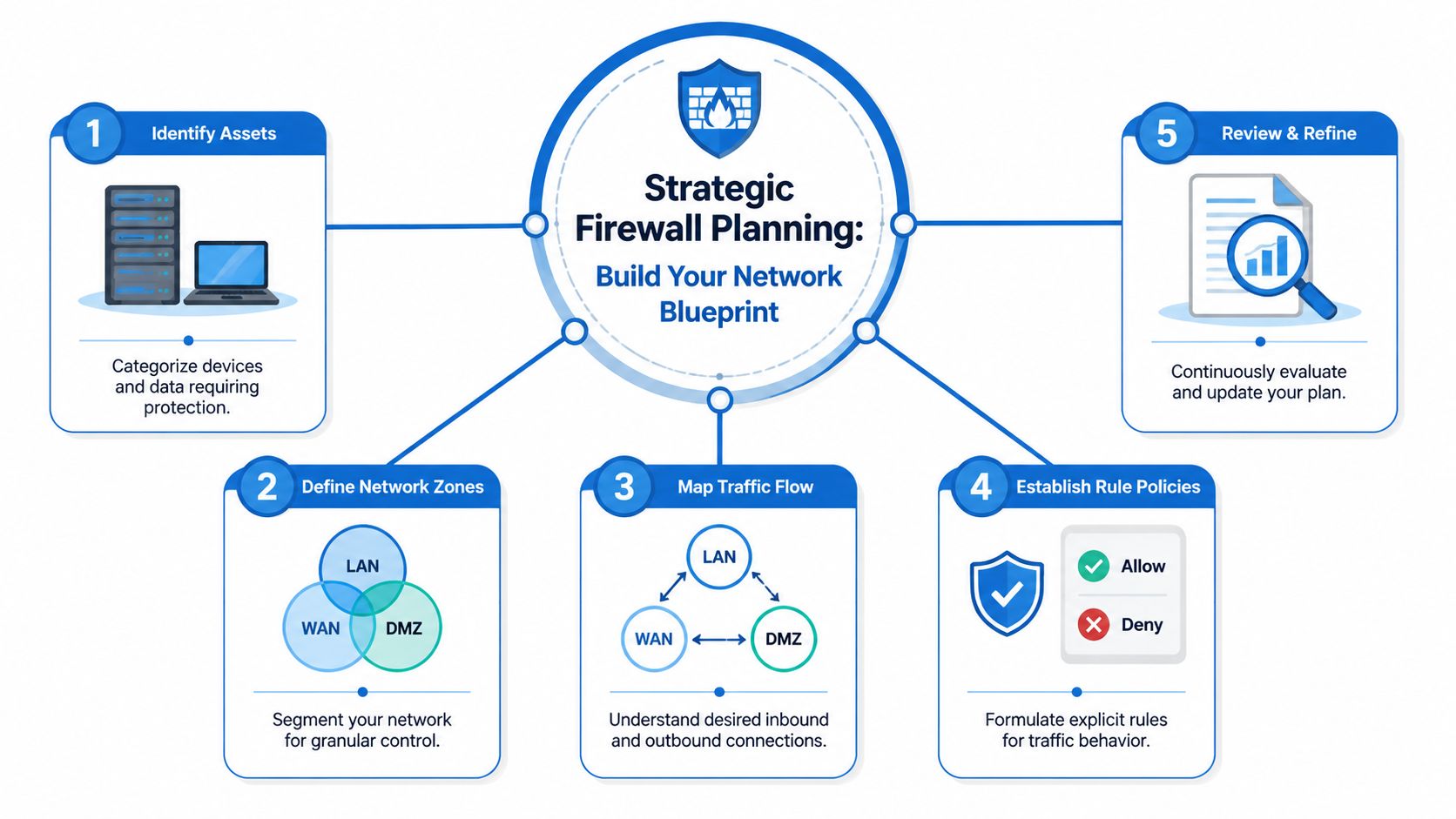
Start with a plain list. Not a perfect spreadsheet. Just a useful inventory of what's on your network and what each thing needs.
Ask four questions for each device:
- What is it: Work laptop, gaming console, VoIP desk phone, NAS, smart TV, camera, printer.
- Who uses it: Family, staff, guests, only you, or no direct user at all.
- What must it reach: Internet only, local printer, file server, VPN, game service, remote desktop host.
- What should never reach it: Guest devices, IoT devices, unknown inbound traffic, other internal zones.
That process exposes unnecessary trust very quickly. The family tablet probably doesn't need access to the office printer queue. A streaming device usually doesn't need to see your bookkeeping PC. A guest phone should get internet access and little else.
Think in zones not just devices
Once you know your assets, group them into zones. Here, home networking starts borrowing the right lessons from business security.
A practical layout might look like this:
| Zone | Typical Devices | What It Should Reach |
|---|---|---|
| Main LAN | Workstations, laptops, printers | Internet and approved local services |
| Voice | VoIP phones, ATA adapters | VoIP provider and management only |
| Gaming and media | Consoles, streaming boxes | Internet, limited local access if needed |
| IoT and guest | Cameras, speakers, guest phones | Internet only, restricted local access |
| Admin | Router, switch, controller | Management access from trusted devices only |
You don't need enterprise hardware to think this way. Even if your router has a simpler interface, the planning principle still works. Segment where you can, and avoid giving every device the same level of trust.
Make rules narrow on purpose
Fortinet's firewall configuration guidance says ACLs should be specific to exact source and destination IP addresses and port numbers, then end with a “deny all” rule so unapproved traffic is blocked by default, as described in its firewall configuration guidance.
That principle matters just as much on a home office router as it does on a larger network.
A weak rule says, “Let this device talk to anything on any service.”
A strong rule says, “Let this device reach this destination for this service.”
Broad rules feel convenient on day one. Narrow rules are what save you on the day a device is compromised or misbehaves.
Write the policy before you touch the router
A short written plan beats memory every time. It can be as simple as this:
- Work laptop gets normal web access, VPN access, and printer access.
- VoIP phone gets internet access for calling, but not access to office PCs.
- Gaming console gets outbound access and only the specific inbound rule needed for hosting.
- Guest devices get internet only.
- Router management is allowed only from one trusted admin device.
That's the heart of router firewall configuration. The settings page is just where you type the plan in.
Configuring Basic Inbound and Outbound Rules
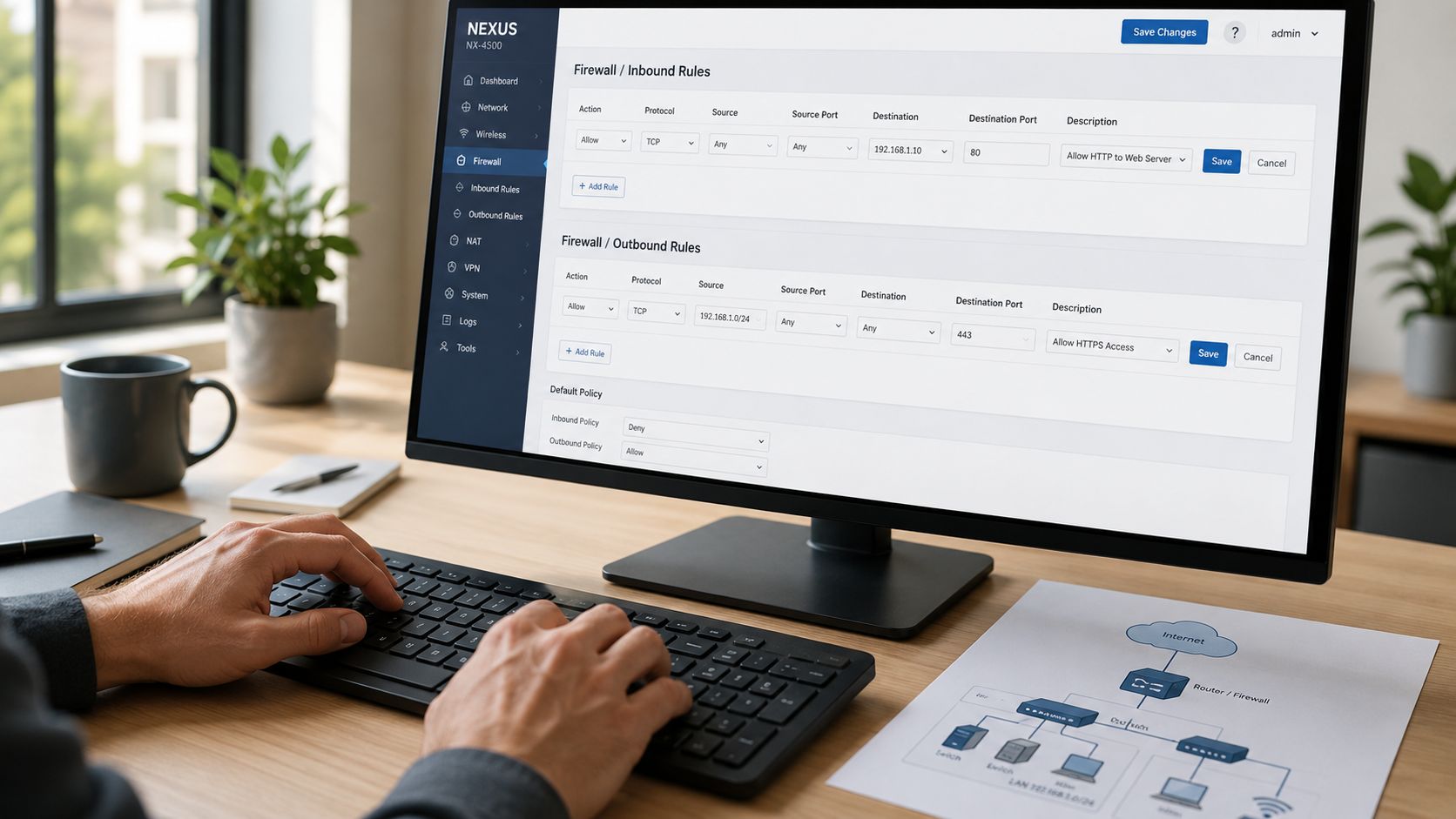
This is the part where the plan becomes real. Most routers expose firewall settings through sections like Access Control, Security, Port Filtering, Port Forwarding, NAT, or Advanced Firewall. The labels vary. The logic doesn't.
Order matters more than people think
One of the lessons from Cisco-style Zone-Based Policy Firewall work is that firewall policy works as an ordered process, not a pile of isolated edits. A structured ZBFW workflow uses five ordered steps, and the point for everyday admins is simple: complete the stages in the right sequence or traffic can fall into default drop behavior, as described in this Cisco ZBFW workflow discussion.
On a home or small-business router, that translates into this sequence:
Name your target device first
Reserve or confirm the device's local IP in DHCP so the rule points to the right host.Decide whether the traffic is inbound or outbound
Inbound rules control what can enter from outside. Outbound rules control what devices inside your network can initiate.Create the specific allow rule
Match the device, the service, and only the direction you need.Check rule order
Some routers stop evaluating after the first match. A broad allow above a narrow deny can override your intent.Test before adding more
Don't create ten rules at once and then guess which one caused the problem.
Inbound rules for hosted services
Inbound rules are where people get into trouble fastest. If you host anything inside your network, such as a game server, camera feed, or remote desktop gateway, you're inviting outside traffic to a local device. That's not automatically wrong. It just needs to be controlled tightly.
Use these habits:
Target one device only
Forward traffic to the exact device that runs the service, not to a general pool.Open only the needed service
If the application uses one service path, don't also open adjacent ports “just in case.”Keep router management closed to the internet
Manage the router from inside the network whenever possible.
Outbound rules are underrated
Most users pay attention only to inbound traffic. Outbound control is just as valuable.
If a smart TV, camera, or unknown gadget starts reaching destinations you didn't intend, an outbound rule can shut that down. This also helps with noisy devices that don't need broad internet access. A media player may only need streaming services. A VoIP adapter may only need to reach the phone provider. A child's game device may not need overnight access at all.
Stateful firewalls act like a security guard who remembers conversations. If a device inside started a legitimate session, the router usually allows the return traffic without needing a separate manual rule for every reply.
That's why everyday router firewall configuration is often simpler than it looks. You usually allow the request out, and the firewall tracks the return path automatically.
If you're still sorting out the physical and logical basics, Premier's guide on modem and router setup is a solid primer before you start layering custom rules on top.
A short walkthrough helps if your router menus feel abstract:
A simple working pattern
A clean baseline for many homes and small offices looks like this:
Allow established traffic
Let the firewall handle return traffic for sessions that started legitimately.Allow necessary outbound traffic
Web, VPN, VoIP, game services, and update services that your devices need.Add narrow inbound exceptions
Only where you intentionally host something.Leave everything else denied
Unknown inbound traffic shouldn't need a debate.
That's what works in practice. What doesn't work is opening broad traffic ranges first and promising yourself you'll tighten them later.
Port Forwarding for VoIP Gaming and Remote Access
Port forwarding is where the firewall shifts from passive protection to controlled exposure. You're telling the router, “When this kind of traffic arrives, send it to this specific internal device.”
That can be useful. It can also go wrong fast if you forward traffic without understanding the application behind it.
A home office phone that needs to stay reachable
A VoIP setup is a good example of why the why matters.
A desk phone or ATA usually needs to register with a phone provider and exchange voice traffic consistently. If registration fails, the phone may appear online but won't ring correctly or may lose audio. The mistake I see most often is opening far more than needed because someone found a random forum post with a giant port list.
That's usually sloppy security, not a real solution.
If you're troubleshooting voice quality or one-way audio, also check whether your router has SIP ALG enabled. It's meant to help SIP traffic, but in many real-world setups it causes registration or call-quality issues instead. Premier has a plain-language guide on what SIP ALG is and when disabling it makes sense.
Gaming works best with precision
Gamers often care about firewall settings only when NAT status turns strict or matchmaking gets flaky. The temptation is to enable UPnP and forget the whole problem.
Sometimes that works. It also gives applications a way to request automatic openings on the router, which can reduce your control. A better route for a console or dedicated game server is to identify the exact service you need to expose and forward only that to the right device.
For a player joining online matches, outbound access is often enough. For a player hosting, inbound forwarding may be needed. That difference matters. Hosting creates exposure. Joining usually doesn't.
Remote desktop deserves more caution than convenience
Remote access to a work PC is another common request. The convenience is obvious. So is the risk.
Opening remote desktop directly to the public internet is one of those choices that feels simple right up until it isn't. If remote access is required, keep the exposure narrow, restrict it as much as your router allows, and prefer a VPN-based path when available. If your router or firewall supports remote access through a VPN, that's usually a cleaner design than exposing a desktop service directly.
The safest port forward is the one you didn't need after checking whether the app supports a VPN, relay service, or outbound-only connection method.
Common Port Forwarding Scenarios
| Application | Common Ports | Protocol | Security Risk & Mitigation |
|---|---|---|---|
| VoIP phone or ATA | Vendor and provider dependent | Usually UDP, sometimes TCP | Risk comes from exposing more than the phone system needs. Forward only what your provider documents, point it to one device, and test registration and audio after each change. |
| Dedicated game server | Game dependent | Often UDP, sometimes mixed | Hosting exposes a local service to outside players. Forward only the service required by that game, keep the host patched, and don't reuse the same host for sensitive work. |
| Remote desktop | Remote access product dependent | Often TCP, sometimes mixed | Direct exposure increases risk. Prefer VPN access first. If direct forwarding is unavoidable, keep it limited to one host and review logs regularly. |
A good port forward has three traits. It points to one device, serves one clear purpose, and gets removed when you no longer need it.
What doesn't work is leaving old forwards in place for devices you sold, moved, or forgot about months ago.
Security Hardening and Testing Your Configuration
Firewall rules are only part of the job. The router itself can become the weak point if you leave management features open, store weak credentials, or back up configuration files carelessly.
That's not a theoretical concern. In 2025, SonicWall disclosed that an attacker accessed customer firewall configuration backup files stored in the cloud, highlighting that the configuration file itself is a high-value target containing items such as VPN settings, credentials, and internal network maps, according to CyberScoop's reporting on the SonicWall disclosure.
A firewall config isn't just a convenience file. It's a map of how your network works.
Hardening steps that matter on real routers
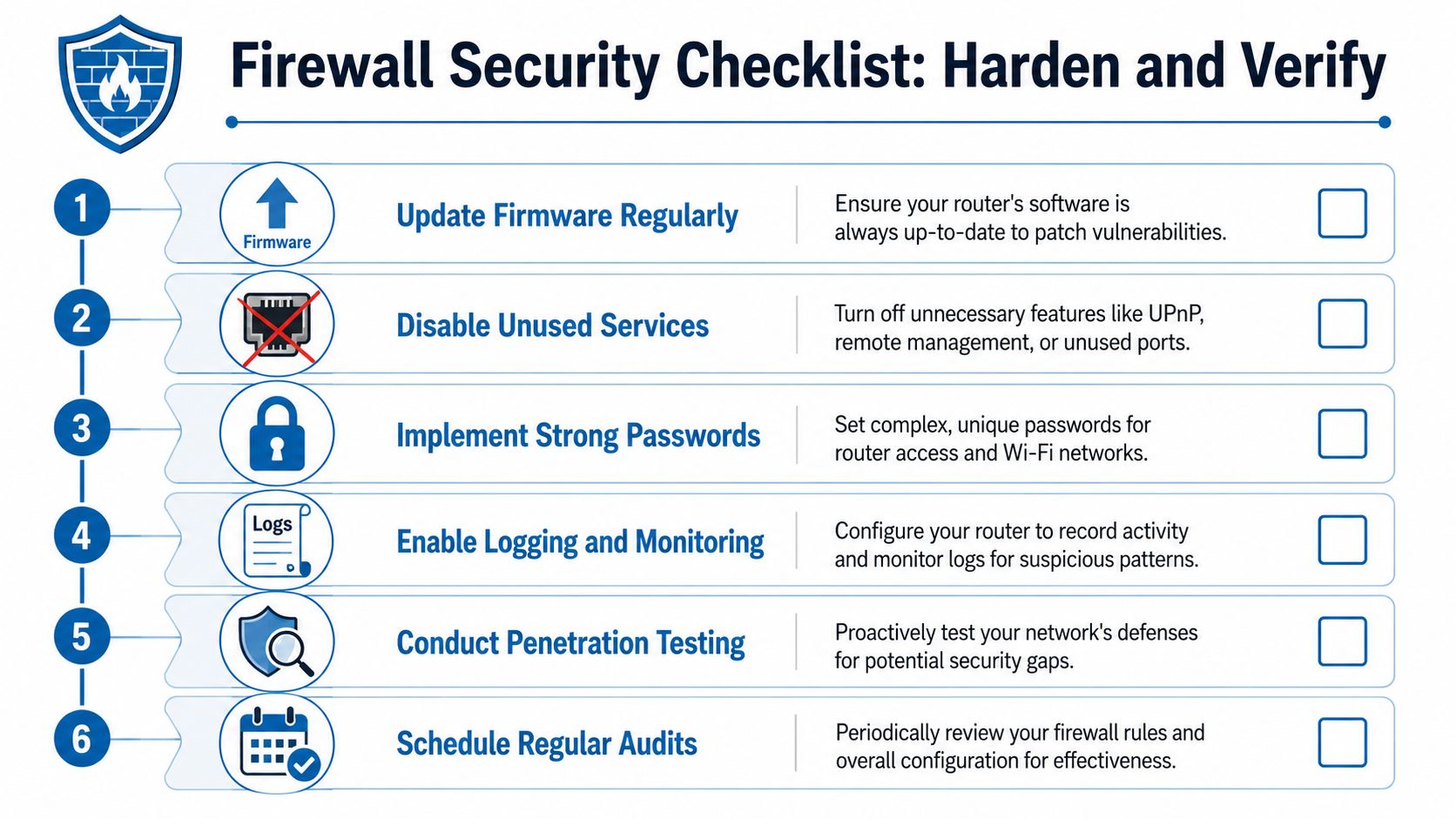
A practical hardening pass should include these checks:
Change default credentials
Router admin logins should use unique credentials, not vendor defaults or recycled passwords.Disable features you don't use
Turn off remote management, UPnP, WPS, unused VPN modes, and any service that isn't part of your design.Restrict management access
Only trusted internal devices should be able to manage the router.Back up carefully
Keep a clean local backup, but store it like sensitive material, not like a harmless settings export.Update firmware
Apply stable firmware updates so known issues don't stay exposed indefinitely.
Logging tells you whether the policy matches reality
A firewall rule that looks correct in the interface can still behave differently than you intended. Logging closes that gap.
Check whether your router can log denied inbound traffic, management login attempts, and major rule matches. You don't need to become a full-time log analyst. You just need to know where to look when something odd happens.
Useful log questions include:
| Check | Why it matters |
|---|---|
| Repeated denied inbound attempts | Confirms the firewall is filtering background internet noise |
| Blocked outbound sessions from odd devices | Helps spot misconfigured or overly chatty devices |
| Failed admin logins | Reveals whether management access is being probed |
| Unexpected rule matches | Shows whether a broad rule is catching more traffic than planned |
Backups deserve the same caution as passwords and keys. If someone gets the config, they may learn exactly how to move through your network.
Test from outside and inside
Don't assume the firewall is right because the settings page saved successfully.
Test from a device inside the network. Then test from an outside connection, such as mobile data, when checking any intentional inbound service. Confirm that allowed services work and that blocked services stay blocked. If you use a provider-managed security option such as Premier Protects, treat it as one layer in the stack, not a substitute for checking your router's own rules and behavior.
The safest firewall is the one you can explain, back up securely, and verify with actual traffic.
Troubleshooting Common Firewall Problems
When something stops working after a firewall change, the wrong move is disabling the firewall completely. That wipes out your control and usually teaches you nothing about the underlying cause.
A better method is slow, boring, and effective.
Start with evidence not guesses
First, check the router logs. If the firewall blocked the traffic, the log often tells you whether the problem is inbound, outbound, or tied to a specific rule.
If you're trying to diagnose broader network behavior, Premier's page on network diagnostic utilities is a useful place to review the basic tools that help separate a firewall issue from a DNS, latency, or device problem.
Then verify the obvious details:
Confirm the target device
The rule has to point at the device that runs the service now, not the one that had it last month.Check the service itself
If the game server, VoIP adapter, or remote desktop host isn't listening correctly, the firewall won't fix that.Review rule order
A deny rule higher in the list may beat the allow rule you added later.
Isolate one change at a time
Troubleshooting works best when you change one variable and test again.
Try this sequence:
Disable one suspect rule temporarily
Test immediately, then re-enable if it wasn't the cause.Compare inbound vs outbound behavior
If a device can browse out but can't accept a hosted connection, the issue is probably inbound policy or forwarding.Look for conflicts
Some routers apply parental controls, app filters, or security presets that overlap with custom firewall entries.Consider ISP edge cases
Carrier-Grade NAT can prevent certain inbound hosting scenarios even when your local router settings are correct.
Don't troubleshoot by adding more open rules. That usually hides the original mistake and creates two problems instead of one.
If you run a small IT operation or support family and business users informally, communication matters too. Tools built for triage and intake, such as Rosie for IT lead capture, can help organize requests before every “the firewall broke my internet” call turns into a guessing game.
A stable setup comes from patient testing. Rule by rule. Device by device. That's how you keep security intact while getting the network working again.
If you want a reliable connection underneath all this configuration work, Premier Broadband provides fiber internet and VoIP services for homes, gamers, remote workers, and small businesses. Once the connection is solid, good router firewall configuration helps you shape that speed into a network that's both usable and secure.