
Working from home doesn't mean you have to sound like you're working from home. If you're tired of dropped calls, echo-filled conversations, or clients hearing your neighbor's lawn mower in the background, it's time to upgrade to hosted VoIP for home office.
The good news? You don't need to be a tech wizard to get professional-grade calling up and running. In fact, you can have your entire system configured and ready to impress clients in just 15 minutes. Let's dive into how you can transform your home office into a communication powerhouse without breaking a sweat.
What Exactly Is Hosted VoIP for Home Office?
Think of hosted VoIP (Voice over Internet Protocol) as your traditional phone system's smarter, more flexible cousin. Instead of relying on old copper phone lines, your calls travel through your internet connection. The "hosted" part means all the complicated server stuff happens in the cloud – you just need to plug in and start talking.
For remote workers, this is a game-changer. You get crystal-clear call quality, professional features like voicemail-to-email, call forwarding, and the ability to take your office number anywhere you go. Plus, it typically costs way less than traditional phone services.
Before You Start: What You'll Need
Don't worry – the shopping list is short and sweet. Here's what you need to get your hosted VoIP for home office setup rolling:
Essential Equipment:
- A reliable high-speed internet connection (this is crucial – we're talking at least 1 Mbps upload speed per call)
- Either a VoIP desk phone, a regular cordless phone with an adapter, or just your computer/smartphone for software-based calling
- An ethernet cable if you're going with a desk phone
- Your VoIP provider's account details (username, password, and server info)
That's it! No need to call a technician or rewire your house.
The 15-Minute Setup Process
Ready to get professional calling up and running? Let's break this down into bite-sized chunks that won't make your head spin.
Minutes 1-3: Pick Your Calling Style
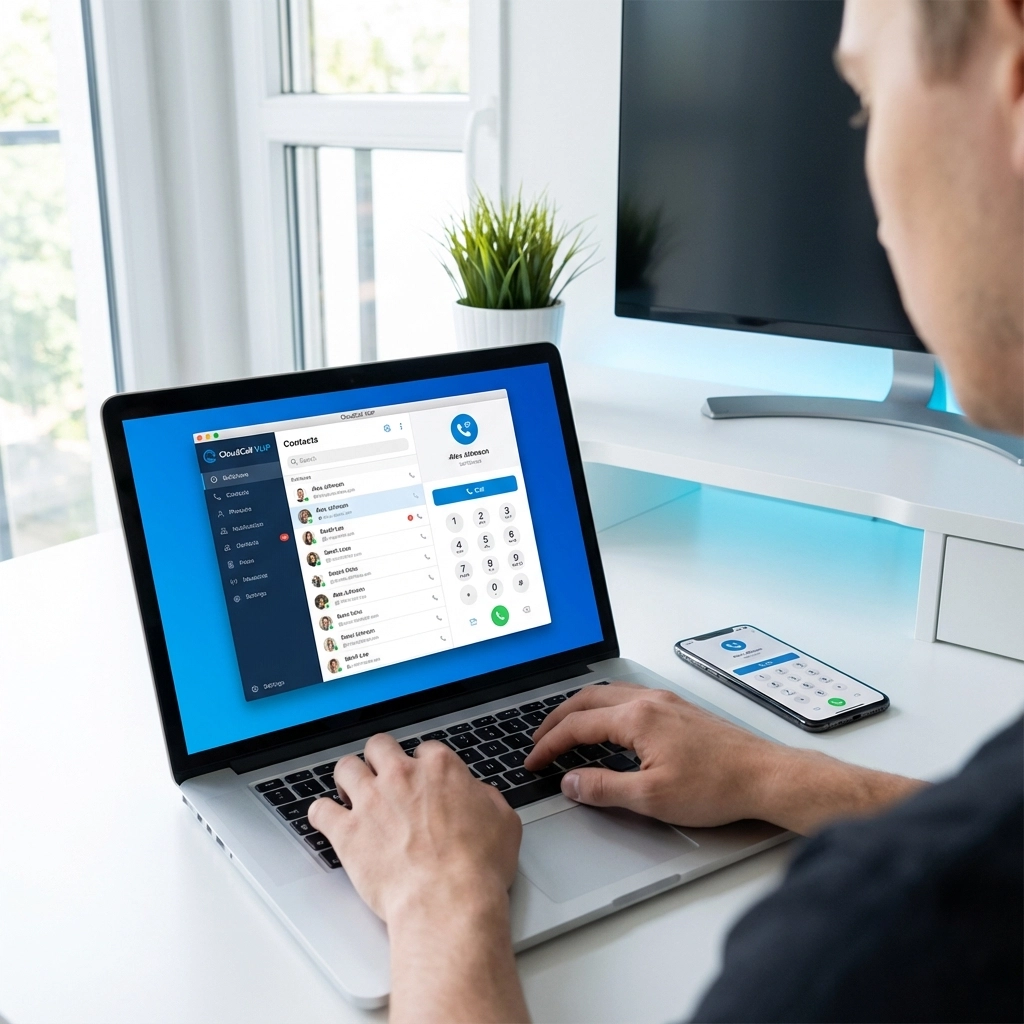
First decision: hardware or software? If you want the traditional phone experience, grab a VoIP desk phone or use your existing cordless phone with an adapter. If you're more of a laptop warrior, download your provider's softphone app instead.
Softphone apps are super popular for hosted VoIP for home office setups because they're instant – no hardware to connect, just download and you're halfway there.
Minutes 4-8: Get Connected
For Hardware Phones:
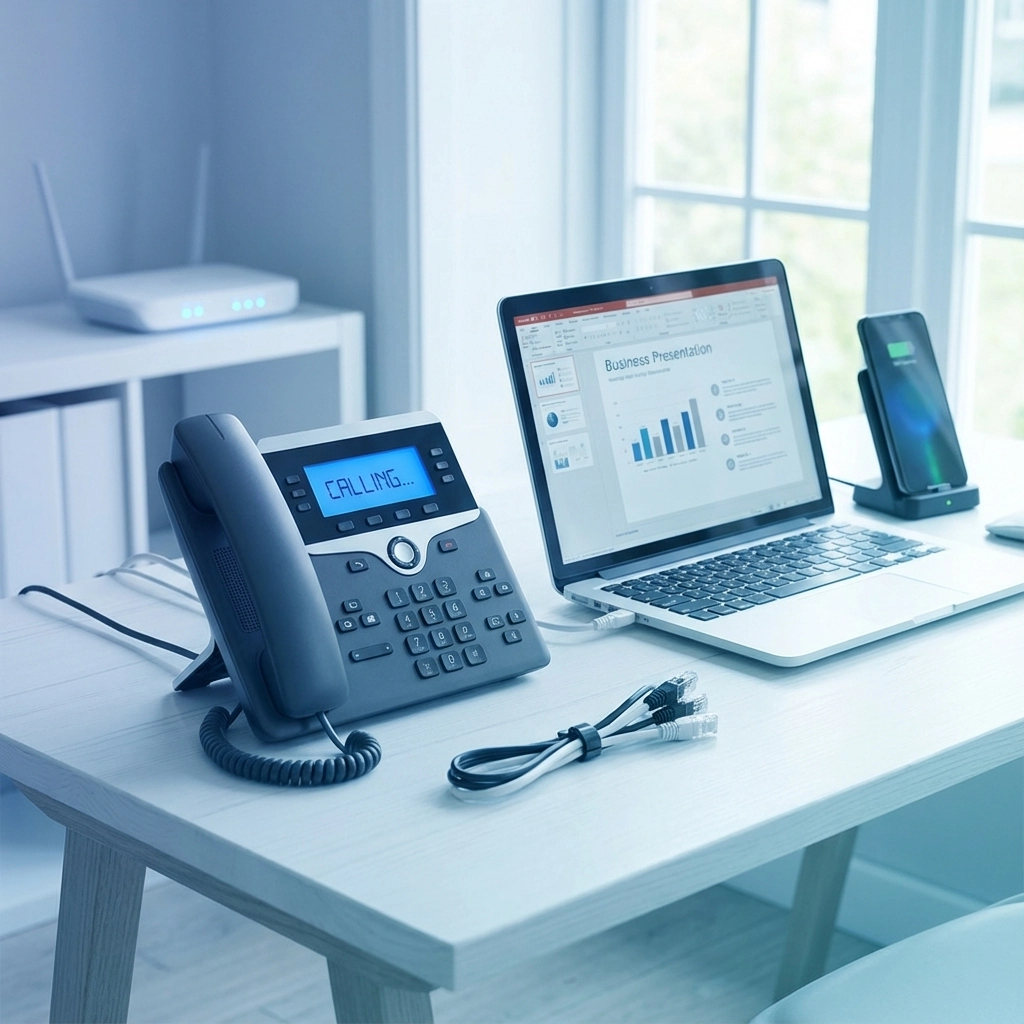
Plug your VoIP phone directly into your router using an ethernet cable. Most VoIP phones are "plug and play" – they'll power up and start looking for your network automatically. If your phone supports Power over Ethernet (PoE), the cable handles power too. If not, plug in the power adapter.
For Softphone Apps:
Download your provider's app from their website or app store. This usually takes a couple of minutes depending on your internet speed.
Minutes 9-13: Enter Your Account Details
This is where you'll use those account details your VoIP provider gave you.
Hardware phones usually have a web interface – check the phone's display for its IP address, then type that into your web browser. Navigate to the account or SIP settings and enter your username, password, and server information.
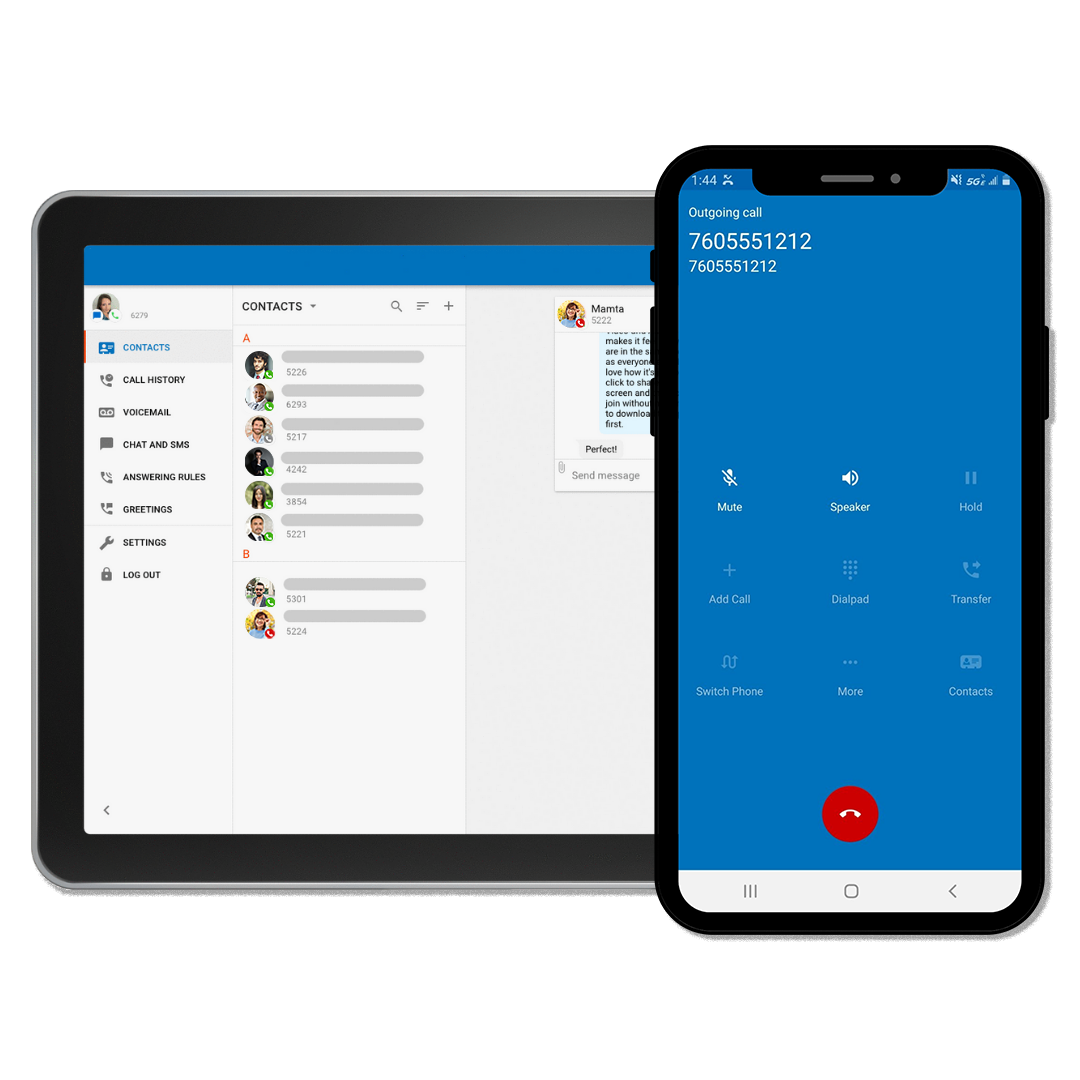
Softphone apps make this even easier with setup wizards that walk you through each field. Just follow the prompts and enter your details when asked.
Minutes 14-15: Test Everything Out
Pick up the handset (or click "dial" in your app) and listen for a dial tone. Make a test call to your cell phone or have a friend call you back. The call quality should be clear and crisp – if it sounds robotic or choppy, your internet connection might need some attention.
That's it! You're officially running a professional phone system from your home office.
Troubleshooting: When Things Don't Go Perfectly
Sometimes technology has other plans. Here are the most common hiccups and quick fixes:
No dial tone? Check your ethernet connection or restart your router and phone. For softphones, try logging out and back into the app.
Choppy call quality? This usually means your internet is struggling. Close other apps that use lots of bandwidth (looking at you, Netflix), or consider upgrading your internet plan.
Can't receive calls? Double-check that you entered your account details correctly. One wrong digit can mess everything up.
Why Hosted VoIP for Home Office Is Perfect for Remote Workers
Now that you're up and running, let's talk about why this upgrade is such a big deal for your work-from-home game.
Professional Image, Zero Effort
Your clients don't need to know you're calling from your kitchen table. With hosted VoIP for home office, you get features like auto-attendants, professional greetings, and consistent call quality that makes you sound like you're calling from a corner office.
Work From Anywhere
Got a business trip or working from your in-laws' house? No problem. Your phone number follows you wherever there's internet. You can even use your office number on your smartphone when you're out and about.
Cost Savings That Add Up
Traditional phone lines can cost $40-60 per month just for basic service. Most hosted VoIP plans run $20-30 per month and include features that would cost extra with traditional providers.
Features That Actually Matter
Voicemail transcriptions sent to your email, call forwarding to your cell phone, conference calling, and even video meetings – all included. It's like having a personal assistant managing your calls.
Making the Most of Your New System
Your hosted VoIP for home office setup can do way more than just make and receive calls. Take some time to explore features like:
- Call recording for important client conversations
- Custom hold music instead of awkward silence
- Ring groups that make calls ring multiple devices
- Time-based routing that sends calls to voicemail after hours
Most providers offer these through easy-to-use web portals where you can point, click, and customize.
Keep Your System Running Smoothly
A few simple tips to keep your hosted VoIP for home office running like a champ:
Position your router in a central location away from interference sources like microwaves or baby monitors. If your router offers dual-band WiFi, use the 5GHz band for better call quality. And consider setting up Quality of Service (QoS) settings to give voice calls priority over other internet traffic.
Ready to Upgrade Your Home Office Communications?
Setting up hosted VoIP for home office doesn't have to be complicated or time-consuming. In just 15 minutes, you can transform your home workspace into a professional communication hub that rivals any corporate office.
The best part? You don't need to be a tech expert to make it happen. With the right provider and this simple guide, you'll be making crystal-clear professional calls before your lunch break is over.
Looking for reliable internet service to power your new VoIP system? Premier Broadband offers business-grade connectivity that's perfect for remote workers who need consistent, high-speed internet for professional calling.
Drop us a line if you have questions about getting the right internet package to support your hosted VoIP for home office setup – we're here to help make your work-from-home experience as smooth as possible.