
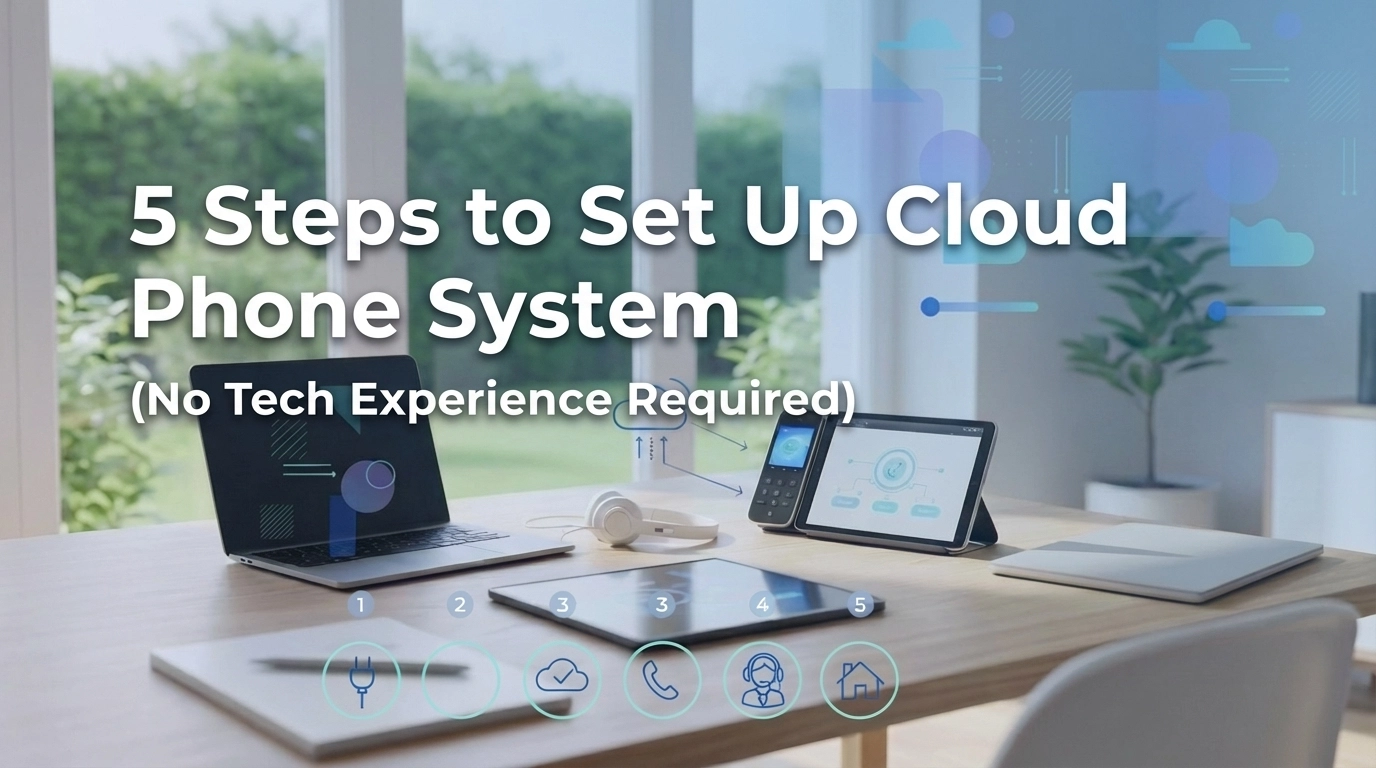
Working from home has become the new normal, and having a professional phone system is no longer optional, it's essential. But here's the thing: you don't need to be a tech wizard to set up a cloud phone system that makes you sound like a Fortune 500 company.
Gone are the days of complicated phone installations with tangled wires and expensive equipment. Today's cloud-based phone systems are designed for regular folks who just want something that works. Whether you're a freelancer, consultant, or running a small business from your kitchen table, you can have a professional phone system up and running in less than an hour.
Let's walk through this together, step by step. No jargon, no confusing technical terms, just a straightforward guide that anyone can follow.
Step 1: Choose Your Cloud Phone Provider
First things first, you need to pick a provider. Think of this like choosing your cell phone company, except this one's for your business. The good news? There are plenty of reliable options out there, and most of them are pretty user-friendly.
When you're shopping around, look for providers that offer:
- Clear pricing with no hidden fees
- Good customer support (trust me, you'll want this)
- Easy-to-use mobile and desktop apps
- Basic features like voicemail, call forwarding, and caller ID
Don't get overwhelmed by fancy features you might never use. Focus on the basics that'll make your home office run smoothly. Most providers offer free trials, so you can test drive their service before committing.
Take your time reading reviews and comparing prices. A few extra minutes of research now can save you headaches later. Once you've made your choice, signing up is usually as simple as entering your email and creating a password.
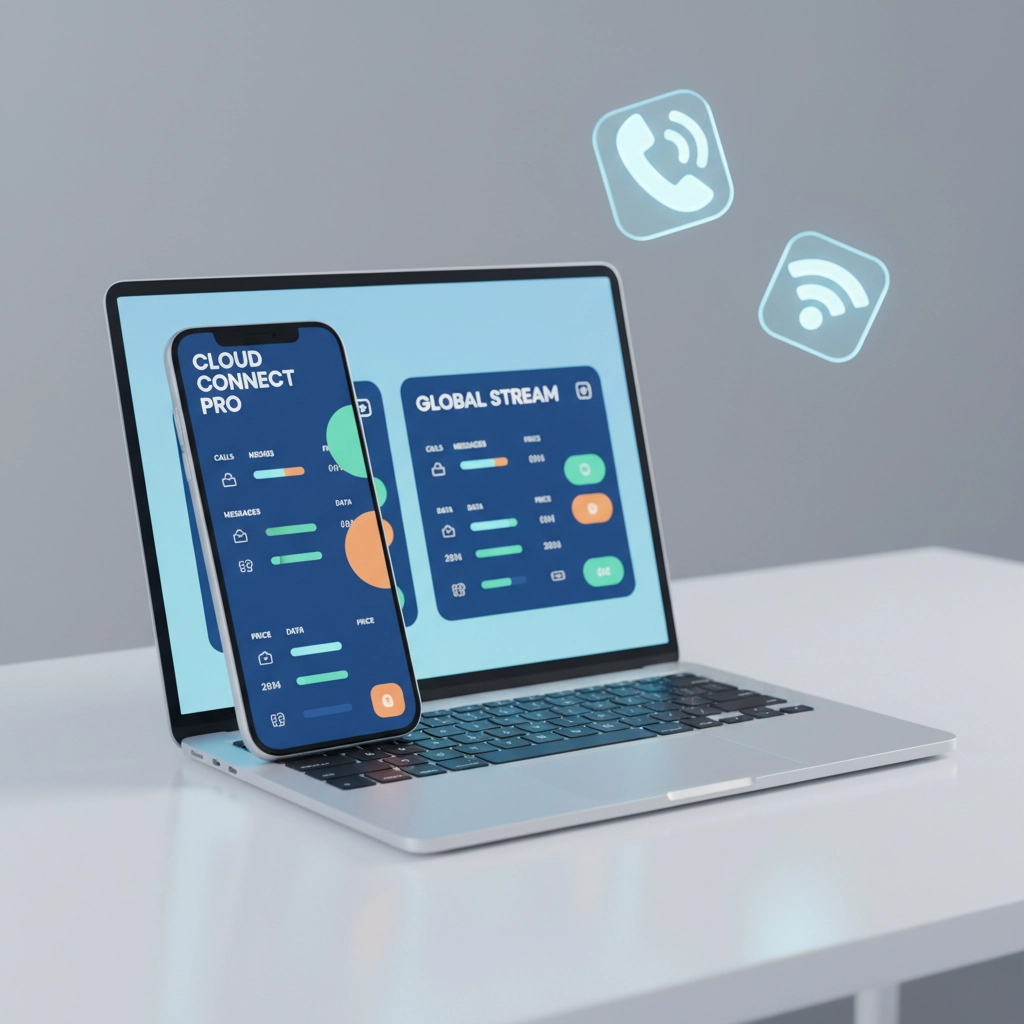
Step 2: Select Your Phone Number
Here's where things get fun, picking your business phone number. You've got a few options here, and the right choice depends on your situation.
If you're serving local customers, a local phone number makes sense. People like calling businesses in their area, and it builds trust. Plus, local numbers are usually cheaper.
But if you're planning to work with clients nationwide, consider a toll-free number. It makes your business feel bigger and more established, plus customers won't worry about long-distance charges.
Some providers also let you port your existing number, that means you can keep using the same number you've always had, even if it's currently your personal cell phone. This is great if people already know your number.
The whole process usually involves picking from available numbers or entering your preferences. Most systems will show you options in real-time, so you can choose something that's easy to remember or has a nice ring to it.
Step 3: Download and Install the App
Now comes the easy part, getting the software on your devices. Most cloud phone providers offer apps for smartphones, tablets, and computers. You'll want to install it on whatever device you plan to use for business calls.
Head to your device's app store (Google Play for Android, App Store for iPhone, or your computer's software center) and search for your provider's app. Download it just like you would any other app, it's that simple.
Once installed, open the app and log in with the account details you created in Step 1. The app will likely ask for some permissions, like access to your microphone and contacts. Go ahead and approve these, your phone system needs them to work properly.
The beauty of cloud-based systems is that you can use the same phone number on multiple devices. Install the app on your smartphone and your computer, and you'll never miss a call whether you're at your desk or grabbing coffee.
Step 4: Configure Your Basic Settings
This is where you make the system work for your business. Don't worry, it's not as technical as it sounds. Most providers have user-friendly dashboards that walk you through the important stuff.
Start with your voicemail greeting. Record something professional but friendly. Something like: "Hi, you've reached [Your Name] at [Your Business]. I can't take your call right now, but please leave a message and I'll get back to you within 24 hours."
Next, set up call forwarding. This tells the system where to send calls when you're not available. You might want calls to ring your cell phone first, then go to voicemail after a few rings. Or maybe you want all calls to go straight to voicemail during lunch hours: it's totally up to you.
Business hours are another important setting. You can tell the system when you're "open for business" and when you're not. Calls outside business hours can automatically go to voicemail or play a message letting callers know when you'll be back.
Don't forget about caller ID. Make sure your business name shows up when you make outgoing calls: it looks way more professional than "Unknown Number."
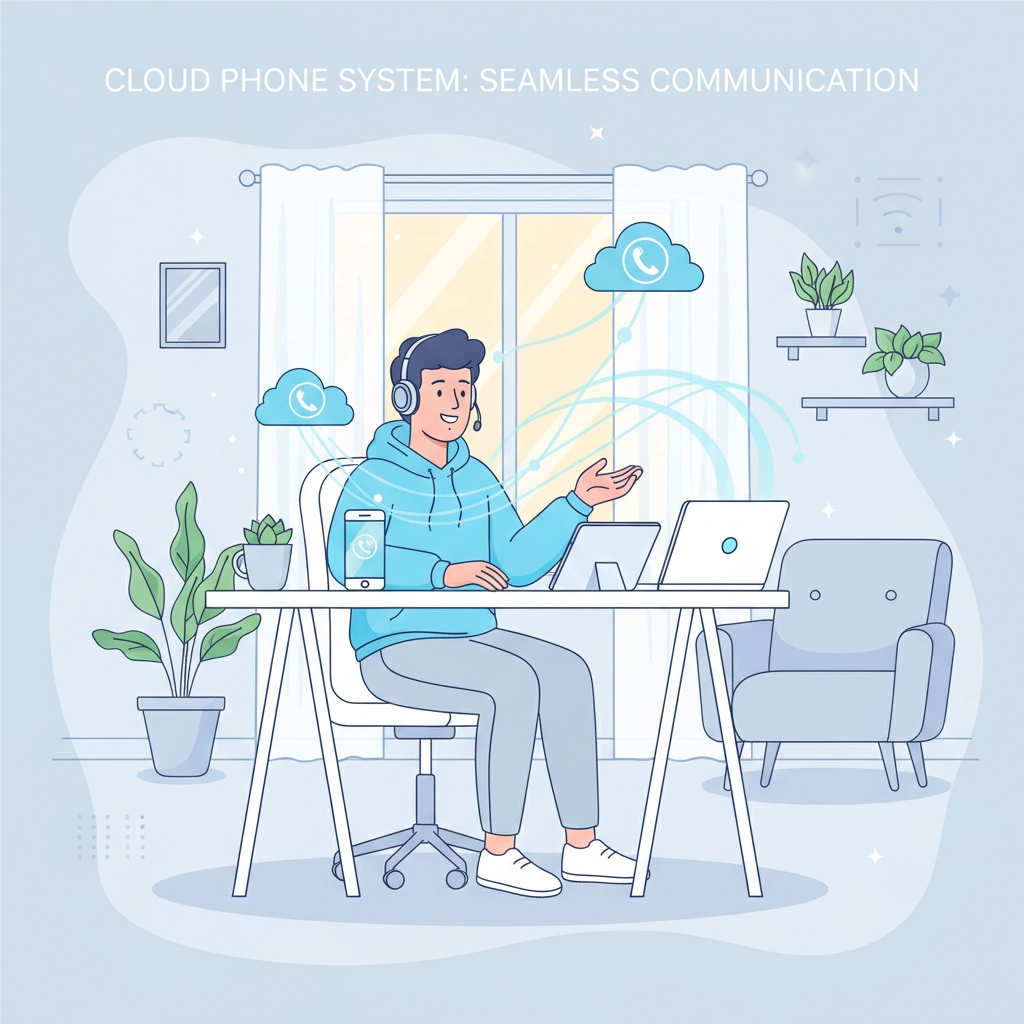
Step 5: Test Everything Out
Before you start giving out your new business number, spend some time testing the system. Think of it as a dress rehearsal before the big show.
Start by making a test call to a friend or family member. Check that the call quality is clear and that your caller ID is showing up correctly. Then have them call you back to test incoming calls.
Leave yourself a voicemail message and make sure you can access it easily. Test any call forwarding rules you set up. If you configured the system to forward calls to your cell phone, make sure that's working.
Try out the mobile app and desktop app if you installed both. Make sure you can switch between devices without losing calls or missing messages.
Test any other features you plan to use regularly. If you set up an auto-attendant (that's the "Press 1 for Sales" thing), make sure it's working properly.
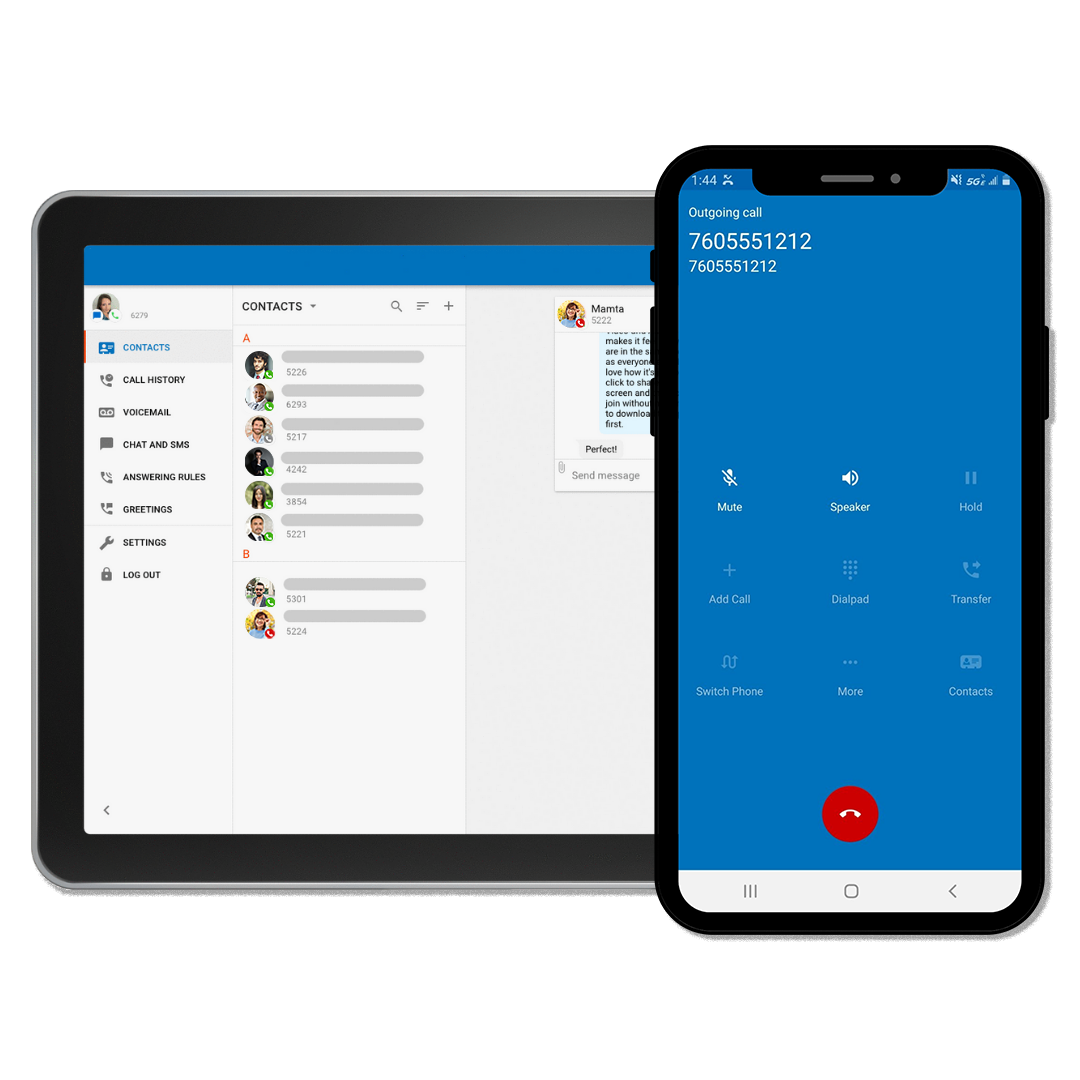
If something isn't working right, don't panic. Most problems are simple to fix, and your provider's customer support can walk you through solutions. This is why choosing a provider with good support is so important.
Making the Most of Your New System
Once everything's up and running, you'll probably discover features you didn't know you needed. Many cloud phone systems offer neat extras like:
- Text messaging from your business number
- Video calling capabilities
- Call recording (great for keeping track of client conversations)
- Integration with email and calendar apps
The key is to start simple and add features as you get comfortable with the system. You don't need to use every bell and whistle right away.
Why This Matters for Your Home Office
Having a professional phone system does more than just handle calls: it changes how people perceive your business. When clients call and hear a professional voicemail greeting, they know they're dealing with a real business, not someone working from their couch (even if you are working from your couch).
Cloud phone systems also give you flexibility that traditional phone lines can't match. Going out of town? Your business number can follow you anywhere you have internet. Need to add a second line for a business partner? Most systems let you add users without installing new hardware.
Plus, if your internet connection is reliable, your phone system will be too. Premier Broadband's network is built to handle voice calls alongside your regular internet traffic, so you don't have to worry about dropped calls or poor audio quality.
Troubleshooting Common Issues
Even with the best setup, you might run into occasional hiccups. Here are solutions to the most common problems:
Poor call quality: Usually means your internet connection needs attention. Check if other devices are using lots of bandwidth, or consider managing your WiFi better.
Calls going straight to voicemail: Double-check your call forwarding settings and make sure your devices are connected to the internet.
App not working: Try closing and reopening the app, or restart your device. Most glitches fix themselves with a quick restart.
The bottom line? Setting up a cloud phone system for your home office really is as simple as these five steps. You don't need any special technical skills or expensive equipment: just a good internet connection and a few minutes to get everything configured.
Your professional phone system is waiting. Take the leap and give your home office the communication tools it deserves.