
In our hyper-connected lives, a home network acts as the digital front door for everything we do. It's the gateway for remote work, the arena for online gaming, the classroom for students, and the vault for personal memories. From sensitive business data on a work-from-home laptop to smart home devices that manage our environment, the information passing through your router is both personal and valuable. An unsecured network is like leaving that front door wide open, inviting unseen threats to walk right in.
This guide is designed to be your practical security blueprint. We will deliver a prioritized, actionable roundup of home network security best practices, skipping the vague advice and focusing on concrete steps. You'll learn exactly how to configure your router, manage connected devices, and implement strong security habits.
These instructions are built for everyone:
- Busy families protecting their privacy.
- Remote workers safeguarding company data.
- Gamers ensuring a secure, low-latency connection.
- Small businesses that depend on a reliable and protected network.
Each recommendation is a critical layer of defense. By following these steps, you can transform your home network from a potential vulnerability into a secure foundation for your digital life. Protecting your network is fundamental to protecting your privacy, your finances, and your peace of mind. Let’s start securing your digital front door.
1. Change Default Router Credentials and Admin Passwords
Your router is the central hub of your home network, directing all internet traffic to and from your devices. Securing it is the absolute first step in establishing strong home network security best practices. Manufacturers ship routers with default administrator credentials, such as "admin" for the username and "password" for the password. These are publicly known and listed online, making your router an easy target for anyone on your network.
Changing these credentials immediately upon installation prevents unauthorized access to your router's administrative settings. This is a simple yet critical action. Attackers who gain access can change your Wi-Fi password, spy on your traffic, redirect you to malicious websites, or even lock you out of your own network. This single point of failure can compromise every connected device in your home or office.
Key Insight: Securing your router's admin login is like changing the locks on your new house. You wouldn't use the generic key the builder used, and you shouldn't use the generic password the manufacturer set. This is non-negotiable for a secure network.
Why It's a Top Priority
- Protecting Remote Work: For a remote worker on a Premier Broadband Home Office Hero plan, an unsecured router could allow a neighbor to throttle your bandwidth during a critical Zoom presentation, causing instability and unprofessional interruptions.
- Ensuring VoIP Quality: A small business using a cloud phone system for business relies on stable network performance. An intruder could compromise your network, leading to dropped calls, poor audio quality, and potential eavesdropping on sensitive business conversations.
- Maintaining Gaming Performance: For gamers, network intruders can steal bandwidth, increasing latency and lag. Securing your router ensures your connection remains dedicated to your gaming session, preventing frustrating performance dips.
How to Implement This Change
Changing the password is a quick process. First, connect to your network and enter your router's IP address (often 192.168.1.1 or 192.168.0.1) into a web browser. Log in with the default credentials found on the router's sticker or manual. Navigate to the "Administration" or "Security" section and find the option to change the administrator password.
- Actionable Tips:
- Create a Strong Password: Use at least 12-15 characters with a mix of uppercase letters, lowercase letters, numbers, and symbols.
- Use a Password Manager: Store this new, complex password in a secure password manager so you don't lose it.
- Act Quickly: Change the password within 24 hours of installing a new router or receiving a new one from your provider.
- Test Immediately: After saving the new password, log out and log back in to confirm it works correctly.
2. Enable and Update Router Firmware Regularly
Your router's firmware is its embedded operating system, the core software that controls its functionality, performance, and security. Manufacturers like Netgear, Asus, and TP-Link regularly release firmware updates to patch security vulnerabilities, improve stability, and add new features. Ignoring these updates leaves your network exposed to known exploits that hackers can use to infiltrate your system.
Neglecting firmware updates is a common oversight that creates a significant security gap. As cybersecurity agencies like CISA discover new threats, manufacturers race to create patches. Applying these updates promptly is a critical home network security best practice that closes the door on these vulnerabilities before attackers can exploit them, ensuring the integrity of every device connected to your network.
Key Insight: Think of firmware updates as software patches for your home's digital gatekeeper. Just as you update the apps on your phone to fix bugs and security holes, you must update your router to protect against the latest cyber threats.
Why It's a Top Priority
- Protecting Smart Home Devices: For a family with numerous connected IoT devices, an outdated router can be the weak link that allows an attacker to access smart cameras, locks, or thermostats, creating a widespread privacy and security breach.
- Ensuring Business Continuity: A small business using a cloud phone system cannot afford network downtime. Regular firmware updates often include stability improvements that prevent router crashes, ensuring reliable VoIP call quality and consistent internet access for business operations.
- Maintaining High-Speed Performance: Gamers and remote workers on Premier Broadband’s high-performance plans rely on optimal router function. Firmware updates can resolve performance bugs and improve traffic management, preventing slowdowns that cause lag in gaming or buffering during video calls.
How to Implement This Change
Many modern routers offer an automatic update feature, which is the most effective way to stay protected. If your router supports it, enable it immediately. For manual updates, log into your router’s admin dashboard by entering its IP address (e.g., 192.168.1.1) into a browser. Look for a "Firmware Update," "Router Update," or "Administration" section. There, you can check for and install the latest version.
- Actionable Tips:
- Enable Automatic Updates: If your router has this feature, turn it on. This is the "set it and forget it" approach to firmware security.
- Check Manually: If auto-updates aren't available, set a monthly calendar reminder to visit your manufacturer's website for new firmware releases.
- Schedule Off-Peak Updates: Plan manual updates for late at night or during times of low network usage to avoid disrupting work or entertainment.
- Backup Your Configuration: Before applying an update, save a backup of your router settings. This makes it easy to restore your custom network configuration if something goes wrong.
3. Use Strong WiFi Encryption (WPA3 or WPA2)
Your Wi-Fi signal broadcasts data through the air, and without strong encryption, that data is like a postcard anyone can read. Wi-Fi encryption scrambles the information sent between your devices and router into an unreadable code. This process makes it impossible for unauthorized users on the same network to intercept your passwords, financial details, or private messages. This is a fundamental pillar of home network security best practices.
Modern routers support WPA3, the latest and most secure standard, or WPA2, which is still a very strong and widely compatible option. Older methods like WEP and the original WPA are now obsolete and full of security holes, leaving your network dangerously exposed. Ensuring you are using at least WPA2 is non-negotiable for protecting your digital life.
Key Insight: Think of Wi-Fi encryption as a secret language only your devices and router can speak. Using weak or no encryption is like shouting your sensitive information across a crowded room for anyone to hear.
Why It's a Top Priority
- Protecting Sensitive Work Data: A Home Office Hero user working with confidential client data over a symmetrical fiber connection needs absolute privacy. Strong encryption prevents man-in-the-middle attacks, ensuring file transfers and video conferences remain secure and private.
- Securing Smart Home Devices: Families with connected thermostats, security cameras, and smart TVs must protect these devices from being hijacked. WPA3/WPA2 encryption prevents attackers from gaining control of your smart home ecosystem.
- Maintaining Fair Gaming: For gamers, a compromised network can lead to more than just stolen bandwidth. An attacker could launch attacks that cripple your connection stability, ruining a competitive match. Encryption keeps your data stream secure and your connection stable.
How to Implement This Change
Verifying and setting your encryption level is done through your router’s administrative settings. Log in to your router's interface using its IP address (e.g., 192.168.1.1) in a web browser. Find the "Wireless" or "Wi-Fi Security" section. Here you can select the security protocol. For a deeper dive into Wi-Fi standards, you can learn more about Wi-Fi technologies and how they work.
- Actionable Tips:
- Select the Best Protocol: Choose "WPA3" if all your devices support it. If not, select "WPA2-AES" or "WPA2/WPA3-Personal" for broad compatibility and strong security. Never use WEP or WPA.
- Create a Fortress-Like Password: Your Wi-Fi password should be at least 20 characters long, using a mix of uppercase, lowercase, numbers, and symbols.
- Disable WPS: Turn off Wi-Fi Protected Setup (WPS). While convenient, it has known vulnerabilities that can be exploited to guess your password.
- Create a Guest Network: Use your router's guest network feature for visitors. This isolates their devices from your primary network and its connected devices.
4. Implement Network Segmentation with Guest Networks
Not all devices on your network require the same level of trust or access. Network segmentation is a powerful home network security best practice that involves dividing your network into separate, isolated zones. The most common application of this is creating a "guest network" for visitors and less secure devices, keeping them completely separate from your main, trusted network where sensitive personal and work data resides.
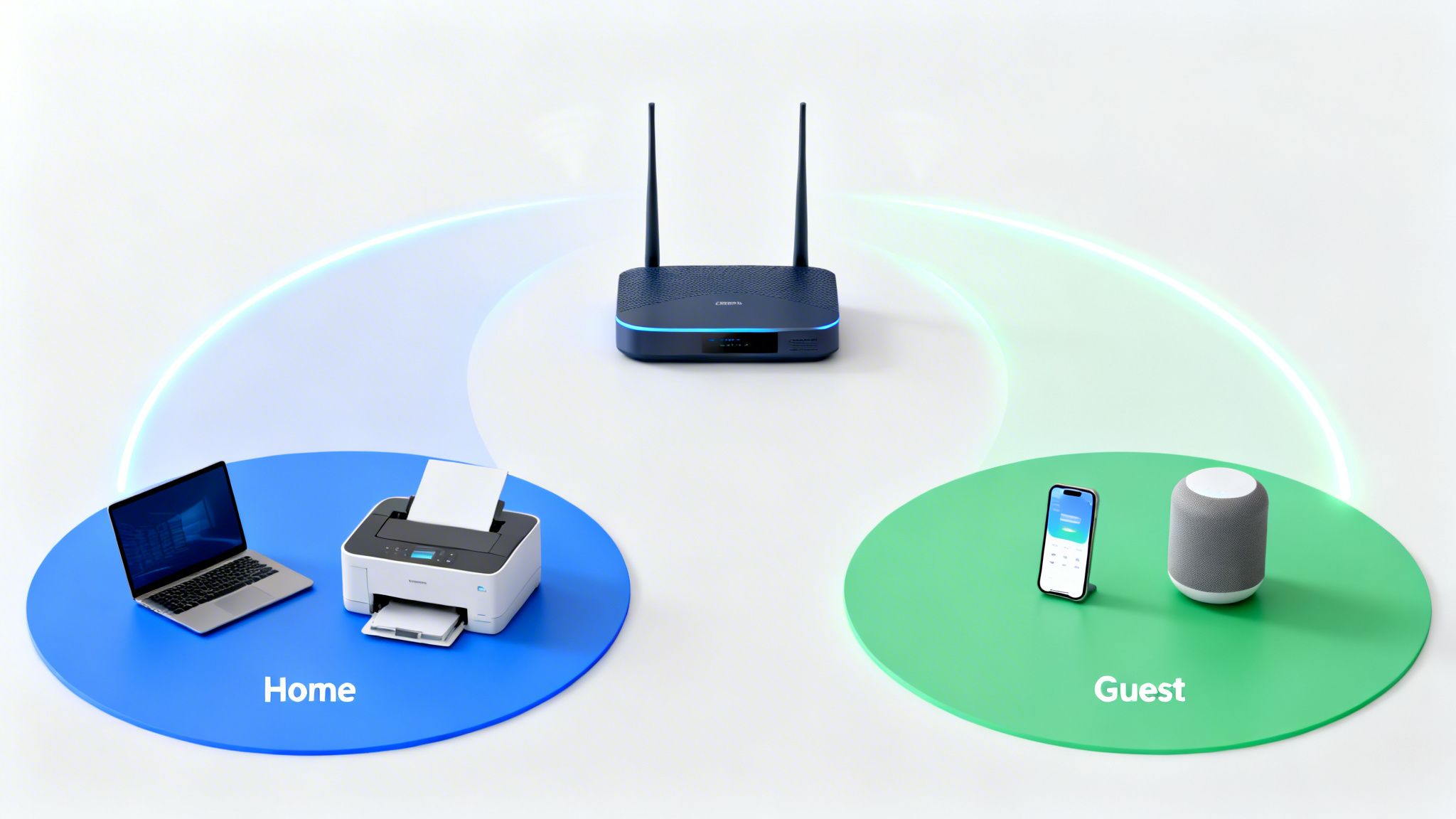
Think of it as creating a digital "demilitarized zone" in your home. If a friend’s potentially compromised smartphone connects to your guest network, it cannot access your work laptop, personal files on your NAS drive, or the admin controls for your smart home security cameras. This isolation drastically reduces your risk, as a security breach on one segment is contained and cannot spread across your entire network.
Key Insight: A guest network isn't just for guests; it's a containment strategy for any device you don't fully trust. This includes IoT gadgets, smart TVs, and visitors' devices, effectively building firewalls within your own home network.
Why It's a Top Priority
- Protecting Remote Work: A Home Office Hero plan user can place their work laptop and printer on the primary network while relegating children's tablets and smart speakers to the guest network. This prevents a vulnerability from a less-secure entertainment device from ever reaching a device containing sensitive company data.
- Securing Customer Data: A small business owner using their home network can protect client information by ensuring employees' personal smartphones and any visiting clients connect only to the guest network, completely isolating business-critical systems.
- Isolating IoT Vulnerabilities: For families with numerous smart home devices, segmentation is crucial. A vulnerable smart light bulb or voice assistant on a guest network cannot be used as an entry point to attack your main PCs, gaming consoles, or security system.
How to Implement This Change
Most modern routers make enabling a guest network straightforward. Log in to your router’s administrative interface and look for a "Guest Network," "Guest Wi-Fi," or "Device Isolation" setting, typically within the wireless or security sections. Enable it and configure its separate settings. For more advanced setups, especially those frequently accommodating visitors, dedicated Guest Wi-Fi Hotspot Services can offer even greater control and security.
- Actionable Tips:
- Use a Separate Password: Create a unique, strong password for the guest network that is different from your primary Wi-Fi password.
- Isolate and Limit: Ensure "client isolation" or "allow guests to see each other and access my local network" is disabled. Consider limiting the guest network’s bandwidth to protect the performance of your main network.
- Create an IoT Network: If your router supports it, create a third network segment exclusively for smart home devices to further isolate them.
- Change Passwords Regularly: Update the guest network password periodically, such as after house guests leave or on a seasonal basis.
5. Disable Unnecessary Services and Ports
Modern routers come loaded with features and services designed for convenience, but many of them are unnecessary for the average user. Services like UPnP (Universal Plug and Play), WPS (Wi-Fi Protected Setup), and remote management create potential security holes. Each enabled service is an open door, or attack vector, that a malicious actor can exploit to gain access to your network.
Disabling these non-essential functions is a key step in hardening your home network. This practice, often called reducing the attack surface, minimizes vulnerabilities without affecting your daily internet usage. Cybersecurity researchers and government agencies like the FBI and CISA regularly advise homeowners to turn off these features, as they have been historically targeted by attackers to bypass security and take control of home networks.
Key Insight: Think of your router's services like the extra doors and windows on a house. If you don't use them, you should lock them permanently. Disabling services like WPS and UPnP is the digital equivalent of sealing off unused entry points, making your network much harder to break into.
Why It's a Top Priority
- Securing Your Home Office: For a remote worker using a Home Office Hero plan, an enabled UPnP service could be exploited by malware on one device to open ports and expose a work server or computer to the public internet without your knowledge.
- Protecting Your Family: WPS push-button connections are notoriously easy to crack with brute-force attacks, allowing a nearby attacker to gain your Wi-Fi password in minutes and access every device on your network, including smart cameras and baby monitors.
- Preventing VoIP Exploitation: A small business using a cloud phone system could be at risk if remote management is enabled. Attackers could potentially access router settings, reroute VoIP traffic, or eavesdrop on sensitive business calls.
How to Implement This Change
Disabling these services is done within your router's administration panel. Connect to your network, enter your router's IP address (like 192.168.1.1) into a browser, and log in. You'll typically find these options in an "Advanced," "Services," or "Administration" section.
- Actionable Tips:
- Disable WPS First: This is one of the weakest links in router security. Turn it off immediately.
- Turn Off UPnP: Unless you are a gamer or have a media server that absolutely requires it, disable UPnP. If you do need it, ask your Premier Broadband support team about safer alternatives.
- Disable Remote Management: This feature allows access to your router's settings from outside your home network. It should be off unless explicitly required by your ISP for support.
- Test and Document: After disabling a service, check to ensure your devices still connect and function properly. Keep a note of what you changed for future reference.
6. Enable Router Firewall and Configure Rules Appropriately
Your router's firewall is your network's digital gatekeeper, inspecting all incoming and outgoing traffic to block unauthorized connections and potentially malicious content. Modern routers include built-in firewalls that act as a fundamental barrier between your private home network and the public internet. Enabling this feature is a critical step in establishing robust home network security best practices. It works by preventing unsolicited inbound connections while allowing legitimate traffic to pass through.
Proper configuration ensures that only approved data reaches your devices. Without an active firewall, your computers, smartphones, and IoT devices are exposed directly to threats from across the internet, making them vulnerable to scans, intrusion attempts, and automated attacks.
Key Insight: Think of your router's firewall as a security guard at the main entrance to your apartment building. The guard stops and questions unknown visitors (unsolicited inbound traffic) but allows residents and their approved guests (legitimate outbound requests and their responses) to pass through freely.
Why It's a Top Priority
- Protecting Remote Work: For a Premier Broadband Home Office Hero, a properly configured firewall prevents unauthorized access attempts from reaching work devices and shared folders, protecting sensitive company data from external threats.
- Securing VoIP Communications: A small business using a cloud phone system is a target for SIP-based attacks that can lead to toll fraud or eavesdropping. A firewall blocks these unsolicited attempts, ensuring call integrity and privacy.
- Preventing Gamer-Targeted Attacks: Gamers can be targets of port scans and Denial-of-Service (DoS) attacks. Enabling the router firewall and DoS protection blocks these malicious activities, preventing interruptions and protecting the gaming system from being compromised.
How to Implement This Change
Most routers have their firewall enabled by default, but it's crucial to verify this and configure it correctly. Log into your router's administration panel by entering its IP address (192.168.1.1 or similar) in a web browser. Find the "Security" or "Firewall" section to manage its settings.
- Actionable Tips:
- Verify It's Enabled: Confirm the main firewall function is turned on.
- Enable SPI: If available, activate Stateful Packet Inspection (SPI). It offers more advanced protection by tracking the state of active connections.
- Activate DoS Protection: Turn on Denial-of-Service (DoS) protection to shield your network from being flooded with traffic designed to knock you offline.
- Manage Port Forwarding: Only create port forwarding rules for specific applications you trust and actively use (like a home media server or a specific game). Document why each rule exists.
- Audit Regularly: Periodically review and remove any old port forwarding rules that are no longer needed, as each one is a potential security hole.
7. Keep Personal Devices Updated with Security Patches
While securing the router is a cornerstone, the computers, smartphones, and smart devices connected to your network are individual entry points for threats. Software developers and device manufacturers regularly find and fix security flaws in their operating systems (OS) and applications. These fixes, known as patches, are crucial for maintaining a strong line of defense. An unpatched device on your network is an open door for attackers.
Neglecting these updates creates vulnerabilities that can be exploited by malware, ransomware, or spyware. Once an attacker compromises a single device, they can often move laterally across your network to access other connected systems. This makes updating one of the most important home network security best practices, as it directly hardens each potential target.
Key Insight: Think of software updates as free, essential upgrades to your digital locks. Each patch closes a newly discovered hole that criminals could otherwise exploit to get inside your digital home. A single outdated device can undermine all your other security efforts.
Why It's a Top Priority
- Protecting Remote Work: A Premier Broadband Home Office Hero customer handling sensitive corporate files on their laptop must apply all OS and browser security patches. A missed update could allow an attacker to exploit a browser flaw, steal VPN credentials, and gain access to the company network.
- Securing Family Devices: A child's tablet or gaming computer running outdated software can be a weak link. Attackers can compromise these devices to steal gaming account credentials, access personal photos, or use the device as a launchpad for attacks on other family members' computers.
- Safeguarding Business Data: A small business owner must ensure all employee computers are consistently patched. A single unpatched workstation could lead to a ransomware attack that encrypts critical customer data, causing catastrophic business disruption and financial loss.
How to Implement This Change
The most effective strategy is to enable automatic updates whenever possible, ensuring you receive security fixes without delay. For devices or applications without this feature, a manual check is necessary.
- Actionable Tips:
- Enable Automatic Updates: Turn on automatic updates on all operating systems: Windows Update, macOS Security Updates, and iOS/Android system updates.
- Prioritize Security Patches: When an update notification appears, especially if it mentions security, install it immediately.
- Check Browsers and Plugins: Your web browser is a primary target. Ensure it and any associated plugins are always on the latest version.
- Set Monthly Reminders: Create a recurring calendar event to manually check for updates on devices that don't update automatically, like some IoT gadgets.
8. Use a Network-Level DNS Filter or Content Filter
Every time you visit a website, your device uses the Domain Name System (DNS) to translate a human-friendly web address (like premierbroadband.com) into a machine-readable IP address. A DNS filter intercepts these requests and acts as a security checkpoint. It checks the requested domain against a blocklist of known malicious, phishing, or inappropriate sites and prevents your device from ever connecting to them.
This creates a powerful, network-wide protective barrier. Unlike software that must be installed on each device, a DNS filter configured on your router or through your ISP protects every phone, tablet, computer, and smart device on your network automatically. This is a foundational element of modern home network security best practices.
Key Insight: DNS filtering is like having a security guard for your internet connection who pre-screens every destination. It stops threats before they even reach your digital doorstep, protecting all your connected devices at once.
Why It's a Top Priority
- Protecting Families: Parents can use DNS filtering to block adult content, gambling sites, and other inappropriate material. A family using Premier Broadband's Premier Protects managed Wi-Fi can rest assured their children aren't accidentally stumbling upon harmful websites.
- Securing Remote Work: A remote worker on a Home Office Hero plan can block phishing sites that masquerade as corporate portals, preventing credential theft and data breaches.
- Defending Small Businesses: A small business owner can prevent employees from visiting known malware distribution sites, reducing the risk of a network-wide infection that could cripple operations or compromise a cloud phone system for business.
How to Implement This Change
You can enable DNS filtering by changing the DNS settings in your router to a security-focused service like OpenDNS, Cloudflare, or Quad9. Alternatively, services like Premier Broadband's Premier Protects build this functionality directly into your managed Wi-Fi, offering a set-and-forget solution.
- Actionable Tips:
- Enable ISP-Provided Controls: If available, use your ISP's management portal (like Premier Protects) for the simplest setup. For more advanced parental control configurations, you can explore how to set up parental controls in detail.
- Configure Categories: Choose filtering categories that match your household’s needs, blocking malware and phishing by default and adding others like adult content or social media as desired.
- Whitelist Essential Sites: Occasionally, a legitimate site might be blocked. Be prepared to add essential work or school sites to an "allow list" or "whitelist."
- Review Block Logs: Periodically check the filter’s logs to see what threats were blocked and to identify if any specific devices are repeatedly trying to access malicious domains.
9. Monitor Connected Devices and Remove Unused Devices Regularly
Every device connected to your Wi-Fi network represents a potential entry point for threats. Forgotten gadgets like old smartphones, retired laptops, or smart home devices that are no longer in use can become a serious liability. If they are no longer receiving security updates from their manufacturer, they become an easy target for attackers, who can use them to compromise your entire network. Regularly reviewing your list of connected devices is a crucial home network security best practice.
This process involves logging into your router's administration panel to see a complete list of everything that is currently or was recently connected. By auditing this list, you can spot unfamiliar devices that may indicate unauthorized access and proactively remove old, vulnerable hardware from your network. This simple housekeeping task dramatically reduces your network's attack surface.
Key Insight: Your network's security is only as strong as its weakest link. An old, unpatched tablet sitting in a drawer but still connected to your Wi-Fi is a permanent, unguarded backdoor into your digital home.
Why It's a Top Priority
- Protecting Remote Work: A Home Office Hero user might discover a former employee's personal laptop is still authorized on the network. Removing it prevents potential access to sensitive business data and ensures all connected devices are known and managed.
- Securing Family Data: A family might notice a guest's phone, which connected months ago during a visit, is still on the network list. Removing it closes a potential entry point and maintains a clean, private network environment for family members.
- Maintaining IoT Security: A homeowner could find that an old, first-generation smart camera, now unsupported by the manufacturer, is still online. Blocking this device prevents it from being hijacked and used to spy on the home or launch attacks on other devices.
How to Implement This Change
Routinely checking your connected device list is a straightforward habit to build. Access your router's admin interface by typing its IP address (like 192.168.1.1) into a browser. Find the section labeled "Connected Devices," "Device List," or "DHCP Clients." Here you will see a list of every device, often with its MAC address and assigned IP address.
- Actionable Tips:
- Schedule a Monthly Review: Set a recurring calendar reminder to check your connected devices list once a month.
- Rename Your Devices: If your router allows it, change cryptic device names (e.g., "android-a1b2c3d4e5f6") to clear labels like "Living Room TV" or "Dad's Work Laptop."
- Investigate Unknowns: If you see an unrecognized device, use its MAC address to look up the manufacturer. Ask household members if they recognize it before blocking it.
- Remove Old Equipment: If a device hasn't been used in months or is no longer receiving security updates, block its MAC address from connecting to your network.
- Enable Notifications: Many modern routers can send you a push notification when a new device joins your network, allowing for real-time monitoring. You can learn more about how to check network activity with Premier Broadband's network diagnostic utilities.
10. Authentication and Password Practices: Strong Passwords, Password Managers, and Two-Factor Authentication
Beyond securing your router's admin panel, robust authentication practices are fundamental to protecting your entire digital life. Weak or reused passwords are the primary way attackers compromise networks and accounts. Implementing a multi-layered strategy that combines strong, unique passwords with a password manager and two-factor authentication (2FA) creates a formidable defense, making it one of the most impactful home network security best practices you can adopt.
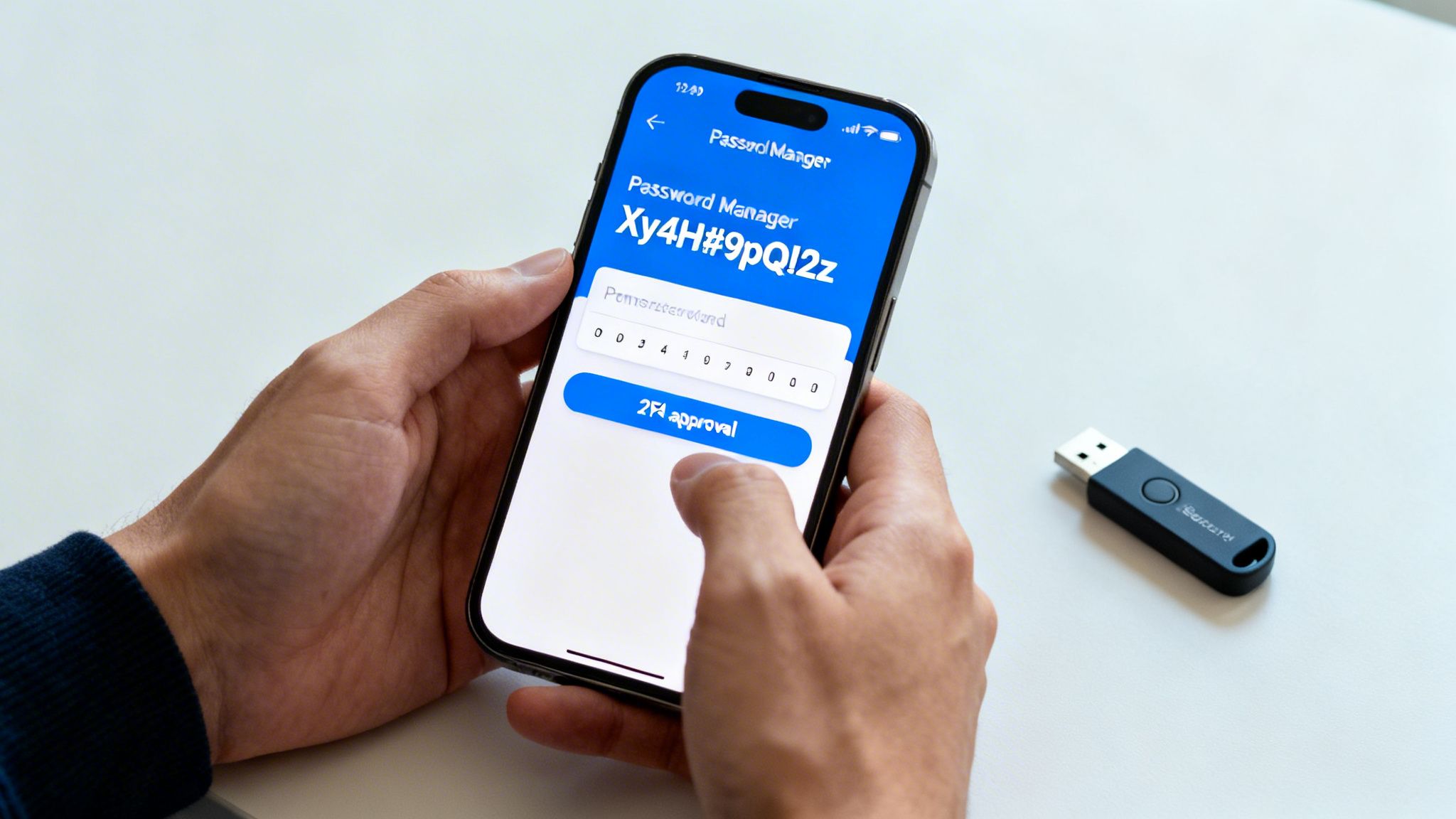
This approach ensures that even if one password is stolen, the damage is contained, and your other accounts remain secure. Password managers generate and store complex credentials, while 2FA adds a critical second verification step. Together, they dramatically reduce the risk of account takeovers for everyone from a remote worker to a family managing smart home devices. For advanced password management and authentication practices, you might want to explore solutions offered by Passflow.
Key Insight: A strong password is like a complex lock, but two-factor authentication is the security guard checking your ID at the door. Having both makes unauthorized entry nearly impossible, protecting your most sensitive data from credential theft.
Why It's a Top Priority
- Protecting Remote Work: A Home Office Hero professional using 2FA on their corporate email and VPN access prevents an attacker with a stolen password from accessing sensitive company data, protecting both the individual and their employer from a breach.
- Ensuring Business Security: A small business owner can use a password manager to securely share credentials for business software with employees. This avoids risky practices like writing passwords down and allows for easy revocation of access when an employee leaves.
- Maintaining Family Safety: If a family reuses the same password for their streaming service and their smart security camera system, a breach at the streaming company could give an attacker access to their home's video feeds. Unique passwords prevent this cross-contamination of risk.
How to Implement This Change
Start by choosing a reputable password manager like Bitwarden, 1Password, or KeePass. Use it to generate long, random passwords (at least 16 characters) for every single online account, including your Wi-Fi network and router admin login. Next, enable 2FA wherever possible, prioritizing critical accounts like email, banking, and your password manager itself. Premier Broadband's unified login solutions also emphasize this secure approach for managing your services.
- Actionable Tips:
- Use a Password Manager: Select a trusted manager to create and store unique, complex passwords for every service you use.
- Prioritize 2FA: Enable 2FA on your email, financial accounts, and router admin panel first. Use authenticator apps (Google Authenticator, Authy) over SMS for better security.
- Never Reuse Passwords: This is the golden rule. A password manager makes following this rule simple.
- Consider Hardware Keys: For maximum security on critical accounts like a business's primary email, use a hardware security key like a YubiKey.
- Secure Backup Codes: When you set up 2FA, you will receive backup codes. Store these offline in a safe place, separate from your primary device.
Home Network Security: 10-Point Comparison
| Item | 🔄 Complexity | ⚡ Resources & Speed | 📊 Expected Outcomes | 📌 Ideal Use Cases | ⭐ Key Advantages | 💡 Tips |
|---|---|---|---|---|---|---|
| Change Default Router Credentials and Admin Passwords | Very low — few clicks | No extra hardware; immediate | Immediate reduction in unauthorized admin access | All home and small business routers | Blocks common brute-force and casual access | Use a password manager; change within 24 hrs |
| Enable and Update Router Firmware Regularly | Low — can be automatic or manual | Low bandwidth/time; occasional short downtime | Closes known vulnerabilities; improves stability | Any router-dependent households and SMBs | Patches security flaws and performance bugs | Enable automatic updates; backup config first |
| Use Strong WiFi Encryption (WPA3 or WPA2) | Low — single setting change | Low; may require device compatibility checks | Prevents eavesdropping and unauthorized access | Homes with mixed devices, remote workers | Strong protection without speed penalty | Prefer WPA3 where supported; disable WPS |
| Implement Network Segmentation with Guest Networks | Medium — multiple SSIDs and rules | Moderate setup time; possible QoS config | Limits lateral movement; protects sensitive devices | Homes with guests, IoT-heavy households, SMBs | Isolates devices and reduces breach impact | Create separate IoT/guest SSIDs and limit bandwidth |
| Disable Unnecessary Services and Ports | Medium — requires service review | Low resources; may need manual port forwarding | Reduces attack surface and exposure | Users running minimal services; security-focused homes | Eliminates common UPnP/WPS/remote-management risks | Disable WPS/UPnP first; document changes |
| Enable Router Firewall and Configure Rules Appropriately | Low–Medium — basic on by default; advanced rules require skill | Low CPU/network overhead; time to test rules | Blocks unsolicited inbound traffic and scans | Any network with exposed services or remote workers | Strong baseline protection and DoS mitigation | Enable SPI/DoS protection; review port forwards |
| Keep Personal Devices Updated with Security Patches | Medium — per-device maintenance | Ongoing time investment; use auto-update where possible | Prevents device-level compromises and malware spread | All users, especially Home Office and SMBs | Fixes exploited vulnerabilities; improves stability | Enable automatic OS/app updates; back up before major updates |
| Use a Network-Level DNS Filter or Content Filter | Low — ISP or router-based setup | Low latency overhead; may require subscription | Blocks malicious/phishing domains across network | Families, schools, SMBs needing content control | Network-wide malware/phishing prevention without per-device installs | Use managed ISP filters or reputable DNS providers; whitelist as needed |
| Monitor Connected Devices and Remove Unused Devices Regularly | Low–Medium — manual or automated alerts | Low tooling; periodic time investment | Faster detection of unauthorized devices; reduced attack surface | Busy households, SMBs with many devices | Visibility into connections; enables quick removal | Name devices clearly; review monthly and remove old devices |
| Authentication & Password Practices (Managers + 2FA) | Medium — initial setup learning curve | Low-to-moderate (apps/subscriptions); hardware keys optional | Greatly reduces account takeover risk | Everyone; critical for Home Office and SMBs | Prevents credential reuse and phishing-based breaches | Use a password manager, enable authenticator apps or hardware keys |
Bringing It All Together: Proactive Security with Premier Broadband
Securing your digital life begins at the source: your home network. Throughout this guide, we've explored ten foundational home network security best practices designed to build a resilient and protected environment for your family, your work, and your personal data. The journey from a default, out-of-the-box setup to a hardened digital fortress is not about a single, magical fix. Instead, it's about layering multiple, common-sense defenses that work together to dramatically reduce your exposure to common threats.
Think of it as securing a physical home. You don't just lock the front door; you also lock the windows, install a security system, and make sure the back gate is closed. Each action is a layer. Similarly, changing your router's default password is like locking the front door, while enabling WPA3 encryption is like reinforcing that lock. Segmenting your network with a guest Wi-Fi is akin to having a separate entrance for visitors, ensuring they don't have access to your private living spaces.
From Theory to Action: Your Security Checklist
The true value of this knowledge lies in its application. Moving forward, the most critical step is to translate these concepts into concrete actions. While the full list provides a detailed roadmap, your immediate focus should be on these high-impact takeaways:
- Master Your Router's Admin Panel: This is your network's command center. Make it a habit to log in, not just when something is broken, but to review settings. Your first two actions should be changing the default admin credentials and ensuring the firmware is set to auto-update or is currently running the latest version. These two steps alone eliminate the most common vulnerabilities exploited by automated attacks.
- Embrace Strong Authentication Everywhere: Weak or reused passwords are the unlocked doors of your digital world. Implement a password manager to generate and store unique, complex passwords for every service. More importantly, enable two-factor or multi-factor authentication (2FA/MFA) on every account that offers it, especially for your router, email, and financial services. This single practice is one of the most effective ways to stop unauthorized account access.
- Practice Conscious Connectivity: Security isn't just about settings; it's a mindset. Regularly review the list of devices connected to your network and remove anything you don't recognize or no longer use. When guests visit, direct them to your secure guest network. This simple habit of network hygiene prevents forgotten, unpatched devices from becoming a backdoor for intruders.
The Ongoing Commitment to Digital Safety
Implementing these home network security best practices is an ongoing process of maintenance and awareness, not a one-time project. Threats change, new devices are added, and vulnerabilities are discovered. Your security posture must adapt as well. By creating a routine, perhaps a quarterly security check-up, you can ensure your defenses remain strong. During this check-up, you can verify firmware updates, review firewall logs, and clean up the list of connected devices.
For customers of Premier Broadband, this process is significantly easier. Our Premier Protects managed Wi-Fi service automatically handles many of these concerns, offering built-in DNS filtering for family safety and ensuring your equipment is always up-to-date. For small businesses and remote workers, our Managed Network Edge solutions provide enterprise-grade security, firewall management, and network monitoring without the complexity or cost of a dedicated IT team. By pairing your proactive efforts with a secure fiber network and managed services, you gain a powerful partner in your digital security journey, giving you peace of mind to work, play, and connect with confidence.
Ready to build your digital fortress on a foundation of speed and reliability? Premier Broadband offers more than just a fast connection; we provide the secure, managed network solutions that simplify your security and protect what matters most. Explore our residential and business plans to find the perfect fit for your home or office.