

You may already have a perfectly good phone sitting on a desk, kitchen counter, or workshop bench. It rings, it feels familiar in your hand, and you do not want to replace it just to get modern calling features.
That is where a voip to analog phone setup makes sense. You keep the handset you like, add a small adapter, and move the phone service onto your internet connection. When the network is solid and the adapter is configured properly, it feels less like a tech project and more like a normal home or office phone that happens to work smarter.
Why Connect Your Classic Phone to Modern VoIP
Some customers want to keep a rotary phone because it fits the room. Others want to keep a cordless handset because everyone in the house already knows how to use it. In small offices, it is often an old desk phone in the back room that still does the job. The common thread is simple. They want newer phone service without giving up familiar hardware.
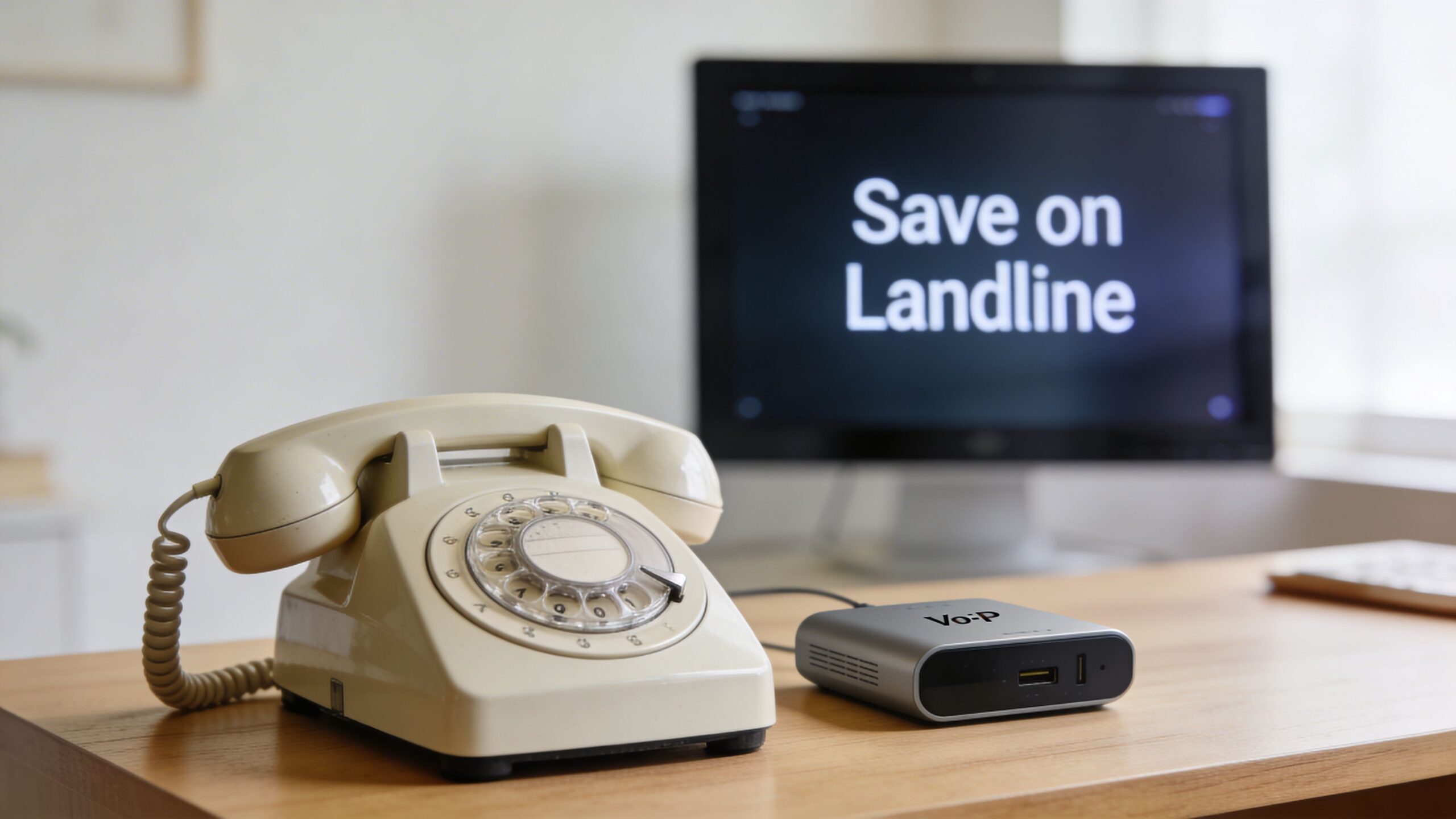
Keep the phone, upgrade the service
An analog handset was built for a different network era. The original phone system traces back to 1876, and the long move toward internet-based voice started with foundational VoIP experiments in the 1970s. Commercial use picked up in 1995 with VocalTec’s Internet Phone software, and Skype’s 2003 launch proved VoIP could scale broadly, as outlined in this history of VoIP.
That matters because today’s adapter is not a gimmick. It is the practical bridge between an analog device and a modern voice platform.
With the right setup, you can keep the handset and gain features people usually associate with newer systems:
- Voicemail delivery: Messages can land in email instead of staying trapped on a machine by the wall.
- Caller ID tools: Better screening and easier callback handling than many old landline packages offered.
- Flexible calling: Long-distance calling is no longer tied to the old copper-line pricing model.
- Mobility options: Some providers let calls follow you to another device without giving up your main number.
A good reference point if you are comparing service styles is this overview of VoIP Services, especially if you are deciding whether to adapt an old phone or move fully to IP hardware later.
Why this works better than people expect
The mistake I see most often is assuming the phone itself determines call quality. It does not. The adapter matters, the provider matters, and the internet connection matters more than the age of the handset.
A clean analog desk phone on a weak connection will still sound rough. A basic analog phone on a well-configured adapter and a strong fiber connection can sound stable and natural.
Tip: If you want the simplest path, start by understanding the adapter itself. This primer on an ATA adapter for VoIP is useful before you buy hardware: https://premierbroadband.com/ata-adapter-for-voip/
For a lot of homes and small businesses, this setup gives the best of both worlds. You preserve the phone you like using, but the service behind it stops behaving like an aging landline.
Gathering Your Hardware and SIP Credentials
Before you plug in anything, get two things in order. First, the right adapter. Second, the account details that let it register with your voice service.
Miss either one, and setup stalls fast.
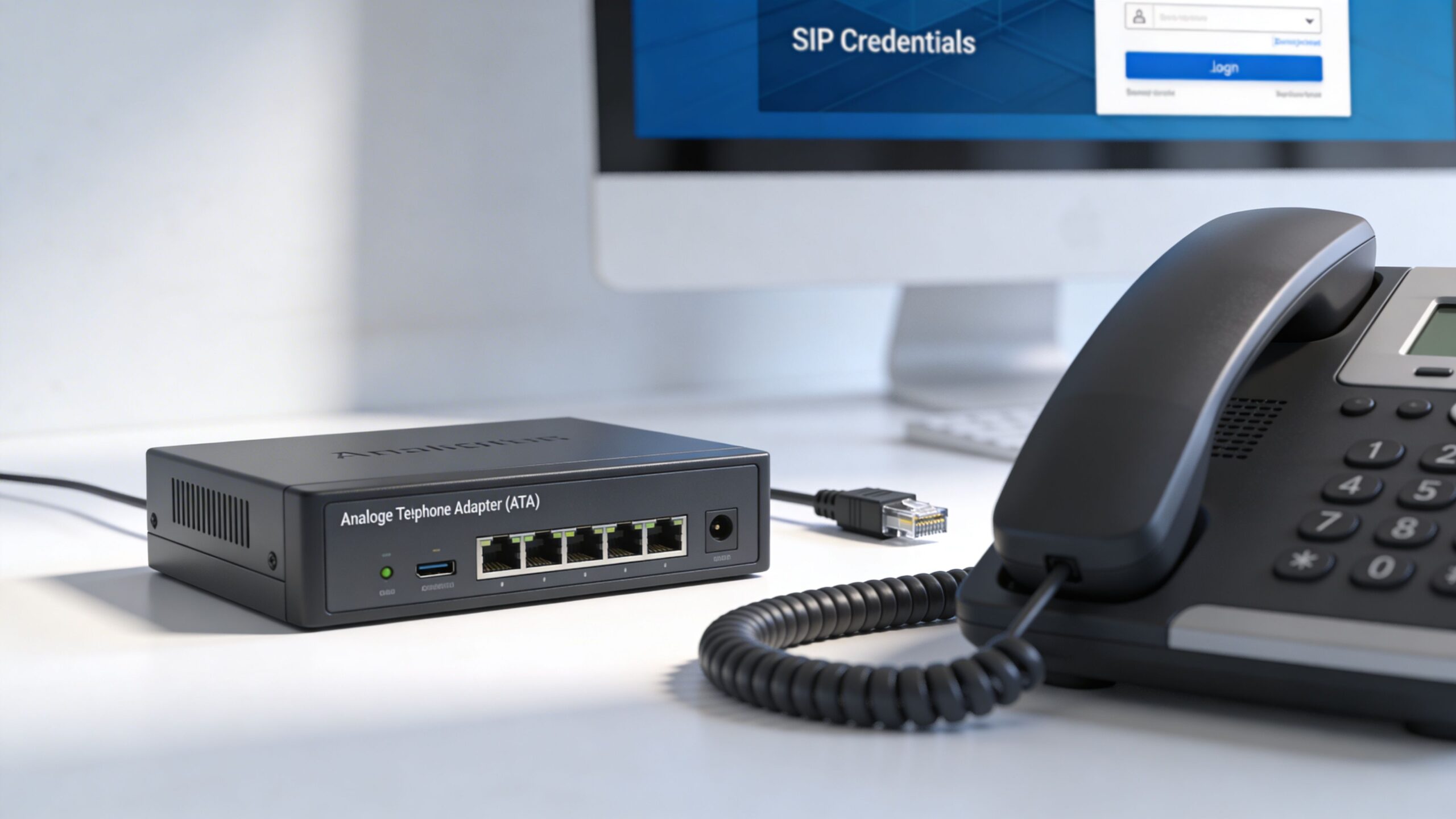
Choose the right adapter for the job
An ATA, or Analog Telephone Adapter, is the translator in the middle. Your analog phone speaks in the electrical language it was designed for. The VoIP service speaks in digital voice packets. The ATA converts between the two.
For one phone, a basic single-line ATA is usually enough. For multiple analog devices, a larger analog gateway can be a better fit.
What matters most is the port type. You need an FXS port for an analog phone. That is the port on the ATA that provides the dial tone to the handset.
Use this checklist when buying:
- FXS support: Without an FXS port, you cannot plug in a standard analog handset.
- Codec support: Look for support for common codecs such as G.711 and G.729.
- Simple management: A web interface makes setup and troubleshooting much easier.
- Power supply included: Sounds obvious, but missing power adapters waste time on install day.
If you are comparing phone ecosystems more broadly, it helps to look at manufacturers that build both endpoint and business voice gear. The Yealink product ecosystem is a useful example of how vendors approach modern voice hardware, even if you ultimately stick with an ATA and analog handset.
Your SIP details are the key
The second piece is your SIP credentials. Think of these as the login details for your phone service.
Most ATA setups need:
- SIP username
- SIP password
- SIP server or registrar address
Some providers also supply outbound proxy settings or recommended codec order. If they do, keep those details together before you start. Hunting for them midway through setup is where people lose momentum.
A lot of users confuse their account portal login with their SIP login. They are often not the same thing. Your customer portal gets you into billing or account management. Your SIP credentials let the ATA register the phone line itself.
Practical advice: Ask your provider for the exact credentials assigned to the line, not just “my account details.” That wording avoids a lot of back-and-forth with support.
One device or several
Homes usually need one ATA and one phone. Small businesses are where planning matters more.
If you have a fax machine, a front desk phone, and a credit card line all sharing old analog wiring, do not assume one adapter will cleanly solve every device type. Start by deciding which device needs to remain analog and which ones could move to newer hardware later.
For a clean explanation of how SIP calling works behind all this, this guide is worth reading before you log in to the adapter: https://premierbroadband.com/what-is-sip-calling/
Your Core ATA Setup and Network Connection
The physical setup is straightforward when you do it in the right order. Most problems at this stage come from plugging the right cable into the wrong port, or from trying to configure the ATA before it is properly connected to the network.
This quick visual is useful before you start.
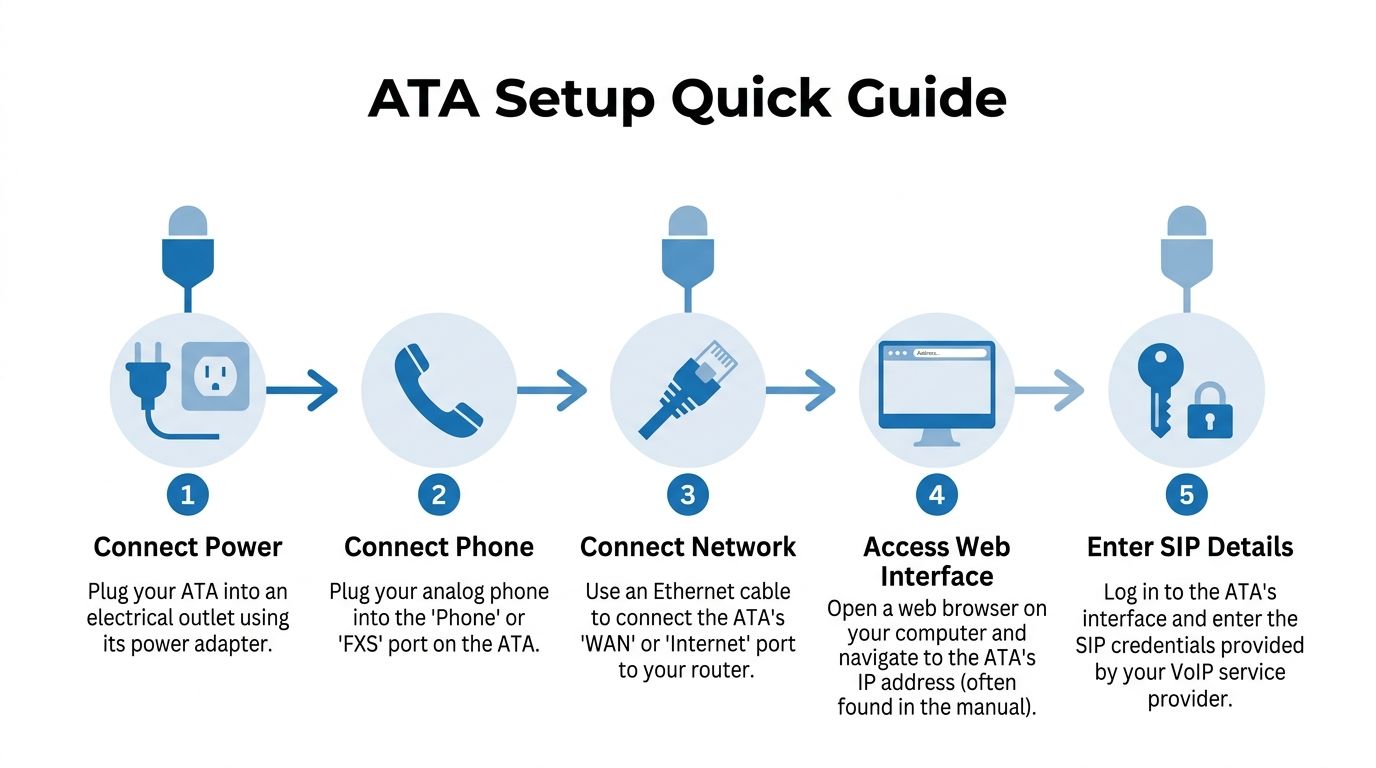
The basic wiring order
Start with the hardware, not the software.
- Plug in the ATA power adapter. Let the device fully boot.
- Connect your analog phone’s RJ11 cable to the ATA’s FXS or Phone port.
- Run an Ethernet cable from the ATA’s network port to your router or switch.
- Wait for the ATA to finish startup and obtain a network connection.
- Pick up the phone and check whether you hear any tone at all.
This setup method is the standard starting point. In stable fiber networks with at least 100kbps upload per device, it can achieve a call success rate exceeding 95%, according to this VoIP advantages and disadvantages guide.
Get into the web interface
Most ATAs have a web-based admin panel. That is where you enter the SIP credentials and make subsequent call-quality adjustments.
To reach it, you typically need the ATA’s local network address. Manufacturers handle this in different ways. Some print the default access method in the manual. Others let you hear status prompts from the phone handset itself.
Do not change random settings yet. First confirm three basics:
- The ATA has power
- The Ethernet link is active
- You can log into the admin page
A lot of failed installs are not provider issues at all. They are local network issues, especially when the ATA is sitting behind another router, an extender in router mode, or older gateway equipment with conflicting network behavior.
That is why network design matters more than people expect. If your router setup is unusual, this plain-English guide on bridge mode helps avoid double-routing headaches: https://premierbroadband.com/what-is-bridge-mode-on-my-router-simple-guide-for-2026/
Here is a short video walkthrough if you prefer to see the process rather than read it.
What a good first install looks like
A healthy early-stage setup usually shows a few signs:
| Check | What you want to see |
|---|---|
| Power status | ATA fully booted, no constant restart cycle |
| Ethernet link | Active network light or connection indicator |
| Phone port | Handset recognized on the FXS or Phone port |
| Admin access | Web interface opens reliably on your network |
If one of those fails, stop there and fix it before entering account settings. It is faster to solve one clean problem than three stacked ones.
Key takeaway: The ATA should behave like a normal network device first and a phone device second. If it is not stable on the network, call quality tuning will not save it.
Fine-Tuning Your ATA for Flawless Call Quality
A dial tone means the adapter is alive. It does not mean the setup is finished.
Good voice service comes from small configuration choices that reduce distortion, avoid dropped audio, and keep the call sounding natural. A basic voip to analog phone install then becomes a dependable line you can use every day.
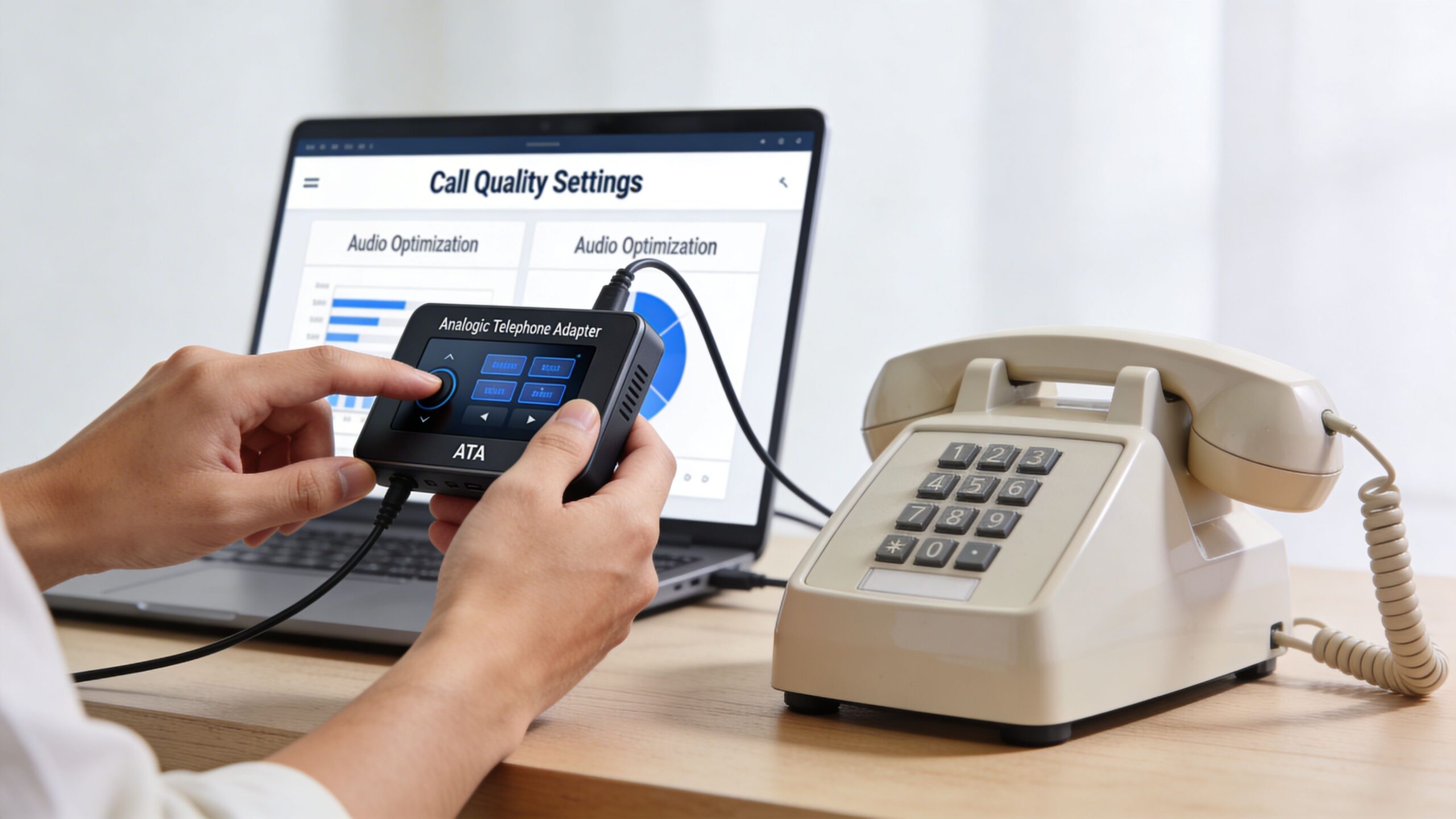
Enter the line details carefully
Inside the ATA web interface, enter the SIP username, password, and server exactly as provided. One wrong character can leave the line unregistered.
After saving, check the ATA status page. You want to see the line marked as registered or active. If it is not, do not jump ahead to audio settings. Registration comes first.
Once the line registers, look for options related to:
- Preferred codec order
- Jitter buffer
- NAT traversal or STUN
- DTMF method
- Caller ID format
Not every ATA labels these settings the same way. The wording changes by manufacturer, but the ideas stay consistent.
Use the right codec for clarity
The biggest practical choice is usually the codec. A codec is the method the device uses to encode your voice for transmission.
For general call quality on a strong connection, G.711 is usually the best starting point. It uses more bandwidth than a compressed codec, but it preserves voice detail better and tends to behave more predictably with analog equipment.
That choice becomes even more important if you need a fax machine to work. For small businesses using fax over VoIP, G.711 can achieve a 99% success rate, while G.729 can see failure rates as high as 15%, according to this guide on faxing over VoIP.
This is one of those settings that has a direct real-world effect. If a customer tells me, “Voice is acceptable but fax is flaky,” codec order is one of the first places I look.
Tip: Put G.711 at the top of the codec list unless your provider specifically advises otherwise. For analog voice and fax, it is usually the cleanest option on a capable connection.
Tame jitter before it sounds robotic
If voice sounds choppy, metallic, or slightly out of rhythm, the problem is often not raw speed. It is variation in packet arrival, which people hear as jitter.
Many ATAs include a jitter buffer setting. Enabling it helps smooth out packet timing irregularities before they reach your ear as broken audio. That can make a noticeable difference on busy home networks where video calls, streaming, and gaming are all happening at once.
A few practical rules help here:
- Do not over-tune immediately: Extreme settings can introduce delay.
- Test during normal household usage: A midnight test on an idle network tells you less than a daytime test under load.
- Prefer wired connections: Keep the ATA on Ethernet if possible.
NAT and firewall issues are usually fixable
If the ATA registers but calls behave strangely, especially with one-way audio, the issue is often network translation or firewall behavior.
Some ATAs work fine with basic automatic NAT handling. Others need STUN or provider-recommended traversal settings. In some environments, router rules may also need adjustment, but I avoid changing router behavior until the simpler ATA-side options are tested first.
That is why consistent bandwidth and upload performance matter so much. If you want a better grasp of how network capacity affects call quality, this guide on VoIP bandwidth is a helpful read: https://premierbroadband.com/bandwidth-for-voip/
For fax and older analog gear
Not every analog device behaves like a voice phone. Fax machines, alarm dialers, and some specialty systems are less forgiving.
Use this quick reference:
| Device type | Best first setting choice |
|---|---|
| Standard analog phone | Start with G.711 |
| Fax machine | Prefer G.711, test carefully |
| Older specialty analog device | Check vendor compatibility before relying on it |
If a device is business-critical, test it under normal conditions, not just once after installation. One clean call proves the setup can work. Repeated clean operation proves it is ready for daily use.
Testing Your Connection and Troubleshooting Common Issues
Once the line is registered and the audio settings are in place, test the setup like a technician, not like a casual user. One successful outbound call is not enough. You want to confirm the phone behaves properly in both directions and stays stable when the network is busy.
Start with a real call test
Run these checks in order:
- Outbound calling: Dial a known number and confirm ring-out, answer, and clear two-way audio.
- Inbound calling: Call the analog line from a mobile phone and make sure it rings properly.
- Voicemail behavior: Let the call go unanswered and verify the voicemail path works as expected.
- Call duration: Stay on a call long enough to catch dropouts or audio drift.
If all of that works, the foundation is solid. If not, narrow the issue before changing settings.
If you hear one-way audio
One-way audio usually points to a network handling problem, not a bad phone handset.
Try these checks:
- Confirm registration status: If the ATA repeatedly loses registration, solve that first.
- Review NAT settings: STUN or related traversal options may need adjustment.
- Check router behavior: Some routers handle voice traffic poorly when layered behind other routing gear.
This is a classic symptom when the ATA can signal the call but the return audio path is not being handled cleanly.
If voice sounds choppy or robotic
That points more often to network quality than to the analog phone itself.
Try this:
- Use Ethernet, not Wi-Fi: An ATA should be wired whenever possible.
- Enable or adjust the jitter buffer: Small timing variations become very audible on voice calls.
- Reduce local network congestion during testing: Heavy upstream use can affect call consistency.
- Confirm your internet connection is stable: Intermittent connection quality is harder on voice than on normal browsing.
If there is no dial tone
This is more basic, but it is common.
Check the simple things first:
- Is the phone plugged into the FXS port, not some other jack?
- Did the ATA fully boot?
- Does the status page show the line as registered?
- Did you enter the SIP password exactly as given?
A surprising number of no-dial-tone calls come down to a typo in the credential field or the phone being plugged into the wrong port.
Practical advice: Change one thing at a time. If you alter the codec, NAT options, and router behavior all at once, you will not know which fix solved the problem.
The reliability trade-off often overlooked
Traditional analog lines had one major advantage. They were less dependent on the customer’s local power and internet setup.
VoIP is highly reliable on a stable network, but it is more vulnerable during storms and outages. A 2025 FCC report noted that 28% of US VoIP services failed during major storms compared to 9% for analog lines, as summarized in this VoIP to analog lines reliability discussion.
That does not make VoIP a bad choice. It means you should plan for the weak point.
A sensible reliability plan includes:
- Battery backup for the router
- Battery backup for the ATA
- A mobile phone fallback
- A provider and ISP you trust to stay stable under load
If your household or business treats the phone line as important, power backup is not optional. It is part of the install.
Considering Alternatives to a VoIP Adapter
An ATA is a smart bridge when you want to keep an existing analog phone. It is not automatically the best long-term answer for everyone.
Some people install an adapter, prove the number works well over VoIP, and then decide they no longer need the old handset at all. Others keep the ATA for years because it fits the space and does exactly what they need.
Option one versus option two versus option three
Here is the practical comparison.
| Option | Best for | Main trade-off |
|---|---|---|
| ATA with analog phone | People who want to keep current handsets | Added adapter to manage |
| Native IP phone | Desks and offices that want tighter feature integration | Requires replacing the phone |
| Mobile VoIP app | Users who want their number anywhere | Less like a traditional home phone |
| Multi-port analog gateway | Businesses with several legacy analog devices | More planning and configuration |
When an ATA makes the most sense
The adapter route is best when the handset itself matters. Maybe it is a cordless base station everyone already uses. Maybe it is a specialty phone in a lobby. Maybe it is just familiar.
It is also a sensible first move when you are migrating slowly. You can modernize the service without changing every device at once.
When a native VoIP phone is better
If you want the cleanest integration with business features, a native IP phone usually wins. There is no analog conversion layer, and management tends to be simpler once deployed.
This matters more in office settings where staff use transfer, presence, shared lines, and other platform-level features all day.
When the mobile app is the right answer
A lot of people do not need a desk phone anymore. They need their home or business number to ring wherever they are.
That is one reason VoIP keeps expanding. It is projected to power 83% of all business communications by 2026, according to this history of VoIP market overview. That projection aligns with what many users are already doing. They skip adapters and go straight to native VoIP hardware or mobile apps.
For homes, a physical phone still has real value. For mobile staff and small teams, the app may be the cleaner answer.
The best setup is the one you will maintain. If you want a classic handset on the wall, use the ATA. If you want fewer moving parts, use a native VoIP endpoint. If you live on your phone already, the app may be enough.
If you want a phone setup that feels simple day to day, the network underneath it matters as much as the adapter on your desk. Premier Broadband provides fiber internet and VoIP solutions for homes and businesses that need stable voice quality, strong upload performance, and practical support when it is time to move from old copper habits to a modern phone system.