

Your new VoIP phone is on the desk, the router is already blinking, and the box still has that “this should be easy” feeling. That is the exact moment when people wonder if setup will be plug-and-play or a long evening of menus, passwords, and trial calls.
Most of the time, it is straightforward. The difference between a frustrating first call and a clean one typically comes down to a few practical choices made early. The phone matters. The app matters. Your network setup matters even more.
VoIP is phone service running over your internet connection instead of old copper phone lines. On a symmetrical fiber connection, that can work extremely well for home offices, small businesses, remote teams, and households that need reliable calling while someone else is streaming, gaming, or uploading large files.
Unlocking Crystal-Clear Calls with Your New VoIP Phone
A lot of first-time users expect VoIP to feel “different” from a regular phone. In practice, once it is configured correctly, it should feel boring in the best way. You pick up the handset or open the app, you hear a dial tone, and the call sounds clean.
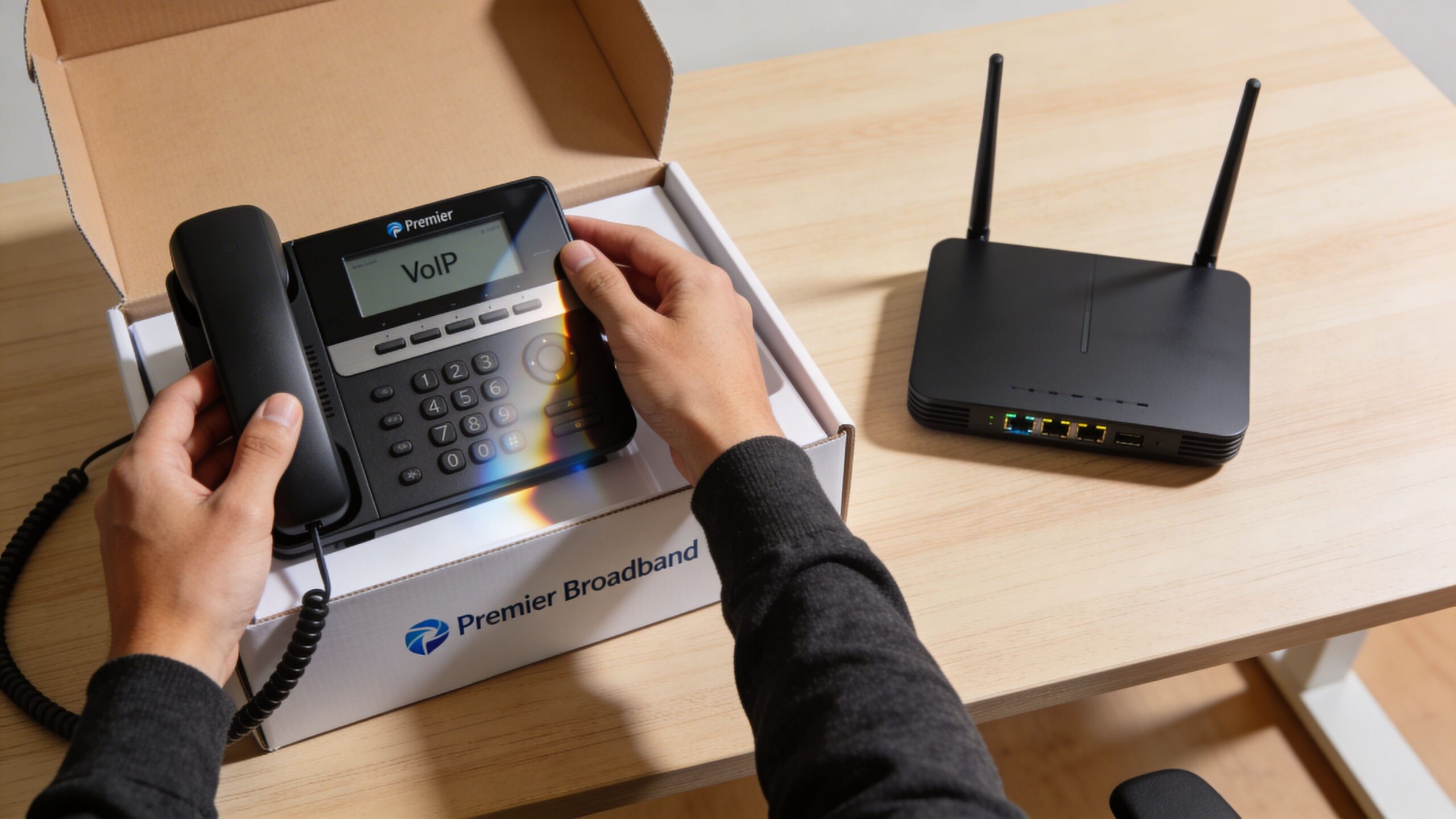
Why VoIP became the normal business phone
Businesses moved hard in this direction for a reason. From 2010 to 2018, U.S. businesses added over 35 million VoIP lines, growing from 6.2 million to 41.6 million lines as phone systems shifted away from traditional hardware and toward internet-based calling, according to Intelecom’s VoIP business phone statistics.
That shift changed what “phone setup” means. Instead of wiring up a legacy PBX, you are preparing a network path for voice traffic, connecting a device, and entering the right account details.
What a good first setup looks like
A smooth setup typically looks like this:
- Your connection is stable: Voice packets need consistency more than raw speed.
- The phone is wired if possible: Ethernet removes a lot of avoidable trouble.
- Your credentials are ready: Username, password, and server details should be within reach before you start.
- Your router is not treating voice like ordinary traffic: That detail gets skipped in generic guides, and it is frequently the reason calls sound rough.
Tip: If you are learning how to set up voip phone service for the first time, think of the job as two separate tasks. First, get the device registered. Second, make the network treat calls as priority traffic.
Why fiber changes the experience
A fast connection alone does not guarantee call quality. What symmetrical fiber does give you is a strong foundation. Upload and download capacity stay balanced, which helps when voice shares the line with video meetings, cloud backups, online gaming, or large file transfers.
That matters because VoIP is not just about replacing a landline. It gives you modern features like voicemail-to-email, caller ID, mobile app access, and flexible calling from a desk phone or laptop. Done right, it feels less like “a phone line” and more like part of your entire communication setup.
Choosing Your VoIP Hardware and Preparing for Setup
When people ask how to set up voip phone service, they frequently jump straight to the login screen. That is a mistake. The first decision is not technical. It is choosing the right endpoint.
Some users want a proper desk phone with physical buttons and a handset. Others want to keep an older analog phone. Some do not want any desk hardware at all and would rather use a laptop or mobile app.
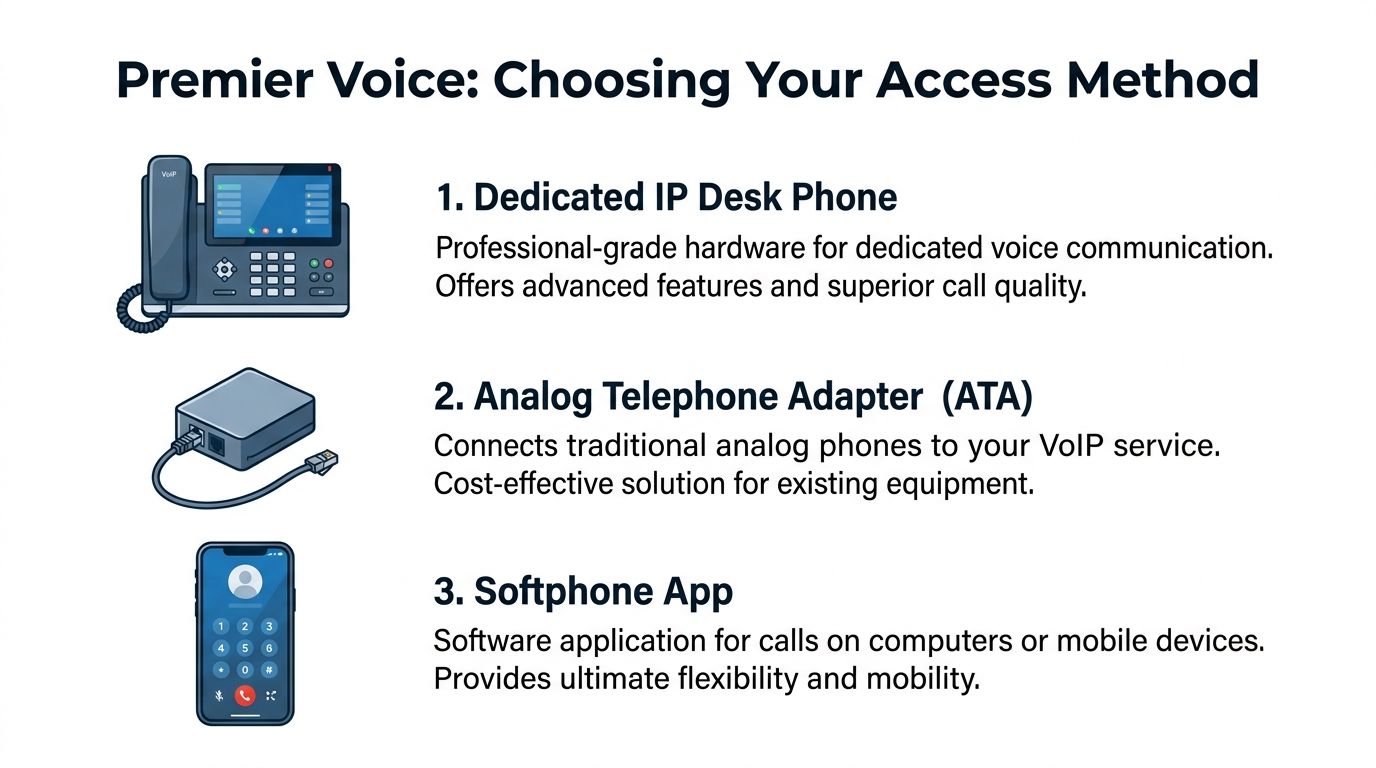
The three main ways to connect
The simplest way to think about it is this:
- IP desk phone: Best when you want a dedicated business-style phone on a desk all day.
- ATA with an analog phone: Best when you already own a handset you like and want to keep using it.
- Softphone app: Best when mobility matters more than desk hardware.
Businesses frequently choose VoIP because it lowers cost as well as complexity. Companies switching to VoIP can see up to 50% reductions in monthly telecom costs, with small to medium businesses saving $20 to $50 per user per month, and startups can cut initial setup costs by up to 90% by avoiding on-premise PBX hardware, according to Yeastar’s VoIP phone system business guide.
VoIP Hardware Comparison
| Feature | IP Desk Phone | Analog Telephone Adapter (ATA) | Softphone App |
|---|---|---|---|
| Best fit | Reception desk, home office, front counter | Existing analog phone users | Remote staff, mobile users, flexible work |
| Physical handset | Yes | Yes, through existing analog phone | No, usually headset or mobile device |
| Mobility | Low | Low | High |
| Setup style | Connect to network and enter SIP details | Connect adapter, phone, and network, then configure | Install app and sign in with SIP details |
| Call handling | Strong for transfers, hold, speakerphone, line keys | Depends on the analog phone attached | Strong if the app supports business features |
| Desk presence | Excellent | Familiar but limited by older hardware | Minimal desk clutter |
| Best trade-off | Professional experience | Lower hardware change | Maximum flexibility |
What works well for each type of user
IP desk phone
If you spend most of the day at one location, this is typically the cleanest option. A Yealink-style desk phone gives you physical buttons, visible line status, and a familiar call flow.
It also tends to be easier for front-desk and admin roles because transfers, mute, speakerphone, and voicemail access are right there on the device.
ATA with an existing phone
This route makes sense if you have a phone you already like using. The ATA acts as the bridge between old analog hardware and your internet-based voice service.
The trade-off is feature depth. You can still place and receive calls, but advanced functions are usually less elegant than they are on a dedicated IP phone.
Softphone app
For remote workers, hybrid teams, and anyone who takes calls away from a desk, softphones are hard to beat. You install an app on a computer or phone, sign in with your SIP credentials, and use a headset or mobile audio.
This is often the fastest path to a working line, especially if you do not want more desk hardware.
Practical call: If you want a polished office feel, choose the desk phone. If you want to preserve a familiar handset, choose the ATA. If you move around all day, choose the softphone.
What to have ready before setup
Before you begin, gather these basics:
- Your account credentials: SIP username, password, and server details.
- Your preferred device: Phone, ATA, or app.
- A wired connection if available: Especially for the first test.
- A headset for softphone use: It reduces echo and keeps calls more comfortable.
- A decision on number porting: If you are moving an existing number, plan that early.
If you are still weighing hardware, this guide on finding the right low cost VoIP phone for your needs is a useful shortcut before you buy.
Optimizing Your Network for Flawless Call Quality
The most common misunderstanding in VoIP setup is simple. People assume that fast internet automatically means good calls.
It does not.
A fiber connection gives you the capacity you want, but if the router treats a phone call the same way it treats a game download, cloud backup, or 4K stream, voice can still get pushed around at the wrong moment.
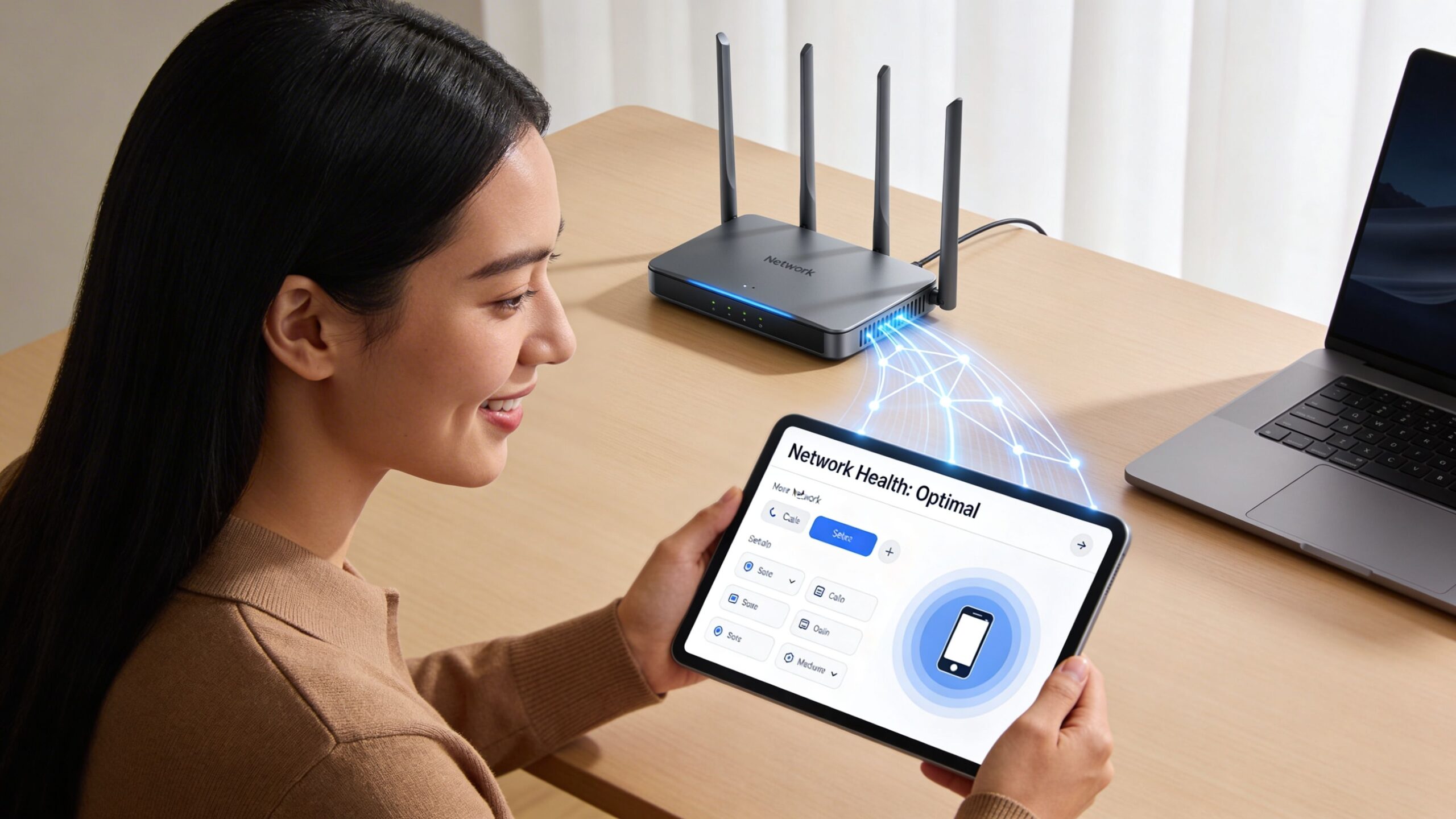
Why preparation matters more than people expect
The installation phase is where call quality is won or lost. According to Vistanet’s VoIP setup guide, pre-installation planning and network preparation account for over 80% of smooth VoIP deployments. The same guide notes that inadequate router QoS contributes to 40% of call drops, while prioritizing voice traffic raises success rates to 95%.
That tracks with what technicians see in the field. Most ugly VoIP problems are not caused by the handset. They come from the network path around it.
Start with bandwidth and connection type
A practical baseline is 100 kbps upload and download per concurrent call, which is covered in Premier’s guide to bandwidth for VoIP. On paper, that is not much. In typical homes and offices, the issue is less about average speed and more about whether other traffic spikes at the same time.
Use wired Ethernet first if you can. WiFi can work, but it adds one more variable during setup and testing.
Quick pre-check list
- Run a speed test: Confirm the connection is stable, not just fast.
- Count simultaneous calls: A single-user setup is different from a front office or support desk.
- Check for heavy competing traffic: Streaming boxes, game consoles, backup software, and sync tools matter.
- Place the device on Ethernet for setup: You can test WiFi later if needed.
QoS is the setting that generic guides skip
Quality of Service, or QoS, tells the router that voice traffic should get the front of the line. It is prioritization.
Without it, your phone call competes with everything else. With it, your router recognizes voice as delay-sensitive traffic and moves it more efficiently.
Many people only think about this after hearing choppy audio. A broader walkthrough on how to optimize your network for real-time communication is helpful if your home network also handles video meetings and other latency-sensitive traffic.
How to configure QoS on a typical router
Router menus vary, but the process is typically close to this:
- Log in to the router admin page.
Use the router’s local management address and sign in with the admin credentials. - Find the QoS or traffic management section.
Some systems label it “Applications,” “Traffic Prioritization,” or “Smart Queue.” - Enable QoS.
If there is a simple toggle, turn it on first before building rules. - Create a voice priority rule.
Prioritize SIP and RTP traffic. The common references are UDP 5060 for SIP signaling and UDP 10000-20000 for RTP media, as listed in the Vistanet setup guidance linked above. - Prioritize the phone by device if your router supports it.
Some home routers let you select the phone or ATA from a device list and mark it as high priority. - Save and reboot if required.
Some routers apply traffic rules immediately. Others need a restart. - Make a live test call while the network is busy.
Test while someone streams video or uploads files. That reveals whether the prioritization is doing its job.
Tip: If your router offers both “device priority” and “application priority,” start with device priority for a single desk phone. In a multi-user office, application-based rules are usually cleaner.
What fiber users should do differently
Symmetrical fiber opens the door to better consistency, but it does not remove the need for tuning. If your household or office does a lot of simultaneous streaming, gaming, or conferencing, voice traffic still benefits from segregation and priority.
In more advanced setups, that may mean:
- Using a voice VLAN on business-grade equipment
- Separating work devices from entertainment devices
- Prioritizing ports tied to the phone or ATA
- Avoiding overloaded consumer router presets that lump everything together
A tuned network feels different from a merely fast one. Calls stay cleaner during peak household use, and you spend less time chasing random audio problems.
Configuring Your VoIP Phone or Softphone App
Once the network is ready, the actual device setup is typically the easy part. Most failed first installs happen because the credentials were entered incorrectly, not because the hardware is faulty.
According to Nextiva’s VoIP setup guide, setup success exceeds 90% with wired Ethernet, but 50% of home setups fail initial configuration due to missed or incorrect SIP credentials. That same guidance notes that softphones work best when you enter the same credentials carefully and use a quality headset.
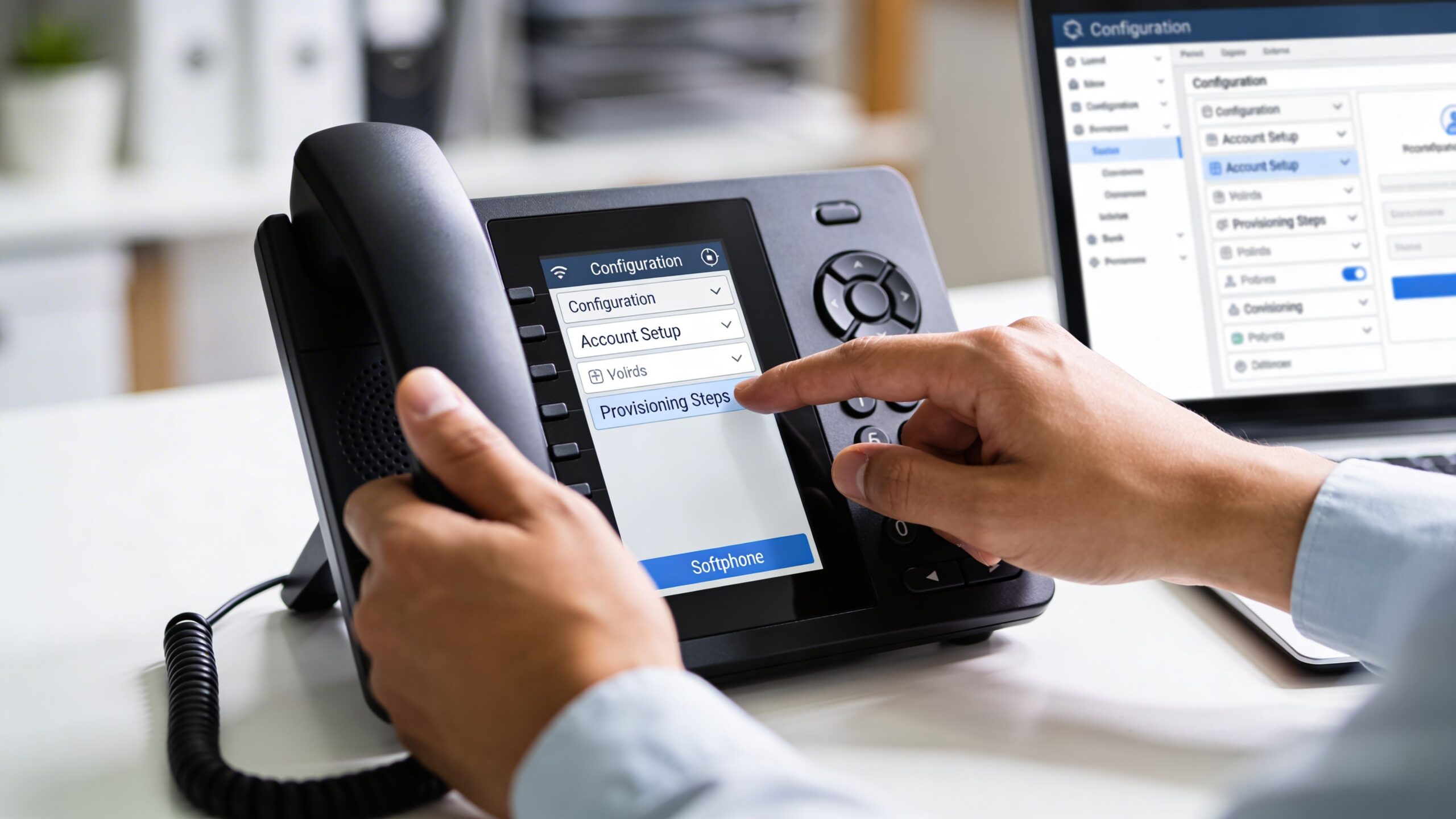
The three details you need every time
No matter which device you chose, have these ready:
- SIP username
- SIP password
- Registrar or server address
If you are unsure how usernames, extensions, and address formatting are supposed to look, this plain-English explanation of SIP URI format helps clear up common input mistakes before you start typing.
Setting up your IP desk phone
A desk phone is typically the most structured setup.
Basic process
- Connect the phone to power. If it supports PoE, the network cable may provide power.
- Plug the phone into your router or switch with Ethernet.
- Let the phone boot and obtain a network address automatically.
- Open the phone menu and find its status or network screen.
- Access the phone’s web interface from a browser if your model supports browser-based configuration.
- Enter the SIP account details exactly as provided.
- Save the settings and reboot if prompted.
- Check whether the phone shows as registered before placing a call.
For Yealink phones, this manual configuration reference is useful if you want screen-by-screen guidance.
What usually goes wrong
Registration failures on desk phones are frequently one of these:
- A mistyped password
- The wrong server entry
- The account placed under the wrong line setting
- The phone connected over unstable WiFi instead of Ethernet
Connecting your ATA
An ATA setup is slightly different because you are configuring the adapter, not the analog handset itself.
Wiring order matters
Use this order:
- Power on the ATA.
- Connect your analog phone to the ATA’s phone port.
- Connect the ATA to your router with Ethernet.
- Wait for the adapter to finish booting.
- Sign in to the ATA’s management interface.
- Enter the SIP account details and save.
- Confirm registration, then test for dial tone and outbound calling.
The analog phone may look familiar, but the ATA is doing all the heavy lifting. If there is no registration, the handset will not behave like a normal phone line.
Tip: When setting up an ATA, do not troubleshoot from the analog phone first. Check whether the adapter itself is registered. If it is not, the phone attached to it cannot do anything useful.
Installing your softphone
Softphones are typically the quickest route, especially for a laptop user or a remote worker.
Recommended approach
- Download the softphone app for your desktop or mobile device.
- Enter the same SIP credentials you would use on a desk phone.
- Allow microphone access when prompted.
- Pair a good headset instead of relying on laptop speakers and mic.
- Make a short test call and listen for echo, delay, or clipping.
A visual walkthrough can help if you prefer seeing the sequence before doing it yourself.
Softphone trade-offs that matter
Softphones are flexible, but they depend on the device they run on. A laptop with too many audio devices selected, an aggressive Bluetooth setting, or the wrong microphone input can create problems that look like “VoIP issues” but are really local device issues.
The fix is typically simple. Pick one headset, set it as the default input and output device, and test with it consistently.
First-call checklist
Before you declare the job done, run four tests:
- Outbound call: Confirm you can dial out cleanly.
- Inbound call: Verify the phone rings and audio works both ways.
- Voicemail test: Leave and retrieve a message.
- Hold or transfer test: If your role needs business features, check them now instead of later.
Troubleshooting Common Setup Issues
A new VoIP line typically fails in predictable ways. That is good news, because predictable problems are easier to fix.
Many setup guides stop at “plug in the phone and sign in.” This perspective overlooks common situations like fiber households and busy offices where multiple people are doing heavy online activity at the same time. As noted in Soundcurve’s VoIP setup article, unoptimized fiber setups can experience jitter up to 30 ms during peak usage, which can lead to call drops, while proper QoS almost entirely eliminates that issue and users report 25% higher satisfaction when it is enabled.
Calls sound choppy or keep dropping
This is the classic network-priority problem.
If calls break up only when the network is busy, the phone is probably competing with other traffic instead of being prioritized. Revisit your QoS settings and make sure the phone or voice traffic has priority. Also check whether the device is on WiFi when it should be on Ethernet.
One-way audio
You can hear them, but they cannot hear you. Or the reverse.
This frequently points to NAT or firewall handling problems rather than a bad phone. In many home and office routers, SIP ALG is the first thing worth checking. If it is enabled and causing odd behavior, this explanation of what SIP ALG is and how to disable it can save a lot of time.
No registration or no dial tone
If the device says unregistered, start with the obvious before digging deeper:
- Re-enter the SIP username
- Re-enter the SIP password carefully
- Confirm the server field is correct
- Restart the phone, ATA, or app after saving
- Use Ethernet for testing if you were trying WiFi
On ATA setups, remember that no registration at the adapter means no meaningful dial tone at the analog handset.
Calls will not connect
If the device appears registered but outbound calls fail, check your dial plan or call permissions in the device or service portal. On desk phones, this can also happen if the line is registered but assigned incorrectly in the handset’s account menu.
Quick rule: If the phone does not register, check credentials. If the phone registers but sounds bad, check the network. If audio only works one way, check the router behavior.
Echo or strange microphone behavior on softphones
This is typically local audio configuration, not a service issue.
Disable unused microphones, set one headset as the default device, and test again. Built-in laptop speakers and mics are convenient, but they are not ideal for daily calling.
Advanced Tips for Security and Performance
Once the phone works, protect it and clean it up. A VoIP setup that works on day one can still become annoying later if passwords are weak, firmware goes stale, or devices get moved around without updating network rules.
Lock down the obvious items
Start with the basics:
- Use a strong SIP password: Do not reuse a simple account password across devices.
- Change the phone’s admin password: Factory defaults are fine for bench testing, not for long-term use.
- Update firmware: Phones, ATAs, and routers all benefit from current firmware.
- Limit admin access: If a device does not need broad local access, keep its management exposure tight.
For business environments, isolating voice traffic from general user traffic is often worth the effort. A voice VLAN can simplify management and reduce the chance that unrelated device activity interferes with calls.
Tune for long-term call quality
Small changes make a difference over time.
If users move from desk to mobile frequently, use a softphone app with a headset they trust and keep the audio path consistent. If you rely on desk phones, keep them on Ethernet and avoid moving them to WiFi just because it is convenient.
If you manage several users, document which extension belongs to which device and where each one sits on the network. That one step makes troubleshooting much faster later.
Best practice: A stable VoIP environment is less about heroic fixes and more about repeatable habits. Keep credentials organized, keep firmware current, and keep voice traffic prioritized.
Use the features people forget
A lot of users stop once they can place a call. That leaves useful features untouched.
Voicemail-to-email, caller ID controls, mobile app access, and business calling features are worth enabling early because they reduce missed calls and make the service feel integrated instead of separate. If you are using a managed service such as Premier Broadband voice alongside fiber internet, those features can usually be configured without adding extra on-site phone hardware.
Frequently Asked Questions About VoIP Setup
Can I keep my old phone number
Usually, yes. Number porting is a normal part of VoIP activation.
Do not cancel your old service too early. Let the port complete first, then confirm inbound and outbound calling works as expected on the new service.
Does VoIP work during a power outage
VoIP depends on your internet equipment and your phone device having power. If the router, ONT, or phone loses power, the phone service will typically stop too.
If phone continuity matters, put your network gear and VoIP device on a battery backup. That is the simplest protection for short outages.
Is a desk phone better than a softphone
Neither is universally better. They solve different problems.
A desk phone is better for users who stay in one place and want a dedicated calling device. A softphone is better for users who move around, work remotely, or want calls on a laptop or smartphone.
Can I use WiFi instead of Ethernet
Often yes, but Ethernet is the safer setup choice.
If you are asking how to set up voip phone service with the fewest variables, wired is the answer. Once the service is working correctly on Ethernet, you can test WiFi and decide whether the trade-off is acceptable.
Are VoIP calls private
They can be, but privacy depends on the provider, device settings, password hygiene, and network setup.
Use strong account credentials, keep firmware current, and avoid leaving admin defaults in place. On business networks, isolate voice traffic where practical.
How long does setup usually take
A single desk phone or softphone can be set up quickly if the credentials are ready and the router is already in good shape. Most delays come from missing account details, registration mistakes, or skipped network tuning.
What is the first thing to check if the setup fails
Check the SIP credentials first.
That single step solves a surprising number of failed installs. After that, move to the network. Registration problems and call-quality problems usually come from different places, so it helps to separate them early.
If you want help choosing hardware, tuning your router, or getting a new line registered cleanly, talk with Premier Broadband. Their team handles fiber internet and VoIP service for homes and businesses, which makes it easier to sort out both the phone settings and the network conditions that affect call quality.