
You're probably here because your internet feels off.
Maybe your plan sounds fast on paper, but your video calls freeze when someone else starts streaming. Maybe your game shows a solid download speed, yet it still lags at the worst possible moment. Maybe uploads take forever, even though your provider advertised a big headline number.
That's where an internet speed test helps. Not because it gives you one magic score, but because it gives you a starting point. A good test can show whether the problem is raw speed, slow response time, uneven performance, or something happening inside your home network.
The biggest mistake I see is treating internet performance like a single number. It isn't. Your connection has to move data fast, respond quickly, and stay consistent while several devices compete for attention. If one of those parts breaks down, your internet can feel slow even when the advertised plan looks more than adequate.
Why Your Internet Feels Slow Even with a Fast Plan
A lot of homes run into the same pattern. Someone upgrades to a faster package, runs a quick test on their phone, sees a decent result, and assumes the problem must be over. Then the workday starts. A laptop joins a video meeting, a TV streams in the background, a doorbell camera checks in, and a tablet begins a cloud backup. Suddenly the connection feels crowded.
That “crowded highway” feeling matters more than many users realize. The advertised plan tells you the speed limit under ideal conditions. Your day-to-day experience depends on how many lanes you have, how busy the road is, how quickly traffic signals respond, and whether your local street is blocked before you even reach the main road.
The plan speed isn't the whole story
The number in the ad usually highlights download speed. That's important, but it doesn't tell you how well your connection handles video calls, gaming, file uploads, or several active devices at once. A home office user can have no trouble streaming movies, then struggle badly when sending large files or staying clear on Zoom.
There's also the local network to consider. If your Wi-Fi is weak, your router is tucked into a corner cabinet, or several devices are busy in the background, the internet entering your house may be fine while the experience on your couch or in your office is not.
A speed test is less like a grade and more like a diagnostic snapshot. It helps you ask better questions.
Slow can mean different things
When people say “my internet is slow,” they usually mean one of these:
- Buffering and long downloads means throughput may be limited.
- Choppy calls often point to upload issues, latency, or jitter.
- Lag in games usually has more to do with responsiveness than headline speed.
- Problems only at busy times can suggest local demand or network congestion solutions are worth looking into.
Those are different problems, and they need different fixes. That's why a proper internet speed test is useful. It gives you clues about what your connection is delivering, not just what your plan says it should do.
Understanding Download, Upload, Latency, and Jitter
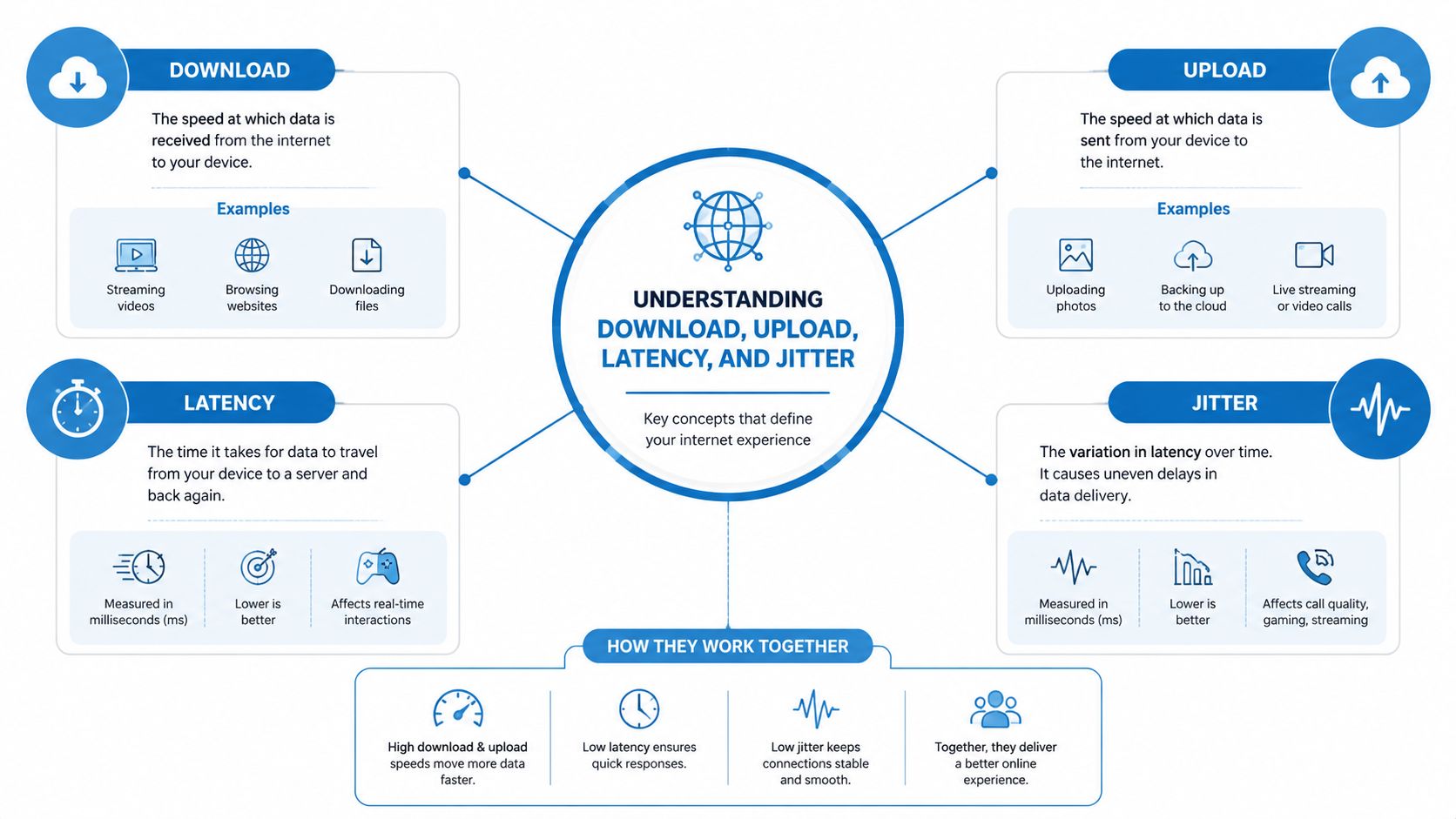
A speed test gives you four clues about how your connection will feel in daily use. The big download number gets the most attention, but upload, latency, and jitter often explain why a connection feels smooth, delayed, or erratic.
Four numbers, four different jobs
Download speed is how quickly data reaches you. It affects movie streaming, app downloads, web browsing, and software updates. A wider road helps more data arrive at once, which is why higher download speeds help with large files and multiple streaming devices.
Upload speed is how quickly your data leaves home and goes out to the internet. That matters more than many households expect. Video meetings, cloud backups, security cameras, large email attachments, and posting content all depend on upload capacity. If download is strong but upload is weak, a connection can look fast on paper and still feel frustrating during remote work.
Latency, often called ping, is the delay between your action and the network's response. Click a link, move in an online game, or speak on a video call, and latency affects how quickly the other side reacts. Low latency makes the connection feel immediate. Higher latency makes everything feel a beat late, even if your download speed is excellent.
A simple way to separate these terms is this: bandwidth is how much traffic the road can carry, while latency is how long a single car takes to make the trip.
Jitter explains the “why is this unstable?” problem
Jitter measures whether that trip time stays consistent. If one moment your connection responds in 20 milliseconds, the next in 80, then back down again, the average speed might still look acceptable while the experience feels uneven.
That uneven timing shows up most clearly in live activities:
- Video calls can freeze, blur, or make voices sound clipped
- Online games can feel responsive, then suddenly lag
- Voice calls can develop pauses, overlaps, or broken audio
If you want a plain-English explanation, this guide to what jitter means in networking breaks it down further.
Practical rule: Download affects how fast you receive. Upload affects how fast you send. Latency affects responsiveness. Jitter affects consistency.
Why these metrics matter more than one headline number
A household with very high download speed can still struggle if upload is cramped or latency bounces around. That is why two internet plans with similar download numbers can feel very different in real life.
This matters more now because home internet is no longer mostly one-way traffic. People join meetings, send large files, back up photos, stream in multiple rooms, and play online games that react in real time. For those uses, balanced performance often beats a flashy top download number.
That is also why symmetrical speeds stand out. If your connection can send data as well as it receives it, video calls stay clearer, cloud work feels faster, and busy homes are less likely to hit the wall when several people are uploading at once. Add low latency and steady jitter, and the connection feels less like it is barely keeping up and more like it is ready when you are.
Getting a Clean Measurement for True Performance
Your speed test is only as useful as the conditions around it. Testing on a busy home network is a lot like checking water pressure while several faucets, the shower, and the washing machine are all running. You will get a number, but it will not clearly show what your internet line can deliver on its own.
The goal is simple. First, measure the connection itself. Then measure the connection as you use it. That gives you two answers instead of one blurry result.
Start with a baseline test
Use a computer connected by Ethernet if possible. A wired test removes one common trouble spot: Wi-Fi. Wireless signals have to compete with walls, distance, and interference from other devices, so they can make a good internet plan look worse than it is.
Before you test, close anything that uses bandwidth in the background. Pause cloud backups, software updates, large downloads, and streaming on other devices. If those are running, the test is measuring shared traffic, not just your available connection.
That first wired result is your baseline. It shows what reaches your device when the local Wi-Fi layer is out of the picture.
Then test the connection the way you actually use it
Now run the test again from the place where the connection feels slow. That might be a home office at the far end of the house, a bedroom TV, or the room where gaming problems keep showing up.
This second test matters because internet performance is not just about the number on your plan. It is also about how the connection feels in the room where you rely on it. A house can have strong service coming in and still have weak Wi-Fi where it counts.
Use this routine:
- Pause background activity. App updates, cloud sync, game downloads, and video streams can skew the result.
- Reduce other device use. If several phones, TVs, and laptops are active, you are measuring household demand along with internet performance.
- Run the test more than once. A single result can catch a temporary slowdown.
- Test at different times. Morning and evening results can feel different in real life, so it helps to compare both.
- Compare wired and Wi-Fi results. If Ethernet looks healthy but Wi-Fi drops a lot, the issue is probably inside the home.
If you want more ways to separate a provider issue from a home network issue, this guide to network diagnostic utilities for troubleshooting connection problems is a useful next step.
What a good testing routine looks like
Here is the pattern I usually recommend:
- First test on Ethernet near the router
- Second test on Wi-Fi where the problem happens
- Third test later in the day during normal household use
That sequence helps you avoid a common mistake. People often see one low number and assume they need a faster plan, when the actual problem is router placement, signal interference, or weak coverage in one part of the house.
It also helps explain why internet can feel slow even when the download result looks decent. If your wired speeds are solid but your Wi-Fi test shows much higher delay or inconsistent performance, everyday tasks like video meetings, cloud uploads, and gaming can still feel frustrating. Clean testing lets you separate raw speed from responsiveness, which is the difference between an internet plan that looks good on paper and one that feels good to use.
What Your Speed Test Numbers Mean for You
Many guides explain how to run a test but stop short of the more useful question: what speed is enough for your household? Practical guidance from HighSpeedInternet notes that you can estimate needs by counting active devices and adding bandwidth for smart-home use, while upload needs rise sharply for remote work. It also notes that the FCC's broadband benchmark was 25 Mbps download and 3 Mbps upload in 2015, while modern fiber services can deliver symmetrical speeds of 1,000 Mbps or more, as outlined in its speed test guide.
That tells you two things. First, “enough” depends on what you do. Second, modern internet use puts more pressure on upload than many people expect.
Here's a practical way to think about your internet speed test results.
Recommended Internet Speeds by Activity
| Activity | Minimum Download Speed | Recommended Download Speed | Key Metric |
|---|---|---|---|
| Basic web browsing and email | Low demand | More headroom helps with multiple tabs and devices | Stability |
| HD streaming on one screen | Moderate demand | Higher download leaves room for other users | Download speed |
| 4K streaming | Higher demand | Strong download and steady connection matter more than bursts | Download consistency |
| Video calls for remote work | Moderate download need | Better upload and stable latency improve call quality | Upload and latency |
| Group video meetings with file sharing | Moderate to high total demand | Symmetrical service feels smoother when several people are active | Upload consistency |
| Competitive online gaming | Low to moderate bandwidth need | Fast response matters more than a giant download number | Latency and jitter |
| Content creation and large cloud backups | High demand | Strong upload changes the experience the most | Upload speed |
| Busy household with many devices | Mixed demand | Extra capacity prevents slowdowns when usage overlaps | Combined capacity |
Why upload changes the feel of your connection
A lot of people focus on download because that's the big advertised number. But if you work from home, upload often decides whether your internet feels smooth or frustrating.
Here's why:
- Video calls send as well as receive
- Cloud drives sync in both directions
- Security cameras and smart devices often upload continuously
- Large file sharing depends heavily on outbound capacity
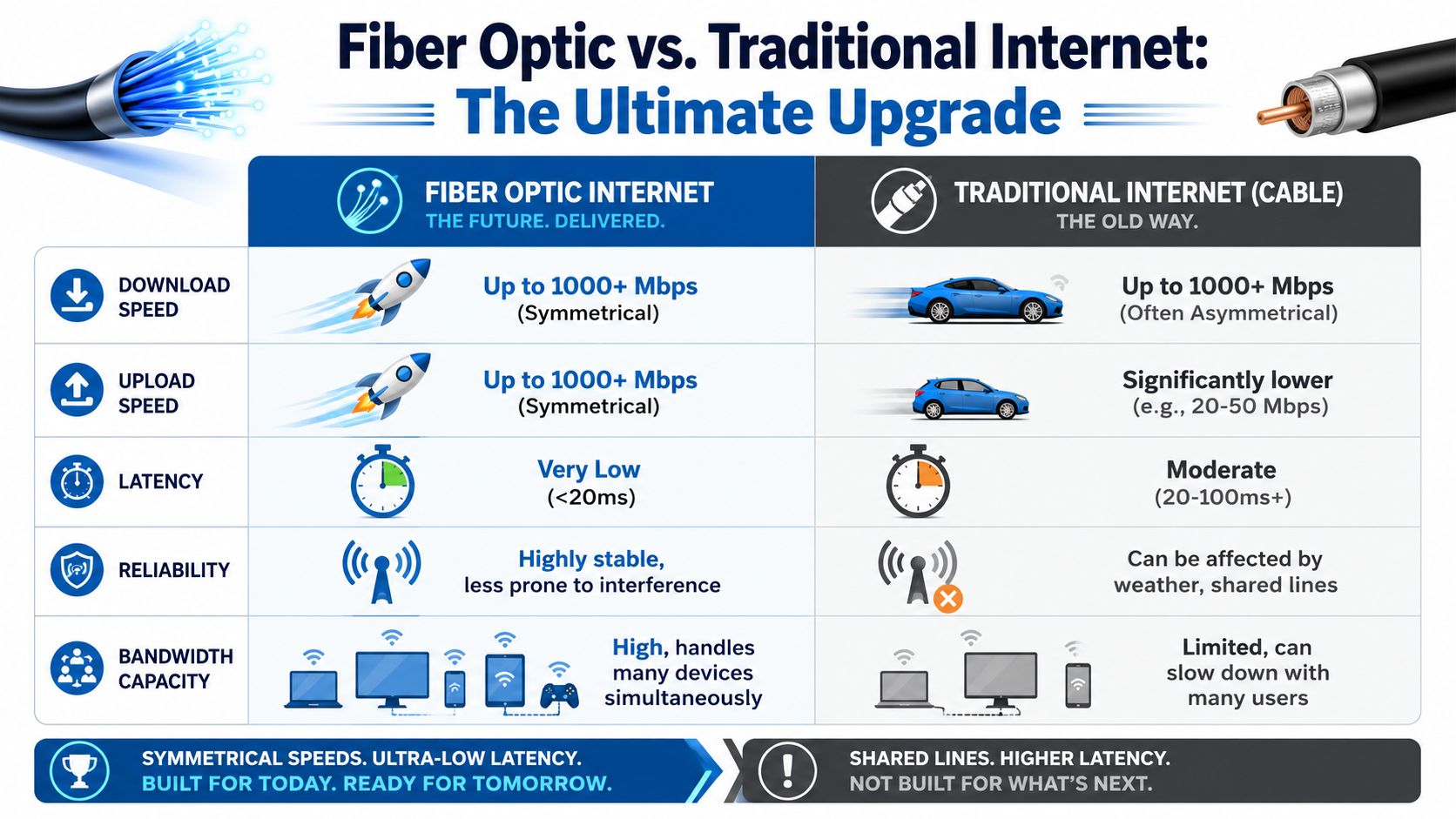
Cable service is often asymmetrical, which means the download side is much faster than the upload side. Fiber can offer symmetrical service, where upload and download are balanced. For a remote worker, that can matter more than chasing a slightly bigger download result.
This short video gives a helpful overview of how to think about internet speed in daily life.
A connection can score well for streaming and still feel weak for work if the upload side is cramped.
A simple way to judge your own result
Ask yourself these questions after a speed test:
- Do calls break up when someone else is online? Upload or jitter may be the problem.
- Do games lag even with a decent download score? Look at latency.
- Does everything slow down at once when the house gets busy? You may need more capacity or better Wi-Fi distribution.
- Do uploads drag while downloads seem fine? Asymmetrical service may be limiting you.
That's where the “feel” of the connection becomes more useful than the headline number alone.
How to Fix a Slow Internet Connection
If your internet speed test result looks disappointing, don't assume the provider is the problem right away. Slow performance usually comes from one of four places: the incoming connection, the router, Wi-Fi conditions in the home, or a single overloaded device.
Provider guidance often stresses the same point. A low score can reflect your Wi-Fi setup rather than the service itself. Testing over Ethernet and checking the in-home environment helps you tell the difference, as explained in Optimum's speed test guidance.
Work through the problem in order
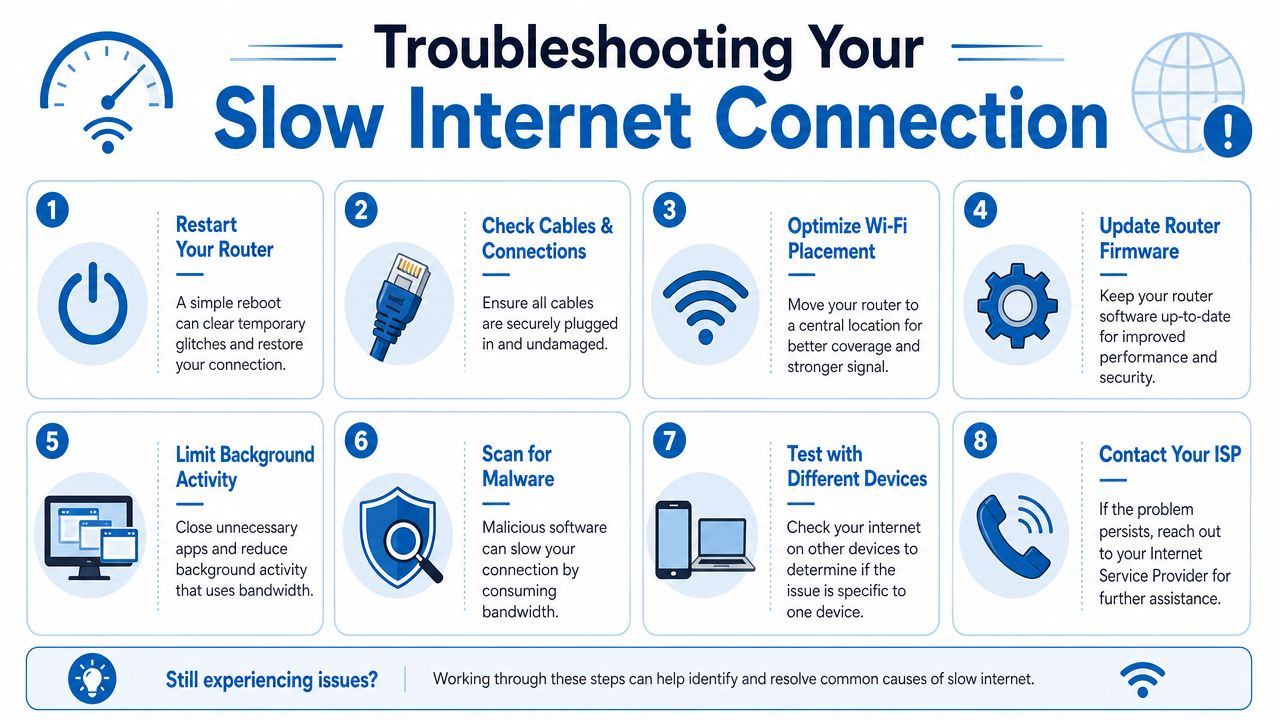
Start simple.
- Restart the equipment. Reboot the modem and router. Temporary glitches do happen.
- Check the obvious physical issues. Loose cables, damaged connectors, and overheating equipment can create odd symptoms.
- Test another device. If one laptop is slow but another works fine, the internet may not be the issue.
- Move closer to the router. A big improvement at short range points toward Wi-Fi coverage trouble.
If the issue clearly follows Wi-Fi, this guide on how to fix slow Wi-Fi can help you narrow it down further.
Common signs of a Wi-Fi problem
These clues often mean the plan is fine but the home network isn't:
| What you notice | Likely cause |
|---|---|
| Good speeds near the router, poor speeds in back rooms | Coverage or placement issue |
| Strong wired result, weak wireless result | Wi-Fi bottleneck |
| Problems at one device only | Device-specific issue |
| Speeds vary wildly by room | Interference, walls, or router location |
Move the router into an open, central space before you do anything expensive. Placement changes more than people expect.
Don't ignore the context of where you use internet
Travel adds another wrinkle. If your slow speeds happen on mobile data while away from home, your troubleshooting steps are different. In that case, a guide to eSIM speed solutions for travelers can help you sort out local coverage, device settings, and data-related slowdowns.
If you've tested on Ethernet, checked Wi-Fi conditions, restarted hardware, and compared devices, you'll have enough evidence to know whether the problem lives inside the house or beyond it. That makes the next support conversation much more productive.
Why Symmetrical Fiber Is the Ultimate Upgrade
Once you understand what an internet speed test is really showing you, one pattern becomes obvious. The connection feels better when performance is balanced, not just fast in one direction.
That's the big advantage of symmetrical fiber. Instead of giving you a strong download lane and a cramped upload lane, it supports both directions evenly. For households that work from home, stream, game, back up files, and run smart devices at the same time, that balance changes daily life more than a flashy download number alone.
Where symmetrical service helps most
Remote workers notice it during video meetings and file transfers. Gamers notice it in responsiveness and steadier online play. Families notice it when one person is uploading work, another is streaming, and nobody's connection falls apart.
Fiber also lines up well with the metrics that shape the “feel” of the internet:
- Stronger upload capacity for calls, cloud work, and media sharing
- Lower latency behavior that helps interactive tasks feel quick
- More consistent performance across many active devices
When the home network matters as much as the plan
Even a fast fiber line can feel poor if the in-home network is weak. That's why managed Wi-Fi matters for some homes, especially larger layouts or houses with signal-blocking walls.
If you're comparing options, services such as Premier Broadband pair fiber internet with managed Wi-Fi tools and home network support, which can help when the incoming service is strong but coverage inside the home still needs work. That's a practical match for people who want fewer moving parts to troubleshoot on their own.
The upgrade isn't just speed. It's a connection that feels dependable when life gets busy.
Taking Control of Your Internet Experience
A good internet speed test gives you more than a score. It helps you separate plan speed from Wi-Fi performance, identify whether upload or latency is hurting your experience, and decide whether the problem is your service, your setup, or both.
If you remember only a few steps, remember these:
- Run one wired test to get a clean baseline
- Run one Wi-Fi test where you use the internet
- Check the full picture of download, upload, latency, and jitter
- Match the results to your real activities, especially video calls, gaming, and uploads
- Troubleshoot the home network before changing plans
That changes the conversation when you contact your provider. Instead of saying “my internet is bad,” you can say your wired result looks one way, your Wi-Fi result looks another, or your upload and latency seem to be the weak points. That gives support teams something concrete to work with.
The goal isn't to become a network engineer. It's to understand enough to make smart decisions. Once you know what the numbers mean and how the connection should feel, you're in control.
If you want a provider conversation that starts with clear information instead of guesswork, Premier Broadband offers fiber internet resources, speed testing tools, and service options designed for households, remote workers, gamers, and businesses that need dependable upload, download, and whole-home connectivity.