
Your video call freezes for two seconds, the other person's voice turns robotic, and then everything snaps back. Your speed test says the connection's fast, so you don't know whether to blame Wi-Fi, the router, or your provider. A ping test local network check answers that first question in minutes, if you test the right target, in the right order, and under realistic load.
Ping Commands for Windows, macOS, Linux and Mobile
You're mid-call, the screen locks up, and you need one useful fact fast. Can your device reach the router, and how long does that round trip take? Ping sends ICMP echo requests and times the replies, so a local test measures the first link, the one you control most.
Every platform shares two steps. Find the default gateway, which is your router's address on the LAN. Then send at least 20 requests, because one or two replies hide spikes and brief dropouts.
Ping Commands and Gateway Lookup by Platform
| Platform | Find the gateway | Counted ping test | Notes |
|---|---|---|---|
| Windows | ipconfig, read Default Gateway | ping -n 20 with the gateway IP | Run in Command Prompt or PowerShell; default is 4 requests |
| macOS | route -n get default, read gateway | ping -c 20 with the gateway IP | Run in Terminal; runs until Ctrl+C without -c |
| Linux | ip route, read the default via address | ping -c 20 with the gateway IP | Runs until Ctrl+C without -c |
| iPhone or iPad | Wi-Fi settings, router address under the network | Network utility app such as Fing | No reliable built-in ping; confirm the app sends repeated requests |
| Android | Wi-Fi details, gateway field | Network tool app such as Fing | Check repeat count and packet size settings in the app |
Windows stops after four requests by default, while macOS and Linux keep going until you press Ctrl+C, so always set the count yourself. On mobile, confirm the app repeats the test rather than sending a single probe.
If you also need to check a public host from outside your LAN, you can diagnose network issues with SiteAlive as a second viewpoint. Write down the gateway IP before you test anything else. You'll use it for every comparison that follows.
Run the Ping Sequence and Find the Faulty Layer
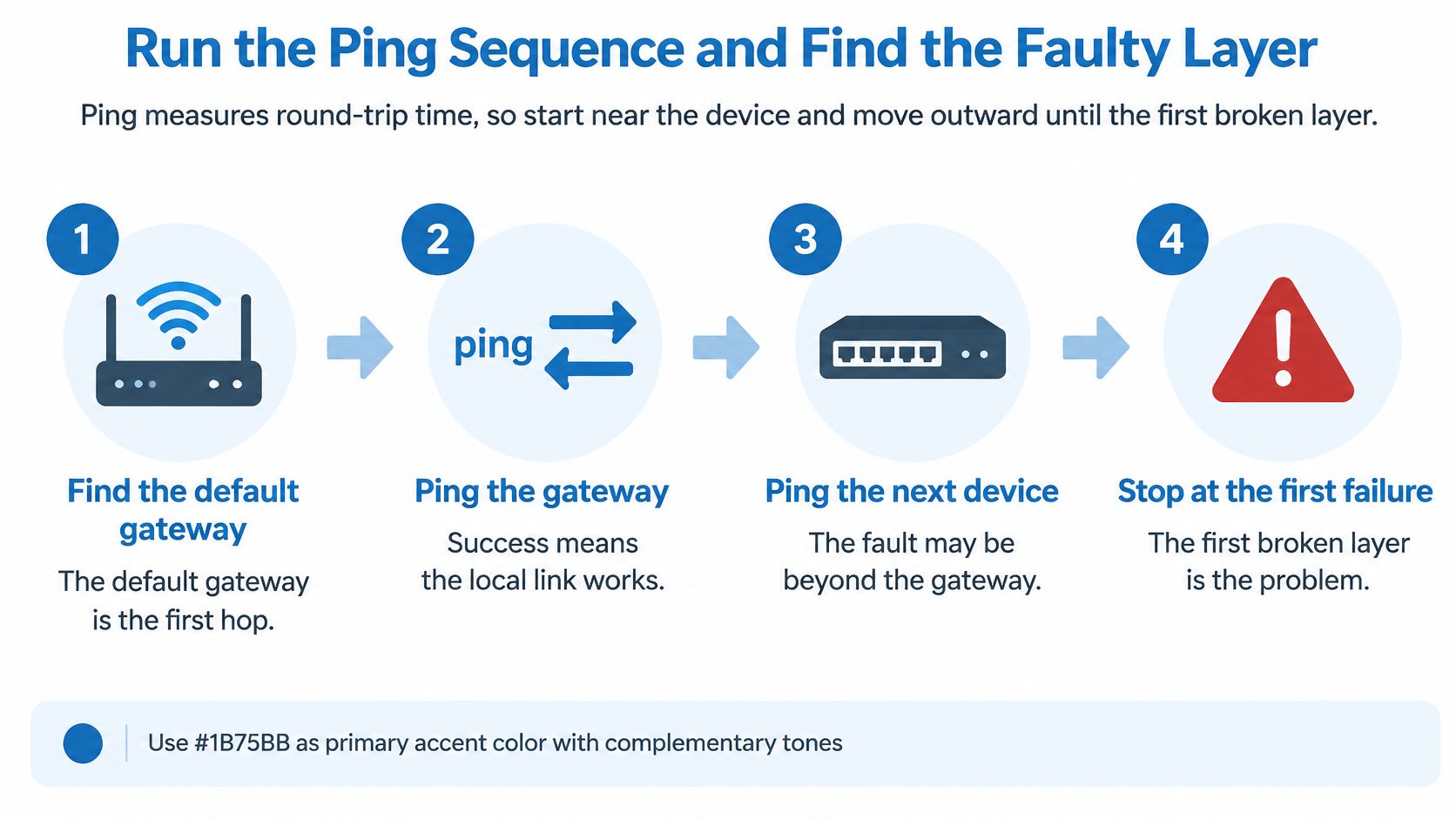
Pinging a random website first tells you almost nothing. If it fails, the fault could sit in your room, at the router, or three networks away. Work outward from the nearest point instead, and stop at the first broken layer.
The sequence below moves one hop at a time, so each result narrows the search.
Steps 1 to 3 Test Your Side of the Router
- Confirm the default gateway. The address you recorded earlier is your first hop and your most important target. If you skipped that step, pull it from ipconfig, route -n get default, or ip route.
- Ping the gateway by IP. Send at least 20 requests and record minimum, average and maximum round-trip time plus packet loss. A clean result here becomes your baseline for everything else.
- Repeat from a wired device. Plug a laptop directly into the router or switch and run the identical test. If wired is clean and Wi-Fi isn't, you've isolated the wireless hop in one move.
Sequence matters. Ping reports round-trip time, the request path plus the reply path, so a slow reply can hide a problem on either leg. Test the gateway first from a wired connection, because every upstream result gets measured against that baseline.
Practical rule: Don't touch the ISP question until the gateway test is clean from a wired connection. Everything upstream is guesswork until then.
Steps 4 to 6 Move Outward Past the Router
- Ping another LAN device. Pick a printer, NAS, or smart TV. Find its address on the router admin page or with arp -a, then run the same counted test. Loss here, with a clean gateway result, points at that device's link or its switch port.
- Ping past the router, then outside. Run tracert on Windows or traceroute on macOS and Linux to find the first hop beyond your router. Ping that address, then one stable external address, using the same count and packet size so the numbers compare fairly.
- Go deeper with pathping if needed. On Windows, pathping or repeated tracert pings show where loss begins along the path. Try default packets first, then larger non-fragmented payloads, since size-related failures don't show up in a short default test.
Read hop results with care. Loss at one intermediate router that clears at later hops usually means that router deprioritizes ICMP replies, not that it's dropping your traffic. Loss that starts at one hop and continues to the destination is the pattern that matters.
Run every test at the same time of day with the VPN off, and log each run in a small table with target, count, average, maximum, and loss. I'd rather see four comparable runs than one long, unlabeled output pasted into a notes app.
Symptom-to-Location Map for Ping Results
| Symptom | Likely location | First check |
|---|---|---|
| Gateway loss or spread on Wi-Fi only, clean on wired | Wi-Fi link | Move closer to the access point, then retest on a wired connection |
| Gateway clean, external hosts slow or lossy | ISP or upstream path | Run pathping and check which hop starts the loss |
| Gateway loss on a wired connection | Cable, switch port or router | Swap the cable and try another switch port |
| Clean when idle, bad during uploads or downloads | Queueing under load | Repeat the loaded test and cap upload speed |
| Only ICMP to external hosts fails, web pages load | ICMP filtering or rate limiting | Confirm with a TCP or HTTP check, not ping alone |
The decision rule is simple. Gateway loss or wide spread means the fault is on your side. A clean gateway with slow external hosts means the problem sits upstream, and that's when provider evidence starts to matter. A clean gateway also proves only that the local hop is sound, not that a call will hold up while someone uploads a large file. That test comes later.
Reading Latency, Jitter and Packet Loss Numbers
A ping result is a statistical summary of many small measurements, not a pass or fail stamp. The pattern across those replies tells you more than any single line.
Healthy, Watch and Act Ranges for a Local Gateway Ping
| Metric | Healthy | Watch | Act now |
|---|---|---|---|
| Packet loss to gateway | 0% | Above 0% to 1% | Above 1% sustained |
| Average RTT, wired | Under 5 ms | 5 to 10 ms | Above 10 ms steadily |
| Average RTT, Wi-Fi | 5 to 20 ms | 20 to 40 ms | Above 40 ms steadily |
| Min to max spread | Within 5 ms | 5 to 20 ms | Above 20 ms and widening |
| Jitter | Under 5 ms | 5 to 30 ms | Above 30 ms |
Use the table as a first filter, not a scorecard. Wired devices should sit near 0% loss with single-digit times. Wi-Fi runs higher and wider, and that spread is normal up to a point. What matters is whether the numbers stay in the same band across repeated runs.
Read a summary line by its parts. As Wayne Pollock's ping reference illustrates, 5 packets transmitted and 5 received represents 0% loss, while round-trip values of 8 ms minimum, 10 ms average, and 16 ms maximum show both typical delay and short-term variation. The average gives you the baseline. The maximum tells you how bad the worst reply was. The gap between them is where jitter and queueing show up first.
A stable 12 ms average beats a 6 ms average that spikes to 80 ms. Calls and games feel the spikes, not the average.
A device can answer every request and still perform badly if its times swing widely. Reachability and performance are separate questions, and ping's summary answers both only when you read loss and spread together.
Three numbers predict call and game trouble: loss above 1%, jitter above 30 ms, and a min-to-max spread that keeps widening across runs. A single run that clears those thresholds does not prove the line is ready. A clean idle ping only proves the path is quiet at that moment. Loaded runs are where gaming and VoIP problems show themselves.
Latency here is round-trip, so wireless interference, queuing, device processing, and firewalls that deprioritize ICMP can all raise the numbers. Continuous monitoring, the kind used for network visibility for East Midlands businesses, records these values over days and weeks. Ping tells you what the line is doing right now. Monitoring tells you whether the pattern is getting worse. A single clean run is a snapshot, not a verdict.
Testing Under Load for Gaming and Video Calls
A low idle ping can hide the exact problem you're chasing. Testing a quiet network, seeing a tidy number, and stopping misses it, but calls don't break on a quiet network. They break when someone's uploading photos in the next room.
This comparison of idle and busy conditions is the test worth setting up properly.
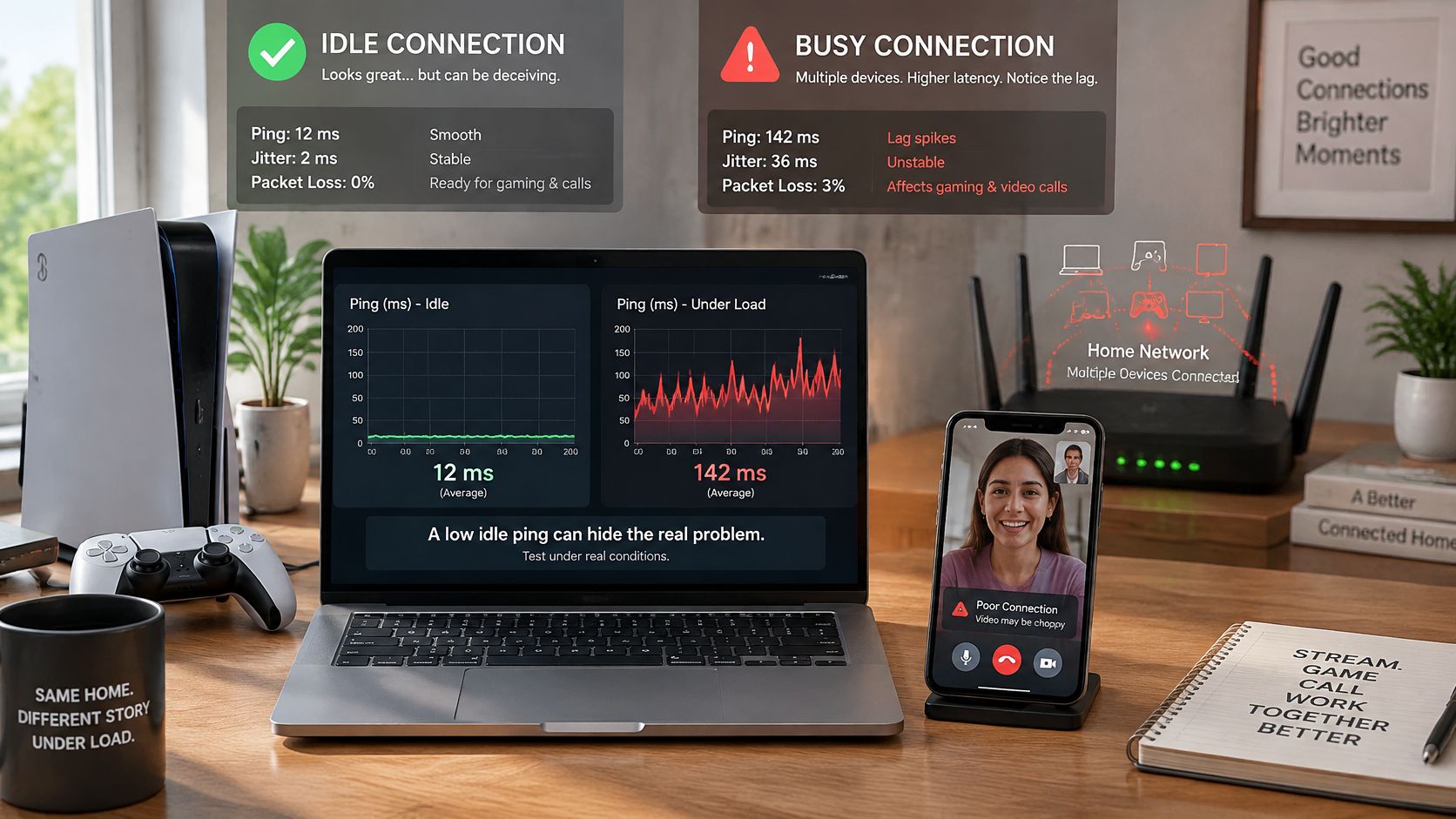
The usual culprit is bufferbloat, excessive queueing when the connection is busy. Cloudflare's speed test methodology identifies bufferbloat as a major cause of degraded real-time performance and notes that gaming and video conferencing can be more sensitive to latency, jitter, and packet loss than to raw bandwidth.
Run the Two-Window Loaded Test
- Idle window. Ping the gateway and one external address for two minutes while nothing else is running.
- Start a real upload. Kick off a cloud backup, a file sync, or a game update, something that saturates the connection the way your household does.
- Loaded window. Keep pinging both targets for two more minutes during that upload.
- Compare the windows. Line up minimum, median, and worst-case latency, plus jitter and loss, side by side.
Say your idle average is 12 ms and it jumps to several hundred milliseconds during the upload. That pattern means the router's buffer is filling and your call traffic is waiting in line behind bulk data. A fast fiber plan doesn't prevent this. Queueing happens at whatever speed the link fills up.
This walkthrough shows the idle-versus-loaded comparison being run live.
Fixes to try first, in order. Pause the upload and retest to confirm the cause. Cap upload speed in the backup or sync app. Enable QoS or smart queue management in the router if it offers it, and prioritize the device you take calls on. I'd start with the upload cap, since it's free and reversible in seconds.
Fixes for Wi-Fi, Cabling and Router Problems
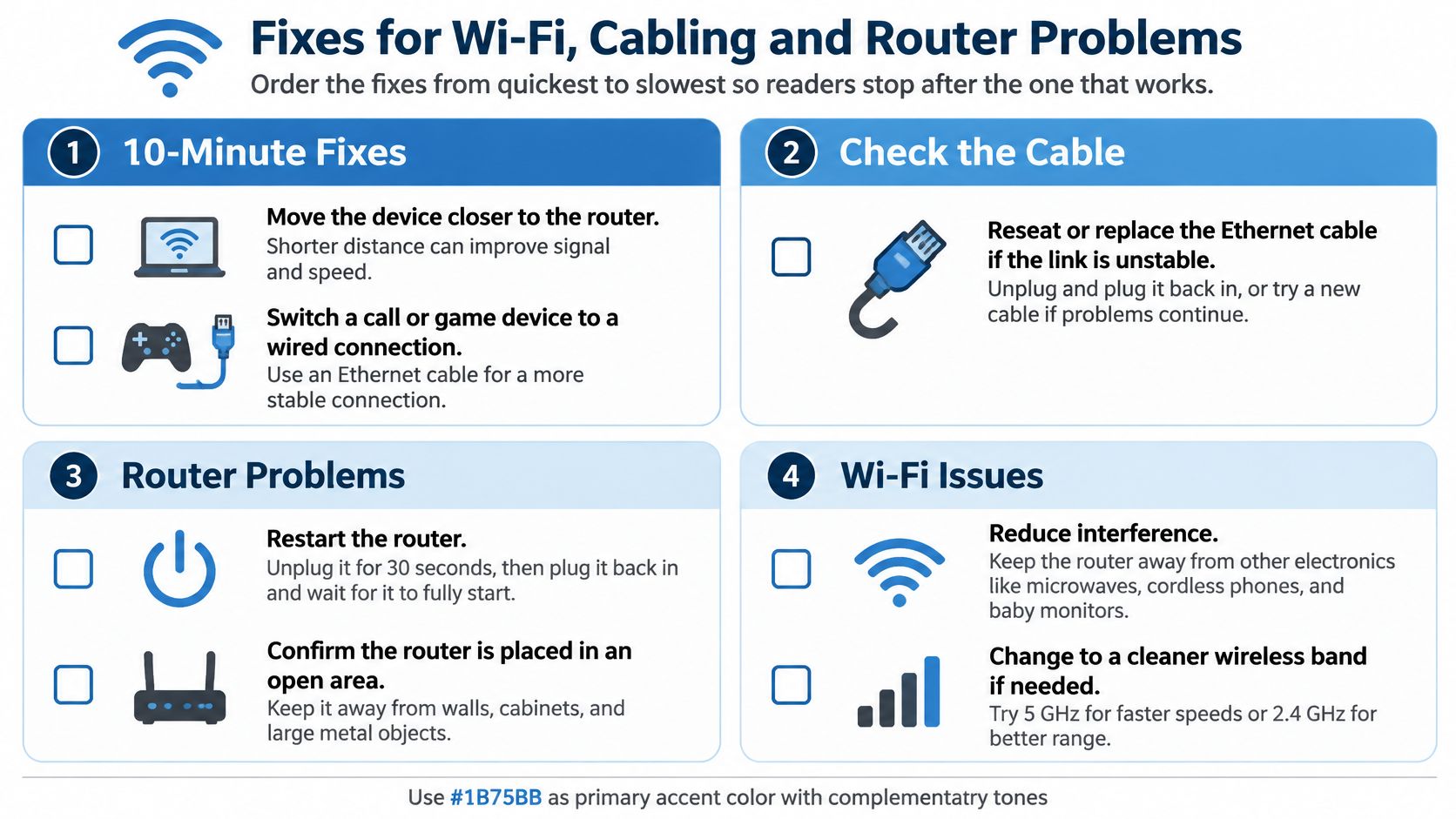
Work through these in time order and retest after each one. There's no prize for doing all of them. Stop when the gateway numbers come back into range.
The checklist below groups the fixes by how long they take.
Ten-Minute Fixes
- Move closer to the router: Distance and walls are the cheapest variables to eliminate, so test from the same room first.
- Go wired for the call device: A cable removes the wireless hop entirely, which suits a desk setup that never moves.
Thirty-Minute Fixes
- Switch bands: Move from a crowded 2.4 GHz network to 5 GHz where coverage allows. You'll trade some range for a cleaner, faster link.
- Change the channel: If neighbouring networks crowd your current channel, pick a quieter one in the router settings and retest from the problem room.
One-Hour Fixes
- Reboot and update: Restart the router, then install pending firmware updates, which occasionally fix queueing and stability bugs outright.
- Replace suspect cables: A damaged Ethernet cable causes exactly the intermittent wired loss that's hardest to explain, so swap it before suspecting the router.
- Reposition the router: Put it in a central, higher spot, away from microwaves and thick walls, rather than on the floor in a corner.
Say a home office laptop sits on 2.4 GHz channel 6 beside three neighbour networks and shows 3% loss to the gateway. Moving the router closer and switching that laptop to 5 GHz could plausibly bring loss to 0% and jitter under 5 ms, which is the kind of before-and-after your log should capture.
If idle numbers are clean after these fixes but calls still break up, the fault isn't placement or cabling. Run the loaded test and work on upload and queueing instead. Any fix that changes hardware or the line itself needs a retest with the same count and packet size, or you're comparing two different measurements.
Confirm the Fault Before You Call for Help
Make the call when your log shows the fault sitting on the ISP side, or when local fixes don't bring the numbers into range. Calling earlier wastes your time. You'll be asked to reboot the router and run the very tests you've already done.
What support actually needs: Gateway averages, external averages, loss percentages, loaded-test results, and the time of each run. That log shortens the call more than any description of the problem.
A useful log fits on one page. For each run, note the target, whether you were wired or on Wi-Fi, the average and maximum times, loss, and whether the network was idle or loaded. Add what you changed between runs, since "I moved the router and loss dropped" is actionable in a way that "it's slow sometimes" isn't.
If you're a Premier Broadband customer, start with the CommandIQ app, where you can set up your WiFi, set prioritization of all your devices and applications, and resolve connectivity issues. Our technical support is available 24/7, and you can call us at (877) 828-9280 with your log in hand.
Don't close the case on a clean idle ping alone. A loaded test that stays clean is the strongest evidence that your network is ready for video calls and gaming, because that's the condition your calls run under.
If your log points upstream, or your current connection can't hold up under load, Premier Broadband delivers 100% fiber internet with symmetrical speeds built for video calls, gaming, and remote work, backed by support that can work from the numbers you've collected. Visit Premier Broadband to check plans for your home or business and get a connection that stays steady when the network gets busy.