
You put a call on speakerphone so you can keep typing, and the other person starts hearing their own voice. You lower the volume and it clears up. Then you both laugh or start speaking together, and the echo returns.
That pattern doesn't necessarily mean your internet connection is failing. Speakerphone echo cancellation depends on the speaker, microphone, room, and audio processing working together. The useful question isn't just whether cancellation is switched on. It's what changes when the echo appears.
How Echo Cancellation Works on a Speakerphone
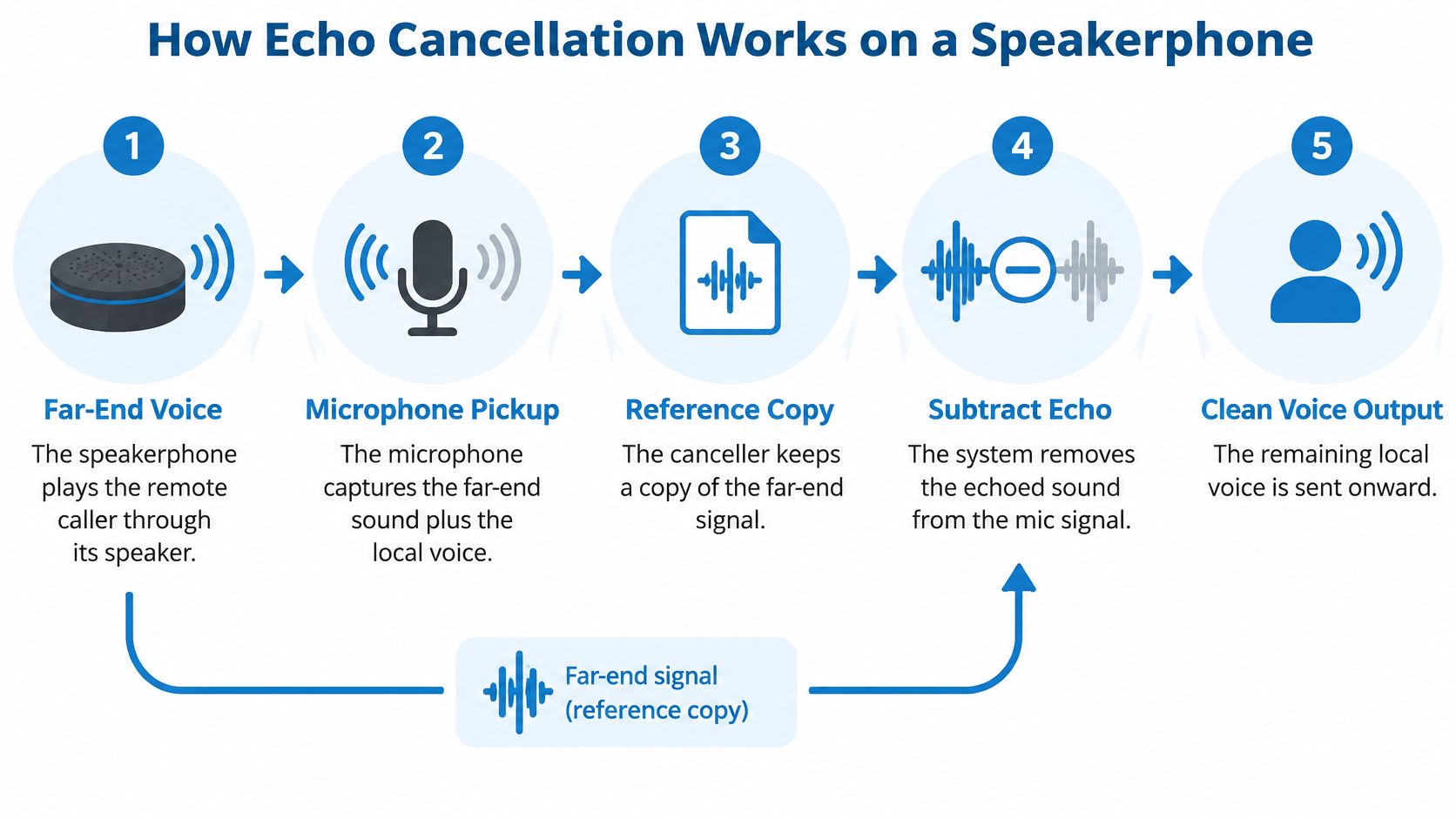
The far-end voice is the person you're calling. Your speakerphone plays their voice aloud, and your microphone captures some of that playback along with your own speech. Without processing, the device sends the mixture back, so the caller hears themselves.
The canceller keeps a reference copy of the audio sent to the speaker. It uses that copy to estimate what the microphone will hear after the sound passes through the speaker and reflects around the room. Then it subtracts the estimated echo from the microphone signal.
Think of someone in a canyon learning the delay and tone of their own reflected voice. They could mentally distinguish the reflection from a new sound. A canceller does something similar mathematically, continually updating its estimate.
The diagram traces the signal from playback to the voice sent onward.
What the processing stages do
- Adaptive filtering: A linear filter learns the echo path and subtracts the predictable portion.
- Residual-echo suppression: A subsequent stage reduces what the filter misses, including components it can't accurately model.
- Double-talk detection: When both people speak, a detector can slow or freeze filter adaptation so your voice doesn't corrupt the echo estimate.
Double-talk is difficult because the microphone contains wanted speech and unwanted echo simultaneously. If the system mistakes your speech for echo, it may remove syllables or make you sound distant. If it protects your speech too cautiously, some echo may escape.
Microsoft Research's paper on separating echo cancellation from noise and residual-echo removal found less near-end speech distortion and better double-talk performance at the same complexity.
Practical distinction: Echo cancellation removes returned playback. Noise suppression reduces unwanted background sound. Beamforming uses microphone signals to emphasize a direction. They aren't interchangeable settings.
The reference signal, adaptive filter, residual suppressor, and double-talk control must cooperate. Moving the device, raising playback volume, or introducing additional audio processing can change the relationship they've learned.
Causes of Speakerphone Echo and How to Spot Them
Ask the other person to describe what they hear while you change just one condition. Note whether the problem follows loud playback, overlapping speech, a delayed repeat, or a metallic tone.
Echo symptoms, likely causes and quick tests
| Symptom heard | Likely cause | Quick test |
|---|---|---|
| Echo only when speaker volume is high | Acoustic coupling: speaker sound re-enters the microphone | Lower playback to a comfortable listening level without changing microphone gain |
| Echo returns when both people talk | Double-talk failure: canceller clips or lets echo through | Take turns speaking; if echo stops, retest on a headset |
| Own voice returns late as a separate repeat | High total latency involving Bluetooth, USB audio, or network congestion | Switch to wired audio and run a latency check |
| Echo sounds metallic, robotic, or distorted | Nonlinear distortion from a weak speaker or heavy processing | Disable optional audio enhancements and try another speaker |
| Echo fades but background sound is cut out | Over-aggressive noise suppression, possibly alongside residual echo | Reduce the suppression level and retest |
| Echo appears only after a device change | Possible conflict between operating-system enhancements and the app's processing | Turn off optional system-level audio enhancements and compare |
Distinguish a repeat from damaged speech
A recognizable copy of a sentence points toward echo. A gritty buzz on loud syllables suggests clipping or speaker distortion instead. A hollow, bathroom-like sound may be room reverberation rather than a separate returned voice.
These clues narrow the diagnosis; they don't prove it. Metallic speech can also accompany network problems, and a device change can select the wrong microphone rather than create a processing conflict. Check the app's selected input and output before blaming its cancellation.
Who hears the echo matters, too. If your caller hears their own voice, investigate your playback-to-microphone path first. If you hear yourself, ask them to run the same checks at their end.
Describe the symptom before changing the setting. “My last words come back after I finish” is more useful than “the audio is bad.”
Read the table from top to bottom because the simplest, least disruptive checks come first. Keep the same caller and speaking pattern during each comparison so an apparent improvement isn't just a different conversation.
Latency, Coupling and Placement That Shift Results
Delay affects how obvious a returned voice sounds, but delay alone doesn't create acoustic echo. There must also be a return path. A stable delay can be modeled by a suitable canceller; changing timing or poor reference alignment makes that job harder.
Bluetooth devices, USB interfaces, drivers, and calling software can each introduce buffering or processing. Don't assume every USB device is slow or every wired device is delay-free. Compare the actual paths available on your equipment.
Performance factors and their effect on echo
| Factor | Target or range | Effect on echo |
|---|---|---|
| One-way delay | Low and stable, without disruptive conversational lag | Longer total delay makes returned speech more distinct; unstable alignment complicates cancellation |
| Bluetooth audio path | Compare with a wired alternative | Wireless buffering and device processing may change timing |
| Microphone-to-speaker distance | For separate components, increase separation while keeping the microphone near the talker | Close placement can strengthen playback pickup |
| Speaker volume | Comfortable listening level, with headroom below distortion | Louder playback increases the sound reaching the microphone |
| Room reverberation | Choose a furnished space with fewer exposed reflective surfaces | Long reflections can exceed what the filter models effectively |
| Microphone angle | For directional microphones, place the speaker away from the pickup direction | Direct exposure can increase acoustic coupling |
Arrange the room around the talker
With separate speakers and a microphone, prioritize a clear voice at the microphone rather than filling the room with playback. Position a directional microphone toward your mouth and away from the loudspeaker. Don't block the microphone openings on an integrated speakerphone or try to rearrange its internal geometry.
Keep the device out of shelves and tight desk recesses. Avoid placing it directly against a wall or on a surface that rattles during playback. Curtains, upholstered furniture, and rugs can reduce reflections, although they won't repair faulty processing.
A useful placement lets everyone speak naturally without requiring maximum playback volume. If a large table forces people to shout from a distance, a headset or a speakerphone suited to that seating arrangement may be more practical.
A faster internet connection can't remove local acoustic coupling. Establish sensible placement and playback first, then investigate network timing if conversational delay remains.
Troubleshooting Steps and Pre-Call Checks
Use a cooperative caller who can tell you whether the returned voice improves. Change one variable at a time, and keep a change only when it produces a repeatable improvement without damaging speech.
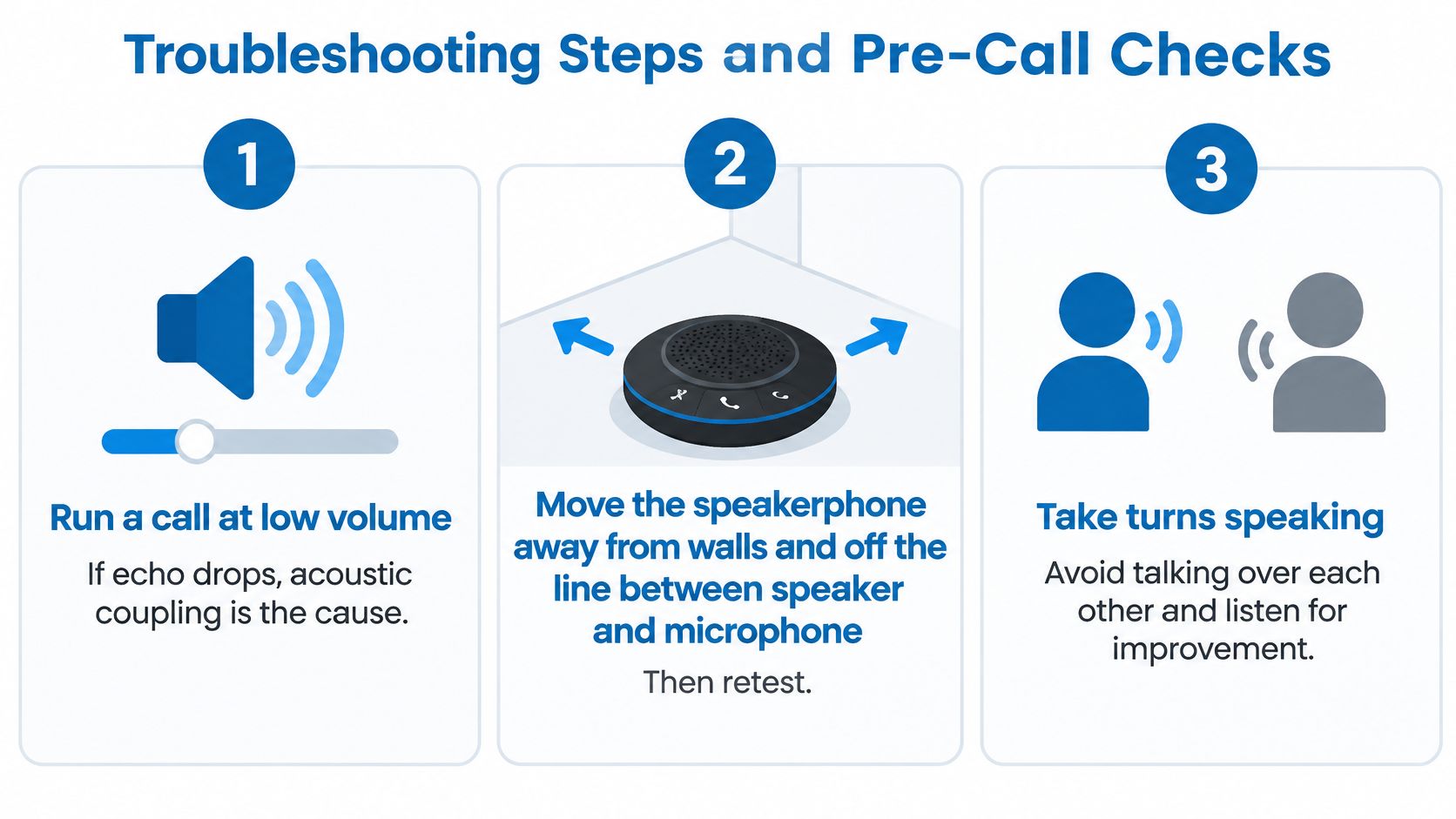
The checklist illustrates the initial physical checks.
Isolate the cause on the same call
Start with quieter playback. Ask the caller to speak while you remain silent, then lower the speaker volume. Clearly reduced echo points toward playback pickup or volume-related distortion, though it doesn't distinguish those causes by itself.
Change the position. Move the speakerphone away from the wall, a monitor recess, or a resonant desk panel. With separate components, move the speaker out of the microphone's direct pickup direction. The expected improvement is less returned speech while your voice stays clear.
Compare turn-taking with overlap. Speak separately, then deliberately interrupt each other with ordinary sentences. If only the overlap causes missing words or echo, you've isolated a double-talk weakness. Try a headset and check whether both voices remain intelligible.
Simplify optional processing. Disable operating-system enhancements as a comparison, leaving the app's echo cancellation enabled where available. Test noise suppression separately at a moderate setting. Listen for complete words, not just a quieter background.
Compare audio connections. Replace Bluetooth with a wired headset, or bypass a suspect USB adapter using a compatible alternative. Call the same person again. Improvement suggests the previous device path contributed timing, routing, or processing problems; it doesn't prove wireless delay was the only cause.
Substitute the device. Try a different headset or speakerphone without changing the room or network. If harshness and echo disappear together, inspect the original device's playback level, firmware, and drivers before replacing it.
Check the network independently. Use your calling app's call-health panel or a network diagnostic tool to inspect latency, jitter, and packet loss. Compare under normal household use and while uploads are paused. Improvement here supports a network contribution, especially when dropouts or conversational lag accompany the echo.
Prepare the setup you'll actually use
Before an important call, close duplicate meeting sessions and confirm that another nearby device isn't also playing the conversation aloud. Select the intended microphone and speaker, keep playback comfortable, and ask your test caller to listen during interruptions.
Our Premier Soft Phone lets customers make or receive calls from a desk phone, PC or Mac, and mobile devices. When comparing those options, note which device and audio accessory you used so you can reproduce the clearer setup.
Keep a working baseline: Save the device names and processing choices that pass your test. If a later change introduces echo, you'll have a known configuration to restore.
Testing Whether AI Echo Cancellation Really Helps
AI doesn't automatically mean better speakerphone echo cancellation. A system can remove more returned sound yet make your own speech less natural. The relevant result is whether people can understand each other in your room, especially when they interrupt.
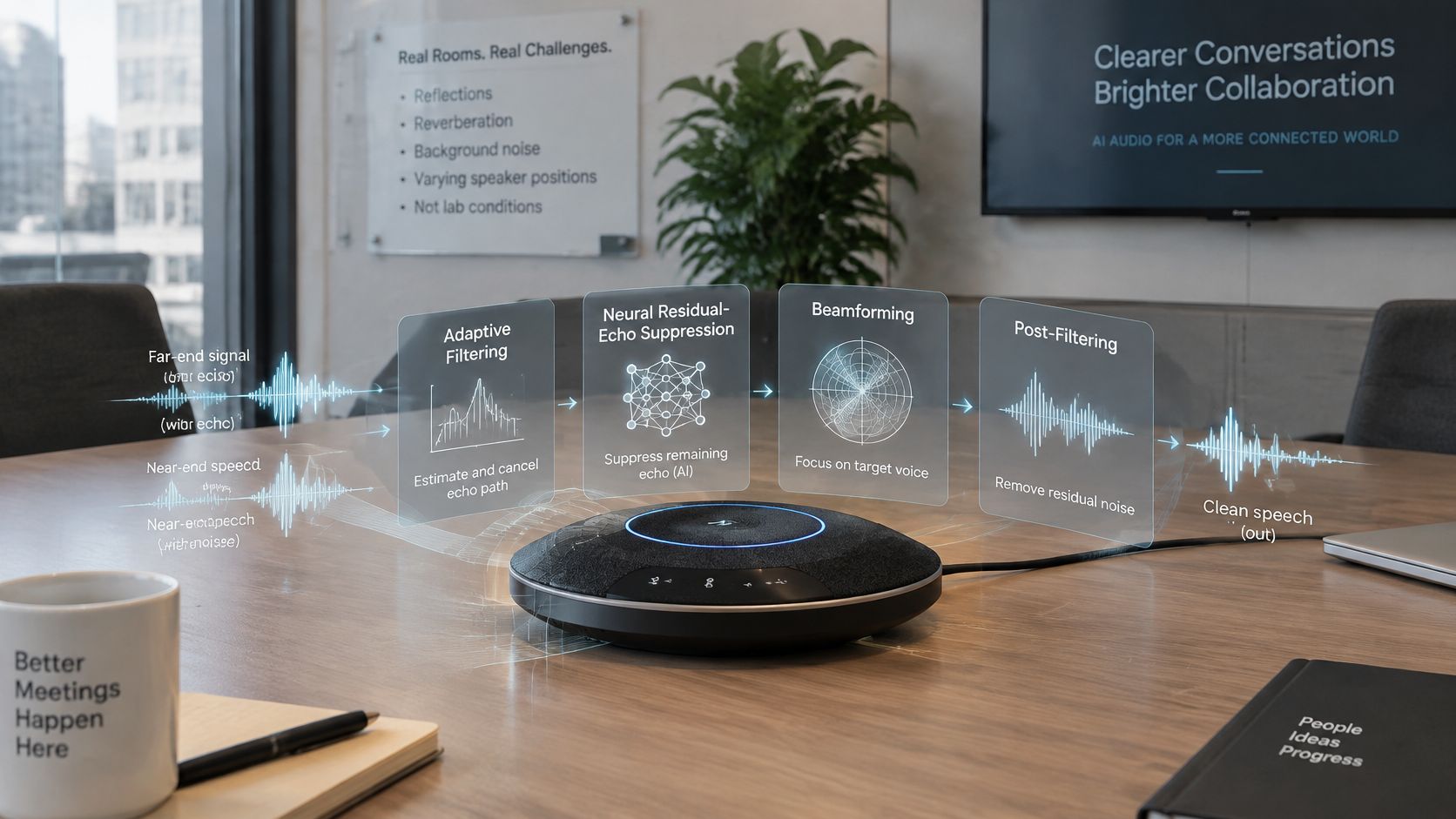
An AI-enabled speakerphone still needs a suitable acoustic setup.
Compare speech, not feature labels
Hybrid systems can combine adaptive filtering with neural residual-echo suppression, beamforming, and post-filtering. An arXiv paper on neural-network-controlled acoustic echo cancellation and beamforming reported a PESQ improvement of 0.63 from neural-network-controlled cancellation and a further 0.29 from beamforming, while emphasizing rapid adaptation during double-talk. Those are speech-quality evaluation results, not a guaranteed improvement for every household.
Use a remote helper, or a second phone in a separate room, and compare AI processing enabled and disabled. If you record the test, get everyone's agreement first. Start with clean speech, then add quiet music and repeat the same speaking patterns.
- Double-talk clarity: Can both people understand complete sentences during overlap?
- Residual echo: Does either person hear recognizable words returned?
- Delay: Does the processing make responses feel noticeably later?
- Speech distortion: Do syllables disappear, warble, or become unnaturally thin?
This video offers an additional reference for exploring echo cancellation.
Check whether processing runs locally or sends audio to a cloud service, and review the product's privacy documentation. On a computer, watch for increased CPU use or audio instability while your normal work applications are open.
Repeat the comparison after moving the device and with television or music audible. AI processing is worth keeping when it passes the listening checks in your actual setup, not because its label promises clearer calls.
Configuration Settings for Reliable Calls
A reliable configuration is one you can reproduce. Open the calling app's audio settings and your operating system's sound panel, then record the selected devices before making changes.
Choose a stable audio path
| Setting | Recommended starting point | What to verify |
|---|---|---|
| Echo cancellation | Keep the app's cancellation enabled; compare with optional system enhancements disabled | Speech remains clear during overlap |
| Noise suppression | Moderate or the least aggressive effective option | Quiet words and sentence endings survive |
| Microphone and speaker selection | Choose named devices rather than relying on system defaults | The app uses the equipment you intended |
| Connection type | Use a wired or USB setup that passed your comparison | No distracting lag or adapter-related artifacts |
| Playback level | Set a comfortable level before the conversation | The speaker doesn't distort |
| Automatic device switching | Avoid unintended changes during the call | Connecting another accessory doesn't reroute audio |
Don't assume you can disable every processing layer. Some speakerphones apply internal cancellation automatically, and some calling apps don't expose a separate switch. Use the manufacturer's supported configuration rather than trying to strip out processing blindly.
Likewise, maximum noise suppression isn't a universal upgrade. Choose the setting that preserves your voice while controlling the actual background disturbance. If a setting makes the room silent but clips your sentence endings, it hasn't improved the conversation.
Confirm before saving
Run a test call with someone who can listen critically. Include quiet speech, normal speech, and deliberate interruptions, then ask separately about echo and intelligibility. Keep each successful change and note the final device names and settings.
Run network diagnostics separately so you don't confuse a device adjustment with an improvement in connection conditions. Your final acceptance test is straightforward: both people can speak naturally, including at the same time, without a distracting returned voice or missing words.
Premier Broadband offers fiber internet and VoIP services for homes and businesses, supporting the connection side of reliable calling while you fine-tune your audio setup. Visit Premier Broadband to explore internet and voice options for your home office or business, and keep your tested speakerphone configuration ready for the next call.