

When your calls get choppy or drop out of nowhere, it can feel like your business grinds to a halt. The good news is that the fix is often surprisingly simple. Your first moves should always be the easiest ones: check the physical connections, power cycle the phone that's acting up, and then reboot your router and modem. You'd be amazed how many SpectrumVoIP issues this solves without ever needing to call support.
Your First Moves When Call Quality Drops
Bad call quality is a hurdle every business using VoIP faces at some point. Before you start digging into complex network settings, always start with the basics. Many problems that feel like a major outage are really just simple, overlooked things you can fix in a few minutes. This is all about finding the root of the problem quickly and getting back to work.
First things first, check the hardware. Is the Ethernet cable clicked securely into the phone and the wall jack? Does the phone have power? A loose cable is one of the most common reasons a phone suddenly drops offline or has spotty connection.
Power Cycling Your Equipment
If all the cables are snug, the next step is a simple "power cycle"—just a fancy way of saying turn it off and on again. Start with the single VoIP phone causing the trouble. Unplug it from its power source, wait a full 60 seconds, then plug it back in. This gives the phone a chance to completely reset its internal software.
If that doesn't fix it, or if multiple people are having issues, it's time to reboot your network gear. Restarting your router and modem can clear out temporary glitches that cause packet loss or jitter, which are the two main culprits behind terrible call quality.
Pro Tip: Always restart your network equipment in the right order. Power down both the modem and the router. Wait about a minute, then power on the modem first. Give it a few minutes to fully connect (all the lights should be stable) before you power the router back on.
To help you stay organized, here’s a quick checklist for those initial troubleshooting steps.
Quick Troubleshooting Checklist for Common VoIP Issues
This table breaks down the most common symptoms and the very first thing you should try. It's a simple way to rule out the easy stuff before moving on to more complex diagnostics.
| Symptom | First Action Step | What It Rules Out |
|---|---|---|
| No Dial Tone / Phone Offline | Check Ethernet cable connection and power source. | A loose physical connection or power issue. |
| Choppy or Robotic Audio | Power cycle the individual phone (unplug for 60s). | A temporary software glitch on the phone itself. |
| Calls Dropping | Reboot the router and modem (modem first!). | Minor network congestion or a router glitch. |
| Can't Make Outbound Calls | Check if other users on the network can make calls. | An isolated issue vs. a network-wide problem. |
By running through these quick checks, you can often identify and solve the problem yourself, saving you time and frustration.
Isolate the Scope of the Problem
Figuring out who is affected is a huge clue. Just ask around the office to see if anyone else is having the same problem.
- Just one person? The problem is almost certainly their phone, their cable, or the port their desk is plugged into.
- A few people in one area? This could point to a problem with a local network switch or something specific to your office network.
- Everyone is down? This suggests a bigger issue, maybe with your main internet connection or the VoIP service itself.
Having this information ready is key. As a provider with over 200,000 users since its start in 2007, SpectrumVoIP support is ready for complex problems, but giving them these details from your own checks makes their job easier and gets you a solution faster. If you want to dig a bit deeper yourself, you can explore some common network diagnostic utilities to gather more specific data.
Pinpointing the Root Cause of Poor Calls
When a simple reboot doesn’t fix your call quality, it’s time to look a little deeper at your network’s health. Annoying issues like robotic voices, one-way audio, or echoes aren't just random glitches; they’re clear symptoms of specific network problems. Once you know what to look for, you can stop guessing and start diagnosing.
The usual suspects behind poor VoIP calls are not enough bandwidth, high latency, and something called jitter. Just think of bandwidth as the width of a highway, latency as the time it takes to get from A to B, and jitter as random traffic jams that make the travel time unpredictable. If that highway is too narrow or the trip is too slow and unreliable, your call quality is going to suffer.
This decision tree is a great starting point for troubleshooting the moment you notice a drop in call quality.
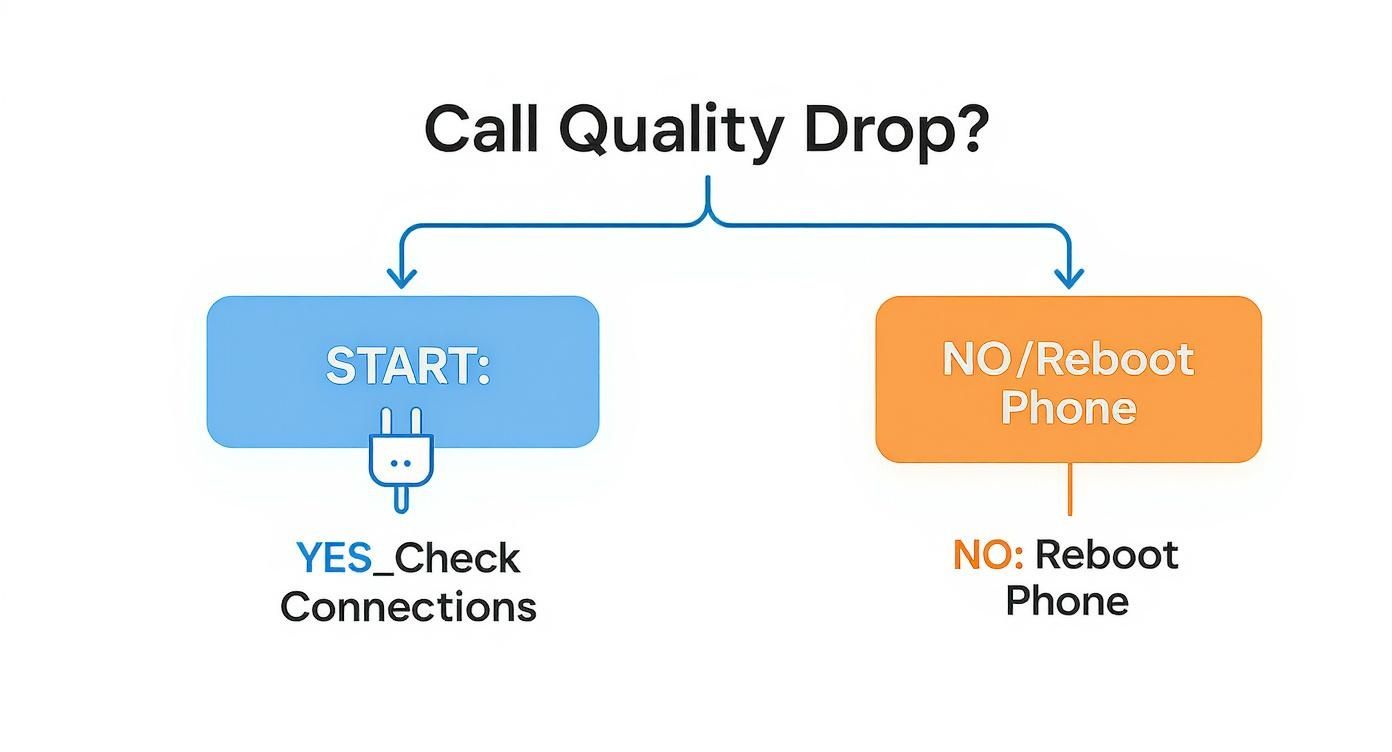
As the chart shows, your first move should depend on the scope of the problem—guiding you to either check physical connections or just try a quick reboot before digging in further.
Understanding Key Network Metrics
To really get a handle on your network’s performance, you need to check a few key numbers. These metrics will tell you exactly where the trouble is.
- Latency (Ping): This is the round-trip time it takes for data to go from your network to a server and back, measured in milliseconds (ms). For VoIP, you want this to be under 150ms. Anything higher causes those awkward delays where you end up talking over each other.
- Jitter: This measures the variation in your latency. VoIP needs a steady, consistent delivery of data packets to sound clear. High jitter—which should ideally be below 30ms—is what makes voices sound jumbled, cut-out, or "robotic."
- Packet Loss: This is the percentage of data packets that get lost on their way to the destination. Even a tiny amount, like 1% packet loss, can seriously mess with your call quality.
A simple internet speed test that also shows these advanced metrics gives you the hard data you need. If your latency is sky-high but your download speed is fine, you know the problem isn’t bandwidth—it’s the stability of your connection.
Connecting Symptoms to Causes
Once you have this information, you can start connecting the dots between what you're hearing on the phone and what the network data is telling you. This helps you have a much more productive conversation with your internet provider or the SpectrumVoIP support team.
For instance, if you're trying to figure out why voices are cutting in and out, you’ll want to have a good understanding of network jitter and its effects on call quality. Jitter is almost always the direct cause of that particular problem.
Another common troublemaker is a router setting called SIP ALG (Session Initiation Protocol Application-Level Gateway). It’s designed to "help" VoIP traffic, but more often than not, it ends up corrupting the data packets, leading to one-way audio or dropped calls. If you're running into those specific issues, checking this setting is a must. You can learn more about it in our guide on what SIP ALG is and why it's a problem: https://premierbroadband.com/what-is-sip-alg/. Simply finding and disabling it in your router settings can often fix the problem instantly.
Optimizing Your Network for Flawless VoIP
Once you've ruled out the basic connection problems, it's time to look a little deeper and fine-tune your network. Think of your internet connection as the highway for your calls. Any traffic jams, weird detours, or bottlenecks will immediately impact your call quality.
Getting your network settings dialed in is often the single most effective thing you can do to fix persistent call issues before you even have to think about calling SpectrumVoIP support.
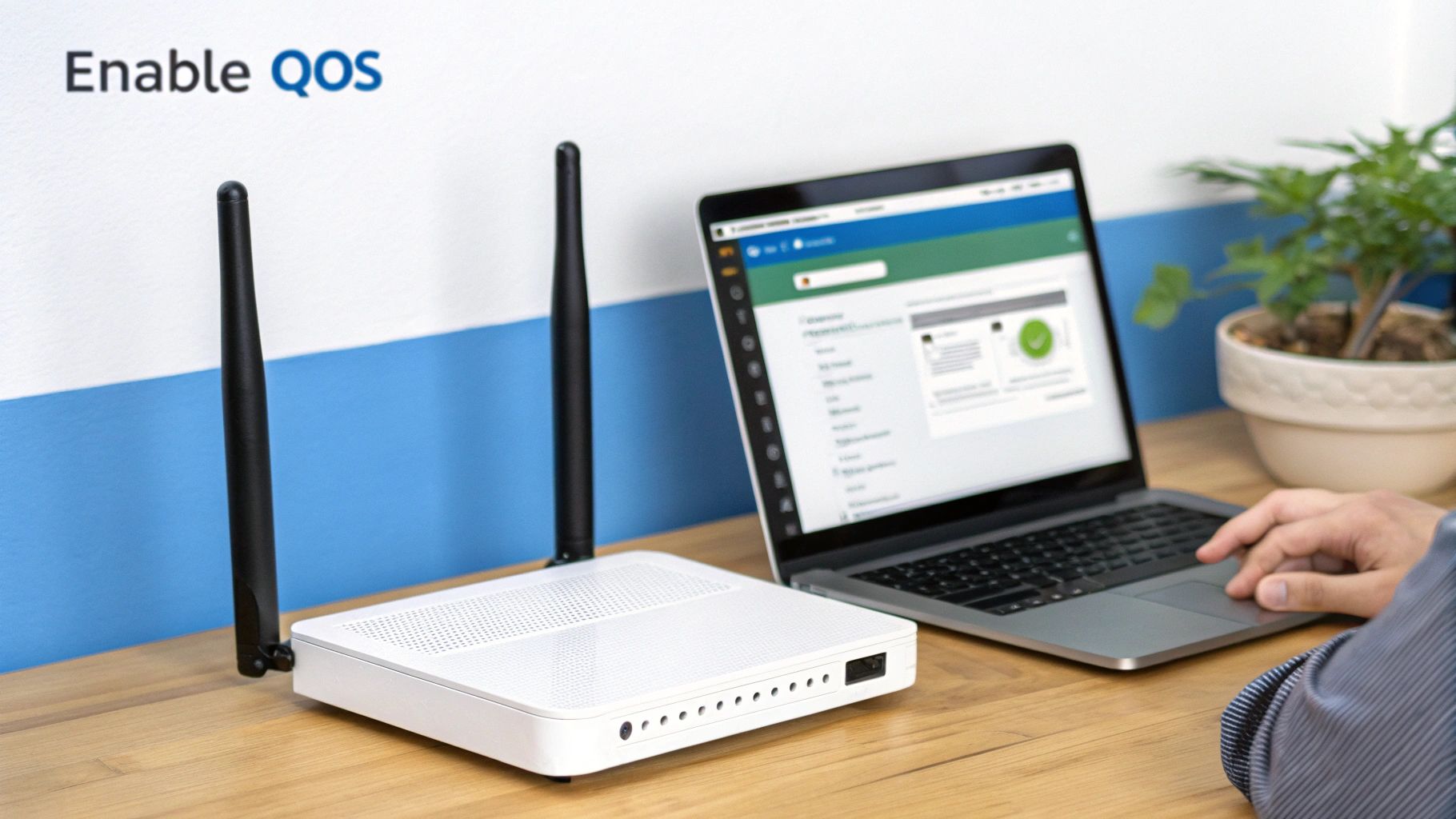
Your internet bandwidth is a finite resource. If someone in the office starts downloading a massive file or streams video, that eats up a huge slice of your available speed. When your VoIP call has to compete for that same bandwidth, it gets squeezed, and that’s when you get that awful choppy audio. This is where a critical router setting called Quality of Service (QoS) comes to the rescue.
Prioritizing Voice with Quality of Service
QoS is basically the traffic cop for your network. It gives you the power to tell your router which data packets are the most important. By setting up QoS rules, you can put voice traffic at the front of the line, making sure it always has the bandwidth it needs, no matter what else is happening on the network.
When you enable QoS for VoIP, you're essentially creating a dedicated express lane for your calls. This is what prevents them from getting stuck behind less urgent data, which drastically cuts down on jitter and packet loss. Most modern business routers have straightforward QoS settings that let you prioritize traffic by application (like VoIP) or by the specific ports used for voice.
QoS isn't just a "nice-to-have" feature for business VoIP; it's a flat-out necessity. It's the difference between a professional, crystal-clear conversation and one where you're constantly asking, "Can you say that again?"
Disabling Problematic Router Settings
While some settings are your friend, others can actively sabotage your calls. The two most common offenders are SIP ALG (Session Initiation Protocol Application-Level Gateway) and poorly configured NAT (Network Address Translation). They were designed with good intentions, but for modern VoIP systems, they usually cause more headaches than they solve.
- SIP ALG: This feature tries to "help" by inspecting and rewriting VoIP traffic as it passes through the router. The problem is, it frequently messes up the data packets, leading to classic issues like one-way audio, randomly dropped calls, or phones that refuse to register. Disabling SIP ALG in your router’s firewall settings is one of the first things any VoIP pro will tell you to do.
- NAT Issues: NAT lets all the devices on your local network share a single public IP address. But sometimes, it gets confused and can't figure out how to route incoming call data to the correct phone. Making sure your router's NAT settings are properly configured—or even setting up specific port forwarding rules if needed—can clear up these inbound call problems for good.
Making these tweaks might feel a bit technical, but they are often the key to unlocking the stable, reliable call performance you expect. With around 35% of businesses already using VoIP, getting the setup right is more important than ever. You can read more about the rise of VoIP in business on novocall.co. A properly configured network ensures you’re getting the full benefit of your investment.
How to Prepare for a Productive Support Call
Calling tech support without the right information can quickly become a long, frustrating game of 20 questions. To make your call with the SpectrumVoIP support team as smooth and efficient as possible, it pays to do a little homework first. When you come prepared, the technician can skip the basic script and get right to solving your problem.
Before you even pick up the phone, your goal is to be a good witness. Vague complaints like "the phones are acting weird" are a dead end. Instead, you need to document specific, actionable details that paint a clear picture of the issue for the support agent on the other end.
Gather Specific Call Examples
The single most valuable thing you can give a support tech is a concrete example of a bad call. This information is like a breadcrumb trail they can follow through the network to see exactly where things went wrong.
For at least two or three different calls, jot down these key details:
- The exact time and date the call happened.
- The number that was dialed out.
- The number that was calling in.
- The extension or user who had the problem.
- A short, clear description of what went wrong (e.g., "call dropped after 30 seconds," "caller couldn't hear me," or "audio sounded robotic and choppy").
This level of detail is critical for a fast fix. It turns a general complaint into a specific, data-backed incident report that a technician can investigate immediately.
Having precise examples with timestamps and phone numbers is the difference between a five-minute data pull for a technician and a thirty-minute guessing game. Your preparation directly impacts how quickly your issue gets resolved.
Sometimes, complex VoIP issues can point to deeper network problems. Understanding the value of specialist IT support can be a huge advantage. While the SpectrumVoIP team is your first call, knowing when a problem might go beyond their scope is key for any business.
Create a Quick Info Packet for Support
To arm the support team with everything they need, it's helpful to gather a few key data points before you even dial. Having this information ready shows you've done your due diligence and helps them diagnose the issue much faster.
| Information Category | Specific Details to Note | Why It's Important |
|---|---|---|
| Call Examples | 2-3 specific instances with time, date, To/From numbers, and user extension. | Allows techs to trace the exact path of a failed call in their logs. |
| Problem Description | What happened? (e.g., dropped call, one-way audio, static, robotic voice). | Narrows down the potential causes from thousands to a handful. |
| Issue Scope | Is it affecting one user, a specific office, or everyone? Is it intermittent or constant? | Helps determine if the issue is with a single device, the local network, or the wider service. |
| Recent Changes | Any recent changes to your network, firewall, internet provider, or office setup? | New hardware or configuration changes are often the root cause of new problems. |
| Troubleshooting Done | List what you've already tried (e.g., rebooted phones, power-cycled router/modem). | Prevents the tech from asking you to repeat steps you've already taken. |
Once you have this checklist filled out, you’re ready to make the call. This simple preparation can drastically reduce your time on the phone and get your business back up and running.
Document Your Troubleshooting Steps
Finally, make a quick list of everything you've already tried to fix the problem. Did you reboot the phones? Did you power cycle the router and modem? Mentioning these steps upfront proves you’ve already handled the basics, letting the technician move straight to more advanced diagnostics.
If you need a refresher on the most effective troubleshooting workflows, our complete guide to fixing https://premierbroadband.com/spectrumvoip/ issues can give you more ideas. By having all this information ready, you empower the support team to deliver a swift and successful resolution, minimizing downtime for your business.
Evaluating Your Underlying Internet Infrastructure
If you've tweaked every setting and your call quality is still suffering, it's time to look deeper. The problem might not be your phones at all, but the internet connection they run on. A VoIP system is only as good as the network holding it up. For businesses that are constantly fighting choppy audio and dropped calls, you have to ask: is our internet plan really built for professional voice communication?
Sometimes, the warning signs are small. You might hear a few seconds of robotic-sounding audio during your busiest hours, or maybe a slight delay in conversations that you can't quite put your finger on. These aren't just minor glitches; they're symptoms that your internet connection is struggling to keep up.
This is a classic growing pain. An internet package that worked great for a couple of employees and some light web browsing can quickly turn into a bottleneck when you add more staff, video calls, and a complete VoIP system.
The Limitations of Traditional Internet for VoIP
Most standard business internet plans, especially those running over coaxial cable, were built for downloading, not for the two-way street of modern communication. They typically have asymmetrical speeds—meaning your download speed is way faster than your upload speed. This is a huge problem for VoIP, which needs a strong, steady upload stream to send your voice clearly to the person on the other end of the line.
When your upload bandwidth is choked, your voice is fighting for space with everything else leaving your office—from large email attachments to cloud backups. That competition is what directly causes jitter and packet loss, the two biggest enemies of a clear phone call. If you’re constantly dealing with these headaches, a weak upload speed is the most likely culprit.
Upgrading your internet isn't just another troubleshooting step. It’s a strategic investment in your company's communication backbone. A solid connection means that as your business grows, your ability to communicate clearly and professionally can grow right along with it.
The push for better digital communication is only getting stronger. The global VoIP market is growing fast, projected to jump from $178.89 billion in 2025 to over $413.36 billion by 2032. This explosive growth shows just how critical it is to have the right infrastructure in place. You can read more about the growth of VoIP services at sheerbit.com. This trend makes one thing clear: a future-proof connection is a business necessity.
Why Fiber is the Gold Standard for Business VoIP
For businesses tired of persistent VoIP quality issues, the best long-term solution is upgrading to a dedicated business fiber connection. Unlike cable or DSL, fiber optic internet delivers symmetrical speeds, so your upload and download speeds are equally fast. This completely gets rid of the upload bottleneck that messes up so many calls.
Here’s what you get with a fiber upgrade:
- Extremely Low Latency: Data travels as pulses of light, which means the lowest possible delay. This gets rid of those awkward pauses in conversation and makes communication feel instant.
- Massive Bandwidth: Symmetrical speeds give you more than enough power to handle dozens of calls at once, run video conferences, and move large files without impacting call quality.
- Unmatched Reliability: Fiber is much more resistant to weather and interference than old copper lines, giving you a far more stable and dependable connection.
If you’ve tried everything else and you're still looking for a permanent fix, your next call probably shouldn't be to SpectrumVoIP support. It should be to a provider who can get your business on a dedicated fiber internet circuit. It's the foundation you need to let your VoIP system do its job perfectly.
Frequently Asked Questions About SpectrumVoIP Support
Even when your network is buttoned up, questions and weird one-off issues can still pop up. Getting a quick answer without having to call support can save a ton of time and keep your day moving.
Think of this as your go-to guide for those common little hiccups. It’s here to help you solve minor problems on your own and know exactly when it's the right time to get the SpectrumVoIP support team involved.
What Is Causing the Echo on My Calls?
An echo is probably the most frequent complaint we hear about in the VoIP world. Nine times out of ten, it’s a simple hardware issue. The most common culprit is a faulty headset or just having the handset volume turned way too high. When that happens, sound from the earpiece bleeds into the microphone, creating that annoying echo for the person you're talking to.
Before you start digging into network settings, give these quick fixes a shot:
- Turn down the volume on your desk phone's handset or speaker.
- Using a headset? Swap it out for a different one and see if the echo vanishes.
- If you have a spare phone handy, try plugging that one in to test.
If you’ve tried all that and the echo is still there, it might be a network latency problem. But honestly, starting with the physical device on your desk solves the problem most of the time.
Why Won't My Phone Register?
When a phone won't "register," it can't make or receive calls. It's basically failed to connect with the VoIP service provider, and this almost always points back to a problem on your local network. Usually, a setting in your router or firewall is actively blocking the phone's connection.
The prime suspect is a feature called SIP ALG. It’s a router setting that’s notorious for messing with VoIP traffic. Simply disabling it can often fix registration issues in a snap. It's also a good idea to double-check that your firewall isn't blocking the specific ports SpectrumVoIP needs to operate.
Key Takeaway: A phone that won’t register is a strong sign that something on your own network is the problem. Start by checking your router and firewall settings before you even think about calling for help.
What Should I Do During a Service Outage?
If your whole phone system suddenly goes dark, the very first thing to do is figure out if the issue is your internet or the VoIP service itself. The quickest way to check is by trying to load a few websites on a computer that's on the same network. If the internet is up and running, the problem is likely with the VoIP service.
At that point, your best bet is to report the outage directly to SpectrumVoIP support. Make sure to tell them when the outage started and confirm that your internet connection is working fine. This simple information helps them rule out local issues on your end and start investigating a wider service problem right away. If you're curious about the tech that makes these calls happen, you can learn more about how a VoIP phone works on our blog.
When you're dealing with constant issues that point back to an unreliable internet connection, it’s time to build on a better foundation. Premier Broadband delivers crystal-clear VoIP and high-speed business internet over a 100% fiber network, making sure your communications are always professional and dependable. Upgrade your business connectivity today.