

Ever had a video call where someone's voice suddenly turns robotic? Or been in the middle of an intense online game only to have your character freeze for a second? That’s packet loss in action.
It’s what happens when small pieces of your data—called packets—get lost while traveling across the internet and never reach their destination. Think of it like a few delivery trucks in a convoy going missing. The result is a choppy, unreliable internet experience, even if your speed test shows you have a fast connection.
Unpacking the Digital Highway: A Simple Analogy
To really get what’s going on, let's dive deeper into that delivery truck analogy.
Imagine sending a brand-new car to a friend across the country. You can't just put the whole thing on one massive truck. Instead, you have to break it down into smaller, manageable pieces—wheels, doors, engine, seats, and so on.
Each part is boxed up, labeled with your friend's address, and given a number (like "Box 3 of 100") so they know how to reassemble it. This fleet of trucks is your data, and each individual box is a data packet.
When everything goes right, every single truck arrives on time and in order. Your friend gets all 100 boxes, follows the assembly instructions, and has a perfectly built car in no time. That’s how a flawless internet connection works.
Where the Delivery Goes Wrong
But the digital highway isn’t always a smooth ride. Packet loss is what happens when some of those delivery trucks never show up. Maybe they hit a massive traffic jam (network congestion), get a flat tire (faulty hardware), or take a wrong turn because of bad directions (routing errors).
Now your friend has a problem. They’re standing there with an incomplete car. The steering wheel is missing, or maybe a door never arrived. The computer on the receiving end faces the same dilemma and has to figure out what to do.
It usually does one of two things:
- Ask for the missing piece again. It sends a message back saying, "Hey, I never got Box 3! Can you send another one?" This back-and-forth causes delays, which you experience as lag or buffering.
- Just keep going without it. For things that happen in real-time, like a video call or online game, there’s no time to wait for a resend. The software will often just skip over the missing data. That’s what causes a frozen video frame, a glitchy sound, or that infamous robotic voice.
To make this even clearer, here's a quick breakdown of how our delivery truck analogy maps to the real technical terms.
Packet Loss Explained Through the Delivery Truck Analogy
A simple breakdown of technical terms using our delivery truck analogy to make them easy to grasp.
| Technical Term | Simple Analogy (Delivery Trucks) | Real-World Impact |
|---|---|---|
| Data Packet | A single box containing a piece of the car | A tiny piece of a video stream, email, or game data. |
| Network Congestion | A massive traffic jam on the highway | Too many users trying to use the same network path at once. |
| Faulty Hardware | A truck breaking down (e.g., flat tire) | A bad router, old cable, or failing network switch. |
| Packet Resend | Calling to ask for the missing box to be sent again | Slower download speeds, buffering videos, and game lag. |
| Data Interpolation | Guessing what was in the missing box to keep going | Robotic voices on calls, glitchy video, and frozen frames. |
This analogy really drives home why packet loss is so disruptive. For downloading a file, it just means the download takes a bit longer. But for anything happening in real-time, the experience itself breaks down.
A stable connection isn't just about speed; it's about reliability. Even a fast fiber connection with just 1-2% packet loss can make VoIP calls or online gaming feel completely broken because the flow of information is constantly being interrupted.
The Impact on Your Everyday Tasks
This isn't just a technical problem; it directly affects the things you rely on every day. A business using a VoIP phone system needs every single "voice" packet to arrive in the correct order for conversations to be clear. If you want to learn more, check out our guide on how VoIP phone works and see why it’s so dependent on a stable connection.
When those packets go missing, entire words or phrases get dropped, leading to confusion and frustration. The same exact thing happens with gaming, streaming, and remote work—every lost packet makes for a worse experience. Understanding this is the first step to fixing the problem for good.
The Real-World Impact of Dropped Packets
Packet loss isn't some technical jargon you only see in network reports. It's the real, tangible reason your online experience can go from smooth to maddening in a split second. Even with a super-fast connection, if those little digital "trucks" of data keep disappearing, everything grinds to a halt.
For gamers, this is painfully familiar. You're lining up the perfect shot, and suddenly your character freezes, only to reappear across the screen a moment later. That's packet loss. Those critical bits of data that tell the game server where you are and what you're doing just vanished, and that split-second hiccup is often the difference between winning and losing.
This is where you learn a hard truth: for anything that happens in real time, you need packet loss to be at or near zero. You can dive deeper into this in our guide on how to reduce gaming lag to see just how important a rock-solid connection is for competitive play.
From Frozen Calls to Buffering Streams
This frustration isn't just for gamers. If you work from home, packet loss is the ultimate productivity killer. On a Zoom or Microsoft Teams call, it’s what causes voices to sound robotic and choppy or makes video feeds freeze completely. You end up missing crucial information and asking people to repeat themselves, killing the natural flow of conversation.
Then, when you finally unwind to watch a movie, packet loss strikes again as that dreaded buffering wheel. Your streaming device isn't getting all the data it needs in the right order, so it has to pause and ask for it to be sent again. It turns a relaxing evening into a choppy, start-and-stop mess.
Think of dropped packets as invisible potholes on the digital highway. Your internet speed might be high, but if the road itself is unreliable, every journey—whether it’s a video call, a game, or a movie—will be a bumpy and frustrating ride.
The Hidden Costs in File Transfers and Cloud Apps
Even for things that aren't happening in real time, packet loss causes major slowdowns. When you're uploading or downloading big files, lost packets force your computer to constantly ask for the missing pieces to be resent. This process, called retransmission, can turn a quick five-minute upload into a fifteen-minute headache.
For businesses that rely on cloud-based apps like Salesforce or Office 365, this is a huge problem. Lost packets can make programs feel sluggish and unresponsive, create data sync errors between team members, and even corrupt files as they're being saved. These little disruptions add up, leading to real losses in efficiency.
- VoIP and Video Calls: Garbled audio, frozen video, and dropped calls.
- Online Gaming: Frustrating lag spikes, character freezing, and actions that don't register.
- Streaming Video: Constant buffering, pixelated images, and poor resolution.
- File Transfers: Significantly slower upload and download speeds.
- Cloud Applications: Unresponsive programs, sync errors, and potential data corruption.
Why Even 1% Packet Loss Is a Major Problem
It's easy to look at a number like 1% and think it's no big deal. But in the world of networking, that's a massive failure. Why? Because today's online services are designed to work with a near-perfect flow of data. Even a tiny 1% packet loss is enough to seriously degrade the performance of almost any application you use.
The data backs this up. In March alone, one report tracked 2,110 global network outages—a 32% jump from the previous month. Many of these events involved packet loss from disruptions at major ISPs and cloud providers.
Whether it’s the choppy audio on an important business call or the buffering that ruins movie night, the real-world consequences of dropped packets are clear. For the smooth, reliable connection you depend on, anything above 0% loss is a problem worth solving.
Finding the Source of Your Packet Loss
Solving the mystery of packet loss is a bit like being a detective. The problem could be starting right at your desk, somewhere in your neighborhood, or even miles away on the internet's backbone. By checking off the most common culprits one by one, you can zero in on where your data is disappearing.
Think of it like finding a leak in your plumbing. Is the drip coming from under the sink, the main water line to your house, or a city-wide supply issue? Each problem needs a totally different fix. Your internet connection works the same way, with three main areas where things tend to go wrong.
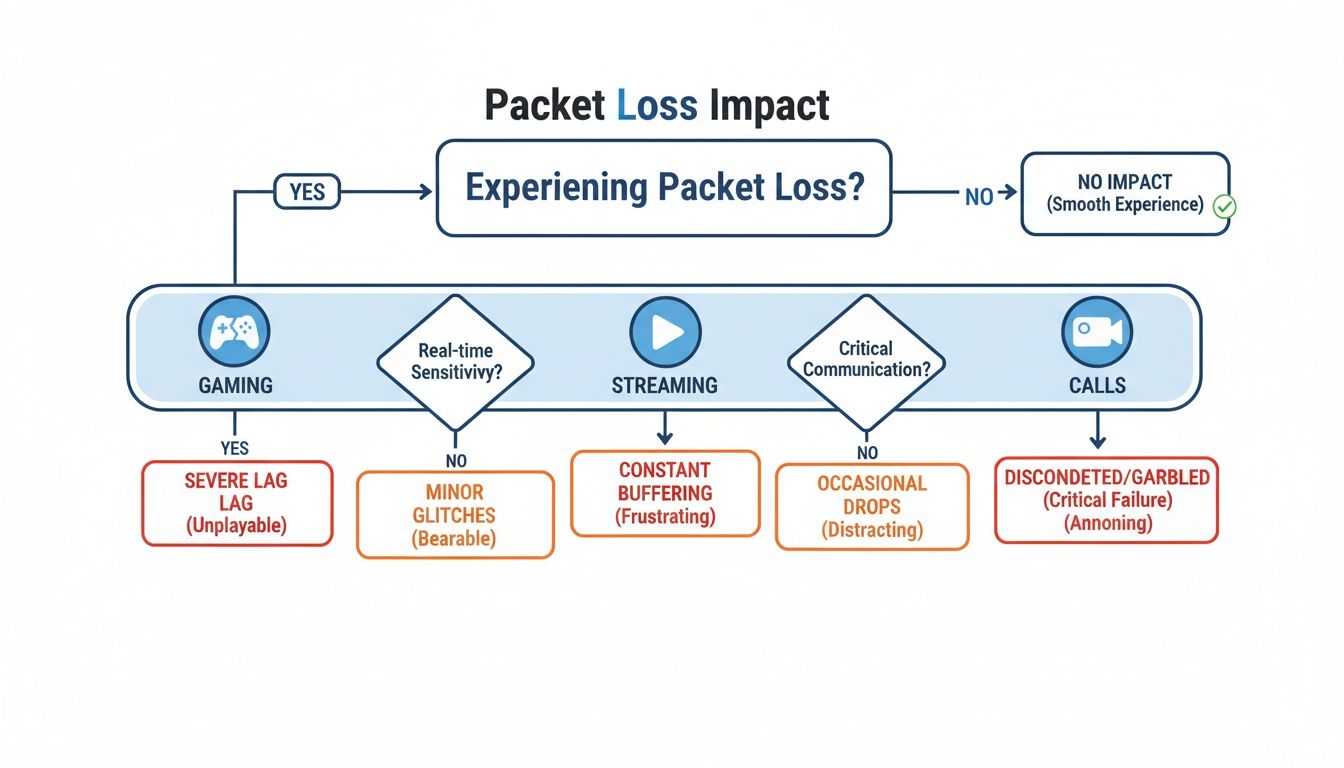
As you can see, all online activities suffer from dropped packets, but real-time things like gaming and video calls are hit the hardest. Streaming can often buffer to hide minor issues, but a choppy Zoom call is impossible to ignore. That’s why finding the source is so important.
Your Local Network Hardware
First things first, let's look at your own home or office network. More often than not, the source of packet loss is closer than you think. Faulty or outdated gear can cause a ton of headaches, even if you have a top-tier internet plan.
Start with the basics: your physical connections. A frayed Ethernet cable or a connector that isn't plugged in all the way can easily disrupt data flow. If you’re on Wi-Fi, interference from other electronics or even just thick walls can weaken the signal enough to make packets drop before they even leave the building.
Your router is the traffic cop for your whole network. If it's old, running on outdated firmware, or just struggling to keep up with dozens of devices, it can become a bottleneck and start dropping packets. A quick restart is often enough to fix temporary glitches. For a more structured approach, you can learn about professional network troubleshooting methodologies that experts use.
Before pointing fingers at your internet provider, give your own equipment a thorough check. A surprising number of connection problems—some estimates say up to 30% of all network issues—start with something as simple as a bad cable or failing hardware inside your home.
Widespread Network Congestion
If all your local hardware seems to be in good shape, the next suspect is network congestion. Think of it like rush hour traffic on the main road in your town. When everyone tries to get online at once, things slow to a crawl. The internet is no different.
This digital traffic jam happens when the amount of data being sent through the network is more than it can handle. During peak hours—like evenings when everyone is streaming movies or gaming online—the local infrastructure can get overwhelmed. To manage the flood of data, network equipment will sometimes start dropping packets to keep things from grinding to a complete halt.
A classic sign of network congestion is when your packet loss problems get noticeably worse at certain times of the day. Unfortunately, this one is largely out of your hands, since it’s an issue with the shared network in your area.
To help you connect the dots between what you're seeing and what might be causing it, we've put together a quick reference table.
Common Causes and Symptoms of Packet Loss
This table links common causes of packet loss to the symptoms you're likely experiencing, helping you diagnose the issue faster.
| Cause Category | Specific Example | Common Symptom |
|---|---|---|
| Local Hardware | A frayed Ethernet cable or old Wi-Fi router | Consistently poor performance on all devices, regardless of time |
| Network Congestion | Everyone in your neighborhood streaming 4K at 8 PM | Connection slows down or drops during evenings and weekends |
| ISP Issues | A failing switch at the provider's local hub | Intermittent outages or high packet loss that your neighbors also see |
By matching your symptoms to a potential cause, you can better focus your troubleshooting efforts where they'll make the most difference.
ISP and Internet Backbone Issues
Finally, the problem might be completely outside your home and neighborhood, happening somewhere on the internet's superhighways. Your data travels through a massive, complex web of different networks to get where it's going, and a hiccup anywhere along that path can cause packet loss.
Your Internet Service Provider (ISP) might be dealing with its own technical problems, like equipment failures or routing issues. Beyond that, the issue could lie with a major "backbone" provider—one of the huge networks that carries traffic between cities and countries.
These large-scale issues are the toughest to diagnose yourself, but certain tools can help. We have a guide covering some common network diagnostic utilities that can show you where your connection is breaking down. If your tests reveal that packets are being lost after they leave your local network, that's a strong sign it's time to contact your provider.
How to Test for Packet Loss Yourself

Thinking you have packet loss is one thing, but proving it is something else entirely. The good news is you don’t need a bunch of expensive gear to play network detective. Your computer already has the tools you need to find hard evidence of where your data is disappearing.
Running a few simple tests can take you from feeling frustrated to finding the facts. These tools gather real data that makes it much easier to pinpoint what’s causing your connection headaches. Let’s walk through how to use them.
Running a Basic Ping Test
The first and most important tool in your kit is the ping test. Think of it like sending a small digital postcard to a server and timing how long it takes to get one back. This simple back-and-forth tells you two critical things about your connection’s health.
A ping test measures the round-trip time, which you might know as latency or just "ping," and it also checks if any of your postcards get lost on the journey. High latency makes things feel sluggish, but lost packets are the real sign of a deeper issue. For a closer look at latency, check out our guide on how to fix high latency.
To run a good test, you need to send a series of packets to a reliable destination, like a major website. Sending at least 50 to 100 packets gives you a solid sample size. Once the test is done, it will show you exactly what percentage of packets never made it back.
What to Look For: Ideally, you want to see 0% packet loss. Even a tiny amount, like 1%, can cause frustrating glitches in video calls and online games, signaling an unstable connection.
Interpreting Your Ping Results
The numbers from a ping test tell a clear story about your connection. Knowing how to read them is the key to figuring out the problem.
- Consistent, Low Ping Times: This is what you want to see. It means your connection is healthy and stable.
- High but Stable Ping Times: This is a latency problem, not packet loss. It can still cause lag, but your connection is reliable.
- Inconsistent Ping Times (Jitter): If your ping times are all over the map, it points to network instability that often goes hand-in-hand with packet loss.
- "Request Timed Out" Messages: This is the smoking gun. Every timeout means a packet was lost for good, confirming that you are experiencing packet loss.
This problem isn't just theoretical; it has very real consequences. For example, recent satellite internet research found that Starlink's packet loss in Germany shot past 10% because its user base grew faster than its network could handle. This shows how easily network congestion can cause packets to drop.
Using Advanced Diagnostic Tools
A ping test confirms if you have packet loss, but other tools can help find out where it's happening. A traceroute test maps out the full journey your data takes, showing every "hop" or router it passes through. If you suddenly see high latency or asterisks (*) at a particular hop, you may have found your culprit.
For ongoing issues, tools like MTR (My Traceroute) are even better. MTR combines ping and traceroute into one live report, constantly testing the connection to each hop. This gives you a dynamic view of your network's health and helps catch intermittent problems a single test might miss. You can also get a feel for your network's behavior by using the network tab in Whatpulse.
By getting comfortable with these tools, you can gather the exact data needed to either fix the issue yourself or report it effectively to us here at Premier Broadband.
A Practical Checklist to Fix Packet Loss
Alright, you've seen the evidence that packet loss is happening. Now it’s time to roll up our sleeves and fix it. We’ll start with the simplest fixes that, more often than not, solve the problem entirely. Just work your way down the list.
The first move is one you’ve probably heard before, because it works: give your network gear a proper restart. This isn't just a quick off-and-on. A full power cycle drains the memory and clears out any temporary software glitches that might be causing your modem and router to drop packets.
- Start by unplugging the power cords from both your modem and your router.
- Now, just wait. Give it a full 60 seconds so the internal hardware has time to completely reset.
- Plug the modem back in first. Wait for it to fully connect—you're looking for solid green or blue lights.
- Once the modem is ready, plug in your router and let it finish its own startup sequence.
You’d be surprised how often this simple step gets things back to normal.
Secure Your Physical Connections
Before you start digging into software settings, let's check the basics. A loose or damaged cable is a classic, and frustratingly simple, cause of packet loss. One bad wire can throw your entire connection into chaos.
Go around and check every Ethernet cable connecting your computer, router, and modem. Make sure they are pushed in all the way until you hear that satisfying "click." If you spot any cables that are frayed, kinked, or look worn out, it's time to replace them.
A stable network starts with a solid foundation. While advanced software tweaks have their place, a reliable physical connection is non-negotiable. Skipping this basic check can lead to hours of wasted troubleshooting.
Next up, think about how you're connected. Wi-Fi is incredibly convenient, but it’s also vulnerable to all sorts of interference that can cause packets to vanish. If you're dealing with packet loss during a video call or an intense gaming session, switching to a wired Ethernet connection is the single best move you can make for a stable connection.
A direct, wired link bypasses common Wi-Fi problems like:
- Physical obstacles like walls, floors, and furniture that block and weaken the signal.
- Interference from other electronics, like your microwave or cordless phones.
- Congestion from your neighbors' Wi-Fi networks fighting for the same air space.
Optimize Your Network Traffic
If all your cables are secure, the next place to look is at what's actually running on your network. It’s easy to have applications chewing up your bandwidth in the background without you even realizing it. This creates a digital traffic jam, and packets get dropped.
Take a quick inventory of what’s running on your devices. Go ahead and close out anything you don’t absolutely need, especially the usual suspects:
- Large file downloads or torrents
- Cloud services like Dropbox or Google Drive syncing in the background
- Multiple HD or 4K video streams running at once
Freeing up that bandwidth gives your main activity—whether it's a Zoom meeting or a game—the room it needs to breathe. If you want to get more advanced, look for your router's Quality of Service (QoS) settings. QoS lets you tell your router which devices or apps are most important, creating an express lane for their data.
Finally, don’t forget about your hardware's health. Router manufacturers regularly release firmware updates to fix bugs, improve performance, and patch security holes. Outdated firmware can absolutely be the source of packet loss, so logging into your router's admin page to check for an update is a critical step.
When network hardware gets overwhelmed, the results can be dramatic. For example, a Russian ISP recently faced a massive DDoS attack that hit 6.92 million packets per second, which completely choked its equipment and brought traffic to a standstill for 10 hours. This shows how both security threats and overloaded gear can cause extreme packet loss. You can see a detailed report of recent global internet outages to get a better sense of how these things happen.
When to Call Your Internet Service Provider
So, you’ve restarted your router, swapped out the ethernet cables, and even tweaked your Wi-Fi settings, but that frustrating packet loss just won’t go away. When you get to this point, there's a good chance the problem isn't inside your house at all.
If you’ve run through all the troubleshooting steps on your end, it’s time to stop pulling your hair out. The problem is likely outside your control, and the next step is to call us.
The real trick is knowing for sure when the issue is on our end. The clearest sign is when your diagnostic tests, like a traceroute, show packets consistently vanishing after they leave your home network. If the first couple of hops—your router and local connection—are clean, but errors start piling up further down the line, that’s solid evidence the issue is with the broader network infrastructure.
Preparing for a Productive Support Call
Let's be honest, calling tech support can be a pain if you aren't prepared. To get past the standard "have you tried restarting your router?" script, you need to come with clear, hard evidence. Bringing specific data to the conversation changes it from a guessing game into a focused effort to find a solution.
Before you dial our number, take a few minutes to gather this information. It will help our support team understand exactly what's happening and get your issue to the right people much faster.
Here’s what you should have ready:
- Your Diagnostic Test Results: Save screenshots or copy-paste the text from your Ping and Traceroute tests. This is your proof that shows what is packet loss and where it's happening on the network.
- Specific Timestamps: Make a note of the exact dates and times when the packet loss is at its worst. Is it an all-day problem, or does it only spike during peak evening hours?
- Affected Applications: Tell us exactly what’s not working. Are your Zoom calls dropping constantly? Is your online game lagging? Are large file uploads timing out?
When you can tell a support agent, "I'm seeing 5% packet loss starting at your third network hop every night between 7 PM and 10 PM," you instantly elevate the conversation. This level of detail helps our technicians pinpoint potential network congestion or hardware issues on our end.
When you're armed with this kind of data, you become a partner in solving the problem. Instead of just reporting a vague "my internet is slow" issue, you can show us precisely where and when the connection is failing. This professional approach helps you bypass the standard script and gets you connected with the technicians who can actually investigate and fix the problem.
Frequently Asked Questions About Packet Loss
Let's clear up a few things we hear all the time about packet loss. This section has quick, straightforward answers to get you pointed in the right direction.
Is 1 Percent Packet Loss Really a Big Deal?
You bet it is. While 1% might sound like almost nothing, for anything happening in real-time—like a video call or an online game—it’s a total dealbreaker. That tiny fraction is more than enough to cause jitter, robotic-sounding audio, and those infuriating lag spikes that can completely ruin your experience.
The bottom line is, for any activity that needs a steady, constant flow of data, any packet loss over 0% is a problem worth fixing.
Can a VPN Help Reduce Packet Loss?
Sometimes, but it’s definitely not a magic bullet. A VPN can occasionally improve your connection if it finds a clearer, less congested route for your data to travel across the internet. In that case, it's like finding a side street to get around a major traffic jam.
However, if the packet loss is happening on your local network (think spotty Wi-Fi) or the VPN’s own server is having a bad day, it could actually make things worse. It’s best to use a VPN to test with after you’ve made sure the problem isn’t inside your own home.
Think of a VPN as a potential detour around a traffic jam on the main highway. It can help if the jam is the problem, but it won't fix a flat tire on your own car.
Does Packet Loss Mean My Internet Is Slow?
Not necessarily, and this is where a lot of people get mixed up. You can have an incredibly fast internet plan with tons of bandwidth and still be plagued by packet loss. Bandwidth is all about how much data you can move at once, while packet loss is about how reliably that data gets where it's going.
Imagine a brand new, ten-lane highway (that’s your high bandwidth) that’s covered in potholes (that’s your packet loss). There’s plenty of room for traffic, but the ride is so rough and unpredictable that nobody gets anywhere smoothly. A great internet connection needs both speed and reliability.
If you've tried everything and are still fighting with a choppy connection, it might be time to switch to a network built for stability. Premier Broadband provides a 100% fiber connection designed to keep your gaming, streaming, and remote work running flawlessly. Explore our fiber internet plans today.