

Trying to pin down the cause of slow Wi-Fi can be frustrating, but more often than not, the fix is simpler than you think. The single most effective thing you can do right now is to reboot your router and modem. It's the oldest trick in the IT playbook for a reason—it clears out temporary glitches and gives your connection a fresh start.
Quick Fixes for Your Slow WiFi Problem
Before you start digging into complex network settings, let's cover the basics that solve the vast majority of Wi-Fi headaches. A slowdown doesn't automatically mean your internet plan or equipment is bad. Usually, it's just a temporary hiccup, too many devices fighting for attention, or something physically blocking the signal.
Running through these common culprits can make a huge difference in just a few minutes. To give you a head start, here's a quick summary of the most effective first steps.
Top 5 Quick Fixes for Slow WiFi
| Quick Fix | Why It Works | Success Rate |
|---|---|---|
| Reboot Router & Modem | Clears memory and temporary software glitches. | ~80% |
| Check Router Placement | Centralizes signal and avoids physical barriers. | High |
| Reduce Device Congestion | Frees up bandwidth for essential devices. | High |
| Change WiFi Channel | Moves your network away from neighbor interference. | Medium-High |
| Update Router Firmware | Installs performance improvements and bug fixes. | Medium |
These five steps are your first line of defense and can often get your network back up to speed without any technical deep dives.
The Power of a Simple Reboot
Think of your router as a tiny computer that never gets a break. Just like your phone or laptop, it can get bogged down over time with cluttered memory and minor software errors. Unplugging it for 30 seconds and plugging it back in is like a fresh cup of coffee—it flushes out all that junk and lets it re-establish a clean connection with your Internet Service Provider (ISP).
It's a surprisingly common issue. A recent study found that a staggering 42% of US households regularly deal with slow Wi-Fi, often because their router is just overloaded. The good news? A simple restart fixes temporary glitches in up to 80% of cases.
Pro Tip: Don't just restart the router. Power down both your router and your modem. Wait a full minute, then plug in the modem first. Once all its lights are solid and stable, plug the router back in. This simple sequence ensures they communicate correctly.
Identify Other Common Culprits
If a reboot didn't do the trick, it's time to look at what's happening around your router. Your Wi-Fi's performance is heavily influenced by two main factors: how many devices are connected and how far the signal has to travel.
- Too Many Devices: Every phone, smart TV, laptop, and doorbell camera is sharing the same slice of the internet pie. If everyone is streaming 4K movies, gaming online, and video conferencing at once, things are going to slow down. Try disconnecting a few non-essential gadgets to see if your connection speeds up.
- Physical Distance and Obstructions: Wi-Fi signals get weaker the farther they go and hate trying to pass through dense materials like brick walls, concrete, or even a large refrigerator. If your desk is on the other side of the house from the router, you're naturally going to get a slower connection.
Of course, a solid internet plan is the foundation of it all. For example, a 100% fiber connection gives you symmetrical speeds, meaning your upload speed is just as fast as your download speed. This is a game-changer compared to older cable or DSL technologies, where uploads are often painfully slow. For a deeper look at getting the most out of your setup, check out our guide on how to improve home wifi. That stability is what you need for smooth video calls and lag-free gaming.
Pinpointing the Real Cause of Your Slow Connection
Before you start messing with router settings, you need to figure out what's actually causing the slowdown. It’s a bit like being a detective. Is the problem your Wi-Fi signal, one specific device acting up, or an issue with your internet provider? A few simple tests will tell you exactly where to focus your efforts.
This flowchart is a great place to start, beginning with the easiest and most common fix of all.
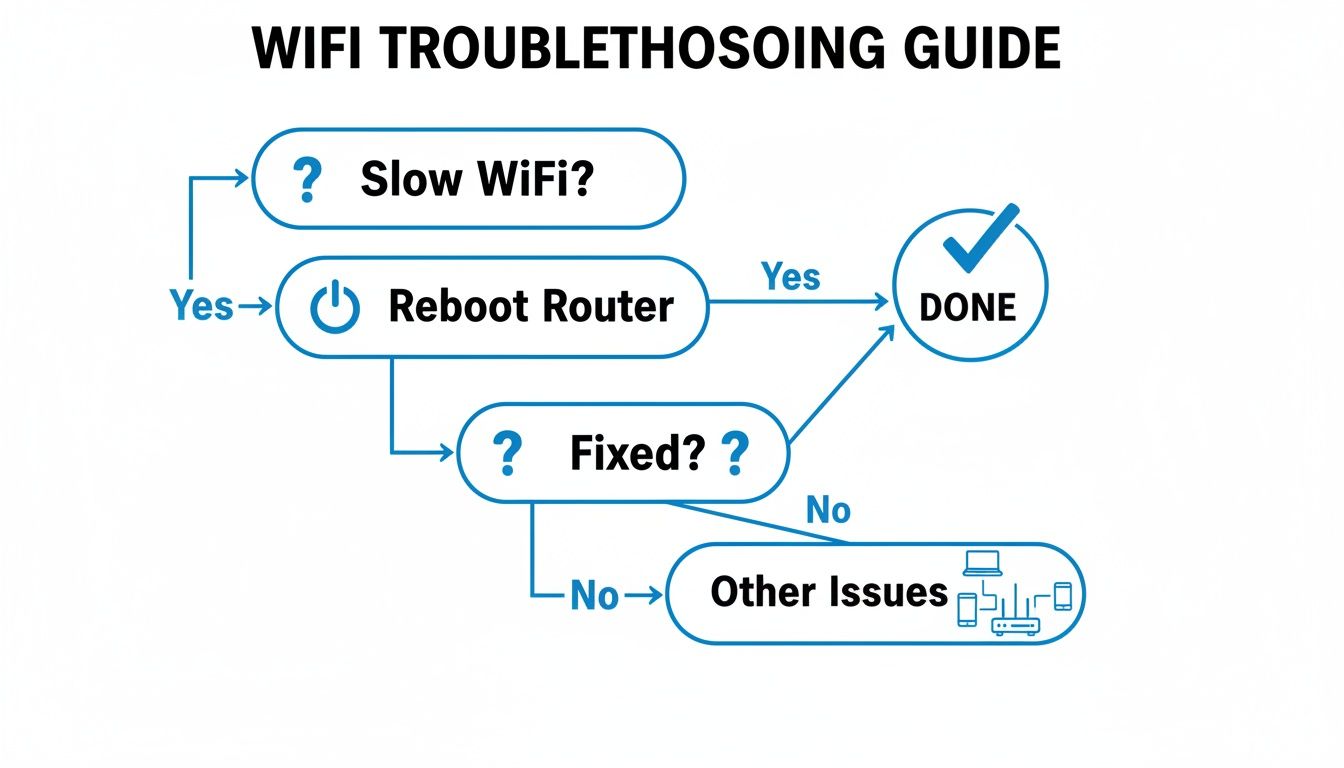
As you can see, a simple reboot often clears up minor glitches. It’s always the best first move before you dive into anything more complex.
Run a Proper Speed Test
Your investigation starts with a good, old-fashioned speed test. Don't just run one and move on—the goal here is to establish a clear baseline. First, make sure you've disconnected from any VPNs and shut down anything that hogs bandwidth, like video streaming or big downloads.
You'll get a few key numbers from the test:
- Download Speed: How fast you can pull down data. This is what you notice when streaming movies or loading websites.
- Upload Speed: How fast you can send data out. This matters for video calls, online gaming, and uploading files.
- Latency (Ping): The reaction time of your connection, measured in milliseconds (ms). Lower is better, especially for gaming where every millisecond counts.
What's a "good" speed? You should be getting at least 80-90% of the speed you're paying for. If your plan is 500 Mbps, you should see results in the 400-450 Mbps range. For more tips on getting a reliable measurement, check out this guide on how to test internet speed accurately.
Isolate the Problem Device
If your speeds are way below what they should be, the next question is whether the issue is affecting everything or just one device. A sluggish laptop doesn't automatically mean your whole network is on the fritz.
Run the speed test on a few different devices—your phone, a tablet, another computer. If your laptop is crawling at 20 Mbps but your phone zips along at 300 Mbps in the same spot, you've found your culprit. It could be an old network card, malware, or a weird OS bug.
This happens all the time. I've seen cases where a single corrupted system file on a computer made it seem like the entire network was failing. Once that one file was fixed, everything went back to normal. It just goes to show that device-specific problems can easily masquerade as network-wide ones.
The Decisive Ethernet Test
This is the single most important test you can run. It definitively answers the big question: is it my Wi-Fi, or is it my internet service?
Grab an Ethernet cable and plug a computer directly into one of the LAN ports on your router. Turn off the Wi-Fi on your computer to make sure you're only using that wired connection, then run the speed test again.
If your speeds are suddenly fantastic—right up there with what your plan advertises—then you know the problem is with your wireless network. It could be anything from poor router placement to signal interference.
But if your speed is still slow even when plugged in directly, the issue is almost certainly with your internet service provider or the physical line coming into your building. Now you have the proof you need to either start optimizing your home network or get on the phone with your ISP's support team. For businesses that can't afford downtime, using proactive network performance monitoring is a great way to catch these trends before they turn into major headaches.
Optimizing Your Router and Home Network
Okay, so you've pinpointed that the problem is your Wi-Fi, not your internet plan. Now for the fun part—the hands-on fixes that actually make a difference. Lots of people jump to the conclusion they need a new router or a pricier plan, but you'd be surprised how often a few smart tweaks to your current setup can work wonders. Let's start with the single biggest (and easiest) change you can make.
Find the Perfect Spot for Your Router
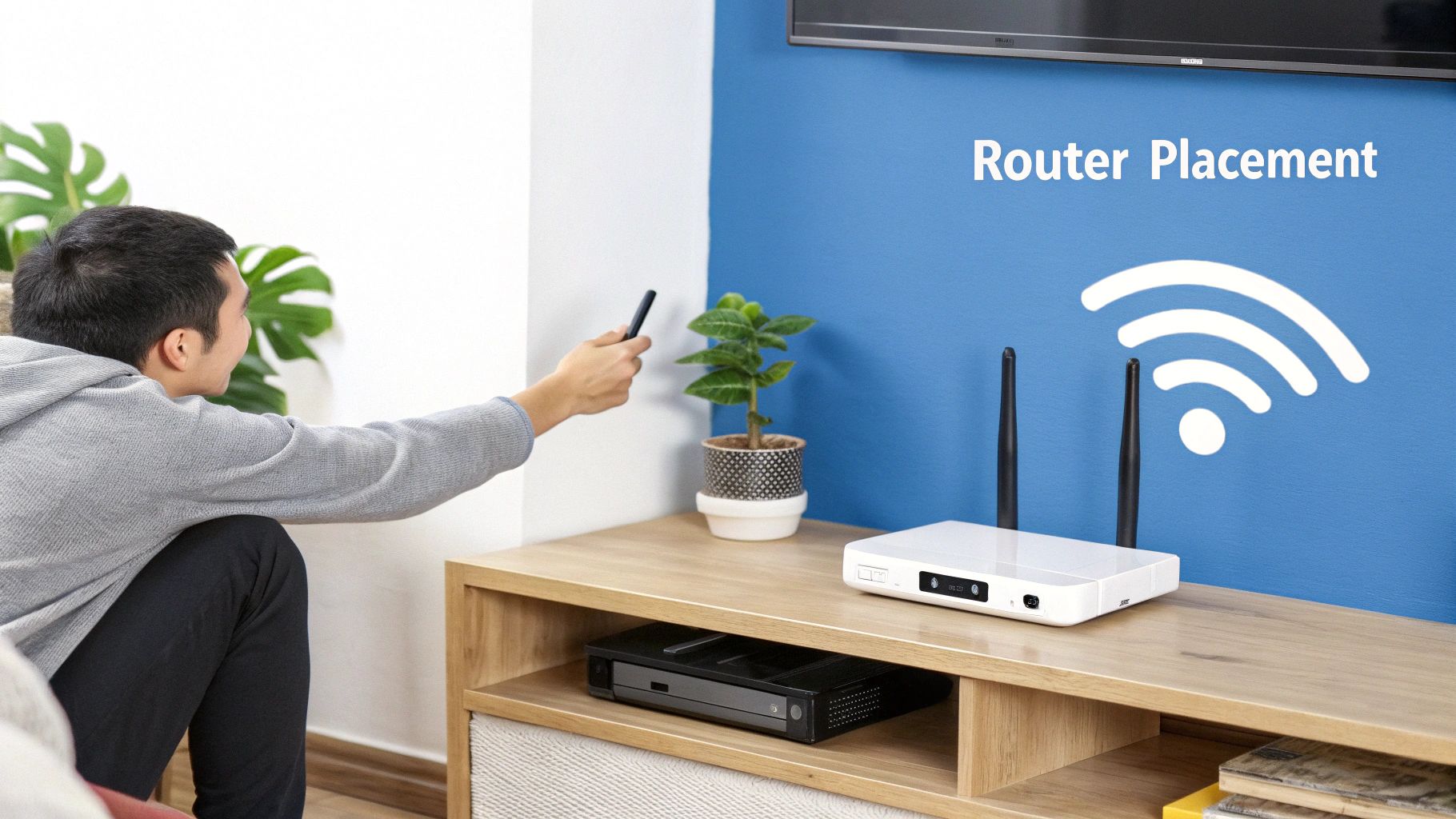
Think of your router like a lamp. You wouldn't stuff it in a closet and expect it to light up the whole house, right? Wi-Fi signals work the same way, radiating outward from the source. The sweet spot is always central, elevated, and out in the open. Hiding it in a cabinet, behind the TV, or on the floor in a corner is a recipe for a weak signal.
Some of the biggest culprits for blocking Wi-Fi in a typical home are:
- Dense Materials: Concrete, brick, and even thick plaster walls are notorious signal killers.
- Metal Objects: Your refrigerator, oven, or a big metal filing cabinet can reflect and block Wi-Fi waves.
- Water: It sounds strange, but a large fish tank can absolutely absorb and weaken your signal.
The numbers don't lie. Wi-Fi slowdowns are a weekly headache for 55% of households across the globe, and the distance from the router is the number one cause. A signal that has to punch through a few walls can lose up to 75% of its strength in just 30 feet.
Here’s a real-world story: I once helped a friend who was getting terrible speeds in his home office, which was right above the router in the basement. The problem? The router was on the floor, tucked behind a concrete pillar and next to a metal water heater. We moved it just ten feet over to a high wooden shelf, and his office speeds instantly doubled. It's all about location, location, location.
Hunt Down Wireless Interference
Your Wi-Fi network isn't operating in a vacuum. It's constantly fighting for airtime with a bunch of other devices in your home, which we call wireless interference. This is a massive cause of slow Wi-Fi, especially if you live in a crowded apartment building.
Common sources of interference include:
- Microwave Ovens: When that microwave is running, it's blasting out signals on the same 2.4GHz frequency as your Wi-Fi, bringing your connection to a crawl.
- Bluetooth Devices: Speakers, headphones, and even wireless mice can create signal "noise."
- Cordless Phones & Baby Monitors: Older models are especially bad for interfering with Wi-Fi.
- Your Neighbors' Networks: In an apartment complex, your router is basically in a shouting match with dozens of others, all trying to use the same channels.
Change to a Less Crowded Wi-Fi Channel
To get away from all that noise, you can manually switch your router's Wi-Fi channel. Most routers are set to "Auto," but they don't always choose the clearest path. Think of Wi-Fi channels like lanes on a highway. If everyone is clogging up lanes 1, 6, and 11, moving over to a quieter lane can make your data flow much more smoothly.
You can use a free Wi-Fi analyzer app on your smartphone to see which channels are congested. Then, just log into your router’s settings and pick a less-used channel for your 2.4GHz network. This one little change can be a game-changer.
Master Your Wi-Fi Bands
Modern routers broadcast on two different frequencies: 2.4GHz and 5GHz. Each has its own strengths, and knowing which one to use for which device is crucial.
- The 2.4GHz Band: This is your long-range workhorse. The signal travels farther and is better at getting through walls. The downside? It's slower and way more prone to the interference we just talked about.
- The 5GHz Band: This is the speed demon. It delivers much faster connections over a shorter distance and is far less crowded. Its weakness is that the signal doesn't punch through walls nearly as well.
Here’s the simple strategy:
- Prioritize 5GHz: Connect your most important devices—your streaming TV, game console, and work laptop—to the 5GHz network whenever they're close enough to the router. This gives them the fast lane.
- Use 2.4GHz for everything else: For devices that are far away or don't need top speed (like smart plugs, thermostats, or your phone when you're in the backyard), the 2.4GHz band is perfect.
By splitting up your devices like this, you reduce the traffic jam on both bands and make sure everything runs as it should. If you have a larger home with dead spots that just won't go away, it might be time to look into how to set up mesh Wi-Fi for total coverage. For a deeper dive into securing and accelerating your connection, optimizing network and firewall settings offers some powerful insights.
Advanced Tweaks for Maximum WiFi Performance
Alright, so you’ve rebooted the router and moved it away from the microwave, but things are still sluggish. If the usual fixes haven’t quite done the trick, it’s time to roll up our sleeves and dive into your router’s settings. These are the more powerful tweaks that can really fine-tune your network and squeeze every last drop of performance out of your connection.
Keep Your Router Firmware Up to Date
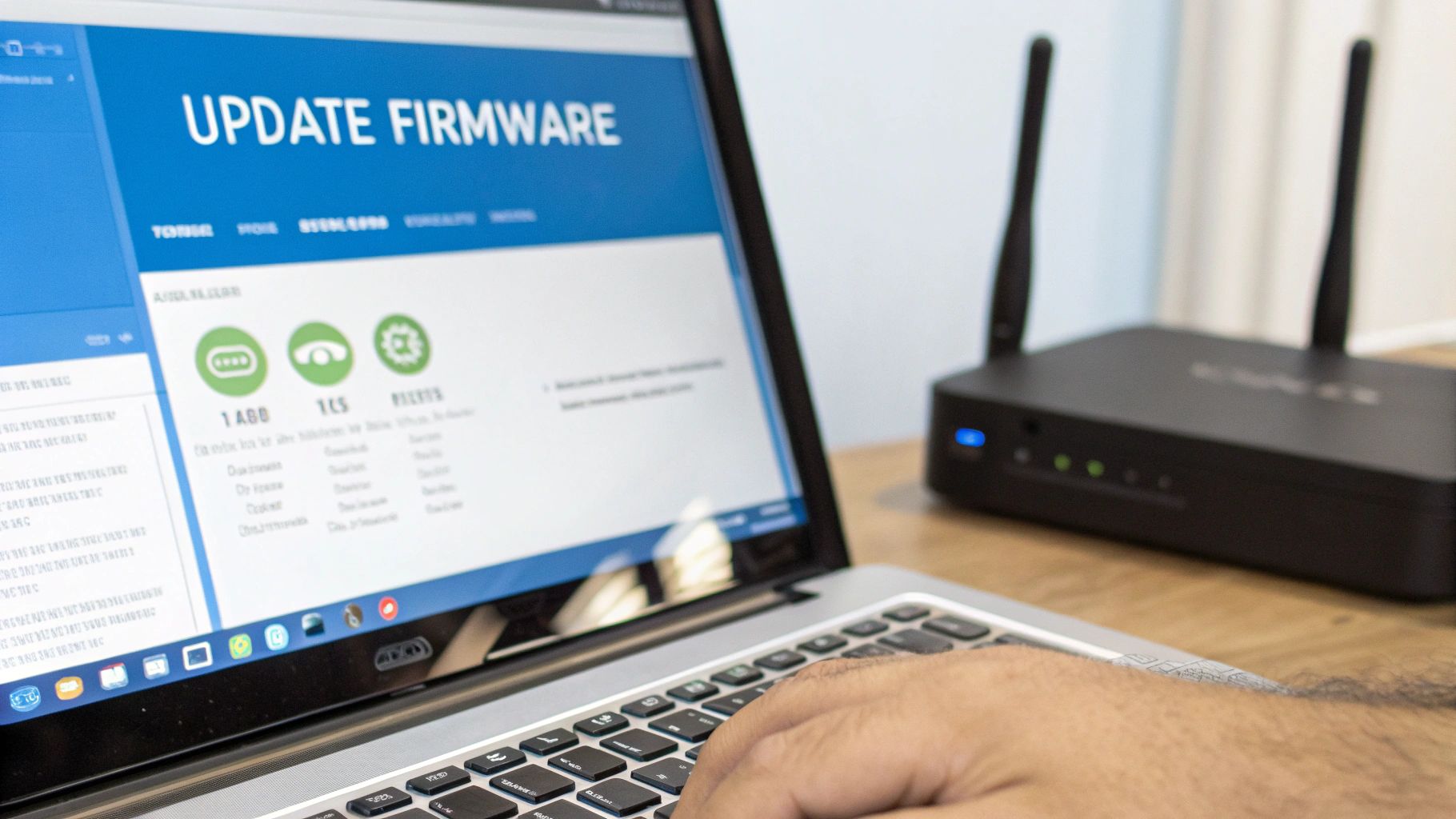
Think of your router's firmware as its internal operating system—the brain behind the whole operation. Just like your phone or computer, it needs updates. Manufacturers regularly push out new firmware to patch security holes, fix annoying bugs, and, most importantly, improve performance and speed.
Ignoring these updates is a common mistake. It’s a bit like never changing the oil in your car; things might seem fine for a while, but performance eventually takes a hit. In fact, overlooked firmware bugs are a problem for roughly 35% of routers, sometimes causing speed drops of 20-40%. The good news? A simple update can resolve these frustrating issues for about 82% of affected users.
Most modern routers let you check for updates right from their web dashboard or a companion app on your phone. If there’s an option for automatic updates, turn it on. Otherwise, get into the habit of checking manually every couple of months. For a broader look at how internet speeds are measured worldwide, check out the aggregated data from Statista.com.
Master Your Quality of Service Settings
Buried in your router’s advanced settings, you’ll likely find a powerful feature called Quality of Service (QoS). This is your network’s traffic controller. QoS lets you tell your router exactly which devices or online activities are most important, making sure they get first dibs on your bandwidth.
This is a complete game-changer if you work from home or do any serious online gaming. With QoS, you can:
- Prioritize your work laptop so your video calls stay sharp and clear, even when the kids are streaming 4K cartoons downstairs.
- Give your gaming console top priority to slash lag and keep your connection rock-solid during intense matches.
- Limit bandwidth for less critical devices, like a smart thermostat or a guest’s tablet, so they don’t hog all the speed.
By properly configuring QoS, you're not just hoping for a fast connection—you're actively managing it. This proactive approach ensures that high-priority traffic isn't derailed by less critical data packets, which is a common cause of mysterious lag spikes.
Know When It Is Time to Upgrade
Sometimes, no amount of tweaking can fix slow Wi-Fi if your hardware is just too old to keep up. The average household now juggles over 20 connected devices, a load that routers from a few years ago were never built to handle. If your router is getting a little long in the tooth, an upgrade could be the single biggest boost you can give your network.
A major clue is the Wi-Fi standard it uses. If you aren’t on at least Wi-Fi 5 (822.11ac), you’re missing out on huge speed and reliability gains. The newest standard, Wi-Fi 6 (802.11ax), is even better, built from the ground up to manage dozens of devices at once without breaking a sweat.
It might be time for an upgrade if the common fixes haven't worked and your network still feels off. Here’s a quick guide to help you decide on the right move.
When to Upgrade Your WiFi Equipment
| Symptom | Potential Solution | Best For |
|---|---|---|
| Dead zones in certain rooms | Mesh WiFi System | Larger or multi-story homes with complex layouts that one router can't cover. |
| Overall sluggishness for all devices | New Wi-Fi 6 Router | Homes with many smart devices and high-bandwidth needs like 4K streaming and gaming. |
| Fast WiFi but slow internet | ISP Plan Upgrade | Households that have hit the data cap of their current internet plan. |
Moving to a modern router or a mesh system isn't just about chasing the latest tech. It's about making sure you can actually use the internet speed you pay for, in every corner of your house. It’s an investment that pays off every single day.
What to Do When Your ISP Is the Problem
So you’ve tried everything. You’ve moved the router, updated the firmware, and checked every device on your network. But the internet is still painfully slow. At this point, you have to face the real possibility that the problem isn't inside your house at all—it could be your Internet Service Provider (ISP).
This happens more often than you'd think. When that wired Ethernet test you ran earlier still shows sluggish speeds, it’s a massive clue. It tells you the bottleneck is likely with the service coming into your home, not your Wi-Fi.
Pinpointing a Service Issue
Before calling support, you need to be sure. Those speed test results from your direct Ethernet connection are your best piece of evidence. This data proves you’ve already ruled out Wi-Fi as the weak link.
Is the slowdown predictable? If your internet tanks every single night around 8 PM, you could be dealing with neighborhood network congestion. This is common with older cable internet setups where everyone on your street is sharing the same main line.
Key Takeaway: If plugging a computer directly into your modem gives you the same slow speeds as your Wi-Fi, the problem is almost certainly on your ISP's end. This one test is the proof you need.
It could be anything from a degraded physical line outside, an old modem they provided, or a configuration mistake on their side. This is where 100% fiber optic connections really shine, as they're much less prone to the congestion and wear-and-tear that plague older cable or DSL lines.
How to Talk to Your ISP
When you call your provider, the goal is to get past the standard "have you tried turning it off and on again?" script as quickly as possible. You’ve already done all that.
Be ready with this info:
- Your Account Details: Have your account number and service address handy.
- Your Speed Test Numbers: Tell them exactly what speeds you’re seeing versus what you pay for. For instance, "I'm paying for your 400 Mbps plan, but my wired speed tests are only hitting 50 Mbps."
- Your Troubleshooting Steps: Briefly explain that you've already rebooted everything and tested multiple devices directly connected via Ethernet.
This shows them you know what you're talking about and helps them skip right to the real diagnostics. Ask them to check for local outages or run a test on the line coming into your home.
Asking the Right Questions and Getting a Resolution
If the first person you talk to can't solve it, don't hesitate to ask for a supervisor or a senior technician. Your next step might be scheduling a technician to come out and inspect the physical wiring.
Here are a few specific things to ask:
- "From your end, can you check the signal strength and quality readings for my modem?"
- "Are there any known congestion problems or scheduled maintenance in my neighborhood?"
- "Given my wired test results, can we get a technician out here to check the lines?"
If slow speeds are a constant headache, it might just be time for a change. Your current provider might not be able to deliver the performance you need anymore. It's always a good idea to compare home internet plans and see what other options, like a more stable fiber connection, are available. Sometimes the best fix for your Wi-Fi is getting a better internet connection to begin with.
Common Questions About Fixing Slow Wi-Fi
You've tried the basics, but your Wi-Fi is still acting up. It's easy to get stuck on the little details. Here are some straight answers to the questions we hear all the time when helping people fix their slow Wi-Fi.
Does Having More Devices Always Slow Down Wi-Fi?
Yes, but it's not a simple one-to-one problem. Think of your internet connection like a pie. Every single device—your laptop, phone, smart TV, and even the smart thermostat—wants a slice.
In today's smart homes, it's not unusual to have 20 or more connected devices. When several of them are streaming movies, gaming online, and taking video calls at the same time, it creates a digital traffic jam. Each device has to wait its turn, and that's when you notice lag or endless buffering.
Modern routers with MU-MIMO (Multi-User, Multiple Input, Multiple Output) and QoS features are built to manage this traffic better. But for a truly smooth experience with multiple 4K streams and video calls running at once, a high-speed fiber plan is what you need. It gives you a big enough "pie" for everyone.
What Is the Difference Between Restarting and Resetting My Router?
This one is a big deal and can save you from a major headache. The words sound alike, but they do completely different things.
-
Restarting (or Rebooting): This is just turning it off and on again. It’s like giving your router a quick nap. It clears out temporary glitches in the router's memory but keeps all your settings safe, like your Wi-Fi name and password. Always try this first.
-
Resetting: This is the nuclear option. A factory reset wipes out all your custom settings and takes the router back to how it was when you first opened the box. You’ll have to set up your network all over again. Only do this if your router is completely broken or a tech support expert tells you to.
Can a VPN Make My Internet Connection Slower?
Absolutely. A VPN will almost always slow your connection down a little. When you use a VPN, you're adding an extra stop for your internet traffic. It has to be encrypted and then sent through a server somewhere else in the world. That extra step and distance adds a bit of lag.
How much of a slowdown? It varies. A high-quality VPN connected to a nearby server might only slow you down by 10-20%. But a free VPN connected to an overloaded server across the globe could slash your speed by 50% or more.
Pro Tip: If your internet feels slow, turn off your VPN and run a speed test. If the speed jumps back up, you’ve found your culprit. To fix it, try connecting to a VPN server that's physically closer to you.
Will a Mesh Wi-Fi System Make My Internet Plan Faster?
This is a common misconception. A mesh Wi-Fi system won't increase the speed you buy from your internet provider, but it will make your Wi-Fi feel a whole lot faster and more reliable around your house. Its main job is to kill off dead spots and weak signal areas for good.
Let's say you pay for a 1 Gbps fiber plan but only get 50 Mbps in your upstairs office. A mesh system uses multiple nodes to blanket your home in a strong, seamless signal. With a mesh node nearby, that same office could suddenly be getting 400 Mbps or more.
Basically, a mesh system helps you actually use the fast speed you're already paying for, in every single room. It's a fantastic solution for bigger homes, houses with multiple floors, or any place with thick walls that block signals.
Ready to say goodbye to slow speeds for good? Premier Broadband delivers a 100% fiber optic connection straight to your home, providing the reliable, high-speed foundation your family needs for seamless streaming, gaming, and working. Upgrade to the superior speed of Premier Broadband today.