
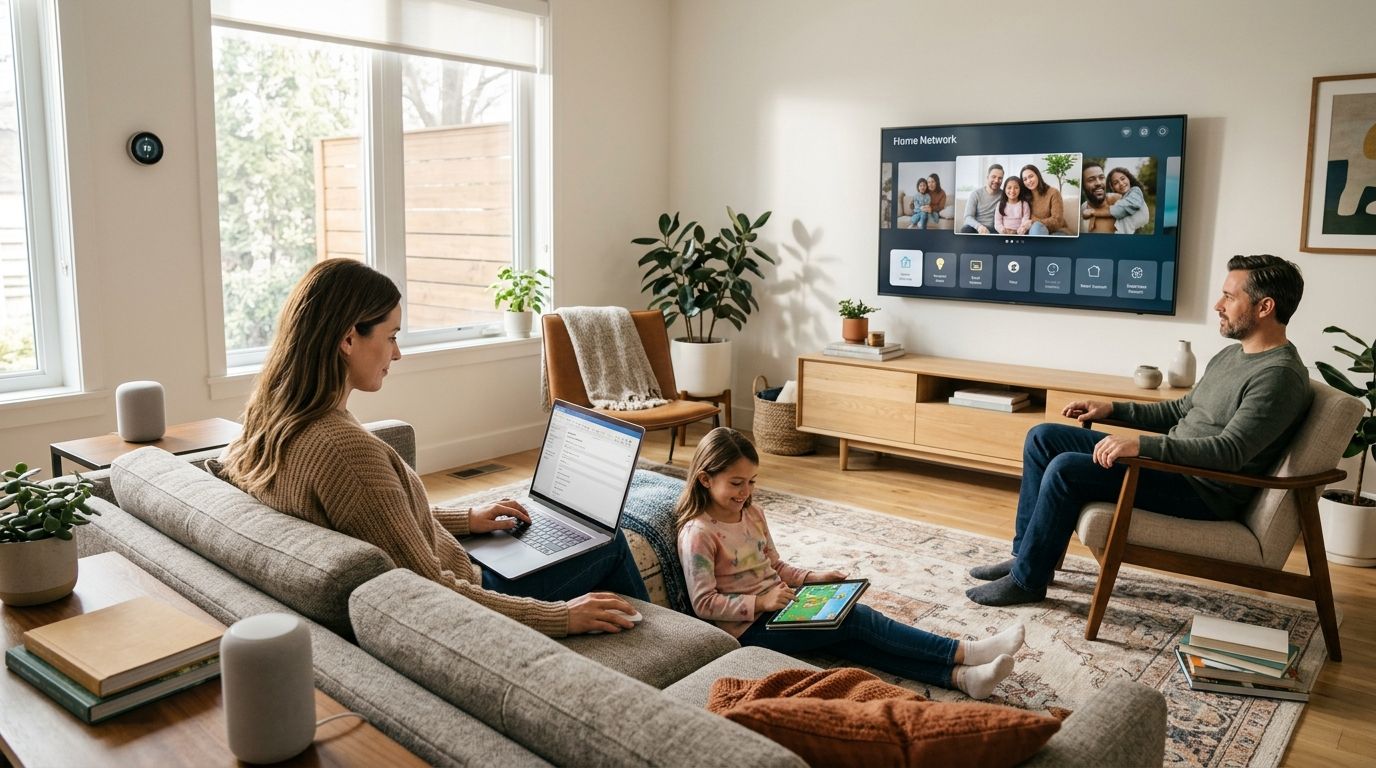
Your home network probably isn't just “the Wi-Fi” anymore. It's the work laptop on the kitchen table, the smart TV in the den, the gaming console in the bedroom, the doorbell camera by the porch, and a pile of phones, tablets, speakers, and streaming boxes all sharing one connection.
That convenience comes with a trade-off. Routers are still often used exactly the way they came out of the box, even though that box now sits at the center of family life, remote work, school access, banking, and home security. The good news is that strong network security for home doesn't require an IT degree. It requires a few high-impact changes, done in the right order.
Why Home Network Security Matters More Than Ever
A typical household now runs on connected gear. Someone's on a video call. Someone else is streaming. A camera is uploading clips. A thermostat is checking in with an app. A printer sits on the network until the day it doesn't. When everything works, it feels normal. When one weak device opens the door to a larger problem, that normal disappears fast.
What changed is scale. The surge in home connectivity has directly contributed to the rise in cybercrime, which now represents $6 trillion annually, making it the world's third-largest economy (research on home router security and connected households). The same source notes that most routers ship with default administrative credentials and outdated firmware, which leaves home networks exposed to automated attacks.
The risk isn't abstract anymore
In practice, home networks fail in boring ways, not dramatic ones. A router keeps its factory login. A smart plug never gets updated. A family member reuses an old password on a new device. Remote management gets left on because it sounds useful. None of that feels urgent until accounts get probed, devices slow down, or private traffic starts moving through a network that isn't as locked down as it should be.
Home security used to mean locks, lights, and maybe an alarm. Now it includes the router in the hallway closet.
The same habits that matter at home often carry into remote work. If you handle company files, client logins, or business email from your house, the line between personal and professional security gets thin. That's why broader reading on protecting your business online can be useful even for households with one person working from home a few days a week.
What actually helps
The biggest wins usually come from three areas:
- Router hardening: Change factory settings, tighten wireless security, and turn off features you don't need.
- Device control: Separate riskier smart devices from laptops, phones, and work equipment.
- Household habits: Use better passwords, watch for phishing, and make updates routine.
If you do those three things well, you'll avoid most of the problems technicians see every week in home setups.
Securing Your Router The Foundation of a Safe Network
A lot of home network problems start at the router and stay invisible for months. The Wi-Fi works, streaming works, video calls mostly work, so nobody logs in to check the settings. Meanwhile, the router is still using a weak admin password, old security options, or convenience features that open more access than the household intended.
If you want the biggest security gain for the least effort, start here.
Start with the settings that matter most
This is the order I recommend in real homes, especially when people want practical results fast instead of spending an afternoon buried in menus.
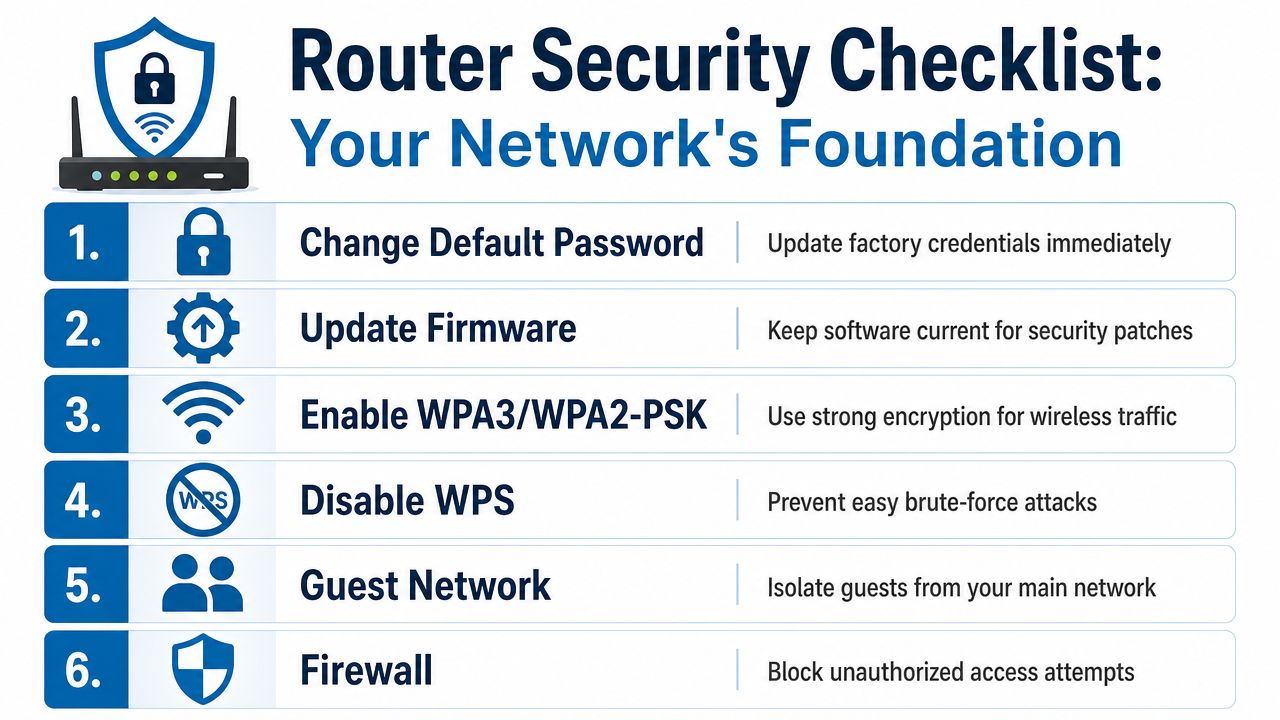
Change the router admin password first
This controls the router itself, not just Wi-Fi access. Factory logins are still one of the easiest ways a home network gets left exposed. Use a unique password and store it in a password manager or a written record kept somewhere safe.Rename the Wi-Fi network to something generic
Skip names that reveal your surname, flat number, street, or router model. A neutral SSID shares less information with anyone scanning nearby networks.Turn on the strongest wireless encryption your devices support
Use WPA3 if all of your devices support it. If they do not, use WPA2-AES rather than older legacy modes. The NSA home network guidance also recommends current encryption standards and turning off setup features such as UPnP when they are not needed.Use a long, unique Wi-Fi passphrase
Length matters more than cleverness. A short password with symbols is still weak if it is based on a pet name, football team, or address. Three or four random words usually strike a good balance between strength and usability.
Turn off features you are unlikely to need
The quickest router hardening work often comes from disabling old convenience tools.
WPS is a common one. It was designed to make device pairing easier, but it also lowers the bar for unauthorized access attempts. UPnP is another. Some games, apps, and devices use it to open ports automatically, which is convenient until something opens a path you never meant to expose. Remote management carries the same trade-off. It can be useful if you manage your router from outside the house, but most households do not need that risk.
| Setting | Why it gets left on | Why it often gets turned off |
|---|---|---|
| WPS | Fast pairing for printers and gadgets | It weakens access control |
| UPnP | Automatic port handling for apps and devices | It can expose services without clear visibility |
| Remote management | Off-site router access | It adds another login path from the internet |
A simple rule helps here. If nobody in the house can explain why a feature is on, switch it off and test what still works.
Keep firmware and firewall settings under control
Outdated firmware is one of the most common router issues I see. The connection may look fine from the sofa, but the software can still contain known flaws that have already been patched by the manufacturer. Check for updates in the router dashboard, then enable automatic updates if your model supports them.
A few other checks are worth the time:
- Leave the router firewall enabled: It is part of your first line of defense against unwanted inbound traffic.
- Turn off remote administration unless you actively use it: Most homes never need outside access to router controls.
- Check DNS settings: If they point somewhere unfamiliar and nobody changed them on purpose, that needs attention.
- Review logs occasionally: Repeated login failures, unknown device names, or frequent reconnects can point to a configuration problem.
If you want more detail on how these settings work together, Premier Broadband has a useful guide to router firewall setup and configuration options.
There is also a practical limit to how much time many households want to spend managing this. In a modern home with work laptops, consoles, cameras, tablets, TVs, and smart appliances, a managed service such as Premier Protects can be the simpler option if you want these controls handled consistently instead of relying on somebody to remember every setting and update.
Later, after the essentials are in place, this walkthrough is worth watching if you want to see common router security ideas explained visually:
What good router security looks like in practice
A secure router setup is usually boring. Strong encryption. A unique admin login. Firmware kept current. Unused features turned off. A firewall left on. That is the work that prevents the everyday problems technicians keep seeing.
What causes trouble is usually simpler than people expect. A household assumes a new router arrived configured well. Someone enables a feature for one app and forgets about it. Nobody checks the settings again for two years.
If the admin menu feels cluttered, that is normal. Many consumer routers bury the important controls behind vague labels. Make one change at a time, save the settings, and if needed take screenshots so you can roll back cleanly if a device stops connecting.
Taming the Wild West of IoT and Smart Devices
Smart devices are where home networks get messy. A laptop usually gets regular updates, has a known owner, and handles obvious tasks. A smart bulb, baby monitor, streaming stick, thermostat, camera, or voice assistant is different. It may run old software for years and still stay connected the whole time.
Every 24 hours, home network devices experience an average of 10 attacks, according to the 2024 IoT Security report conducted by Bitdefender (summary citing the Bitdefender report). That's why smart devices deserve their own strategy instead of being lumped in with “everything else on Wi-Fi.”
Treat IoT as a separate risk zone
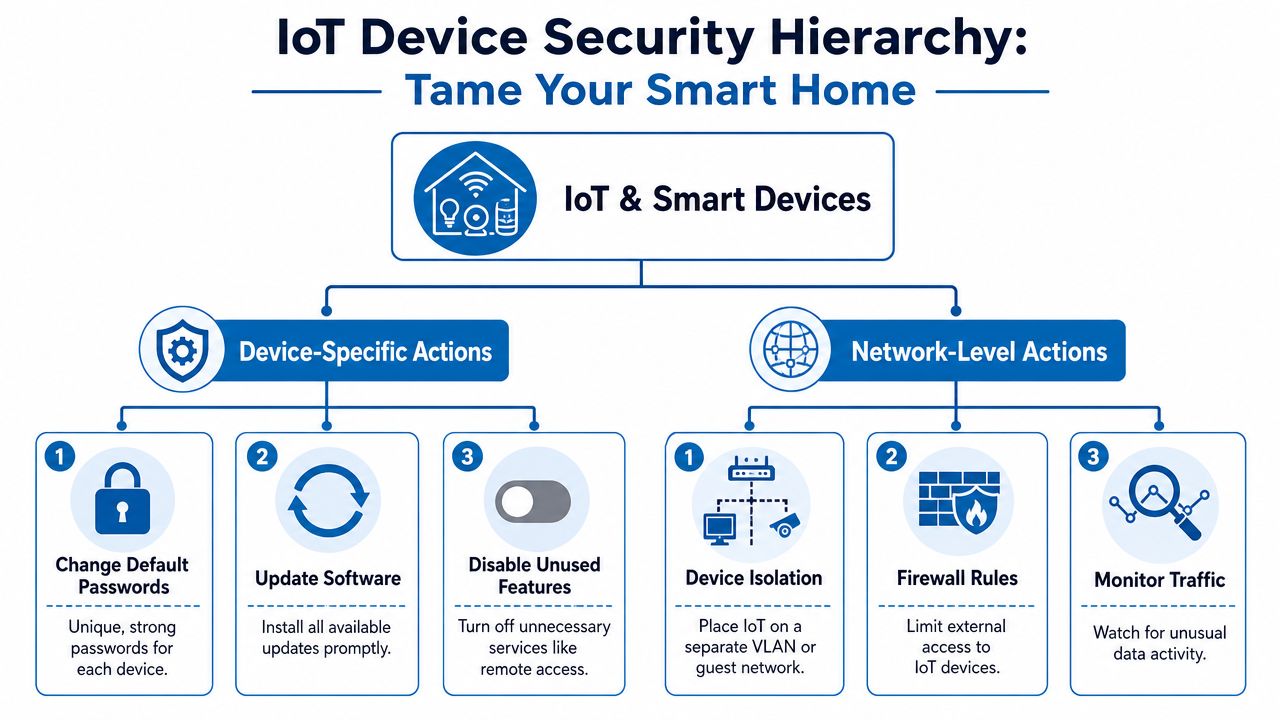
The simplest useful move is to stop placing every device on the same network. If a cheap smart plug gets compromised, it shouldn't sit beside your work laptop, family photo archive, and banking phone.
A guest network is often the easiest answer for most homes. Use your main network for trusted devices such as computers, phones, tablets, and home office equipment. Use the guest network for cameras, speakers, TVs, smart appliances, and other IoT gear.
If a device doesn't need to talk directly to your laptop, it probably doesn't belong on the same primary network.
That separation won't solve everything, but it limits blast radius. That matters more than people realize.
A practical setup that keeps things sane
When a house has lots of connected gear, I usually suggest this simple split:
- Main Wi-Fi: Laptops, phones, tablets, and work devices
- Guest or IoT Wi-Fi: TVs, cameras, smart speakers, plugs, doorbells, and appliances
- Wired where possible: Desk devices, game consoles, and fixed office equipment
If your hardware supports deeper segmentation, managed switching can take that idea further. For readers comparing simpler guest networks with more structured separation, this primer on what a managed network switch is helps explain when extra control starts making sense.
Device-level cleanup matters too
Network separation is the first defense. The second is cleaning up each device as you add it.
Here's the checklist I trust most:
- Change default logins: If the device has its own admin account or app credentials, replace factory passwords immediately.
- Install updates early: Update the firmware before you settle the device into daily use. Many devices ship with older software.
- Turn off features you don't use: Remote access, cloud sharing, microphone access, or integration features should be enabled only when they serve a real purpose.
- Review app permissions: Smart device apps often ask for more access than they need.
- Retire junk devices: If a product stops receiving updates and starts acting oddly, replacing it is often safer than trying to squeeze another year out of it.
What people get wrong
The biggest mistake is assuming “small” means “low risk.” Attackers don't care whether the weak spot is exciting. They care whether it's available. A forgotten camera or bargain smart plug can become the easiest path into a busy home network.
The second mistake is convenience stacking. One family shares one Wi-Fi name, one password, and one flat network because it's easier. It is easier, right up until troubleshooting or isolation matters.
Securing Your Home Office VoIP and Wired Connections
A lot of home security advice stops at Wi-Fi. That misses the setup many remote workers depend on. Home office gear often includes Ethernet-connected computers, docking stations, printers, and sometimes a desk phone or softphone service for work calls.
Wired doesn't mean automatically safe
Ethernet is usually more stable than Wi-Fi, and that's why I prefer it for fixed office equipment. But “wired” doesn't mean “secured by default.” A computer connected by cable still depends on the router, the firewall, the account security on the device, and the way voice or collaboration apps are configured.
Use wired connections for your work laptop dock, desktop, VoIP hardware, and anything that handles sensitive files regularly. Then make sure those devices still follow the same basic rules as wireless gear:
- Keep software current: Operating system, browser, security tools, and office apps all matter.
- Limit shared access: Don't let the home office machine become the family's casual download station.
- Watch physical access: A network jack in a spare room is still part of your security boundary.
VoIP works best when the network is predictable
Home VoIP issues often come from misconfiguration, not the phone service itself. People run into dropped calls, one-way audio, or registration problems and start changing random settings on the router. That usually creates more trouble than it fixes.
One setting that causes repeated confusion is SIP ALG. It's meant to help SIP traffic, but in many home environments it interferes instead. If you use internet calling for work or home service, Premier Broadband's plain-English explanation of what SIP ALG is is a good place to start before changing voice-related router options.
Stable voice service depends on a clean network path more than a pile of “advanced” tweaks.
A practical home office posture
For remote workers, I'd keep the setup simple:
| Area | Better choice | Riskier choice |
|---|---|---|
| Work computer | Wired when practical | Shared household device |
| Voice calls | Consistent router settings | Frequent DIY changes during troubleshooting |
| Office network access | Separate from guest and IoT traffic | Same flat network as everything else |
If your employer requires extra safeguards, follow their policy first. Home convenience shouldn't override workplace security rules, especially when client data, financial systems, or internal communications are involved.
Building Good Habits A Family Cybersecurity Plan
The strongest router in the world won't save a household that clicks every fake shipping email or reuses the same password across ten accounts. Good network security for home always comes down to behavior after the settings are done.
Make password hygiene realistic
Telling family members to “use strong passwords” rarely changes much. Giving them a simple system does. The easiest path is a password manager everyone in the house can use on phones and computers.
A workable family routine looks like this:
- Use unique passwords for important accounts: Email, banking, school portals, streaming logins, and shopping accounts shouldn't share credentials.
- Store them in one approved tool: Don't scatter passwords across notes apps, browsers, scraps of paper, and text messages.
- Protect the manager account carefully: That master password needs to be memorable and strong.
- Turn on extra sign-in verification where offered: Especially for email and financial accounts.
Teach people what suspicious looks like
Phishing doesn't always arrive as a dramatic scam. More often it looks routine. A school message. A password reset. A missed delivery. A fake voice mail notice. The safest family rule is simple: slow down before clicking.
Teach everyone in the home to pause when a message does any of the following:
- Creates urgency: “Act now” messages are designed to outrun judgment.
- Asks for a login from a link: Go to the service directly instead of tapping the message.
- Uses odd wording or mismatched branding: Little mistakes still matter.
- Promises a prize or threatens an account lockout: Both are common pressure tactics.
Ask one question before clicking: “Was I expecting this?”
For broader reading on household and small business overlap, this resource on cybersecurity and data protection is useful because it frames security as an everyday discipline rather than a one-time project.
Put family rules in writing
This doesn't need to be formal. A short note on the fridge or in a shared family app is enough if people will follow it.
Try a simple plan with rules like these:
Ask before installing new smart devices
That prevents mystery gadgets from joining the network with default settings.Update devices when prompted
Don't postpone updates forever unless there's a real reason.Use the guest network for visitors
Friends don't need access to the same network as school and work devices.Check with an adult before opening unexpected links
This matters for kids, but plenty of adults need the same reminder.
Content controls help, but they aren't the whole answer
Parents often look for a single switch that blocks all risk. That switch doesn't exist. Content filtering can reduce accidental exposure and make device rules easier to enforce, but it won't replace supervision, conversations, and good login habits.
The households that stay safest usually aren't the most technical. They're the ones with a few clear rules that everyone understands.
When to Call the Experts Managed Services Explained
A lot of home networks now carry work calls, school logins, cameras, smart TVs, gaming consoles, and a growing pile of apps that all expect to stay online and protected. At that point, security stops being a one-time setup job. It becomes ongoing maintenance, and many households do not want to spend their evenings checking firmware versions, tracing device conflicts, or figuring out why a new gadget joined the wrong network.
Managed services make sense for households that find that upkeep difficult, inconsistent, or too time-consuming. The trade-off is simple. You pay for help, but you get back time, fewer avoidable mistakes, and a clearer support path when something breaks.
What a managed service actually changes
The main benefit is consistency. Good security often fails because no one owns the routine work. Updates get postponed. Router settings stay untouched for years. A device gets added quickly and never reviewed again.
A managed service assigns that work to people who handle it every day. In practical terms, that can mean maintained security settings, help with device segmentation, guided troubleshooting, and support when a network problem affects work or family use.
That matters most in homes with several competing priorities:
- Remote workers who need stable calls and secure access
- Families with many smart devices and streaming gear
- Parents who want simpler controls without juggling multiple apps
- Households that want better protection without becoming their own IT department
Here's the practical difference:
| DIY approach | Managed approach |
|---|---|
| You monitor updates and settings manually | Security settings and maintenance are handled as part of the service |
| You troubleshoot device conflicts alone | Support can spot and resolve common misconfigurations |
| Family rules live across separate apps and devices | Controls and visibility are more centralized |
For readers who want a broader view of managed monitoring and response, this guide to enhancing business security gives useful context. The home version is simpler, but the logic is similar. Ongoing oversight usually matters more than a strong setup on day one.
When it's worth handing off
I usually suggest looking at effort versus impact. If your network is fairly simple and someone in the house is comfortable maintaining it, DIY still works. If the network supports work, school, entertainment, guest access, and a long list of smart devices, managed help often gives better protection for less effort.
That is the point where a service such as Premier Broadband's managed network security solutions can be a practical fit. The value is not that every home needs enterprise-grade tools. The value is having the routine security work handled properly, with support available when the network starts acting like a small office.
The best setup is the one your household can keep running without frustration six months from now.