

If you want to test your internet speed accurately, the first step is creating a clean testing environment. That means you need to connect your computer directly to the router with an Ethernet cable, shut down all background apps, and kick every other device off the network.
This is the only way to measure your connection's true potential. Otherwise, you're just measuring your Wi-Fi's performance or the combined internet usage of everyone in your house.
Why Your Speed Test Results Are Often Wrong
Have you ever run a speed test and gotten a number that feels completely disconnected from your actual experience with glitchy video calls? You're not the only one. Those simple, one-click tests often don't paint the full picture, leaving you frustrated and confused about the service you're paying for.
Think of your internet connection as a highway. Your plan might promise a 1,000 Mbps speed limit, but if the test server is across the country (a distant exit) or it's 7 PM and everyone is online (rush hour traffic), you’ll never hit that top speed.
Understanding the Core Metrics
To really get a handle on your connection's health, you have to look beyond a single download number. Three key metrics give you a much clearer view:
- Download Speed: How fast your device can pull data from the internet. This is what matters most for streaming movies, loading websites, and downloading files.
- Upload Speed: How fast your device sends data to the internet. This is critical for smooth video calls, online gaming, and uploading big files to the cloud.
- Latency (Ping): The time it takes for a signal to travel from your device to a server and back again, measured in milliseconds. Lower latency means a more responsive connection.
Here’s what a typical test result looks like, showing these key metrics at a glance.

These numbers give you a baseline, but lots of outside factors can skew the results. Even in countries with blazing-fast internet like Singapore, real-world tests often show big differences from advertised speeds. Some reports show that user-run tests can be 20-30% lower than what ISPs claim, just because of network congestion. You can find more insights on global internet speeds on sites like Airband.co.uk.
Key Takeaway: Your internet speed isn't one static number. It's a dynamic measurement that changes based on your hardware, network traffic, and even how you run the test.
This is exactly why symmetrical speeds—where your upload and download speeds are the same—are such a game-changer for how we use the internet today. A true fiber connection from providers like Premier Broadband delivers this balance, ensuring your remote work and gaming are smooth and lag-free. It’s about more than just chasing a high download number.
Creating a Clean Environment for Your Speed Test
To get a real sense of your internet speed, you have to create a controlled environment. Think of it like a science experiment—you need to eliminate all the outside variables. If your smart TV is streaming a movie and your phone is downloading app updates, your speed test results won't show your connection's true power. They’ll just show what’s leftover.
The goal is simple: dedicate your entire internet connection to one single device for the test. This is the only way to get a pure, unfiltered measurement of the speeds your provider is actually delivering. Otherwise, you're just measuring the chaos of a busy network.
Isolate Your Testing Device
First things first, you need to silence all the other network noise. A modern home is packed with devices that are constantly sipping bandwidth, often without you even noticing. Your smart thermostat, security cameras, tablets, and gaming consoles are all potential data hogs.
To get a clean reading, you have to temporarily disconnect everything else from your network.
- Unplug Other Computers: Shut down or disconnect any other laptops and desktops.
- Disconnect Smart Devices: This includes smart TVs, streaming sticks like Roku or Apple TV, smart speakers, and gaming consoles.
- Turn Off Wi-Fi on Mobile Devices: Make sure all phones and tablets are disconnected from your Wi-Fi.
Yes, it's a bit of a hassle, but this step is non-negotiable if you want an accurate test. It makes sure the numbers you see are for your internet service alone.
Prepare Your Computer for the Test
Once you have a single computer isolated for the test, it's time to clean up its digital workspace. Many applications run in the background, quietly eating up your bandwidth.
Pro Tip: Before you even start a test, give your computer a quick restart. This clears out temporary files and kills any lingering background processes that might be using data without you knowing. A fresh start is a clean start.
Next, close the most common bandwidth culprits. Shut down all your browser tabs except for the one you'll use for the speed test. Exit any applications that sync to the cloud, like Dropbox, Google Drive, or OneDrive. It's also critical to temporarily disable your VPN. The encryption and server rerouting that a VPN uses will create a bottleneck and give you a much slower result.
These background processes can silently eat up 20-30% of your available bandwidth, which is exactly why this prep work is so important for seeing what your Premier Broadband fiber connection can really do. While you're at it, a tidy physical space can prevent accidental disconnections; check out these practical desk cable management ideas to keep your setup stable. A clear testing environment is the foundation for results you can trust and is the first thing to check before troubleshooting. You can find more tips in our guide on how to improve your home Wi-Fi.
Choosing The Right Testing Tools And Methods
With your network prepped for a clean test, it's time to pick the right tool for the job. Not all speed tests are the same—some are great for a quick look, while others offer a much deeper dive into your connection's health. The best one for you really depends on what you're trying to figure out.
For most folks, a simple browser-based test is the perfect place to start. Tools like Speedtest.net by Ookla are the go-to standard, giving you a solid overview of download, upload, and ping from a huge network of servers. Another popular choice, Fast.com, is run by Netflix and is fantastic for a no-fuss download speed check, specifically measuring your connection to their servers—ideal for troubleshooting streaming problems.
Speed Test Tool Comparison
To help you decide, here's a quick rundown of the most common tools and what they're best for. While browser tests are convenient, remember that more advanced tools can offer a more granular look at your performance.
| Tool | Best For | Key Feature | Potential Drawback |
|---|---|---|---|
| Speedtest.net | General, all-around testing | Massive server selection for accurate local results | Can be ad-heavy; results may vary slightly between servers |
| Fast.com | Diagnosing video streaming issues | Simple, ad-free interface focused on download speed | Doesn't measure upload or latency by default |
| TestMy.net | Consistent, browser-based results | Uses HTML5 for testing without plugins | Interface is less modern than competitors |
| iPerf3 | Advanced technical diagnostics | Tests raw throughput between two specific points | Requires command-line knowledge and a second server |
Ultimately, using a couple of different browser-based tools is a great way to get a balanced view of your connection's everyday performance.
Wired Vs. Wi-Fi: A Critical Distinction
Before hitting "Go" on any test, you have a crucial choice to make: plug in or stay wireless? Testing over Wi-Fi is easy, but it’s really measuring the performance of your wireless network, not the full speed your Internet Service Provider is delivering to your home. Wi-Fi signals are notoriously fickle, getting weakened by walls, furniture, and even other electronics.
For a true, unvarnished baseline, you have to test with a wired Ethernet connection. Plugging your computer directly into your router bypasses all those potential Wi-Fi hiccups. The difference can be shocking—a wired connection can be up to 50% faster than Wi-Fi. Interference from something as simple as a microwave can slash wireless speeds by 40%, which makes a wired test the only way to know what you're really getting. You can see more on how different factors impact internet performance from HighSpeedInternet.com's 2025 stats.
This graphic breaks down the simple but essential steps for setting up a clean testing environment.
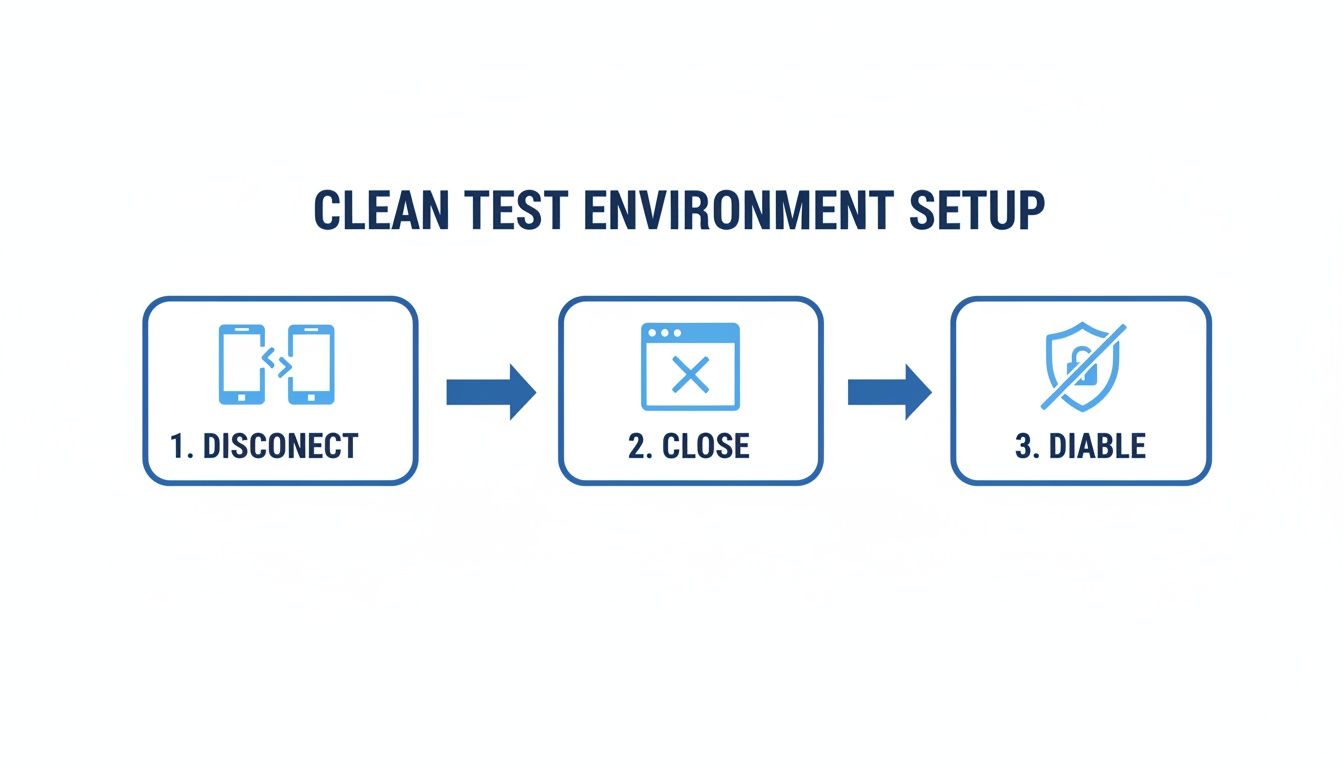
Following this process—unplugging other devices, closing apps, and turning off VPNs—is key to getting results that purely reflect your connection's capability.
Advanced Tools For Deeper Insights
What if browser tests point to a problem, or you just need more detailed data? It might be time to bring in some heavier-duty tools.
If you want to dig deeper without getting too technical, TestMy.net is a solid option. It uses HTML5, which some people find gives more consistent results than the methods used by older tools.
For those comfortable with a more hands-on approach, command-line utilities offer unmatched accuracy by testing directly against specific servers without any browser overhead getting in the way. If you're looking to go down that rabbit hole, you can learn more about the various network diagnostic utilities that give you precise control over your tests.
Expert Tip: Don't just test once. Run tests using a couple of different tools and at different times of the day—think morning, afternoon, and peak evening hours. This helps you build a complete performance profile of your internet, quickly showing you if issues like neighborhood network congestion are at play.
By pairing the right tools with the right method—always starting with a wired connection—you can move beyond just checking your speed. You'll have what you need to accurately diagnose your internet performance and collect the proof to fix any problems you find. It’s the only way to know for sure if you're getting the speeds you pay for.
How to Read Your Speed Test Results

Running a speed test and getting a set of numbers is easy. But what do they actually mean for your day-to-day life? Those figures are the difference between a smooth 4K movie night and endless buffering, or a crisp video call versus a glitchy, robotic conversation.
The numbers you see aren't just for show—they directly impact every click, stream, and download. Once you understand the role of latency, jitter, and packet loss, you can finally get to the bottom of your internet woes.
Beyond Download Speed: What Really Matters
While download speed gets all the attention, it’s only one part of the story. To really understand your connection's health, you need to look at four key metrics. Think of them as your internet's vital signs.
- Download Speed (Mbps): This is how quickly your computer can pull down data from the internet. It's the key to streaming video, loading websites, and downloading files without long waits.
- Upload Speed (Mbps): This is the opposite—how fast you can send information to the internet. A healthy upload speed is essential for clear video calls, online gaming, and backing up your files to the cloud. You can learn more about what is a good upload speed in our detailed guide.
- Latency (Ping, in ms): Measured in milliseconds (ms), this is your connection's reaction time. It’s the delay for data to travel from your device to a server and back. Low latency is vital for responsiveness.
- Jitter (in ms): This measures the consistency of your latency. Low jitter means your connection is stable, which is crucial for real-time activities like VoIP calls and live streaming.
The Real-World Impact of Your Results
Okay, so what do these metrics actually mean for you? Let's connect them to things you do every day.
For a competitive gamer, low latency is everything. Anything above 20ms can create a noticeable delay between pressing a button and seeing the action on screen—a huge disadvantage.
On the other hand, a remote worker who spends their day on video calls needs low jitter above all else. Even with a fast download speed, high jitter causes that annoying audio breakup and frozen video because the data packets are arriving out of order. For smooth calls, you want a jitter of less than 30ms.
Key Takeaway: A 100 Mbps connection with high latency will feel much slower for interactive tasks than a stable 50 Mbps connection. The quality and consistency of your connection often matter more than the raw speed.
There's one more hidden culprit: packet loss. This happens when data packets get lost on their way to or from your device. Even 1-2% packet loss is enough to cause buffering videos and choppy calls as your computer scrambles to re-request the missing info. True internet testing means looking at all these numbers to see the complete picture.
What to Do When Your Speeds Don't Match Your Plan
So, you've run the tests, and the results are disappointing. The speeds you’re getting aren't even close to what you're paying for. Before you resign yourself to a long call with customer support, there are a few things you can try on your own.
Often, the simplest trick is the most effective: a classic reboot. Unplug both your modem and your router from the wall. Give it a full 60 seconds to completely clear its memory, then plug the modem in first. Wait for its lights to go solid and stable before plugging the router back in. This one simple step can fix a surprising number of performance issues.
Digging a Little Deeper
If a restart didn't do the trick, it's time to look at your router. The software that runs it—known as firmware—gets updated from time to time to fix bugs and improve how it handles traffic. Log in to your router’s settings and see if there’s a firmware update waiting. An out-of-date router can easily become a bottleneck for your entire network.
Next up is your Wi-Fi environment itself. If you're in an apartment or a crowded neighborhood, your router is probably fighting for airtime with dozens of others. This is called channel interference, and it can seriously drag down your speeds.
- Change Wi-Fi Channels: Most routers are set to "Auto," but you can often get a better signal by manually picking a less crowded channel, like 1, 6, or 11 for the 2.4 GHz band.
- Evaluate Coverage: Is the speed fine when you're next to the router but terrible in the next room? You likely have coverage gaps. A Wi-Fi mesh system is a great solution for spreading a strong, stable signal across your whole home.
For anyone working from home, a solid connection is non-negotiable. When your speeds are lagging, it can tank your workflow. Getting a handle on your real-world performance is the first step to fixing the problem and helps boost your remote work productivity.
Preparing to Contact Your ISP
After you've tried everything else and your speeds are still low, it's time to call your Internet Service Provider. But to make that call count, you need to show up with data. Just saying "my internet is slow" won't get you very far.
Pro Tip: Don't just give them one bad speed test result. Keep a log for a few days—test in the morning, afternoon, and evening. Showing a consistent pattern of poor performance is your most powerful tool for getting them to take action.
Before you pick up the phone, get your facts straight. Put all this information into a single document or email:
- Your Plan Details: Be ready to state the exact download and upload speeds you pay for.
- Test Results: Have at least three separate test results from a wired connection. Note the date, time, and the server you tested against for each one.
- Troubleshooting Summary: Let them know what you've already tried, like rebooting your gear, updating firmware, and testing directly over Ethernet.
This simple preparation changes the entire dynamic of the call. It shows the support agent you've done your homework and helps them move your case forward instead of just walking you through the basics. If you're consistently running into issues, our guide on the common reasons why your internet is slow has more great info.
Frequently Asked Questions About Internet Speed Tests
Even after running a few tests, you might still have some questions. Let's walk through some of the most common ones we hear to clear up any confusion about getting an accurate read on your internet speed.
Why Is My Phone's Speed Test Result Different?
It’s pretty common to see a faster result on your phone than on your computer, and there are a couple of solid reasons for it. Newer smartphones often pack more advanced Wi-Fi chips than older laptops, letting them talk to your router more efficiently.
Plus, speed test apps on your phone are streamlined for that one job. Your computer, on the other hand, is probably juggling a dozen browser tabs and background apps, all competing for attention. If you want a true apples-to-apples comparison, nothing beats plugging your computer directly into the router with an Ethernet cable for the main test.
Does Time Of Day Affect My Internet Speed?
It definitely does. The best way to think about it is like a highway. During peak hours, usually from 7 PM to 11 PM, everyone in your neighborhood is jumping online to stream movies, play games, and browse. This "digital rush hour" can cause a traffic jam on the network, slowing things down for everyone.
Our Recommendation: To see what your connection is really capable of, try running a test during off-peak hours, like late at night or early in the morning. If you see a big difference between that result and your evening speed, it’s a good sign that local network congestion is the culprit.
How Does A VPN Impact Speed Tests?
A Virtual Private Network (VPN) is great for privacy, but it adds a few detours for your internet traffic. It has to encrypt everything and then send it through a separate server, which almost always slows down your speed.
The encryption process itself takes up computing power, and the physical distance to the VPN server adds a delay (latency). When you’re trying to measure the raw speed you're paying for from your provider, you've got to always disable your VPN before you start. That’s the only way to measure your direct connection, not the performance of the VPN service.
A reliable, high-speed connection is the foundation of a great online experience. If your tests consistently show poor results, it might be time for an upgrade. Premier Broadband offers 100% fiber internet with symmetrical speeds to ensure your connection is fast and stable, no matter the time of day. Explore our fiber internet plans today.