

Your camera is on. The meeting is important. You start talking, then someone says, “You’re frozen.”
That moment is frustrating because it feels random. The call worked yesterday. Your internet plan sounds fast. Your laptop is new. Yet the picture blurs, the audio clips, and the conversation falls apart right when you need it most.
Video calls now sit at the center of work, school, healthcare, and customer service. High-definition calls can use 1.5 to 3 GB per hour, which puts strain on older internet setups and makes modern, reliable connections far more important for remote work and telehealth (compareinternet.com on video call data use). That is why understanding video conferencing bandwidth requirements matters. Not just the headline speed on your bill, but the kind of connection that keeps a call smooth when life is happening around it.
The High Stakes of a Low-Bandwidth Call
A dropped video call is never just a dropped video call.
For a remote worker, it can derail an interview or make a client presentation look unprepared. For a parent, it can interrupt a telehealth appointment. For a small business owner, it can turn a normal team meeting into ten minutes of “Can you hear me now?”

What makes this confusing is that many people assume a call fails only when internet speed is “too slow.” Sometimes that is true. But often the issue is more specific. A household may have enough download speed for streaming movies and browsing the web, then still struggle on a two-way video call because the connection behaves differently when it has to send live audio and video out at the same time.
Why bad calls feel so disruptive
Video conferencing is less forgiving than many other online activities.
A movie can buffer. A software update can run in the background. A live meeting cannot pause and catch up without everyone noticing. The call needs a steady flow of data in both directions, second by second.
That is why poor call quality creates very human problems:
- Work gets interrupted: You repeat yourself, miss details, or lose momentum in a meeting.
- Medical visits become stressful: Telehealth depends on clear video and understandable audio.
- Home networks feel unpredictable: One person starts a call, another starts a backup or stream, and quality changes fast.
Key takeaway: A reliable video call depends on more than “fast internet.” It depends on the right kind of capacity, in the right direction, with steady network performance.
What people usually ask first
Most readers start with one simple question. “How much bandwidth do I need?”
That is a good place to begin, and the answer depends on resolution, whether the call is one-to-one or a group meeting, and whether extra features like screen sharing are running. Some systems can work at very low levels, while immersive high-end setups can demand much more.
But if you only focus on Mbps, you can still miss a key cause of call problems. Speed matters. Quality matters too. Both have to work together.
Upstream vs Downstream A Tale of Two Lanes
Your internet connection has two traffic lanes. Downstream brings data into your home. Upstream sends data back out.
That difference is easy to miss because many online activities rely far more on download than upload. Streaming a show, loading websites, or downloading a file mainly use the incoming lane. A video call is different. The moment you turn on your camera and microphone, your connection has to carry a steady stream in both directions at the same time.
Here is the practical problem. A household can have plenty of download speed on paper and still struggle in meetings because the upload lane is too narrow.
Why upload becomes the pressure point
During a video call, your device is constantly sending your voice, camera feed, chat activity, and often a screen share. That makes you more like a live broadcaster than a passive viewer.
If one person is in a meeting, the upload demand may stay manageable. Add a second call in another room, a cloud backup in the background, or large files syncing to storage, and the outgoing lane can fill quickly. Then the symptoms show up fast. Audio cuts out. Faces turn blurry. People talk over each other because the timing slips.
This is why a good speed test result can feel misleading.
A simple way to read upstream and downstream
Downstream answers a basic question: how well can you receive everyone else’s video and audio?
Upstream answers a different one: how clearly can everyone else receive you?
For video conferencing, both matter. If downstream is weak, you will see frozen video and hear broken audio. If upstream is weak, other people will see your picture break apart or hear your voice drop, even when their own connection is fine.
That second issue surprises many households, especially on plans built mainly for entertainment use. If you want a clearer explanation of how upload affects daily internet use, our guide on what is a good upload speed breaks it down in plain language.
Typical bandwidth needs for video calls per user in 2026
| Scenario | Quality | Recommended Downstream | Recommended Upstream |
|---|---|---|---|
| Audio-only call | Audio | 40 to 50 MB per hour of data use | 40 to 50 MB per hour of data use |
| One-to-one video call | SD | 128 Kbps to 512 Kbps | 128 Kbps to 512 Kbps |
| One-to-one video call | HD | 1.5 Mbps to 6 Mbps | 1.5 Mbps to 6 Mbps |
| Small group call | HD | 2 Mbps to 4 Mbps per user | 2 Mbps to 4 Mbps per user |
| Large group meeting | HD with multiple participants | 10 Mbps+ in some scenarios | 10 Mbps+ in some scenarios |
One business guide on video conferencing bandwidth notes that SD calls can run at lower rates, HD calls usually require much more room, and larger meetings can push demands higher still (TechTarget on business video conferencing bandwidth).
The table helps, but a key lesson is simpler. Upload capacity deserves the same attention as download capacity.
Why symmetrical speeds make video calls feel better
A symmetrical connection gives you similar speed in both directions. For video meetings, that balance matters because conversation is two-way traffic.
That is one reason fiber stands out. Fiber is built to handle heavy upload and download use without forcing your outgoing traffic into a tiny lane. For remote work, telehealth, online classes, and homes with several active users, that balance usually means fewer call problems and a more predictable experience overall.
Premier Broadband’s fiber service is designed for exactly this kind of everyday demand. It gives households and businesses the speed they expect, along with the balanced performance video calls need to stay clear when life traffic hits the network all at once.
Decoding the Numbers How Much Bandwidth Do You Really Need
Bandwidth planning gets easier once you stop looking for one perfect number.
A video call is more like setting seats for dinner than picking a single shoe size. A one-to-one check-in, a five-person team huddle, and a company-wide meeting all place different demands on your connection. The platform matters. Video quality matters. What everyone else in the home or office is doing at the same time matters too.
Platform requirements are a starting point, not the full answer
Video apps usually publish their own connection requirements, and those numbers are helpful as a baseline. They show a clear pattern. Higher video quality needs more capacity, and group meetings usually need more than one-to-one calls because your device is sending your video while receiving several others.
That is why a connection that handles a quick solo call may struggle during a team meeting with multiple cameras on. The app has more streams to manage, more screen changes to process, and less room for error if the network gets busy.
If you want a practical primer on what counts as a good upload speed for video calls, start there before you choose a plan.
Resolution and frame rate raise the bar
Video quality is not just about whether the picture looks sharp. It directly affects how much data has to move every second.
Standard definition asks less from your connection. HD asks more. Full HD asks more again. Frame rate plays a role too. Smooth motion takes more data than a mostly still image, so a fast-moving presentation or active discussion can demand more than a quiet call with one person centered in frame.
This is why "it worked yesterday" can be misleading. Yesterday's call may have been lower quality, shorter, or less crowded.
Real planning means leaving breathing room
The bitrate listed by an app is only part of the story. Your network also carries overhead from encryption, signaling, and other supporting traffic that keeps the call running properly. Then add the normal background load from cloud backups, file syncing, streaming TVs, security cameras, and phones on Wi-Fi.
A practical rule is simple. Do not size your connection right to the app's minimum requirement and expect flawless meetings. Give your network headroom, especially if several people may be on calls at once.
For example, a home office with one laptop on a call is one situation. A household with two remote workers, a student in online class, and a smart TV streaming in the next room is a very different situation. The Mbps number has to fit real life, not a lab test.
Adaptive video helps, but it does not protect call quality
Modern conferencing apps can lower video resolution when bandwidth gets tight. That can keep the meeting from dropping completely, which is useful.
But the tradeoff is visible. Faces get softer. Motion gets less smooth. Shared screens lose clarity. If the call supports client meetings, telehealth visits, interviews, or remote collaboration, "still connected" is not the same as "working well."
That is the bigger lesson here. Bandwidth needs are not only about hitting a published Mbps target. They are about giving your connection enough capacity to stay stable under normal daily load. Premier Broadband’s fiber service helps solve that problem with the balanced performance video calls need, so your meetings stay clear even when the rest of your network is busy.
Beyond Speed The Hidden Killers of Call Quality
A video call can fail even when your speed test looks fine.
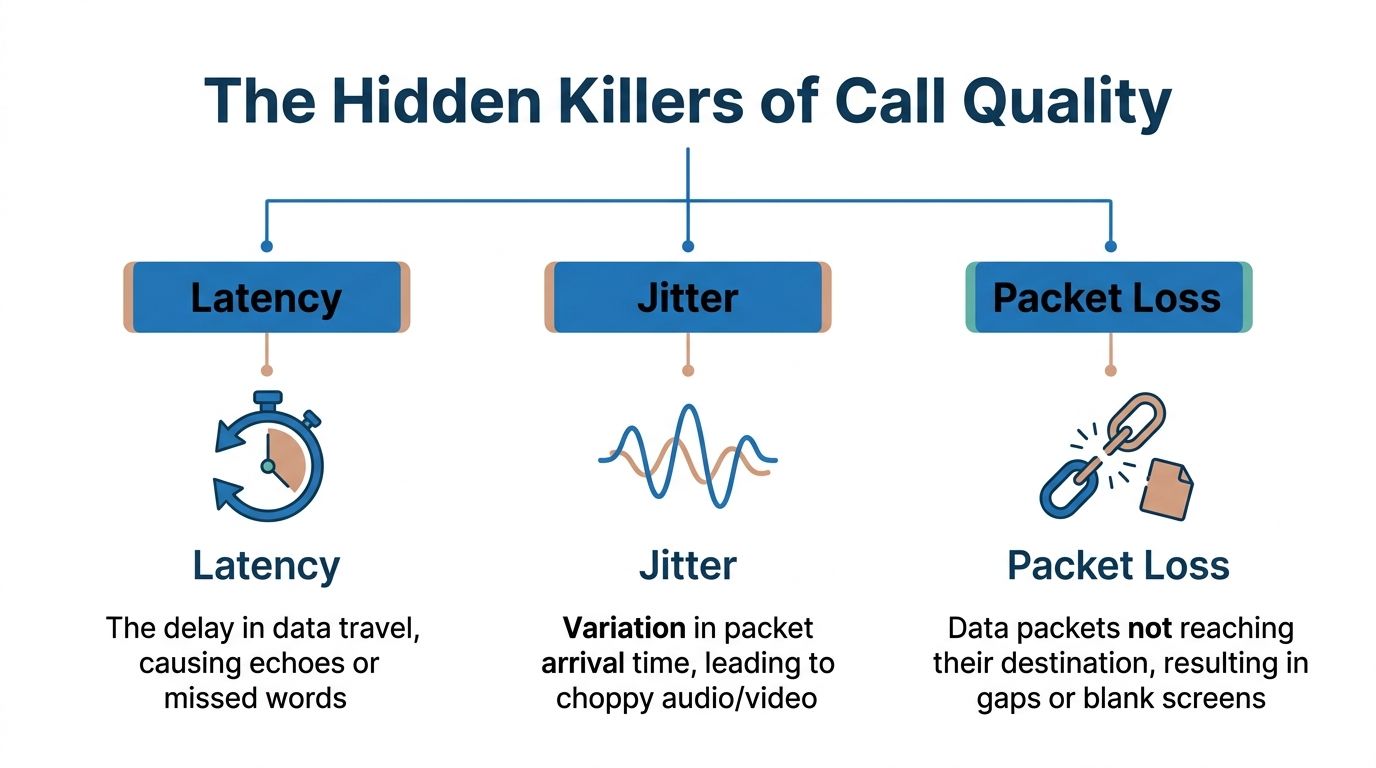
That frustrates a lot of home workers and small businesses. They upgrade for more Mbps, then still hear chopped audio, see frozen faces, or watch screen sharing turn blurry at the worst moment. The missing piece is network quality. For live conversation, three factors matter just as much as raw speed. They are latency, jitter, and packet loss.
The three troublemakers
Latency is delay. It measures how long it takes your voice or video to travel from your device to the other person and back again.
Jitter is variation in that timing. One packet arrives quickly, the next arrives late, and the app has to guess how to smooth it out.
Packet loss means some pieces of the call never arrive at all.
Here is the practical point. Video meetings are live, so they cannot wait around for missing pieces the way a movie stream can. A streaming app can buffer ahead. A meeting cannot. That is why a connection with plenty of advertised speed can still feel unreliable in real conversation.
What each problem feels like during a meeting
Latency makes conversations awkward. You answer a question a beat late. Two people start talking at once because each heard the other side a moment behind.
Jitter makes the call uneven. Audio may sound fine for ten seconds, then suddenly become robotic or broken. Video can look smooth, then jump.
Packet loss removes parts of the meeting entirely. A sentence drops a few syllables. A face freezes mid-expression. A shared spreadsheet updates in patches instead of cleanly.
If jitter is the symptom you notice most often, Premier explains the cause and the fix in this guide to what jitter is in networking and how to fix it.
Why a fast connection can still produce a bad call
Speed tells you how much data your connection can carry. It does not tell you how steadily that data moves.
That distinction matters more than many people expect. A call needs a smooth, uninterrupted flow of small packets in both directions, second after second. If those packets bunch up, arrive late, or disappear, the app has to recover on the fly by lowering quality, freezing frames, or filling gaps in the audio.
That is why Premier Broadband focuses on more than headline Mbps. Fiber helps reduce the instability that creates awkward delays and choppy meetings, not just the capacity limit that people see on a speed test.
Your in-home network can create the problem
Many call issues start inside the building, before traffic ever reaches the wider internet.
Wi-Fi signal strength changes by room. Walls weaken the signal. Interference from neighboring networks and household devices adds noise. At the same time, cloud backups, security cameras, game downloads, and other uploads can interrupt the steady rhythm that video apps need.
A simple clue helps here. If your call quality changes depending on where you sit, or gets worse when other devices get busy, the problem is often connection quality inside the home as much as internet speed itself.
Premier Broadband helps on both fronts. Our fiber service gives video calls the fast upload capacity and the stable network performance they need, so meetings stay clear, natural, and professional instead of merely connected.
Auditing Your Network and Troubleshooting Common Issues
When calls go bad, start with diagnosis instead of guessing.
People often replace the wrong thing first. They buy a new webcam, blame the app, or switch laptops when the problem lives in the connection path between the device and the internet.
Start with a simple network check
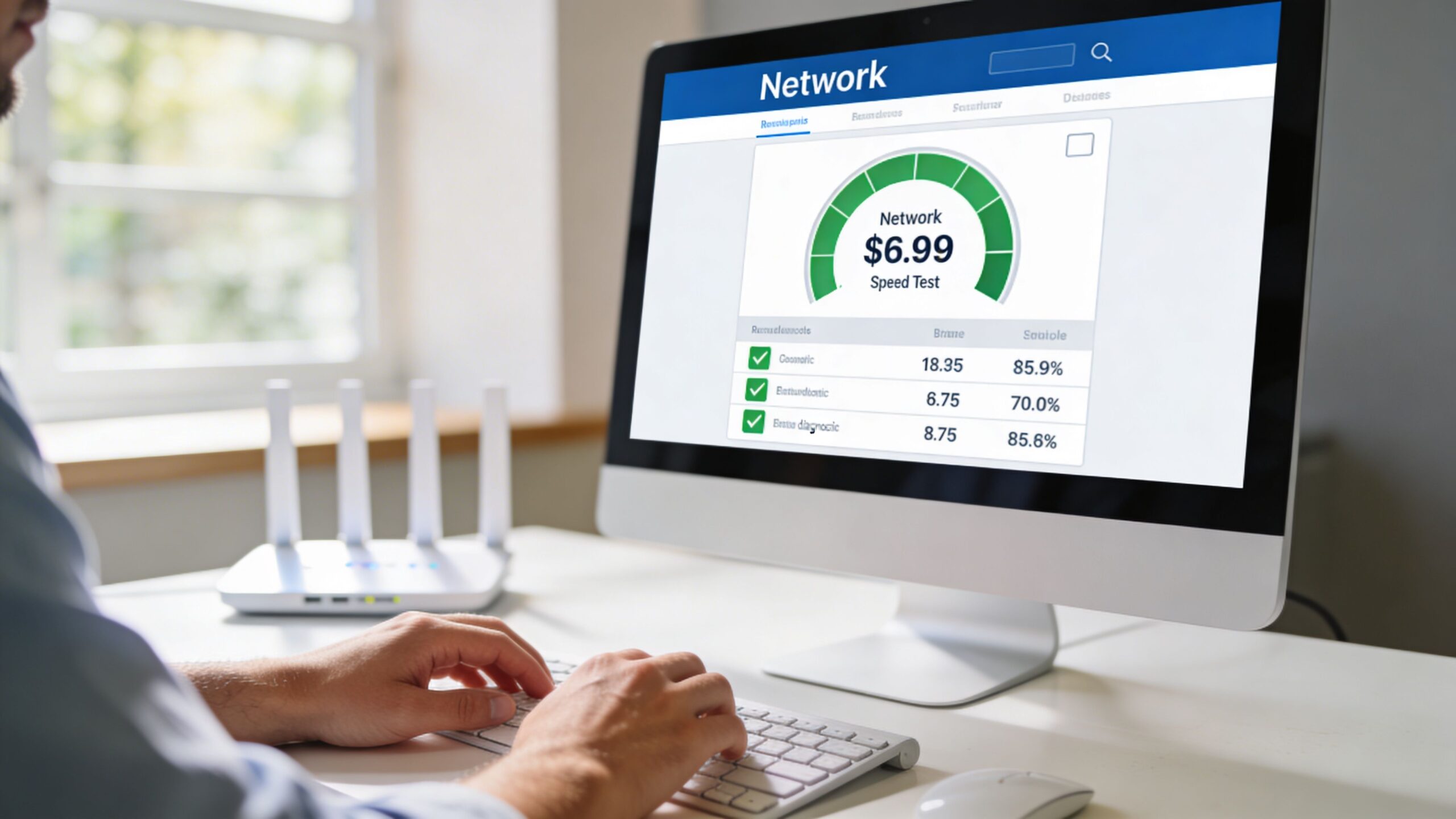
Run a speed test, but do not stop at download.
Look closely at:
- Upload speed: Video meetings depend heavily on it.
- Ping or responsiveness: Lower and steadier is better for live conversation.
- Consistency: Repeat the test in the room where you usually work.
If the result changes sharply depending on where you stand in the house, your Wi-Fi setup may be a larger issue than your internet package.
For a broader troubleshooting toolkit, Premier offers a practical set of network diagnostic utilities that can help you narrow down where the problem begins.
Work through the fixes in order
Start with the simplest improvement, then move outward.
Use a wired connection first
Ethernet removes a lot of wireless variability. If your call becomes stable on a wired link, you have learned something important. The internet service may be fine while the Wi-Fi path is not.Move closer to the router
Signal quality usually matters more than people expect. A laptop in the next room may still show Wi-Fi bars while experiencing weaker real-world performance.Pause background uploads
Cloud storage, photo backup, large email attachments, and software sync tools can crowd the upstream side without making much noise.Reduce simultaneous network load
Ask whether someone else is gaming, streaming, backing up files, or sitting in another video meeting.Restart key equipment
A clean restart of the modem, router, or access point can clear temporary issues.Check the conferencing settings
If your app is set to HD by default, lowering video quality can help during troubleshooting.
Pay attention to your environment
Older network types and weaker local Wi-Fi setups often create a bigger barrier than people realize, especially in rural and underserved areas where remote work and telehealth depend on stable connectivity. Recent analysis stresses that strong video performance requires not only enough bandwidth, but also low latency and minimal packet loss, which is why QoS and managed Wi-Fi matter when prioritizing video traffic (cloudbrink on connectivity gaps and QoS for video traffic).
That point is easy to overlook. A plan with enough theoretical speed may still disappoint if the traffic is not being handled cleanly inside the home or office.
Signs that tell you what is wrong
Use the symptom as a clue.
- People hear you cutting out, but you hear them fine: upload problem.
- Video goes blocky when someone starts a backup: congestion problem.
- Calls fail only in one room: Wi-Fi coverage problem.
- Everyone talks over each other: latency problem.
- Brief freezes and robotic audio: jitter or packet loss problem.
Tip: Troubleshoot the path in layers. Device, Wi-Fi, router, internet connection, then the app. That order saves time.
The Premier Broadband Solution for Flawless Communication
At this point, the pattern is clear. Video conferencing bandwidth requirements are not just about buying “more internet.” They are about using a connection built for two-way, real-time communication.
That is where fiber stands apart.
Why fiber fits modern video calling
Fiber is a strong match for homes and businesses that live on video because it supports symmetrical upload and download speeds. That directly addresses the upload bottleneck that causes so many meeting issues on older connection types.
It also aligns with how people work now. One person may be on Zoom. Another may be sending files to the cloud. A VoIP phone may be active. Security cameras may be connected. The network is no longer serving one task at a time.
Premier Broadband builds around that reality with a 100% fiber network designed for remote work, streaming, gaming, VoIP, and video conferencing. If you want a useful overview of the underlying advantages, Premier explains the benefits of fiber optic internet in practical terms.
Why quality matters as much as speed
Fiber helps on the quality side too.
The earlier issues in this article (latency, jitter, and packet loss) matter because video calls are live. A connection that delivers traffic smoothly will usually feel better than one that only looks fast in a headline number.
For business users, that becomes even more important when voice systems, AI cameras, and cloud tools all share the same environment. Premier’s Managed Network Edge gives organizations a way to simplify deployment, monitor network behavior, and prioritize critical traffic like VoIP and video conferencing with QoS.
That kind of traffic management is important in practical scenarios. It helps protect the quality of customer calls and internal meetings when less urgent traffic is also flowing.
A better fit for home office life
Remote workers often focus on the desk, monitor, webcam, and chair first. That makes sense. The workspace matters.
If you are also setting up a home office, it is worth treating connectivity as part of the furniture plan. A polished home office still feels broken if the call freezes every afternoon.
For households, Premier pairs fiber with managed Wi-Fi through Premier Protects, which helps extend strong connectivity throughout the home. For professionals who rely on daily meetings and file transfers, plans such as Home Office Hero are built around the needs that matter most on a workday.
Frequently Asked Questions About Video Conferencing Bandwidth
Is a 1 Gbps connection overkill for video calls
For one person on a normal workday, it can be more than necessary.
But speed tier decisions should match the whole environment, not a single call. If a household has many connected devices, frequent conferencing, streaming, gaming, cloud backups, and file transfers, a higher-capacity plan can provide breathing room. The key question is not “Can video run on this?” It is “Can everything happening at once run without hurting the call?”
Does VoIP phone service affect video conferencing quality
Yes, because both VoIP and video are real-time traffic.
If your network is busy and traffic is not prioritized, a voice call and a video meeting can compete with each other. That competition may show up as clipped audio, delay, or unstable video. In mixed environments, good network design matters as much as raw speed.
Will a new Wi-Fi router fix my Zoom problems
Sometimes. Not always.
A better router can help if your current issue is weak coverage, outdated Wi-Fi performance, or poor traffic handling inside the home. But a router cannot create upload capacity that your internet service does not provide. It also cannot fully overcome limitations from an older connection type.
Is wired always better than Wi-Fi for meetings
For important calls, wired is usually the safest option.
It removes many of the variables that cause instability, such as interference, signal loss through walls, and sudden wireless congestion. If you regularly host presentations, interviews, or telehealth sessions, connecting by Ethernet when possible is a smart habit.
Why does my call fail only when multiple people are home
Because your network is shared.
A single call may work well when the house is quiet. Add another meeting, a streaming TV, a cloud backup, or a game download, and the connection can become crowded, especially on the upload side. Shared usage exposes weaknesses that stay hidden when only one person is online.
Can apps lower quality automatically to keep the call going
Yes. Modern conferencing platforms often adapt to changing conditions.
That is helpful because it keeps the meeting from dropping completely. But the tradeoff is visible. Video may become softer, motion may look less smooth, and audio can still suffer if the connection is unstable enough.
What matters more for telehealth and remote work, speed or stability
Stability.
Enough bandwidth is necessary, but stable delivery is what makes a real-time conversation feel natural. A connection with low latency, low jitter, and minimal packet loss usually creates a better experience than a connection that only advertises a large speed number.
How do I know if my problem is internet service or home Wi-Fi
Test in steps.
Try the same call close to the router. Then try it on a wired connection. If performance improves sharply, the issue likely sits in the Wi-Fi layer. If the problem stays the same even on Ethernet, the service connection or upstream capacity may be the primary bottleneck.
If your workday, business, or family depends on clear video calls, Premier Broadband offers the kind of connection built for modern communication. With 100% fiber, symmetrical speeds, managed Wi-Fi, VoIP solutions, and business-ready network tools, Premier helps turn video calls from a daily frustration into something you can trust.