

There’s nothing more frustrating than your Wi-Fi dropping out mid-stream or during an important video call. When your connection starts acting up, it’s usually one of a few common culprits: your router is tucked away in a bad spot, other electronics are causing interference, your network is overloaded, or your gear is simply getting old.
Where to Start When Your WiFi Keeps Dropping
Before you dive down a rabbit hole of complex settings or start shopping for a new router, let's walk through the foundational checks. I always tell people to start here first. These simple steps solve a surprising number of connection problems and can save you a lot of time and hassle.
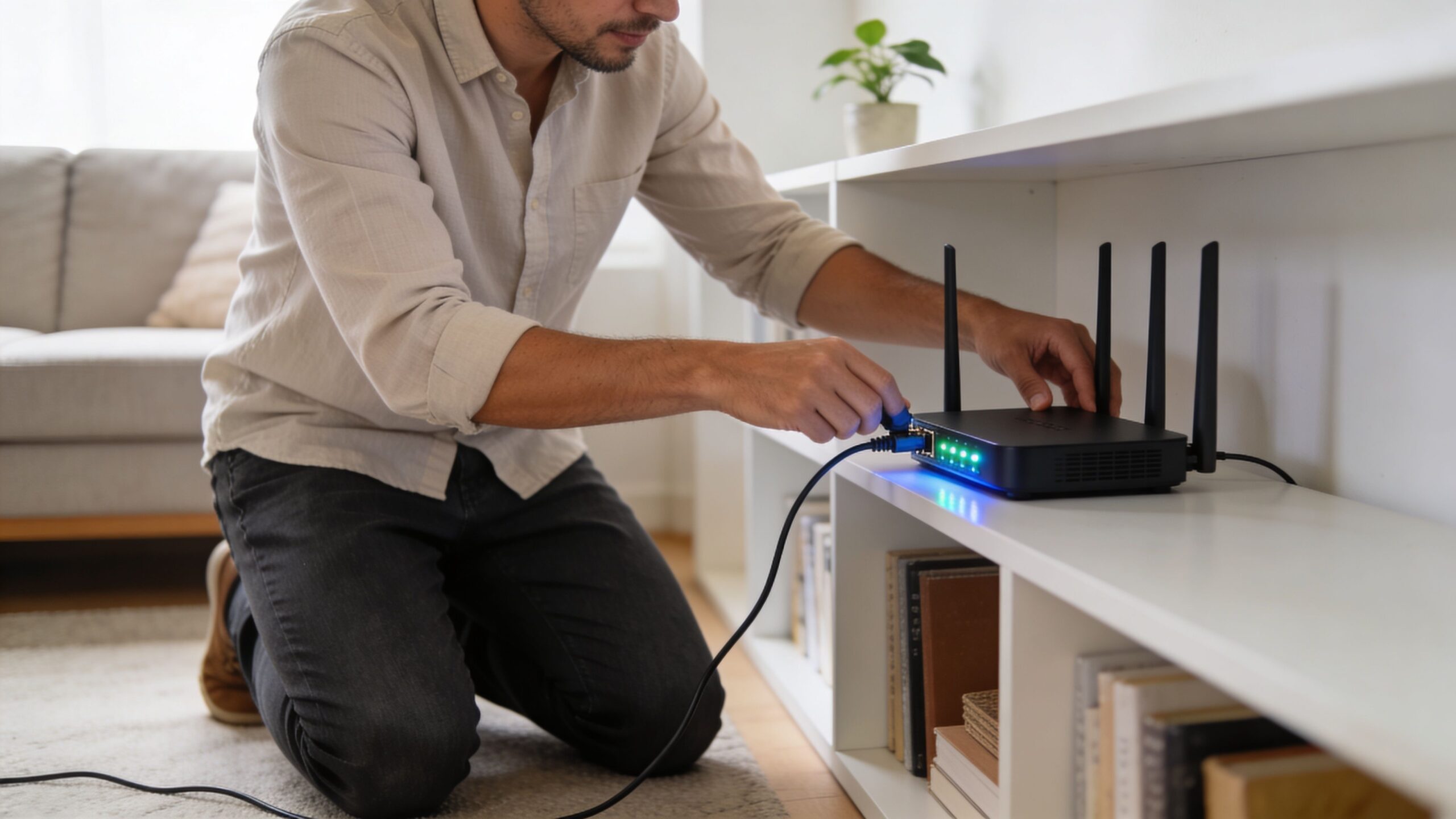
Often, the problem isn't a major technical failure. Your router might just need a moment to clear its memory and grab a fresh connection, which is why a proper reboot is always the first thing you should try.
Start With the Basics
First up, let’s do a full power cycle of your modem and router. This is more than just a quick flick of the power switch. Unplug both devices from the wall, then wait for a full 60 seconds. This pause is critical, as it allows the internal components to fully discharge and reset.
After a minute has passed, plug everything back in—modem first, then the router. Give them a few minutes to fully boot up until all the status lights are solid and green (or whatever color indicates a normal connection for your model).
Next, consider your router’s physical location. Is it shoved in a cabinet, stuck behind the TV, or sitting on the floor? Routers need open air to broadcast their signal effectively and to stay cool. The best spot is usually a central location in your home, elevated off the ground.
Pro Tip: I've seen it time and time again—people hide their routers for aesthetic reasons. Don't do it! Placing your router out in the open, away from concrete walls and large metal objects like refrigerators, can make a night-and-day difference in your signal stability.
If these initial steps don’t fix the drop-outs, the issue might lie with your network’s workload or even a specific device.
Quick WiFi Troubleshooting Checklist
To help you pinpoint what’s going on, think about the symptoms. Does your Wi-Fi die for everyone at once, or just on your laptop? Does it only happen when you’re in the back bedroom? Paying attention to these patterns is key.
The following checklist is a great way to narrow down the possibilities before you move on to more advanced solutions.
| Symptom | Most Likely Cause | First Action to Take |
|---|---|---|
| All devices disconnect at once | ISP outage or router issue | Power cycle modem and router |
| Only one device disconnects | Device-specific setting or driver | Restart the specific device |
| Disconnects in certain rooms | Poor router placement or weak signal | Move router to a more central location |
| Drops during heavy network use | Network overload or an outdated router | Reduce the number of connected devices |
Using this checklist can quickly point you in the right direction. For an even deeper look at getting the most out of your setup, you can check out our comprehensive guide on how to improve home WiFi.
Signal Interference and Device Overload: The Two Biggest Wi-Fi Killers
Think of your Wi-Fi signal as a conversation. Your router is trying to talk to your devices, but it's doing so in an incredibly crowded and noisy room. Every other electronic gadget creates a bit of background noise, and when that noise gets too loud, your devices can no longer “hear” the router clearly. That’s when your connection drops. This invisible chaos is what we call signal interference.
This interference comes from a surprising number of everyday household items. The biggest culprits are often things you wouldn't even suspect, like your microwave oven, older cordless phones, Bluetooth speakers, and even some baby monitors. When you use one of these, it can shout over your Wi-Fi signal, causing it to cut out momentarily.
The Problem With the Crowded 2.4 GHz Band
Many of these interfering gadgets operate on the same radio frequency as older Wi-Fi networks: the 2.4 GHz band. As our homes have filled with wireless devices over the years, this band has become the digital equivalent of a traffic jam. It’s congested, slow, and full of “signal pollution” from countless electronics all competing for the same limited space.
I see this all the time. A client will complain that their Wi-Fi mysteriously drops around noon every day. The culprit? Someone in the office is heating up their lunch. A running microwave operates at roughly 2.45 GHz, which is close enough to completely drown out the Wi-Fi signal for a minute or two.
It's not just your own devices, either. In an apartment complex or a dense neighborhood, you could have dozens of your neighbors' Wi-Fi networks all battling for the same airwaves on that 2.4 GHz band.
Your router is smart enough to try and find the least crowded channel to operate on, but in a busy area, there often isn't a quiet one to be found. It’s like trying to find an empty table in a packed food court—sometimes, you’re just out of luck.
This is exactly why most modern routers are dual-band, also broadcasting on the much wider and cleaner 5 GHz band. Think of the 5 GHz band as a private, multi-lane expressway for your Wi-Fi traffic.
- More Room: The 5 GHz band has far more channels, so there's less competition and a much lower chance of overlap with your neighbors.
- Less Noise: Very few common household electronics use this frequency, which means a cleaner, more stable signal.
If your router is dual-band, moving your most important devices—like your work laptop or your smart TV—over to the 5 GHz network can make a world of difference. While its range is a bit shorter than 2.4 GHz, the stability it provides in a crowded environment is a game-changer. For a deeper dive into how this all works, check out our guide on decoding the importance of signal strength.
When Too Many Devices Overwhelm Your Router
Even without interference, you can still run into disconnects from a different problem: simple device overload. Your router is a small computer, and just like any computer, it has a limited amount of processing power and memory. It can only juggle so many tasks at once.
It’s not uncommon for a modern home to have 20-30 connected devices, all asking for a slice of the Wi-Fi pie. These include the obvious ones:
- Laptops, tablets, and smartphones
- Smart TVs and streaming players
- Video game consoles
- Smart speakers and displays
- Security cameras and video doorbells
- Smart plugs, thermostats, and light bulbs
Even less obvious gadgets, like a Wi-Fi smoke detector, add to the total load. Each device places a small but constant demand on your router.
An older or more basic router might handle a handful of devices just fine, but it will start to buckle under the strain of a fully connected smart home. When a router's processor gets maxed out, it can start to drop data, slow to a crawl, or even freeze up and reboot. If your Wi-Fi seems to drop and then come back for no reason, especially when lots of people are home and using their devices, you may have an overwhelmed router.
Troubleshooting Your WiFi for a Stable Connection
Alright, let's get to the root of why your Wi-Fi keeps dropping. Finding the real reason often comes down to a few systematic checks. We'll start with the simplest fixes that solve the majority of problems and then dig a little deeper.
The key is to be methodical. There’s no point in tearing your network apart if a simple reboot is all it needed. Let’s begin with the basics.
Start with a Proper Power Cycle
You've heard it a million times: "Have you tried turning it off and on again?" It's a running joke in the tech world, but it's popular for one simple reason—it works. However, there's a right way to do it that's more effective than just hitting a switch.
Think of a proper power cycle as a full mental reset for your router. Over time, its short-term memory gets cluttered with old data and minor errors from juggling all your devices. This digital mess can cause slowdowns, freezes, and those frustrating, random disconnections.
Here’s how to do it correctly:
- Unplug Both Devices: Go ahead and pull the power cords from both your modem and your router.
- Wait a Full Minute: This is the most important part. Don’t rush it. Give it a solid 60 seconds. This wait ensures all the internal components completely discharge, clearing out any stubborn software glitches.
- Plug in the Modem First: Connect the modem back to power and let it do its thing. Wait for its status lights to turn solid and stable, which usually takes 2-3 minutes.
- Then Plug in the Router: Once the modem is fully online, plug your router back in and give it a few minutes to boot up and start broadcasting.
This simple process is surprisingly effective and resolves a huge number of common connectivity issues by giving your equipment a clean slate.
Check Your Router's Physical Health
Next up, let's take a look at where your router lives. Its performance is directly tied to its physical location and whether it can get good airflow.
Two big physical culprits often lead to disconnects:
- Obstructions: Thick walls (especially concrete), large metal appliances like refrigerators, and even big fish tanks can seriously block or degrade your Wi-Fi signal. If your router is tucked away in a closet or behind a TV, its signal is constantly fighting to get out.
- Overheating: Routers are small computers, and they generate heat. If you've placed it in an enclosed cabinet or it’s covered in dust, it can easily overheat. When that happens, the internal hardware can temporarily fail, causing your connection to drop until it cools down.
My personal rule of thumb is to place the router in a central, elevated spot—like on a bookshelf in the main living area. This gives the signal the clearest possible path to your devices and ensures it gets plenty of ventilation.
This infographic breaks down some of the most common ways your home environment can sabotage your Wi-Fi.
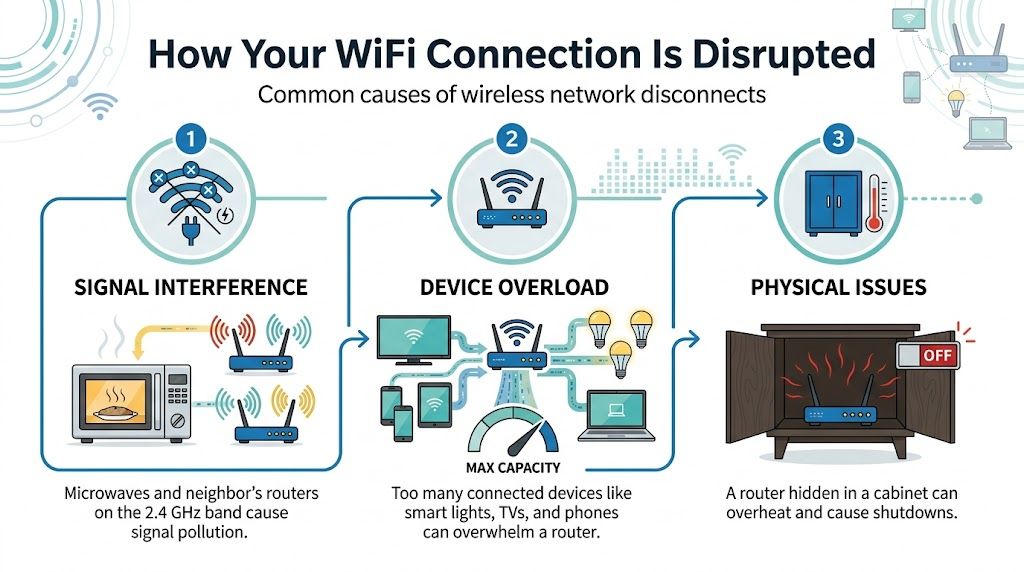
As you can see, interference, too many devices, and physical issues like overheating are the three main areas you can control to get a more stable connection.
Update Your Router's Firmware
A router's firmware is its internal software, its brain. Manufacturers constantly release updates to patch security holes, squash bugs that cause disconnects, and improve overall performance. Running on old firmware is like using an old, unsupported operating system on your phone—you’re just asking for trouble.
The average household in 2026 is juggling over 10 connected devices at any given time, which puts an incredible strain on home networks. This explosion in devices is one of the biggest reasons for disconnection issues today. And while Wi-Fi 6 is now in over 32% of homes, many routers still struggle because their original firmware wasn't designed for such a crowded environment. You can discover more about how device density affects connections from BroadbandNow's guide.
To see if an update is available, you’ll need to log into your router's admin panel. You can usually do this by typing its IP address into a web browser. The login details are almost always printed on a sticker on the router itself. Once you're in, look for a section named "Firmware Update," "Router Update," or something similar, and follow the on-screen prompts to install it.
Uncovering Hidden Issues with Advanced Diagnostics
So, you've tried the usual fixes. You’ve rebooted the router, moved it to a prime location, and made sure the firmware is up to date, but your Wi-Fi connection is still dropping. When the basics don't work, it’s time to start looking for sneakier culprits. Often, the problem lies in a specific device setting or a physical issue with your router that isn’t immediately obvious.
Let’s start with the gear you use every day—your laptop, phone, or tablet. These devices often have their own settings that can sabotage a stable connection, usually in an attempt to save battery life.
One of the most common offenders I see is an aggressive power-saving mode. To conserve energy, your laptop or phone might decide the Wi-Fi adapter isn't essential and put it to sleep. This causes that frustrating cycle where your Wi-Fi disconnects and then reconnects moments later, especially if the device has been sitting idle.
Another tricky, device-specific problem is outdated network drivers. A driver is basically the instruction manual telling your device's hardware how to talk to the software. If that manual is old or corrupted, it can give your Wi-Fi card bad instructions, leading to connection drops that seem to happen for no reason. A quick trip to your device manufacturer’s website to find and install the latest network drivers can often put an end to these phantom drops.
Diving Back into Your Router’s Health
If you've ruled out a single misbehaving device, let's turn our attention back to the router itself. It's time to consider one of the most overlooked causes of intermittent Wi-Fi drops: overheating. This one is tough to diagnose because it doesn’t cause a total failure, just random disconnects that feel completely patternless.
When a router is tucked away in a cramped entertainment center or a dusty corner, it can't breathe. All that heat it generates from managing your network traffic gets trapped. As the internal components get too hot, performance tanks, and you start experiencing those random drops. In serious cases, it can lead to permanent damage. The fix can be as simple as moving the router to an open, well-ventilated spot. For a deeper dive, Speedify’s analysis on thermal throttling is a great read.
If your router feels hot to the touch, that’s a major red flag. Also, pay attention to when it drops. If it happens more often after a long gaming session or a movie marathon, overheating is a very likely suspect. Give it a few inches of clear space on all sides.
The Last Resort: A Factory Reset
When you’ve exhausted every other option and suspect a deep-rooted software glitch is to blame, a factory reset is your final troubleshooting step. This is the "nuke it from orbit" approach—it erases all your custom settings like your network name (SSID), password, and any special configurations, returning the router to its out-of-the-box state.
Because this is a drastic move, you’ll want to do it right.
- Back Up First: Before you do anything, log into your router's admin panel and look for an option to save or back up the configuration. This will save you a massive headache later.
- Press the Button: Find the tiny, recessed reset button on the back of the router. You'll need a paperclip or a SIM tool to press and hold it down for about 10-15 seconds until you see the lights on the front of the router flash.
- Reconfigure and Test: Once the router reboots, you'll need to set up your network again from scratch (or just restore it from that backup file you saved).
A factory reset gives you a completely clean slate, which can clear out stubborn, corrupted settings that a simple reboot just can’t touch. If you’re feeling technical and want to go even further, our guide on using network diagnostic utilities can show you how to analyze your network’s performance in granular detail.
Deciding When to Upgrade Your Router or Service
There comes a point where no amount of tweaking and troubleshooting will solve your Wi-Fi woes. If you’ve exhausted all the fixes and your connection still feels flaky, it’s time to look at the bigger picture. The problem might not be a setting you can change, but the actual hardware or internet plan you're relying on.
Honestly, it's a frustrating spot to be in. But figuring out if you've outgrown your gear is the first real step toward a permanently stable connection.
Your router is the heart of your home network, and just like any other piece of technology, it has a shelf life. An older router—especially one that’s five or more years old—simply wasn't built for the way we use the internet today. It came from an era before every home was packed with smart speakers, 4K TVs, and multiple people on video calls. Trying to make it work is like running 2026 software on a computer from 2015. It just can't keep up.
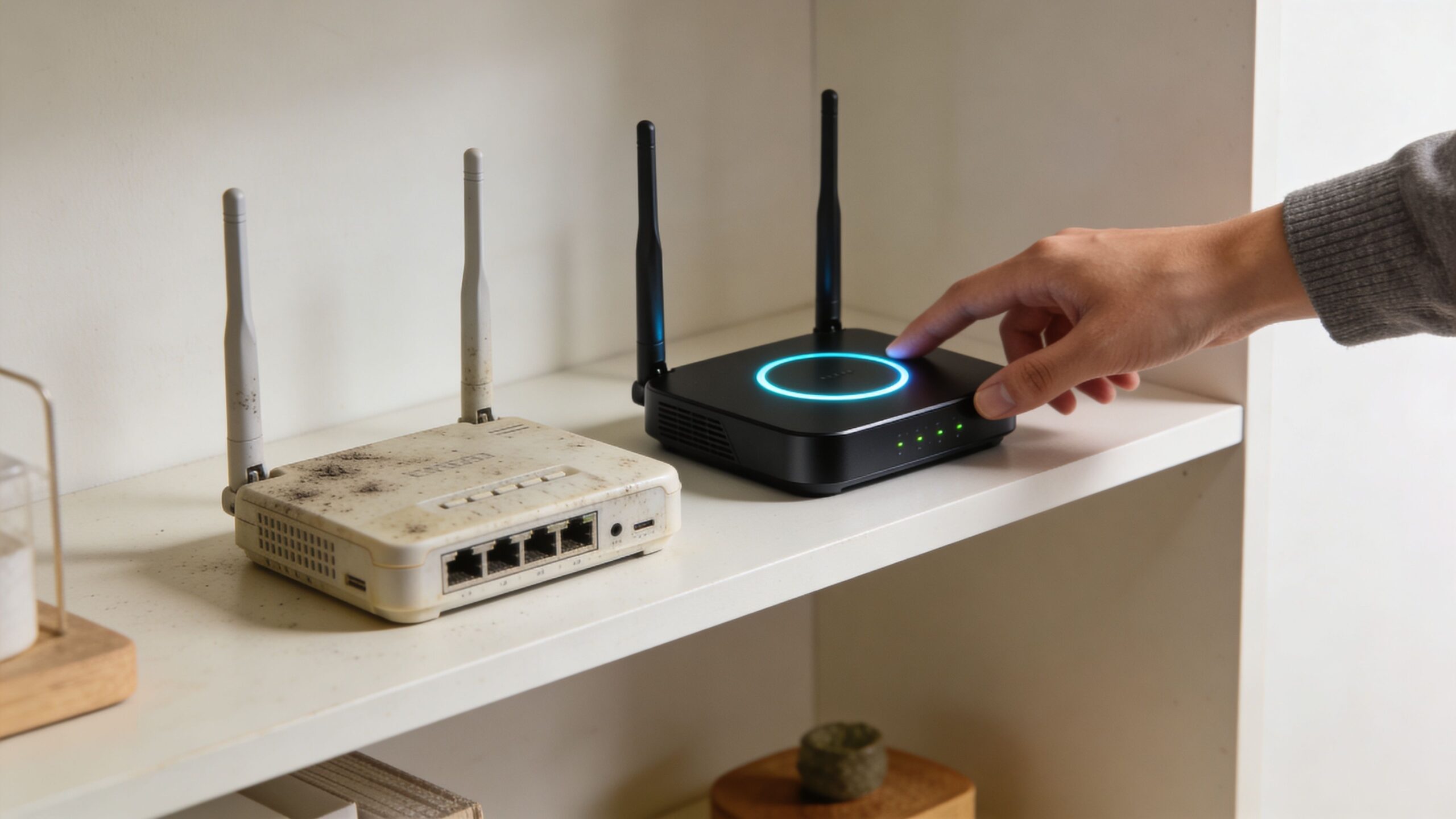
Telltale Signs Your Router Is Outdated
So, how can you tell if your router is the real villain? There are a few dead giveaways that your hardware is what's causing your Wi-Fi to keep disconnecting.
- You need to reboot it constantly. If the "turn it off and on again" trick has become a daily ritual, something is wrong.
- Your Wi-Fi speed is slow, but your plan is fast. You’re paying for high-speed internet, but speed tests over Wi-Fi are disappointingly low.
- The connection dies under pressure. Everything is fine with one person online, but the network buckles the second the kids get home and start streaming or gaming.
- It’s missing key features. Your router doesn't have a 5 GHz network option or doesn't support modern security like WPA3.
I’ve walked into so many homes where a family is at their wit's end with a terrible connection, only to find they're using a router from ten years ago. Swapping it out for a modern Wi-Fi 6 model almost always brings a sigh of relief. It feels like a totally new, faster internet service, even on the exact same plan.
These newer routers are built from the ground up to manage dozens of devices at once and slice through the wireless congestion common in most neighborhoods. It's a massive leap in capability. To really get a feel for the upgrade, check out our guide on the differences between Wi-Fi 5 vs Wi-Fi 6 technology.
When Your Internet Plan Is the Real Bottleneck
Then there's the other side of the coin. Even the best router can't make a slow internet plan fast. Sometimes the issue isn't your equipment at all—it's the data pipeline coming into your home. A bottlenecked plan will absolutely manifest as what feels like a Wi-Fi problem, from endless buffering to random disconnections.
This is a classic issue in a busy household. Think about it: one person is on a work video call, another is streaming a 4K movie, and someone else is downloading a massive game file. A basic internet package just doesn't have enough bandwidth to juggle all that at once. The connection will sputter, struggle to prioritize everything, and may even drop devices.
If you suspect this is your issue, it might be time to shop around. Seeing what else is out there can be eye-opening, whether you're looking for a faster plan or just comparing the cheapest internet plans for home. This is where a high-capacity fiber network can be a game-changer, providing a rock-solid foundation with plenty of speed for everyone.
When your service plan is up to the task and your router can handle the demand, the constant battle ends. Your Wi-Fi just works, and you can finally stop thinking about it.
Common Questions About Wi-Fi Disconnects
Even after you've tried all the usual fixes, it's normal to have some lingering questions. When you're staring down a connection that drops every five minutes, you just want straight answers. Let’s dig into some of the most common questions I get from people who are fed up with their Wi-Fi.
Does a Weak Wi-Fi Signal Cause Disconnections?
Yes, absolutely. A weak signal is probably the number one reason I see for random connection drops.
Think of it like trying to have a conversation in a crowded, noisy room. Your device and your router are trying to talk, but they're on opposite sides. When your laptop is far from the router, or there are thick walls and furniture in the way, that signal gets faint and distorted.
This weak, unstable signal is a prime target for data loss and interference. Your device is straining to "hear" the router, and eventually, it just gives up and loses the connection.
- If you notice drops happen most often in specific spots—like the upstairs bedroom or the garage—a weak signal is the likely culprit.
- Sometimes the connection seems fine, but it drops the second you try to do anything demanding, like stream a movie. That's another classic sign.
The fix for this often isn't a new router, but a way to extend your network's reach. A simple Wi-Fi extender can help, but for a truly seamless experience, a modern mesh network system is the way to go. These systems use multiple access points to blanket your home in a strong, consistent signal, getting rid of those dead zones for good.
Here's an analogy I like: A single router is like one lightbulb in your hallway trying to light up the whole house. Some areas are bright, but the rooms at the end of the hall are dim or dark. A mesh system is like putting a dedicated light in every room, ensuring there are no dark corners.
Could My Internet Provider Be Why My Wi-Fi Disconnects?
It’s possible, but first, we need to figure out if it's a Wi-Fi issue (your local network) or an internet service issue (the connection from your provider). They can feel identical, but the root cause is completely different.
Here’s a simple test I always have people run:
- If only one device is disconnecting while everything else stays online, the problem is almost certainly local. It's an issue with that specific device or its connection to your router.
- If all your devices lose their internet access at the exact same time, the problem is likely with your Internet Service Provider (ISP). You can still see your Wi-Fi network name, but there's no internet behind it.
When it's an ISP problem, it means the internet signal coming into your home has been interrupted. This can happen during a neighborhood outage, scheduled maintenance, or because of a physical issue with the line to your house. Before you spend an hour on the phone, do a quick check of your ISP’s website or social media for any reported outages. It can save you a ton of time.
Why Does My Wi-Fi Disconnect and Reconnect Immediately?
Ah, the "hiccup." This is one of the most frustrating types of disconnections because it’s over in a flash, but it’s just long enough to boot you out of a video call or stop a download.
More often than not, this is caused by a quick blast of radio frequency (RF) interference. Everyday things like a microwave oven, a cordless phone, or even a neighbor’s automatic garage door can send out a burst of radio noise that temporarily jams your Wi-Fi signal. Your device drops, and as soon as the interference is gone, it reconnects.
Another common cause is your router's "auto-channel" setting. Most modern routers try to find the least-congested Wi-Fi channel to operate on. While this is a great feature, the act of switching channels can cause a momentary drop for all connected devices.
Finally, this can be a symptom of an overloaded or overheating router. If you're pushing it too hard, the processor might choke for a split second. That's all it takes to kick your devices off the network before it recovers.
Will Buying a New Router Really Solve My Problem?
It very well could, especially if your current router is more than 3-5 years old. Router technology has advanced by leaps and bounds. An older router just wasn't built to handle a home filled with dozens of smart devices, 4K streaming, and constant Zoom calls.
A new router running a modern standard like Wi-Fi 6 or 6E brings some serious firepower:
- Greater Capacity: It can juggle many more devices at once without breaking a sweat.
- Better Speed: You'll get faster throughput for all your high-bandwidth activities.
- Superior Interference Management: It's much smarter about avoiding interference from your neighbors' networks.
But a new router isn't a silver bullet. It won’t fix an unstable internet connection from your provider or get a signal through a concrete wall. I always recommend going through all the other troubleshooting steps first to make sure your router is actually the bottleneck before you go out and buy a new one.
Tired of troubleshooting and just want Wi-Fi that works? Premier Broadband delivers blazing-fast, ultra-reliable 100% fiber internet designed for the modern connected home. With managed Wi-Fi and expert support, we ensure your connection is always on, so you can stop worrying about disconnects for good. Explore our fiber internet plans today.