
A great optimum router setup is about more than just plugging it in and hoping for the best. Where you put the box and how you lock it down from the start are the real keys.
Think of it like laying the foundation for a house. If you get it right, everything else you build on top will be solid and perform exactly as it should. A few minutes here can save you hours of headaches down the road.
First Things First: Physical Setup and Basic Security
Before we get into the more technical settings, we need to handle the basics. These first steps make the biggest difference between a network that just works and one that works well.
Your router's physical location is probably the single most important factor for good Wi-Fi. I've seen it a hundred times—people stash their router in a closet or behind the TV to keep it out of sight. This is a huge mistake. Wi-Fi signals radiate outwards in every direction, and stuffing the router away just blocks and weakens the signal from the get-go.
Find the Perfect Spot for Your Router
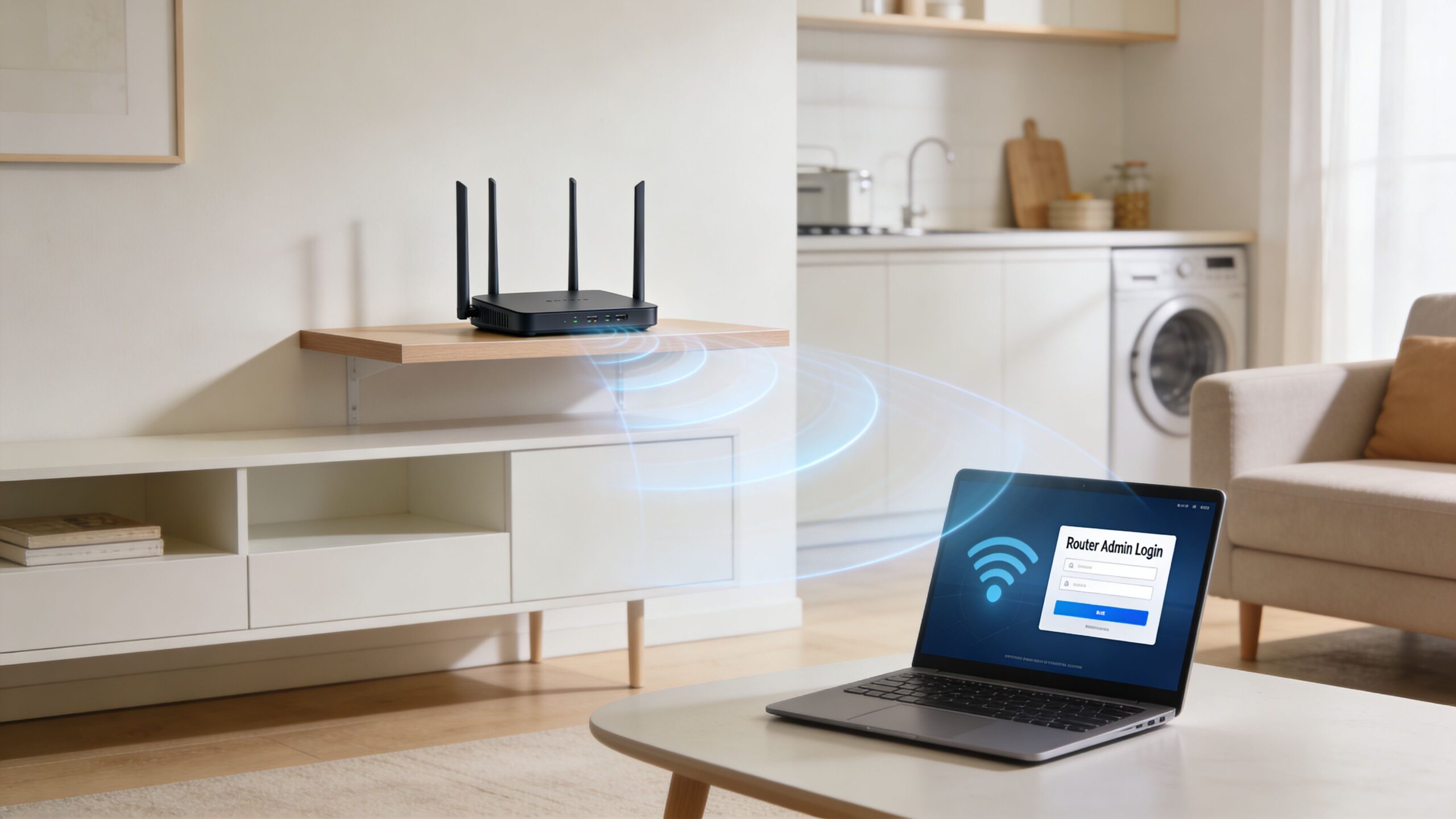
The goal is to get that signal out into the open. For the best coverage, try to place your router in a central spot in your home. It’s also a good idea to get it off the floor—a shelf or table around 3-5 feet high is perfect for helping the signal travel over furniture.
Here are a few quick tips for placement:
- Keep It Out of the Kitchen: Microwaves operate on the same 2.4 GHz frequency as your Wi-Fi. When you're heating up leftovers, you could be killing your connection.
- Avoid Thick Walls: Concrete and brick are Wi-Fi's worst enemies. Even standard drywall weakens the signal. The fewer walls your Wi-Fi has to travel through, the stronger it will be.
- Watch Out for Other Electronics: Cordless phones, baby monitors, and even some Bluetooth speakers can cause interference. Give your router some breathing room.
This table shows just how much common household spots can impact your Wi-Fi.
Router Placement Impact on Signal Strength
| Location | Signal Impact | Best Practice Recommendation |
|---|---|---|
| In a Closet | High | Move to an open area, like a living room shelf, to allow the signal to radiate freely. |
| Behind a TV | Medium | Place the router beside or above the TV, not behind it, to avoid electronic interference. |
| Central, Elevated Shelf | Low | This is the ideal spot. It provides clear, open space for the signal to cover the home evenly. |
| Near a Microwave | High (Intermittent) | Keep the router in a different room from the kitchen to avoid 2.4 GHz frequency conflicts. |
| On the Floor | Medium | Elevate the router at least 3-5 feet off the ground to help the signal travel over obstacles. |
As you can see, a little strategic thinking about where your router lives goes a long way toward a stable connection.
Pro Tip: In a multi-story home? If you need the best signal downstairs, place the router high up on the main floor. If you need it upstairs, a central spot on the top floor usually works best. And if your router has those little adjustable antennas, point one straight up (for horizontal coverage) and one at an angle (for vertical).
Lock Down Your Admin Access and Network Name
Once your router is in a good spot, it's time to secure it. Every router ships with a default username and password (like "admin" and "password") that are common knowledge online. Change them immediately. This is non-negotiable for network security.
You'll also want to change your network's name, known as the SSID (Service Set Identifier). Pick something you'll recognize, but avoid using any personal information. A unique name helps you quickly find your network in a long list of generic names like "NETGEAR52" or "linksys."
Always Keep Your Firmware Updated
Firmware is the built-in software that makes your router run. Manufacturers regularly push out updates with critical security patches, performance boosts, and bug fixes. Most modern routers will update themselves, but it never hurts to log into the admin panel every few months and check manually. A truly optimized setup runs on the latest firmware.
Of course, the physical connection to the router matters, too. Understanding the difference between Cat5 and Cat6 is useful if you plan on wiring up a gaming console or work computer for top-tier speed and stability.
If you're using your own equipment with Premier's Fiber service, we can help put your gateway into a special configuration to play nice with your router. You can read all about it in our guide on what bridge mode is and how it works: https://premierbroadband.com/what-is-bridge-mode-on-my-router-simple-guide-for-2026/
Fine-Tune Your Wi-Fi for Peak Performance
Getting your router in the right spot is half the battle. Now, let’s pop the hood and dive into the wireless settings. This is where we go from a basic setup to a network that’s perfectly tuned for how you actually use the internet.
Think of it like tuning an engine—these small adjustments can make a world of difference in your day-to-day performance.
Your router broadcasts on two main frequencies, or "bands": 2.4 GHz and 5 GHz. Knowing the difference is the key to putting your devices in the right lane for the best experience.
The 2.4 GHz Band: This is your long-distance runner. It has incredible range, punching through walls and covering your whole home with a steady signal. The downside? It's slower and shares its space with everything from microwaves to old cordless phones, so it can get crowded. It’s perfect for smart home devices like thermostats or cameras that need a stable, long-range connection but don't use much data.
The 5 GHz Band: Think of this as the sprinter. It’s significantly faster and deals with way less interference, which is exactly what you want for anything that needs a lot of bandwidth. The trade-off is shorter range; the signal has a harder time with walls and other obstacles. Connect your 4K TV, gaming console, and work computer to this band for the best results.
Uncover the Cleanest Wi-Fi Channels
Imagine Wi-Fi channels are like lanes on a highway. If every router in the neighborhood is stuck in the same lane, you get a traffic jam. That congestion is a major cause of slow speeds and dropped connections.
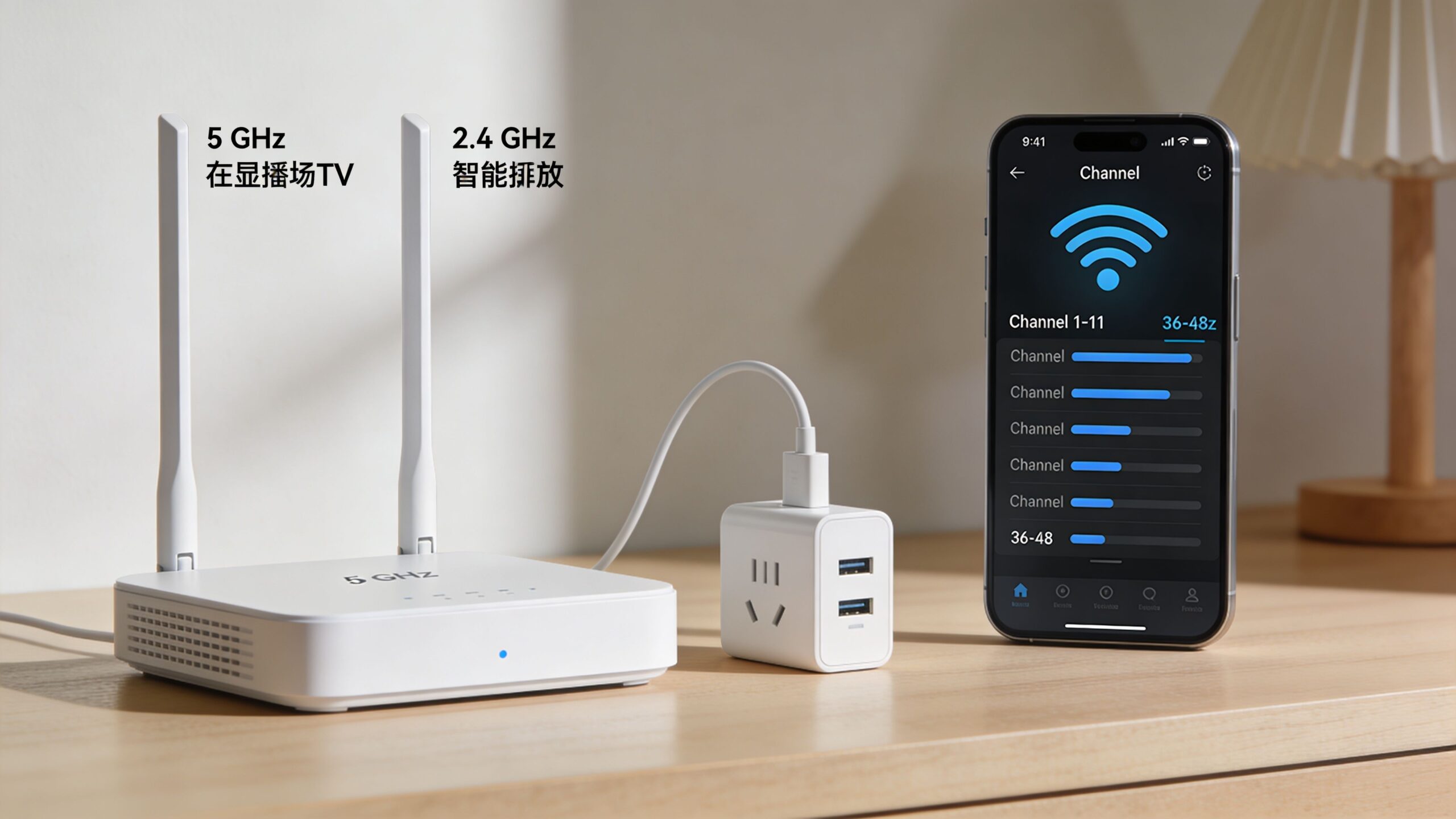
You can easily see what's happening by using a Wi-Fi analyzer app on your phone or computer. These tools scan your surroundings and show you exactly which channels are packed and which are wide open.
For the 2.4 GHz band, you absolutely want to stick to channels 1, 6, or 11. These are the only three that don't overlap and interfere with each other. A quick scan will tell you which of these three is the quietest in your area.
The 5 GHz band, on the other hand, has a lot more non-overlapping channels, making it much easier to find a clean, open lane for your high-speed devices.
I personally use an app called Wi-Fi Analyzer on my Android phone all the time. If you’re on iOS or a computer, tools like NetSpot or AirPort Utility work just as well. Seriously, spending five minutes with one of these can give you a noticeable boost in network stability.
Set the Right Channel Width
Once you’ve found a clean channel, the next tweak is its "width." This is like making the highway lane wider so more data can pass through at once, leading to faster speeds.
You’ll find this setting in your router's admin panel, with options like 20MHz, 40MHz, 80MHz, or even 160MHz.
- For 2.4 GHz: It's almost always best to stick with 20MHz. Using the wider 40MHz option in a crowded area can actually cause more interference and slow you down.
- For 5 GHz: Here’s where you can open the throttle. An 80MHz channel width is the sweet spot for most homes, giving you a fantastic balance of speed and stability. If you're in a place with very little Wi-Fi noise, you can try 160MHz for a speed boost, but be aware it's more sensitive to interference.
To Steer or Not to Steer
Many new routers have a feature called band steering. It’s designed to automatically move your devices between the 2.4 GHz and 5 GHz bands to optimize performance, all under a single Wi-Fi network name (SSID).
When it works, it's brilliant. The problem is, I’ve seen it act up plenty of times, like when it stubbornly keeps a new phone on the slow 2.4 GHz band when it should be on 5 GHz.
Here’s my advice: Give it a shot first. If you find your devices aren't hitting the speeds they're capable of, turn band steering off. Create two separate network names—like "MyHomeWiFi_2.4" and "MyHomeWiFi_5"—and manually connect your devices. It gives you total control.
For more advanced strategies, you can explore other tips in our guide on how to improve home Wi-Fi.
Use QoS to Prioritize Your Network Traffic
Think of your internet connection as a single pipe. Without any rules, it’s a total free-for-all. Your kid’s huge game download, your partner's 4K movie, and your must-not-fail work video call are all shoving each other out of the way to get through.
This is exactly why you get those frustrating buffers, lag spikes, and frozen screens at the worst possible moments.
This is where Quality of Service (QoS) saves the day. QoS is a smart feature in your router that acts like a traffic cop, creating an express lane for your most important data. It lets you tell your network what gets to go first, ensuring your critical tasks always have the bandwidth they need to run smoothly.
For anyone working from home, this is an absolute game-changer. It’s a core part of a truly optimum router setup and the secret to having a professional, glitch-free Zoom call instead of a pixelated, stuttering mess.
How QoS Works in the Real World
Let's paint a picture you’ve probably experienced. You're in your home office, leading a big video conference. At the same exact time, your teenager starts downloading a massive game update, and the smart TV in the living room is streaming a documentary in glorious 4K.
Without QoS, your router sees all this traffic as equal. That giant game file can easily gobble up most of your bandwidth, leaving your work call starved for data. Suddenly, your video freezes and your audio cuts out.
But with QoS enabled, you've already told your router: "My work laptop is Priority #1." The router immediately carves out a protected lane for your laptop, guaranteeing your Zoom call stays perfectly clear, no matter what else is happening. The game might download a little slower, but your meeting goes off without a hitch.
This graphic shows you exactly how QoS thinks about your internet activity, sorting it into different priority lanes.
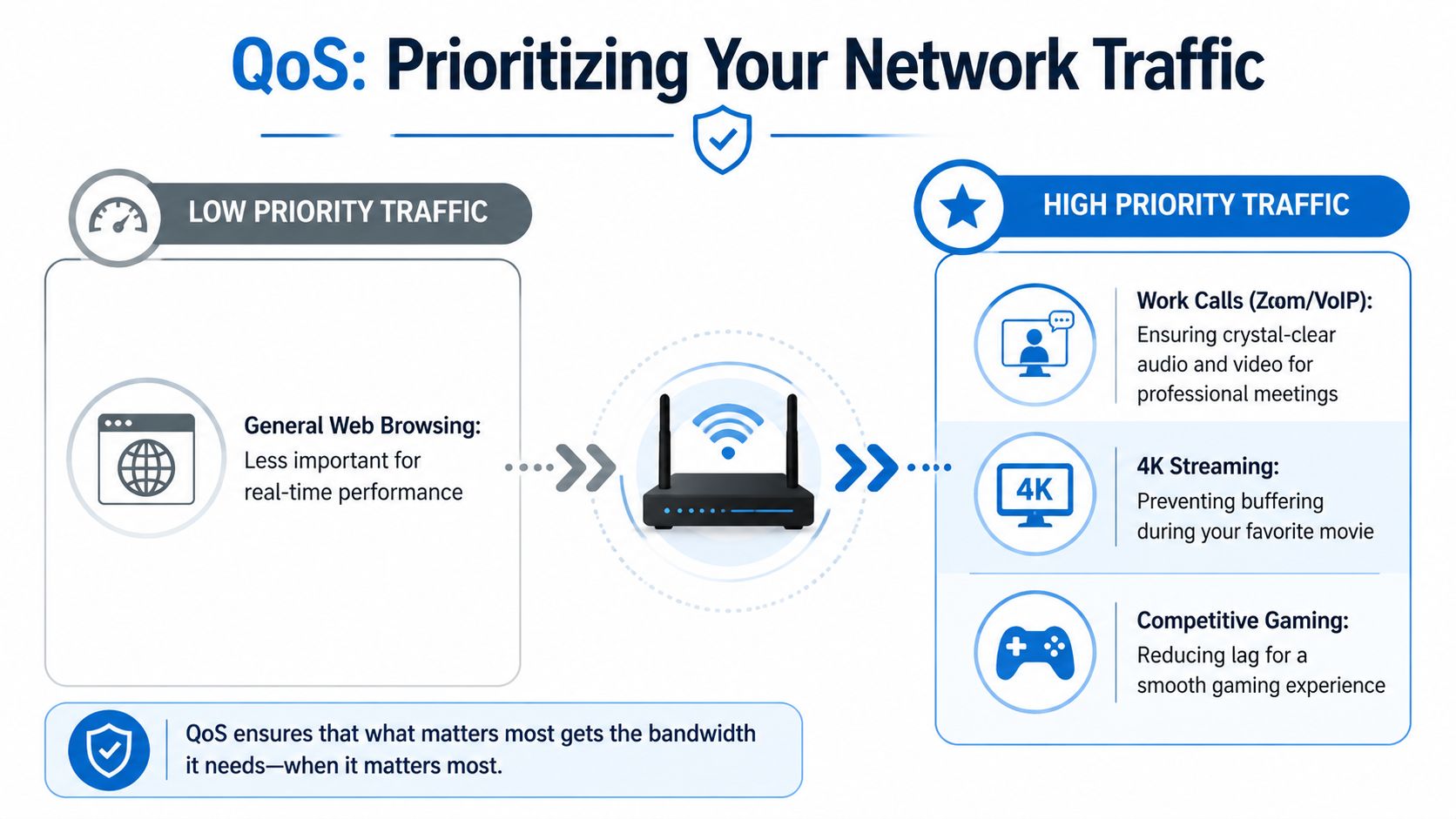
As you can see, things that happen in real-time, like video calls and gaming, need to be at the front of the line. Everything else can wait its turn.
Setting Up Your QoS Rules
Getting to your QoS settings is as simple as logging into your router's admin dashboard. The exact location varies, but you'll almost always find it under a tab labeled "Advanced," "Traffic Control," or just "QoS." From there, you'll have a few ways to manage your traffic.
Prioritize by Device: This is the easiest and most direct approach. Your router will show you a list of everything connected to your Wi-Fi. Just find your work computer, your main TV, or your game console and assign it a "High" priority. It's that simple.
Prioritize by Application: Some routers get more granular, letting you prioritize specific types of traffic. You’ll see presets like "Gaming," "Video Streaming," or "VoIP." If you choose "VoIP," the router will automatically boost services like Zoom and Microsoft Teams for everyone on the network.
Manual Bandwidth Allocation: This is for the power users. Some routers let you set exact upload and download speed limits for every single device. It gives you ultimate control but requires a bit more know-how about your internet plan and what your devices actually need.
For most homes, starting with device-based priority is the way to go. It’s incredibly easy and solves the vast majority of network congestion problems. Just flagging your main work machine and living room TV as High priority fixes over 90% of common household slowdowns.
Top Activities to Prioritize
When you're setting up QoS, not all traffic is the same. You want to give the express lane to the activities that are most sensitive to delays and disruptions. Even a tiny interruption can ruin the experience for these.
- VoIP and Video Conferencing: If you work from home, this is your #1. Smooth video and clear audio are non-negotiable for looking and sounding professional.
- Competitive Online Gaming: Every millisecond counts. Prioritizing your PS5, Xbox, or gaming PC gives you the lowest possible ping, cutting down on lag and giving you a real advantage.
- 4K/8K Video Streaming: That beautiful high-resolution picture uses a ton of data. Giving your streaming device (like an Apple TV or Roku) priority is the best way to kill the buffering wheel for good.
By using QoS to manage your network traffic, you’re turning your internet from a chaotic free-for-all into a smart, efficient system. It’s the final piece of the puzzle for a truly optimum router setup, ensuring the things that matter most to you always get the performance they deserve.
Expand Coverage With Mesh Wi-Fi or a Wired Backhaul
Even the best optimum router setup runs into the laws of physics eventually. If you live in a large, multi-story home or have a layout with signal-killing materials like brick and plaster, a single router is going to leave you with dead zones. It’s just a fact.
If you’re constantly losing your signal in the master bedroom or can’t stream music on the back patio, it’s time to stop fighting and expand your network.
For years, the only real option was a Wi-Fi extender. These little boxes catch your router's signal and rebroadcast it. While simple, they have a huge flaw: they slash your available speed by 50% or more and create a second, clunky network that you have to manually switch to.
There's a much, much better way to fix this in 2026.
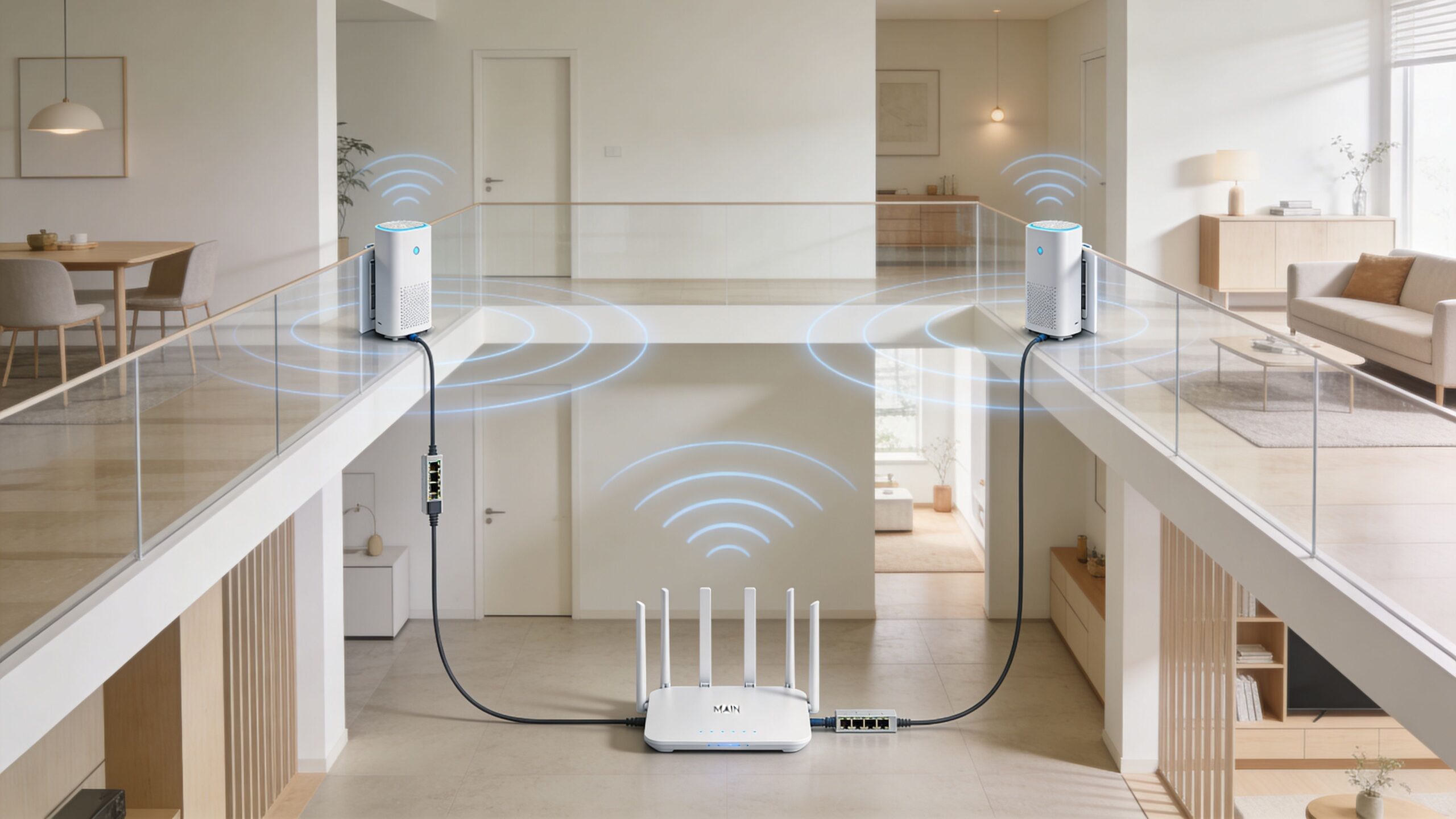
Embrace the Power of Mesh Wi-Fi
Mesh Wi-Fi systems were built from the ground up to kill dead zones without killing your speed. Instead of one router trying to do it all, a mesh system uses several access points, or "nodes," that you place around your home.
These nodes work together as a single, intelligent team, blanketing your entire property in one seamless Wi-Fi network. You can walk from the basement to the attic while on a video call, and your phone will instantly hand off to the strongest node without you ever noticing.
- One Unified Network: No more jumping between "MyWiFi" and "MyWiFi_EXT." You get one network name, everywhere.
- Intelligent Routing: Unlike clunky extenders, mesh nodes are smart. They automatically find the fastest, clearest path for your data to get back to the internet.
- Minimal Speed Loss: While any wireless link has some overhead, the performance loss with mesh is tiny compared to an old-school extender. You keep way more of the speed you pay for.
For a complete walkthrough, our guide on how to set up mesh Wi-Fi will get you up and running.
Achieve Ultimate Performance With a Wired Backhaul
For those who refuse to compromise on speed—especially in massive homes or for anyone with a gigabit connection—a wired backhaul is the gold standard.
This just means you’re connecting your mesh nodes back to the main router with Ethernet cables instead of wirelessly.
A wired backhaul frees up the entire wireless spectrum on each node to serve your devices. It completely eliminates the speed penalty of a wireless mesh system, guaranteeing every node delivers the full speed of your internet plan. Think of it as giving each access point its own private superhighway to the internet.
If you're building a new home or already have Ethernet jacks in the walls, this is a no-brainer. It’s the secret to a flawless, high-performance network that just works.
Consider a Managed Solution for Simplicity
Of course, if you'd rather not deal with buying and setting up your own gear, a managed Wi-Fi solution is the way to go. Here at Premier Broadband, and with many other providers, you can get a service that provides all the equipment and expertise needed to guarantee whole-home coverage. No fuss, no configuration headaches.
For example, many providers offer whole-home Wi-Fi packages that include extra mesh extenders for a small monthly fee, giving you a simple path to a stronger network. You can learn more about these kinds of internet provider options and pricing structures from NetSpot. It’s a great, hassle-free alternative for making sure every corner of your home gets a strong, reliable connection.
Secure Your Home Network Against Common Threats
A fast network is great, but a secure one is non-negotiable. Once you’ve dialed in the physical placement and optimized your settings, it's time to lock things down. A proper optimum router setup isn't complete until you’ve hardened your defenses to protect your family and your data.
These steps aren't just about having a password; they're about creating layers of security that make your home network a much tougher target for intruders. To really understand what you're up against, it helps to know about the common types of cyberattacks that are out there.
Enable the Strongest Wi-Fi Encryption
The security protocol on your router is what scrambles your Wi-Fi signal, making it unreadable to anyone trying to eavesdrop. For a long time, WPA2 was the go-to, but it's time for an upgrade if your gear supports it.
You should absolutely be using WPA3. It's the new standard and offers much better protection against password-cracking attempts, making it way harder for someone to force their way onto your network. It’s usually just a simple toggle in your router’s wireless security menu, and it provides a massive security boost.
Create a Separate Guest Network
Your main network connects to all your personal devices—laptops with work documents, phones with banking apps, and so on. When you have company over and they ask for the Wi-Fi password, giving them access to that main network can expose everything.
This is exactly why a guest network is one of the smartest things you can set up. It’s a completely separate network with its own name and password. It gives visitors internet access but keeps them totally isolated from your private devices and files.
Think of it like a guest house. Your visitors get a comfortable place to hang out, but they don't get the keys to your main home. It's a must-have feature.
Disable WPS for a Safer Connection
Wi-Fi Protected Setup (WPS) was created for convenience, letting you connect devices with just a button push. As easy as it is, it's also a well-known security flaw that attackers can exploit to get on your network, completely bypassing your password.
Just turn it off. Unless you have a specific device that absolutely requires it, head into your router’s settings and disable WPS. Manually typing in a password is a small price to pay for closing such a big security hole.
Finally, don't forget the basics: your password itself. Steer clear of obvious things like birthdays or street names. A long phrase or a random mix of letters, numbers, and symbols is your best bet—something you can remember but that's a nightmare for anyone else to guess.
For an even deeper dive, check out our guide on how to secure a home network. Premier Broadband customers can also use the built-in security features that come with our service for an extra layer of protection.
Test Your New Setup and Troubleshoot Issues
You’ve put in the work to configure your router. So, what’s the payoff? The only way to know for sure is to put your network to the test.
This isn’t just about seeing a big speed number on a screen. It's about understanding what that number means for your daily streaming, gaming, and work. A good testing routine turns guesswork into hard data and is the final piece of the puzzle for a truly optimized router setup.
How to Properly Test Your Network Speed
Running a speed test is the quickest way to get a snapshot of your network’s health. Any trustworthy tool will give you three core metrics that really matter.
- Download Speed: This is how fast your devices can grab data from the internet. It's the most important number for streaming movies in 4K or downloading large game files.
- Upload Speed: This measures how quickly you can push data out to the internet. If you’re on a lot of video calls, uploading big files, or into competitive gaming, a strong upload speed is non-negotiable.
- Ping (or Latency): Measured in milliseconds (ms), this is your connection’s reaction time. For anything real-time, like online gaming or VoIP calls, a low ping is what separates a smooth experience from a frustrating one.
Here’s my advice: always run your first test from a computer plugged directly into the router with an Ethernet cable. That gives you a clean baseline of the speed you're actually getting from us. From there, you can test your Wi-Fi in different spots around your home to see how well your wireless signal holds up.
For our fiber customers chasing absolute peak performance, a wired connection will always beat wireless. To really unlock those multi-gig speeds, you'll want to invest in CAT 6 or higher Ethernet cables and network switches with 10Gb ports. On the wireless side, your devices need to support WiFi 6 or newer standards—think iPhone 11, Samsung S10, and later models. You can learn more about getting the most from your fiber connection from Optimum.
A Simple Troubleshooting Checklist
Even a perfectly tuned network can hit a snag. If you’re suddenly dealing with slow speeds, constant buffering, or random disconnects, don't worry. Before you get frustrated, walk through these steps to track down and fix the most common issues.
1. Power Cycle Your Gear the Right Way
Just pulling the plug and immediately plugging it back in doesn't always cut it. A proper power cycle lets the internal components fully reset and grab a fresh connection.
- First, unplug both your modem and your router from their power sources.
- Wait for a full 60 seconds. This is the key—it gives the internal capacitors time to fully discharge and clear any lingering glitches.
- Plug your modem back in first. Wait for all the status lights to turn solid green or blue before doing anything else.
- Now, plug your router back in and give it a few minutes to boot up completely.
2. Check for Overheating
Your router is essentially a tiny computer, and it generates heat. If it feels overly warm, it may be throttling its own performance to avoid damage. Make sure it has plenty of breathing room and isn't tucked away in a cramped cabinet or covered by books or papers.
3. Look for IP Address Conflicts
This little-known issue happens when two devices on your network are accidentally assigned the same IP address. It’s like two houses on the same street having the same house number—the mail gets confused. This can cause one or both devices to lose their connection. Luckily, a simple reboot of your router and the devices in question usually fixes this by forcing them to ask for new, unique addresses.
Answers to Your Top Router Setup Questions
Even after you’ve followed all the steps for a great setup, questions always pop up. Over the years, I've heard just about every one of them. Here are my answers to the most common things people ask when trying to get the most out of their home network.
These aren't just textbook answers; they come from countless hours of hands-on troubleshooting. Sometimes, the "right" choice really just depends on your home and how you use your internet.
Should I Use a Separate Modem and Router or a Combo Unit?
This one’s easy. While all-in-one modem/router combos seem convenient, I almost always tell people to use separate devices.
A dedicated, high-quality router will nearly always give you better performance, more features, and more frequent security updates from the manufacturer. It has one job to do, and it does it exceptionally well.
For Premier Broadband fiber customers, this choice is already made for you. The box we install, called an Optical Network Terminal (ONT), handles the "modem" side of things. You'll just connect your own router to it with an Ethernet cable.
How Often Should I Really Reboot My Router?
Think of a router reboot as a quick power nap. It clears out the device's temporary memory (RAM) and can instantly fix those weird, unexplained slowdowns or glitches. Scheduling a weekly reboot is a fantastic habit to keep things running smoothly.
But if you find yourself rebooting it daily just to keep a connection, that’s a major red flag. It usually points to a deeper issue like failing hardware, old firmware, or a bad setting that’s causing problems.
Will Buying a New Router Actually Make My Internet Faster?
I get this question all the time. A new router can't increase the speed of the internet plan you pay for, but it absolutely can help you use more of that speed. An old, outdated router is one of the most common bottlenecks I see, especially on super-fast fiber plans.
Upgrading to a modern router with Wi-Fi 6 or Wi-Fi 6E technology can deliver:
- Significantly faster Wi-Fi speeds to your compatible devices like new phones, laptops, and smart TVs.
- Better coverage that reaches more corners of your home, stamping out dead spots.
- Improved capacity to handle dozens of connected gadgets at once without grinding to a halt.
If your router is more than a few years old, a new one is one of the best investments you can make for your home network.
At Premier Broadband, we're committed to giving you the fastest, most reliable connection possible. Our 100% fiber network provides the foundation for an incredible online experience. Learn more about our residential and business plans at https://premierbroadband.com.