
You're moving into a new home, your current connection keeps dropping, or your family has outgrown the old plan. The obvious first question is simple: can broadband be ordered at this exact address? A city-level coverage map won't answer that. A proper broadband availability checker gets much closer, but its result still needs interpretation before you sign a contract.
The right way to use one is to treat it as a four-tier evidence system, not a green-or-red box. First confirm the address, then identify what the result proves, test the provider's live order path, and finally check whether the connection will suit your home. That process separates “serviceable” from “works well here.”
Why a Broadband Availability Checker Matters Before You Sign Up
A new homeowner might see fiber installed outside a neighbor's property and assume the same service is ready at the house next door. They enter the address, select the suggested property, and discover that the checker shows a different technology, a construction requirement, or no service at all. That result can feel wrong, but broadband networks often change at the property line.
Address-level verification prevents the most expensive broadband mistake: signing up based on a broad coverage claim, then learning that the provider can't complete the installation. The U.S. Federal Communications Commission moved its National Broadband Map from census-block reporting to location-based mapping in November 2022. The map identifies more than 114 million locations where fixed broadband could be installed, compared with earlier maps based on 8.1 million census blocks. The FCC also says more than 8.3 million homes and businesses still lack high-speed broadband, which shows why broad regional maps aren't enough for an individual buyer. The FCC's consumer guidance explains how its National Broadband Map works.
Why nearby homes can get different answers
A provider may have a network running along a street without having activated every property. A building may need a separate connection, a unit number may be missing from the database, or the provider may still be updating records after construction. Those details explain why two adjacent homes can receive different answers.
Ofcom's official UK checker lets users view broadband services present at a location, including standard, superfast, and ultrafast options. Its page says the checker was published on 17 August 2022 and updated on 25 June 2025, while the checker itself says its data is refreshed twice a year. That creates a measurable lag between a real network buildout and what a customer sees online. Read Ofcom's coverage and speeds guidance.
Practical rule: Treat the checker as a database lookup, not a guarantee of installation or in-home performance.
Use it before comparing prices, choosing a contract, or cancelling your existing service. The quality of the answer depends on the provider data behind it, so a positive result should lead to a live serviceability confirmation.
Running Your Address Through a Broadband Availability Checker
Start with the provider's official checker or a public tool such as the FCC National Broadband Map or Ofcom's checker, depending on your location. Enter the full street address, not only the town, city, ZIP code, or postcode.
A reliable process looks like this:
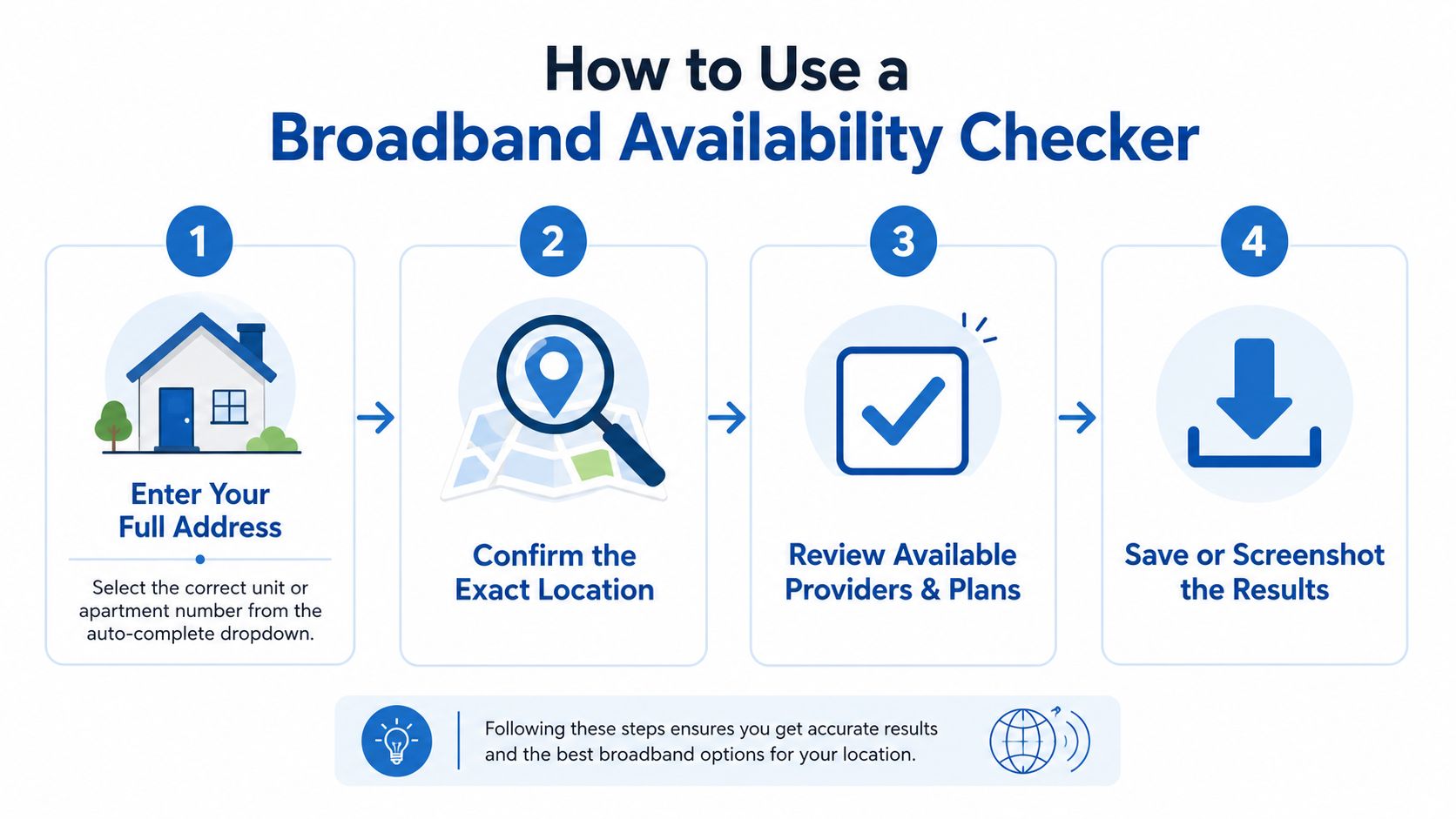
- Enter the complete address. Include the building number, street name, town, and postal details. For an apartment, condo, or multi-unit building, add the unit number if the form requests it.
- Use the auto-complete list carefully. Select the entry that matches the property you want to connect. Don't choose a similar street name because it appears first.
- Confirm the resolved location. The checker should show the address it found before presenting providers or plans. Stop if the displayed property is wrong.
- Review the result and technology. Look for fiber, cable, DSL, fixed wireless, satellite, or mobile-based options. Don't assume every listed provider offers the same installation conditions.
- Test the order path. A provider should be able to take you from the address result to an actual plan, order, or installation workflow.
Fixing common input errors
“No results found” often means the address format doesn't match the checker's database. Try the official postal format, remove unnecessary punctuation, or search without the unit number and then add it during the confirmation stage. For a property with multiple entrances, verify the lot, building, or unit details with the provider.
You can also use a local fiber availability map as a comparison point, but don't treat any map as final proof until the provider confirms that your exact location can be ordered.
Save the result immediately. A screenshot showing the address, available technology, plan information, and date gives you evidence if the provider later returns a different answer.
What Each Result Type Actually Means
A checker result describes the provider's current service record. It doesn't automatically describe installation speed, final performance, or whether the listed plan is available without additional work.
The four common outcomes
Serviceable now means the provider's records show that the address can be ordered. You should see one or more plans and a route toward checkout or installation scheduling. Confirm the exact technology, upload speed, equipment terms, and installation requirements before paying or accepting a contract.
Serviceable with construction means the provider may be able to connect the property, but additional outside or on-property work is required. That can involve a new drop, building access, permissions, or other construction steps. Ask who handles the work, whether an appointment can be scheduled, and what could delay activation.
Coming soon indicates planned or pending availability, not a guaranteed date. The network may be nearby, construction may be incomplete, or the provider may still need to activate the address in its ordering system. Join the notification list if offered, then re-check rather than relying on the label.
Not available means the checker can't currently offer that service at the submitted address. It doesn't prove that no broadband exists, or that the address will never qualify for another technology. Check competing providers and ask about fixed wireless, LTE home internet, or satellite.
| Result | What It Means | Realistic Next Step |
|---|---|---|
| Serviceable now | The address can generally proceed to plan selection or ordering. | Confirm plan details and complete live serviceability validation. |
| Serviceable with construction | Extra work or approval is needed before activation. | Ask for the construction process, requirements, and scheduling path. |
| Coming soon | The provider expects future availability, but ordering may not be open. | Register interest and re-check the address periodically. |
| Not available | The selected service isn't currently orderable at that address. | Compare other technologies and challenge the result if evidence conflicts. |
Screenshot every result, including the date. Provider records change, and support agents can investigate faster when you can show exactly what the checker displayed.
Why a Serviceable Result Is Not the Whole Story
A serviceable result answers one narrow question: does the provider record show a service at this location? It doesn't answer whether the connection will perform well in the back bedroom, handle several simultaneous video calls, or maintain a stable experience during busy periods.
Ofcom makes this limitation explicit. Its broadband checker shows services present at a location, while its mobile guidance warns that reception can vary locally and may not match what users receive on the ground. Ofcom also says the checker can't show maintenance or reported issues in an area. Review Ofcom's broader coverage and speeds information.
Ask three questions before you commit
Are the upload speeds strong enough? Download speed gets the attention, but remote work, cloud backups, livestreaming, and large file transfers depend heavily on upload capacity. Fiber plans commonly make upload performance a central advantage, but you still need to inspect the specific plan rather than assume.
What does the latency experience look like? A fast download test won't tell you how responsive gaming, voice calls, or interactive work will feel. Ask the provider what technology serves the property and whether congestion or capacity limits affect the service.
How will Wi-Fi reach the home? The checker can't see your floor plan, wall materials, router position, or dead zones. A strong wired connection at the entry point can still produce weak Wi-Fi upstairs or at the far end of the house.
A provider can mark your address serviceable while your home still needs careful router placement, wired connections, or managed Wi-Fi to perform properly.
Treat serviceability as tier two evidence, not the finish line. Confirm the plan, then assess the connection inside the property.
Alternatives When Fiber Is Not Available at Your Address
A “not available” or “coming soon” result doesn't end the search. It changes the decision from selecting fiber to choosing the least damaging compromise for your household's actual workload.
Fixed wireless access uses a radio link between the property and a nearby tower or access point. It can suit homes outside a wired footprint, particularly when the provider has a clear path to the premises. Weather, terrain, tower capacity, and installation position can affect the experience, so ask how the provider verifies signal quality and whether the service includes a data policy.
LTE home internet uses a cellular network and can be deployed without a wired line to the home. It's useful when you need service now and mobile coverage is dependable, but network congestion, indoor signal strength, and data caps can make it a poor fit for heavy uploads or a household with many connected devices.
Satellite internet reaches places where terrestrial networks don't. Its broad reach makes it a serious option for remote properties, but higher latency can interfere with fast-paced gaming, interactive work, and some video calls. Weather and equipment placement also deserve attention.
Match the alternative to the household
- Fixed wireless: Consider it when a nearby tower can deliver a stable signal and your main needs are browsing, streaming, and ordinary work calls.
- LTE home internet: Choose it for flexibility or temporary service, but read the data terms before using it for frequent backups, gaming downloads, or multiple 4K streams.
- Satellite: Use it when wired and terrestrial wireless choices don't reach the property, while accepting the latency trade-off.
Where fiber is buildable, use it as the preferred long-term route for symmetrical capacity and demanding home use. Where it isn't, fixed wireless internet can provide another path, but verify live serviceability and installation conditions before ordering.
Troubleshooting Mismatches and Stale Data
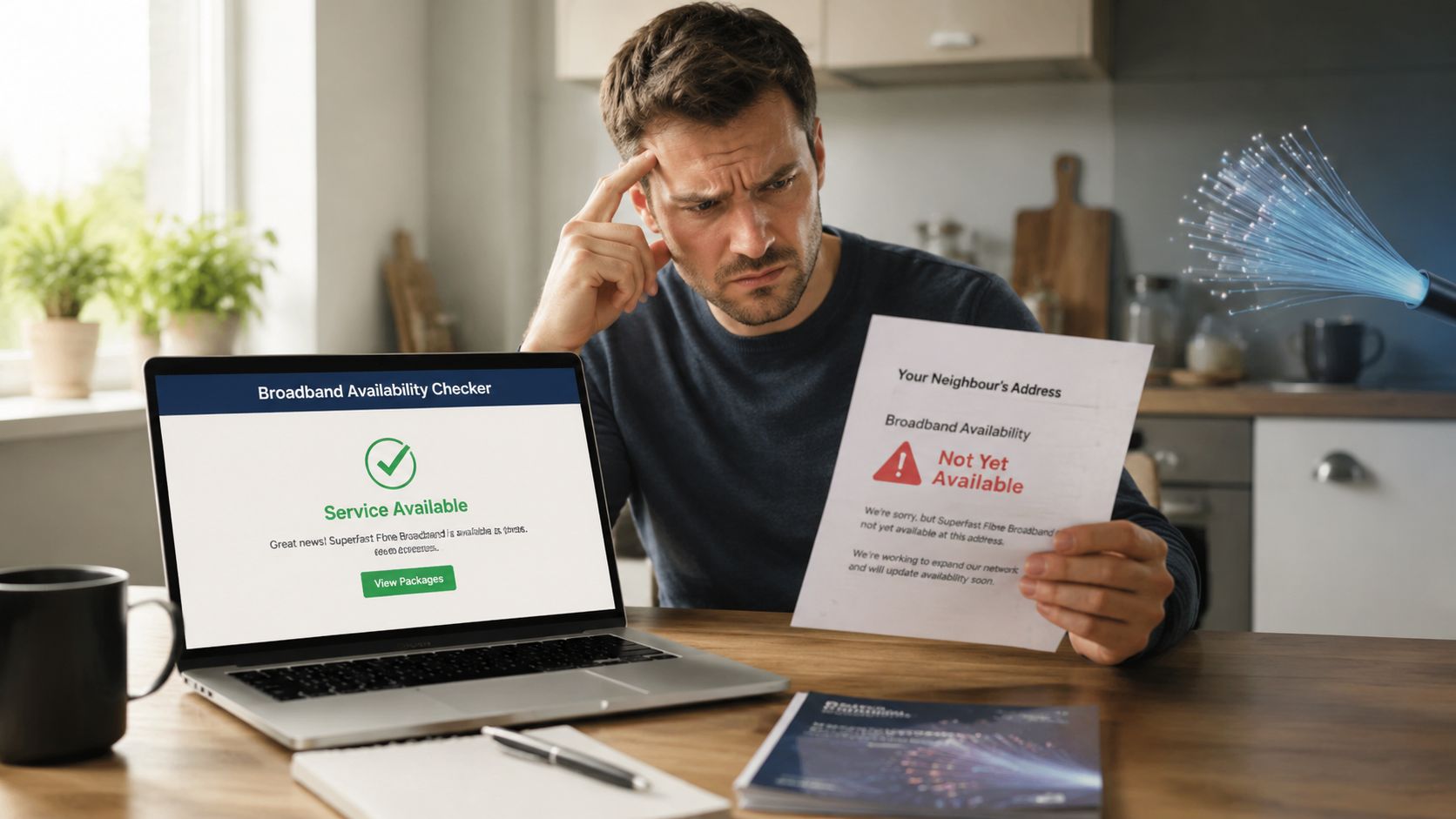
Your neighbor has fiber, construction crews have worked nearby, and your broadband availability checker still says “not available.” That mismatch is common enough to deserve a process, not a shrug.
Provider databases can lag behind physical network changes. Ofcom says its checker data refreshes twice a year, so a newly completed build may not appear immediately. Public maps also rely on provider-reported information, which means they can overstate or understate what a household can order.
An independent audit using 109,473 ISP-address tests found that the measured number of people with access to at least one 100/20 Mbps service was about 26.0 million lower than the FCC baseline, representing a 33% under-count in the opposite direction of the public map's optimism about service reach. The audit counted an address as served only when a live checker marked it serviceable and exposed an actual purchase path. Read the BroadbandNow audit methodology and findings.
Use this recovery playbook
- Repeat the address search. Try the official format, include the unit number, and confirm the resolved property.
- Check the provider directly. Ask the agent to run a live serviceability check, not a general postcode or neighborhood lookup.
- Request the reason. Ask whether the issue is missing records, construction, permissions, a port limitation, or a genuine footprint boundary.
- Keep evidence. Save screenshots, provider emails, and installation references.
- Re-check periodically. A “coming soon” address deserves another lookup as the network and database change.
- Challenge incorrect FCC data. U.S. customers can use the FCC's dispute process when the National Broadband Map shows inaccurate availability.
Address validation can also matter before an installation order is accepted. For properties where emergency location records need confirmation, review 911 address verification with the provider.
The video below provides additional context for checking broadband availability and interpreting conflicting results.
Signing Up and Getting Installed With Premier Broadband
Once the address shows a live, orderable result, don't rush straight to checkout. Match the plan to the household first. A remote worker may prioritize dependable uploads and video calls, while a gaming household may care more about latency and wired Ethernet access. Families should also ask how the provider handles whole-home Wi-Fi rather than judging the plan by download speed alone.
Confirm four details before you place the order:
- Plan fit: Check download and upload performance, data terms, contract conditions, and the standard price after any promotion.
- Equipment: Ask which router or network equipment is included, whether managed Wi-Fi is available, and what remains yours after installation.
- Property access: Have the complete address, unit or lot number, account details, and any landlord or property-manager approval ready.
- Installation route: Confirm the appointment process, the work required at the property, and what the technician needs to access.
Premier Broadband offers fiber and LTE internet options, address-based service checks, managed Wi-Fi through Premier Protects, and a Premier Protection Plan covering eligible equipment repairs and relocations caused by events such as storms, pets, or home projects. Use the provider's fiber internet installation process to prepare for the visit, and compare it with this practical AT&T fiber setup guide from Simply Tech Today if you want another installation reference.
Visit Premier Broadband and run your exact address through the availability flow before choosing a plan. If fiber isn't ready, compare the available LTE option, confirm installation requirements directly, and choose the connection that matches how your household works, streams, calls, and plays.